




Here's how it works
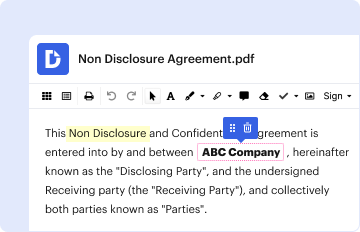
01. Edit your unclaimed money florida deceased online
Type text, add images, blackout confidential details, add comments, highlights and more.
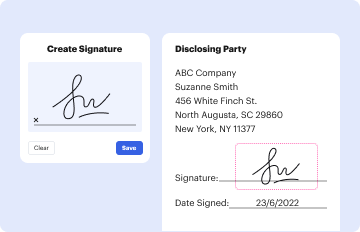
02. Sign it in a few clicks
Draw your signature, type it, upload its image, or use your mobile device as a signature pad.
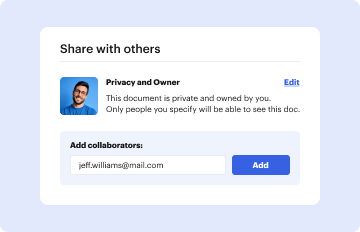
03. Share your form with others
Send florida unclaimed property claim form via email, link, or fax. You can also download it, export it or print it out.
How to use or fill out Florida claimed with our platform

- Click ‘Get Form’ to open the Florida claimed document in the editor.
- Begin by entering the Customer's Name in Column 1. This should be the name of each customer from whom you repossessed tangible personal property.
- In Column 2, provide a detailed Description of Property. For vehicles, include year, make, model number, and VIN.
- Enter the Date Tax and Surtax Paid in Column 3. This is when you paid sales tax to the Florida Department of Revenue for each item.
- Fill in Column 4 with the Amount of Tax and Surtax Paid for each item listed.
- In Column 5, input the Amount of Purchase Price Less Trade-In, excluding any nontaxable charges.
- Column 6 requires you to enter the Amount of Purchase Price Less Trade-In and Cash Down Payment for each item.
- For Column 7, indicate the Number of Payments Due Under Financing Agreement for each item listed.
- Calculate and enter the Prorated Payment Amount in Column 8 by dividing Column 6 by Column 7.
- In Column 9, calculate the Rate Factor by dividing Column 4 by Column 5 and enter it accordingly.
- Column 10 requires you to determine Total Number of Payments Remaining based on your calculations.
- Finally, compute the Amount of Tax Credit or Tax Refund in Column 11 using Columns 8, 9, and 10.
Start using our platform today to streamline your form completion process for free!
Fill out florida claimed online
It's free
Security and compliance
At DocHub, your data security is our priority. We follow HIPAA, SOC2, GDPR, and other standards, so you can work on your documents with confidence.
Learn more


