
Edit existing PDF text without workarounds
Edit text directly in your PDF while keeping formatting and layout intact. No overlays, white boxes, or workarounds. AI-powered text actions help you make changes even faster.
Aug 6th, 2022

0
forms filled out

0
forms signed

0
forms sent
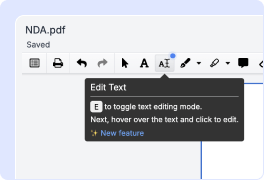
1. Upload a PDF with existing text, open it in the editor, and select the editing tool from the toolbar.
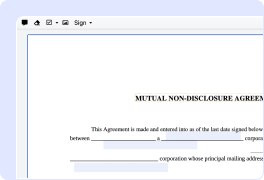
2. Hover over any text and it will highlight in yellow to show it’s editable, and the font will be detected automatically.
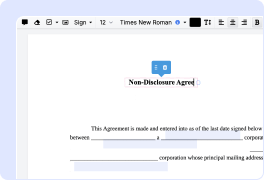
3. Modify, replace, or remove text as needed. If the original font isn’t supported, it will be replaced with the closest visual match.
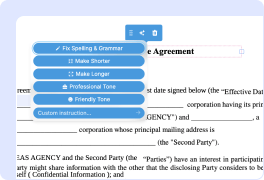
4. Choose AI text actions to fix spelling and grammar, change text length or tone, or add your own instructions.
Experience seamless PDF text editing
Direct text editing
Click into existing text to fix typos, update wording, or change dates — no need to cover it up and retype on top.
Consistent formatting
Edit Text automatically matches the original font, size, and color, so your edits blend in seamlessly.
Smart text reflow
As you add or remove text, the layout adjusts automatically to keep everything properly aligned.
AI-powered text editing
Refine text with a click. Fix spelling and grammar, adjust text length or tone, or tell AI exactly what changes you want, all directly in your PDF.
Watch how easy it is to edit PDF text directly

Get PDFs done faster and easier than ever

Edit PDFs from anywhere
DocHub’s editing tools make it easy to keep work moving wherever you are. Add or modify text, insert images, leave comments, highlight key content, redact sensitive information, and underline or strike through text with ease. Rearrange, add, or delete pages, or merge PDFs to create polished documents.

Get documents signed online
Close deals faster without chasing signatures or dealing with paperwork. Sign contracts and agreements in seconds, or send them for legally binding eSignature. With real-time notifications and a detailed audit trail, you’ll always know the status of your documents.

Collect data with ease
Eliminate manual steps from your data collection process. Publish fillable forms online for quick completion on any device. Turn your repeat documents into reusable templates to save time and let recipients fill out their own copies in minutes.

Simplify document sharing
Share PDFs via public or private links and let others review, edit, or complete them online. For faster approvals, send documents with role-based permissions. You can also share documents via email or fax.

Work seamlessly in Google apps
DocHub integrates with your favorite Google Workspace apps, letting you import, edit, sign, and save documents directly from Google Drive, Gmail, Google Classroom, or Chrome without any back-and-forth.

Use DocHub on any device
Stay productive on the go. DocHub works just as smoothly on mobile as it does on desktop. With DocHub’s mobile and web apps, you can edit, annotate, and sign documents from your smartphone or tablet.






Drive efficiency with the DocHub add-on for Google Workspace
Access documents and edit, sign, and share them straight from your favorite Google Apps.
Install now
Got questions?
Here are some common questions from our customers that may provide you with the answer you're looking for. If you can't find an answer to your question, please don't hesitate to reach out to us.
Contact us
Can I edit existing text in a PDF?
Yes. DocHub's Edit Text tool changes the actual text in your PDF instead of covering it with an overlay. Click any text block, type your correction, and the surrounding text reflows to fit your changes.
Why can't I edit the text in my PDF?
The most common reason is that the PDF is a scanned image — the "text" is a picture, not real characters, so no editor can select it. DocHub's Edit Text works on text-based PDFs; scanned or rasterized pages can still be annotated with the standard DocHub tools.
Will my edits match the original font?
DocHub detects the font, size, and color of the text you click and matches your edit automatically, drawing on a library of roughly 1,800 fonts. If a document uses a proprietary font that isn't available, DocHub substitutes the closest visual match and flags it so you can review.
What is Smart Edit?
Smart Edit adds AI to text editing: select a text block and choose an action — fix spelling and grammar, make the text shorter or longer, rewrite it in a professional or friendly tone, or type a custom instruction. The AI replaces the original text in place, keeping the document's context.
Can I edit PDF text without Adobe Acrobat?
Yes. DocHub runs entirely in your browser on any desktop or mobile device — there's nothing to download or install. Upload your PDF, edit the text, and save the result without ever opening Acrobat.
Which DocHub plan includes Edit Text?
Edit Text and Smart Edit are available on the Pro plan ($12/month) and the Site license plan — they are not included in the Free or Basic plans. Pro also unlocks unlimited PDF editing, unlimited eSignatures, and extended AI Assistant access.
See why our customers choose DocHub
Great solution for PDF docs with very little pre-knowledge required.

A Valuable Document Signer for Small Businesses.

I can create refillable copies for the templates that I select and then I can publish those.



