Try Adobe Sign Android vs. DocHub to see all insights in this comparison
Choose the best editing solution for your business once and for all. Try Adobe Sign Android vs. DocHub and add up to your fair comparison for the best possible choice
Create free account
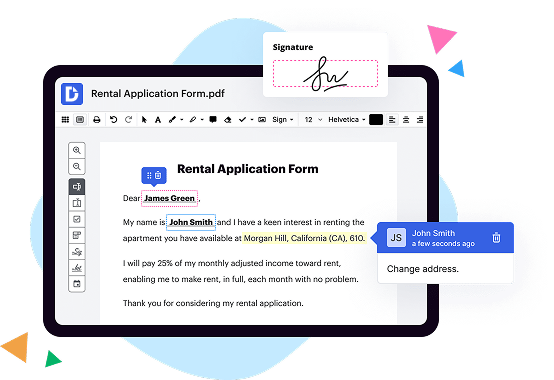
Adobe Sign Android vs. DocHub: the best way to Try in a nutshell

|
Adobe Sign Android | |
|---|---|---|
| No Downloads | ||
| Search Form Online | ||
| Edit PDF | ||
| Fill Online | ||
| Sign Online | ||
| Unlimited Cloud Storage | ||
| Annotate PDF | ||
| Fax Online | ||
| Track Sending Documents | ||
| Get DocHub for free |
Try Adobe Sign Android and see more differences with DocHub
Sign in to Acrobat online (Document Cloud Home) at with your docHub ID and password, or with your social (Google, or Apple) account. To use your Facebook account, select See more ways to sign in or select Sign In in the top-right corner of the window, and then choose Continue With Facebook.
Move from Adobe Sign Android PDF to DocHub in a few steps
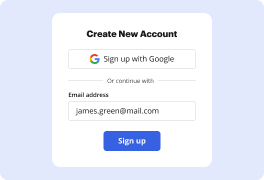
01. Register with DocHub using your email address or Google account. It's fast and easy. No credit card required.
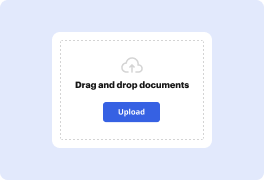
02. Upload the document you need or create it from scratch. Then, customize it by adding images, drawings, and different types of fillable fields.
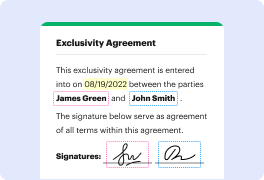
03. Customize your PDF in minutes. Type, highlight, underline, whiteout text, add comments, and sign your document.
04. Share your PDF with others to collaborate in real-time. Export your document, download or print it out.
Switch to DocHub to enjoy premium PDF customization

Online PDF creator and editor
Explore DocHub vs. Adobe Sign Android comparison data and choose the best platform for getting your perfect document without hassle. Start with a blank document or modify an existing one. Type text, add shapes, drawings, images, and highlight or whiteout information. Whatever you do with a PDF, the result is always high quality, without rasterized text or removed fields.

Diverse PDF management tools
Manage your PDF to perfection. Add, delete, and rearrange document pages or merge them to create a new document. DocHub supports a variety of file types including PDF, DOC, PPT, XLS, TXT, DOCX, and PPTX, which you can easily convert to a PDF.

Powerful PDF tools on your mobile device
Keep your work flowing from any location. Get DocHub, the most powerful Adobe Sign Android competitor. With DocHub's capabilities on your mobile device, you can edit, annotate, manage, sign, and share PDFs just as easily as you would on a desktop. No need to install the app.

Google integrations
Boost your productivity and deliver an amazing customer experience by managing your PDFs from your favorite Google apps. Import, edit, and sign your documents directly from your Gmail, Google Drive, and Dropbox.

Interactive PDF forms and templates
Get an intuitive and interactive experience when creating PDF forms and reusable document templates. Modify existing fields or create new ones for checkboxes, signatures, initials, and more. Publish forms on your website, social media, or share them via URL to collect data.

Real-time collaboration
Migrate from Adobe Sign Android to DocHub to collaborate effectively and securely on documents in real-time. Set document permissions to let others view, comment on, edit, and sign your documents. Stay in the loop with instant email notifications or track the status of your documents with court-admissible audit trails.
Industry-leading security and compliance
DocHub implements reasonable measures to comply with industry-leading standards, regulations, and certifications so you can securely edit, fill out, sign, and send documents and forms.

GDPR compliance
Regulates the collection, use, and holding of personal data for EU residents.

PCI DSS certification
Ensures the security of credit and debit card transactions made by a customer.

CPRA compliance
Enhances the privacy rights of California residents while protecting their personal data.

SOC 2 certification
Ensures the security of your data and the privacy of your clients.

HIPAA compliance
Protects privacy, security, and integrity of sensitive healthcare information.
Check out what our customers are saying about their DocHub experience
Great solution for PDF docs with very little pre-knowledge required.

A Valuable Document Signer for Small Businesses.

I can create refillable copies for the templates that I select and then I can publish those.

FAQ on how to Try Adobe Sign Android vs. DocHub
How do I sign into docHub on Android?
Sign with docHub Open your PDF with docHub. Tap the large blue pen icon at the bottom of the screen. Tap Fill Sign. Tap Create Signature (if you have not already created a signature) and draw and save a new signature. Position and resize the signature in the PDF.
How do I sign a PDF on my Android phone?
0:36 2:07 How To Digital Signature in PDF With Mobile | Sign PDF on Android YouTube Start of suggested clip End of suggested clip And select create signature. Or create initials. You will get a docHub box in landscape mode withMoreAnd select create signature. Or create initials. You will get a docHub box in landscape mode with the option to draw your signature. Now draw your signature here and when you are ready tap on done.
How do I use docHub on Android?
To do so: Open a file that is not shared or password-protected. Tap Tap. Tap Create Signature or Create Initials and do one of the following: Tap Draw to hand draw a signature. Tap Image to choose an image on your device. Tap Camera to use your camera to capture an image of your signature. Tap Done.
Can you use docHub on mobile?
docHub Fill Sign mobile app With our mobile app for iPhone and Android, snap a picture of a paper form, fill it out, sign it and send it from your phone or tablet. Now thats convenient.
Can I sign docHub in with my phone?
You can sign documents from your phone, online, or any device with access to docHub Sign. The process is simple if you have already created and saved a signature.
How do I validate a digital signature in docHub Android?
Open the Preferences dialog box. Under Categories, select Signatures. For Verification, click More. To automatically validate all signatures in a PDF when you open the document, select Verify Signatures When The Document Is Opened.
Does docHub work on Android?
Yes, Acrobat Sign mobile app is a free app for Android or iOS devices.