



Definition and Importance of Auto-Filled Slashes in Date Fields
Auto-filled slashes in date fields streamline data entry by automatically inserting slashes between date components, such as month, day, and year, ensuring a consistent format like MM/DD/YYYY. This automation reduces user errors and ensures that dates are uniformly formatted across documents, which is crucial in managing legal, financial, and organizational data.
Auto-filled features are particularly valued in digital forms where consistent documentation is critical. This consistency is vital for forms related to taxes, legal agreements, and financial transactions. Automated formatting also speeds up the form-filling process, enhancing user experience by eliminating manual entry steps, such as repeatedly pressing the slash key.
How to Use Auto-Fill Slashes for Date Fields
-
Implementing the Feature: Most modern document and form software come with an auto-fill option for dates to enhance usability. Users should first ensure the form template has this feature enabled.
-
Entering Data: When entering dates, simply input the numerical values for the month, day, and year. The software will automatically insert slashes in the correct positions.
-
Verifying Entries: After completing the form, review it to ensure the date fields appear as expected. This step is critical to confirm that no manual override has disrupted the auto-fill feature.
Benefits of Using Auto-Fill Features
- Error Reduction: Automated slashes decrease formatting errors and eliminate the chances of misinterpreting dates due to non-standard entry methods.
- Time Efficiency: Auto-fill slashes save time, especially when dealing with multiple forms requiring date inputs.
- Data Consistency: Ensures all forms comply with required date format, which is essential for legal and financial documentation.
Steps to Complete Forms with Auto-Filled Date Slashes
-
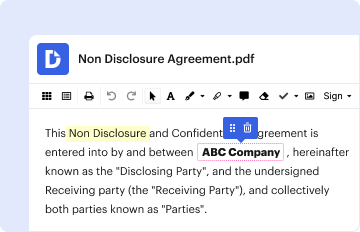
Access the Form: Open the digital form in compatible software that supports auto-filled date slashes.
-
Fill in Personal Information: Start with fields other than the date to ensure all information is accurate before finalizing date entries.
-
Enter Dates: Input dates directly using month, day, and year numerals. Ensure no manual slashes are entered.
-
Review and Verify: Double-check the formatting of dates after entry to catch any discrepancies before submission.
-
Submit the Form: Depending on the form's nature, submit it through the recommended method, such as online uploads or email.
Tips for Ensuring Formatting Success
- Always check software settings to ensure the auto-fill feature for slashes is enabled.
- Regularly verify that software updates don’t disrupt or reset auto-fill settings.
Key Elements of Using Auto-Filled Slashes in Date Fields
-
Software Compatibility: Confirm that your document software supports automatic date formatting, such as online form builders or document management systems.
-
Date Formatting Standards: Adherence to the MM/DD/YYYY format is recommended, especially in U.S.-focused documents, reducing localization issues.
-
Field Validation: Ensure that fields are equipped with validation to block incorrectly formatted inputs, promoting standardized data entry.
Importance of Key Elements
These elements form the backbone of effective auto-fill usage for date fields. Prioritizing them helps maintain your documents’ integrity and usability across platforms.
Practical Scenarios for Auto-Filled Slashes
-
Legal Document Management: In legal settings, precision and compliance with date formats are crucial. Auto-filled slashes prevent misinterpretations that could arise from manual entry errors.
-
Tax Documentation: When preparing tax-related documents, auto-fill features ensure that dates are accurately represented, a necessity for compliance and record-keeping.
-
Online Application Forms: Auto-fill functionalities in online application processes expedite form completion and submission, offering applicants a seamless experience.
Real-World Examples
- A small business using cloud-based invoicing tools that automatically format dates gets consistent documentation for accounting.
- A government agency provides online application forms with auto-fill features for efficient citizen engagement and data management.
Software Compatibility and Requirements
Auto-filled date features are widely supported in software platforms like TurboTax, QuickBooks, and document management systems that include date entry tools.
-
Ensure Compatibility: Before filling forms, verify compatibility with chosen software to use auto-filled slashes effectively.
-
Regular Updates: Keep software up-to-date to ensure continued support for auto-fill features and enhanced form functionalities.
Troubleshooting Common Issues
- Non-Compatible Software: If auto-fill slashes do not work, check for software updates or consider switching to a compatible platform.
- Incorrect Formatting: If dates do not auto-fill correctly, verify settings and seek guidance from software support.
Understanding and utilizing auto-fill slashes for date fields in forms creates a seamless, error-free data entry experience and ensures consistent, professional documentation across various sectors.