construction plans Preview on Page 1

Pge 79 2026

Here's how it works

  • 01. Edit your construction plans online

    Type text, add images, blackout confidential details, add comments, highlights and more.

  • 02. Sign it in a few clicks

    Draw your signature, type it, upload its image, or use your mobile device as a signature pad.

  • 03. Share your form with others

    Send pge form 79 via email, link, or fax. You can also download it, export it or print it out.

How to use or fill out pge 79 with our platform

Form edit decoration
9.5
Ease of Setup
DocHub User Ratings on G2
9.0
Ease of Use
DocHub User Ratings on G2
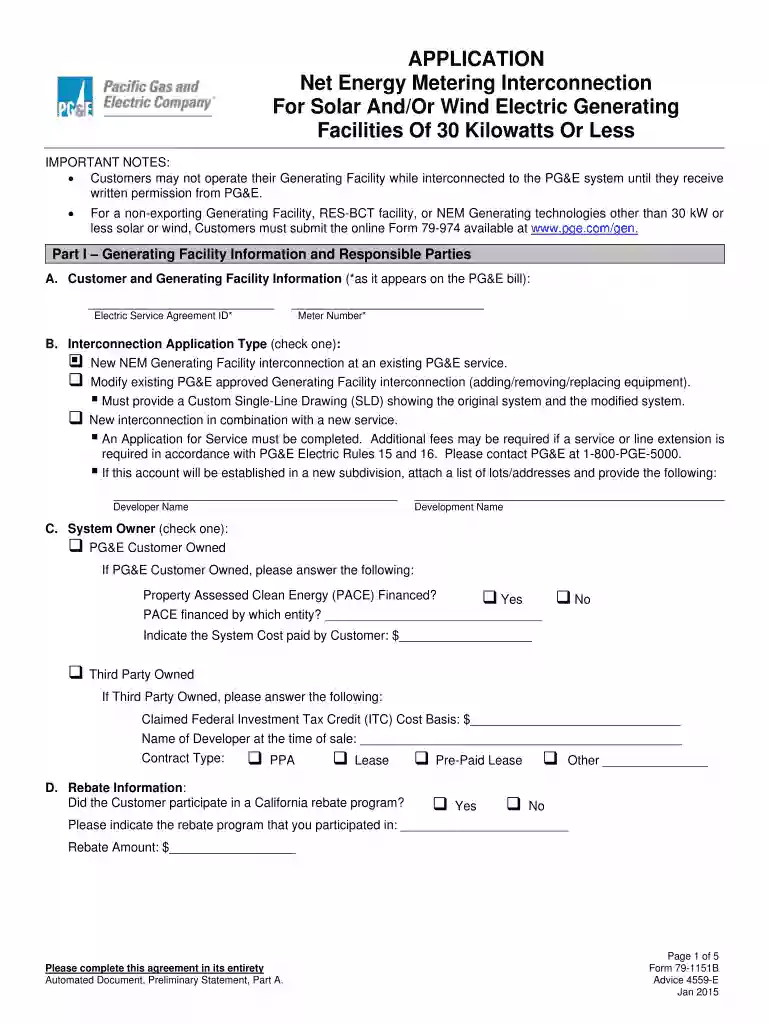
  1. Click ‘Get Form’ to open pge 79 in the editor.
  2. Begin by filling out Part I, which includes your Generating Facility Information. Enter your Electric Service Agreement ID and Meter Number as they appear on your PG&E bill.
  3. Next, select the type of Interconnection Application you are submitting by checking the appropriate box under Section B.
  4. In Section C, indicate whether the system is Customer Owned or Third Party Owned. If applicable, provide additional details such as PACE financing or claimed ITC cost basis.
  5. Complete the Contractor Information section in Part I, providing details about who is installing the system.
  6. Proceed to Part II to describe your Generating Facilities. Fill in details regarding mounting methods and performance monitoring services.
  7. Finally, review all sections for accuracy before submitting your application online through our platform.

Start using our platform today for free to streamline your document editing and submission process!

See more construction plans versions

We've got more versions of the construction plans form. Select the right construction plans version from the list and start editing it straight away!

VersionsForm popularityFillable & printable
20154.8 Satisfied (84 Votes)
20144.3 Satisfied (49 Votes)

be ready to get more

Complete this form in 5 minutes or less

Security and compliance

At DocHub, your data security is our priority. We follow HIPAA, SOC2, GDPR, and other standards, so you can work on your documents with confidence.

79 1151b

DP5000-series Telephone User Guide

Overrides options, busy mode, or overrides Do Not Disturb mode. PGE. Enables you to enter a Page Group number (01~16) and send a page to the phones in thatRead more

Learn more
PGE - Petroleum and Geosystems Engineering

Topic 79: Global Carbon Monitoring Systems. Review technologies that help us monitor the pulse of the planet. Learn about systems that directly measure carbonRead more

Learn more
PGE HEARING EXHIBIT PGE-79 A.20-04-023

Pursuant to California Code of Regulations Title 20, Division 1, Chapter 1,. Rule 10.1, Wild Tree objects to these discovery requests on the following.Read more

Learn more
If you believe that this page should be taken down, please follow our DMCA take down process here