
Au dna konica download 2026

Get Form
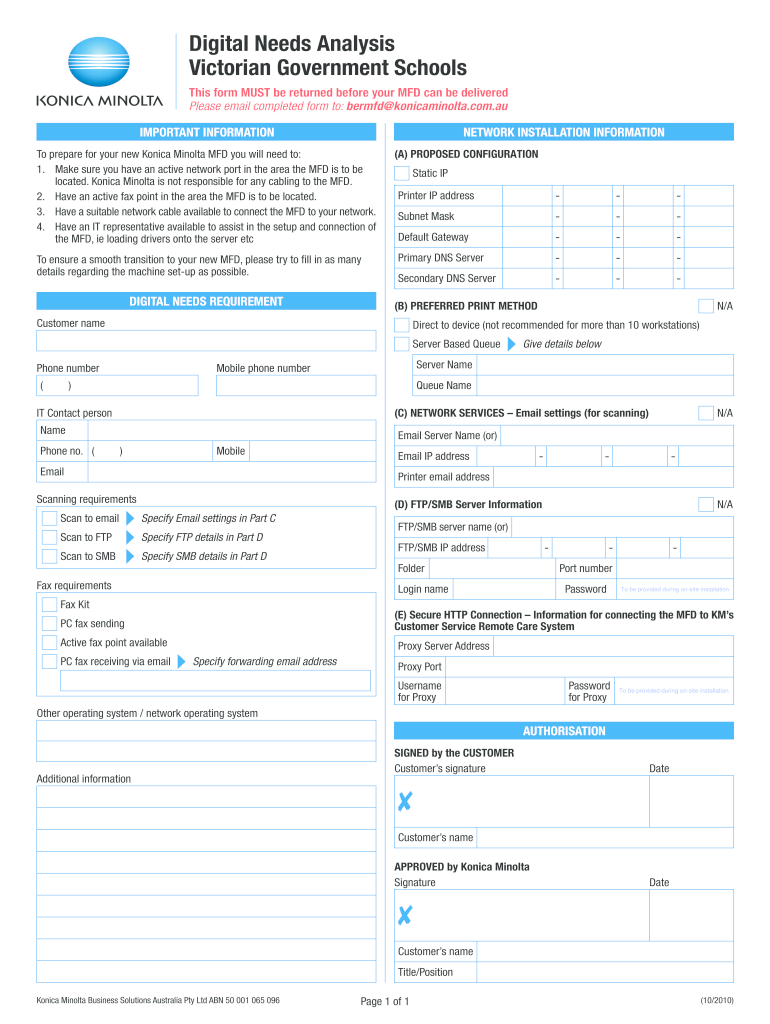
au dna konica download Preview on Page 1

Here's how it works

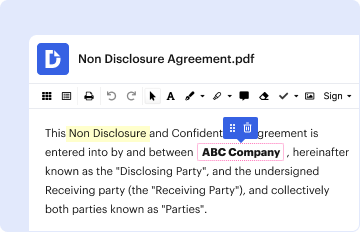
01. Edit your form online
Type text, add images, blackout confidential details, add comments, highlights and more.
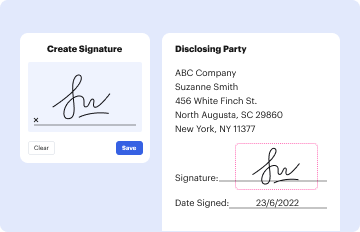
02. Sign it in a few clicks
Draw your signature, type it, upload its image, or use your mobile device as a signature pad.
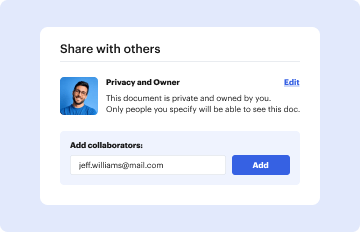
03. Share your form with others
Send it via email, link, or fax. You can also download it, export it or print it out.

How to use or fill out au dna konica download with our platform

Form edit decoration
9.5
Ease of Setup
DocHub User Ratings on G2
9.0
Ease of Use
DocHub User Ratings on G2
  1. Click ‘Get Form’ to open it in the editor.
  2. Begin by filling out the NETWORK INSTALLATION INFORMATION section. Ensure you have an active network port and fax point available for the MFD setup.
  3. In the DIGITAL NEEDS REQUIREMENT section, provide details under (A) PROPOSED CONFIGURATION. Enter the Static IP, Printer IP address, Subnet Mask, Default Gateway, and DNS Server information as required.
  4. For (B) PREFERRED PRINT METHOD, specify your customer name, phone number, server name, and queue name. Choose between Direct to device or Server Based Queue based on your needs.
  5. Complete (C) NETWORK SERVICES by entering email settings for scanning. Fill in your name, phone number, email server name, and printer email address.
  6. In (D) FTP/SMB Server Information, indicate whether you require scan to email or FTP/SMB services and provide necessary details.
  7. Finally, sign the AUTHORISATION section at the bottom of the form. Ensure all fields are completed before submitting.

Start using our platform today to streamline your document editing and form completion process for free!

See more au dna konica download versions

We've got more versions of the au dna konica download form. Select the right au dna konica download version from the list and start editing it straight away!
Versions Form popularity Fillable & printable
2010 4.9 Satisfied (320 Votes)
be ready to get more

Complete this form in 5 minutes or less

Get form

Got questions?

We have answers to the most popular questions from our customers. If you can't find an answer to your question, please contact us.
Contact us
Printer administrator default username and password VendorUsernamePassword Konica Minolta admin 12345678 Kyocera Admin Admin Lexmark - - Ricoh - -7 more rows
The default login for the copiers is 12345678 or 1234567812345678.
Article sections ProductVersionDefault Password bizhub C20 administrator bizhub c203 all 12345678 bizhub C220 12345678 Bizhub C224e all 123456781234567850 more rows
0:00 1:42 Button step seven open the extracted folder and click on the setup. File. Step eight click the agreeMoreButton step seven open the extracted folder and click on the setup. File. Step eight click the agree button then network settings. Step nine select your printer then click on the next. Button.
0:45 1:56 Step two navigate to control panel from the start. Button. Step three select devices and printers.MoreStep two navigate to control panel from the start. Button. Step three select devices and printers. Step four from the list of printers select your printer. Step five and click on add printer.

People also ask

Tap [Administrator Settings]. Enter the administrator password for this machine. The administrator password is set to [1234567812345678] by factory default.
Checking the consumption level Tap [Utility] - [Check Consumable Life]. Check the status of consumables. To print a consumption level list, tap [Print List], select paper, and then tap [Start].
The default login for the copiers is 12345678 or 1234567812345678. If this doesnt work, try powering off and unplugging the copier and then rebooting it.

Related links