
PDF structure changes: The hidden complexity of adding and deleting PDF pages

Deleting and inserting PDF pages changes the document’s internal page tree, which automatically shifts page order and counts, but does not always update bookmarks, internal links, form fields, or page numbers tied to specific positions. To protect document integrity, use a visual tool like DocHub that previews changes, confirms before deleting pages with form fields, preserves the bookmark structure, and logs every action.
TL;DR:
- Adding or removing PDF pages affects more than just what you see—it can break bookmarks, page numbers, form fields, internal links, and annotations.
- A PDF’s “page tree” tracks page order and count, and it shifts automatically when you add or remove pages.
- Editing signed or certified PDFs can invalidate existing signatures, which is a real compliance risk.
- Visual tools and a simple pre- and post-edit checklist catch most errors before they cause problems.
- DocHub simplifies PDF page management with drag-and-drop reordering, field-aware delete prompts, preserved bookmark structures, and a full audit trail.
Most people think editing a PDF file is as simple as editing a Word doc—delete a page here, add one there, and you’re done. But it’s a bit more complicated than that. A PDF isn’t just a stack of pages; it’s a structured document. When you add or remove pages, you can unknowingly affect metadata, bookmarks, annotations, form fields, and links that all depend on specific page positions.
To put page deletion explained in simple terms, removing a PDF page doesn’t just hide content—it changes the document’s internal references and page order. This is especially important for documents that carry weight: contracts, HR forms, real estate agreements, compliance records, and legal files. A small page change can cause big problems, like a broken bookmark, a misaligned signature field, or an invalidated digital signature.
This post breaks down how the PDF’s page structure handles page changes, how page deletion and insertion mechanisms work, the risks to your document’s integrity, and the best practices to keep your files clean. We’ll also show you how DocHub’s PDF editor makes the whole process easier. Whether you’re an operations manager, admin, HR professional, legal team member, educator, real estate agent, or small business owner, you’ll learn how to manage pages and what can go wrong. If you’re looking for a practical walkthrough on how to delete and insert PDF pages, check our latest guide on the topic.
At a glance
- A PDF file stores its pages as interconnected objects within a hierarchical page tree that defines page order and tracks the total page count.
- Deleting a page removes its object from the page tree, decreases the count, and shifts all following pages forward by one position.
- Bookmarks, internal hyperlinks, form fields, and annotations are tied to specific page positions and do not always update automatically when pages change.
- Modifying pages in a signed or certified PDF can invalidate the existing digital signature entirely.
- DocHub’s audit trail automatically logs all document actions, including page-level additions and deletions, supporting accountability and compliance.
Disclaimer: The information contained in this blog post is provided for general informational purposes only and does not constitute formal legal advice.
Why is PDF page management more complex than it looks?
PDFs have a complex internal structure. Unlike a word processor, a PDF file stores its pages as connected objects in a page tree. This is a data structure that defines the order and relationships of every page in the document.
Think of the page tree as a map that tells the PDF how to find and display each page in the correct order. Every page is linked, and the tree keeps a running total. That sounds simple enough, but other elements depend on that structure. Bookmarks, internal hyperlinks, form fields, annotations, and digital signatures are all tied to specific page positions or object references. When you remove or insert a page, those links don’t update automatically.
Here’s a practical example. Imagine a 20-page contract in which page 7 is bookmarked as the “Signature Section.” If you delete pages two and three, the signature section moves to page five, but the bookmark might still point to the old position, sending the reader to the wrong place.
Signed or certified PDFs are even more sensitive. Modifying pages can invalidate an existing signature, which is a real compliance risk in legal, financial, and healthcare workflows.
Page deletion explained: How PDF structure handles page removal
If you want page deletion explained clearly, the short version is this: the PDF removes the page object, updates the page count, and shifts every following page forward. When you delete a page, the PDF does a few things automatically:
- The page object is removed from the page tree
- The page count decreases
- Every page after it shifts forward by one position
While extracting a page seems simple, it can cause other problems in your PDF. Keep an eye out for these potential issues when you delete pages:
- Page numbering: Visual page numbers in headers or footers don’t update unless the tool regenerates them.
- Bookmarks and table of contents: A bookmark pointing to page 12 still points to whatever sits at that position now, which may be a completely different page.
- Internal hyperlinks: Clickable links that navigate to specific pages become unreliable.
- Form fields: Fields on deleted pages get removed, and any fields on the remaining pages might shift out of alignment.
- Annotations: Comments and sticky notes on deleted pages will disappear, which can be a problem for collaborative or reviewed documents.
Deleting pages from documents involved in signing workflows or compliance processes is especially sensitive. It can break the audit trail or invalidate a digital signature.
Here’s a simple safeguard: When you delete pages from a PDF in DocHub, you get a confirmation prompt if any of those pages contain form fields. This one step helps prevent accidental data loss.

What are the insertion mechanisms for adding new content to a PDF?
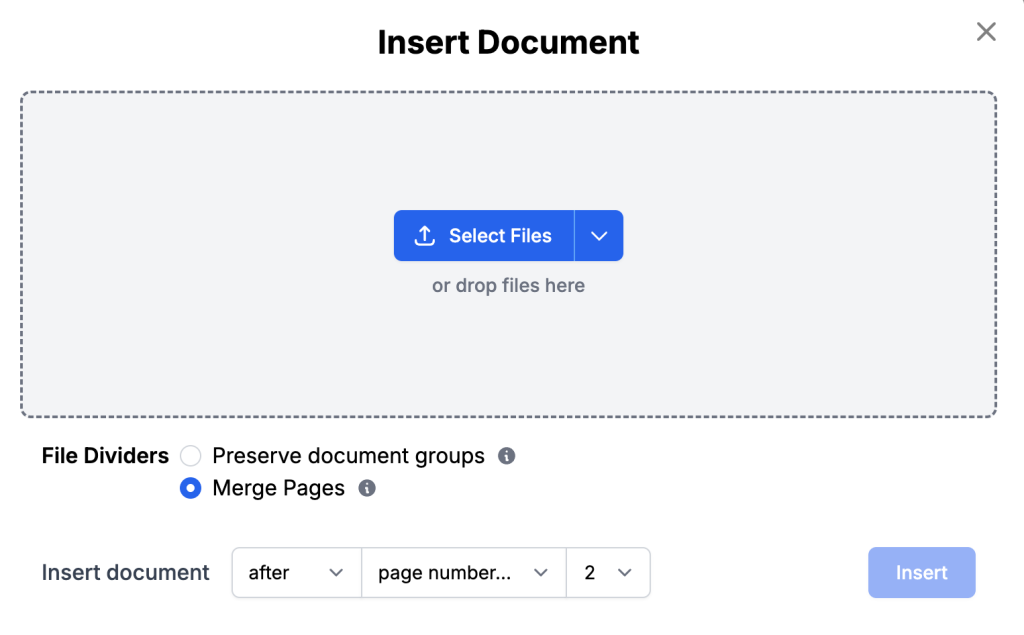
Inserting pages is the other side of the coin. Whether you are adding a blank page, merging content from another file, or duplicating an existing page, the process updates the page tree, adjusts the page count, and shifts all subsequent pages.
Here are the main insertion mechanisms for adding pages to a PDF:
- Adding a blank page: Inserts a new, empty page object into the tree at a chosen location. Useful for a notes section, a signature page, a section break, or a placeholder.
- Inserting from another PDF: Extracts page objects from a source document and embeds them into the target document’s page tree. Fonts, images, and annotations from the source may or may not carry over cleanly, depending on the tool.
- Merging two documents: Combines two complete page trees into one. The result has to reconcile any conflicting page numbering, bookmarks, or form field names.
- Duplicating a page: Copies an existing page object, including its annotations, form fields, and content, and inserts it at a new position. Great for repeating form sections or building multi-respondent documents.
Where you insert pages matters. Adding a page before page one is different from slotting it between pages three and four. Good tools show visual confirmation, like thumbnail previews, so you can verify the placement before committing.
This is where DocHub shines. Its page management interface offers drag-and-drop reordering, a “+” button between page thumbnails for precise blank-page insertion. Everything happens visually, so you’re never guessing where a page landed.
How do structure changes impact document integrity?
Document integrity has real consequences. Sending a contract with broken bookmarks, a form with misaligned fields, or an agreement with the wrong page numbers undermines trust and creates errors that slow everyone down.
Even small structure changes can affect bookmarks, page numbering, form fields, and internal links in ways that aren’t obvious at first glance. Here are the most common integrity issues that structure changes cause:
- Broken page references: Bookmarks and internal links can break when pages are added or removed.
- Incorrect page numbering, bookmarks, and tables of contents: Page numbers in headers or footers can fall out of sync, and a PDF’s table of contents won’t automatically update when you change the pages. Learn how page numbering, headers, and bookmarks work in a PDF.
- Form field displacement: Fields can shift if page dimensions change or if imported pages are sized differently.
- Annotation displacement: Comments, highlights, and sticky notes can end up in the wrong spot if a page is replaced or resized.
- Version mismatches: If a collaborator works from an older version while you edit, page changes can create confusing conflicts.
- Compliance and audit concerns: In legal or financial workflows, you often need a record of any added or deleted pages.
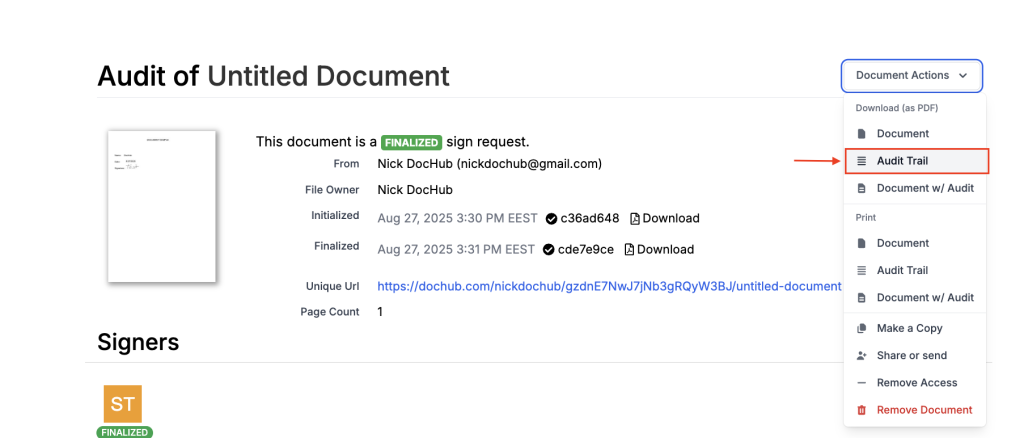
That last point is where audit trails really shine. DocHub’s audit trail automatically records every action taken on a document, including page-level changes, giving you a clear log that supports accountability and compliance.
What are the best practices for PDF page deletion and insertion?
Here’s a practical checklist to help you manage pages with confidence and avoid frustration later.
- Review the full document before editing. Scroll through every page and note any bookmarks, form fields, or links that your changes might affect.
- Duplicate the file before making structural changes. Always work on a copy. It’s a zero-effort safety net, and DocHub’s Make a Copy feature does it in just one click.
- Delete pages in batches only after you’ve verified them visually. Use the Page Controls modal to select, preview, and confirm the pages you want to remove.
- Double-check new page placement. Use the thumbnail view to ensure new pages land exactly where you want them.
- Check bookmarks, page numbers, links, and form fields after every change. It takes less than two minutes, and it’s better than sending a document with a broken link.
- Avoid editing signed or certified PDFs whenever possible. If you must, know that your edits can invalidate existing signatures. Always re-sign or re-certify after making changes.
- Use one tool for your whole workflow. Switching between apps for editing, signing, and sharing can cause problems. When you do everything in DocHub, your changes and formatting stay consistent.
How does DocHub simplify PDF page management?
Managing pages doesn’t have to feel like a technical chore. With the tool, adding, deleting, rearranging, and organizing PDF pages become natural parts of the editing process.
DocHub simplifies these tasks, allowing you to manage them alongside your other edits. This means you can concentrate on your content without being sidetracked by layout adjustments.
How DocHub simplifies PDF page management
Here’s how DocHub makes page management easy:
- Add blank pages between any two existing pages using the “+” button in the thumbnail sidebar, or at the end of the document with a single click.
- Delete pages quickly from the sidebar, with a built-in confirmation prompt when form fields are present to prevent accidental data loss.
- Rearrange pages by dragging thumbnails in the Page Controls, with a clear visual of the new order before anything saves.
- Rotate, duplicate, and batch-edit pages without leaving the editor.
- Merge files by combining a second document with your current one, then reorder as needed.
The real strength of these page tools is how they connect to your workflow. Once your pages are in order, you can fill out form fields, add annotations, request eSignatures, and share via a link or email—all without switching apps.
For people who live in Google Drive, Google Docs, or Gmail, DocHub offers a direct integration. You can open a PDF from Drive, edit its pages, sign it, and save it back without any manual downloading or uploading. Every change, including page additions and deletions, is logged in the audit trail. This provides a clear record of when and how a document was modified, which is especially important for teams in regulated industries like legal, HR, real estate, and healthcare.
Key takeaways
Managing PDF pages might seem simple, but it involves complex document structures that can break if not handled carefully. A single page change can affect bookmarks, page numbers, form fields, links, and annotations, not just the content you see on the screen.
Three things to remember:
- Deleting or adding pages affects more than just what you see on the screen.
- Visual tools and deliberate workflows dramatically reduce the risk of errors.
- A simple pre- and post-edit checklist catches most problems before they become problems.
If you regularly manage PDFs for work—editing contracts, organizing HR files, preparing real estate forms, or assembling compliance packages—DocHub gives you the visual control and workflow integration to do it with confidence. Try DocHub for free and see how much easier structured page management can be.
Glossary
- Page tree: The hierarchical data structure inside a PDF that defines the order of pages and tracks the total page count. Adding or removing pages updates the page tree.
- Page object: The individual unit representing a single page in the PDF, referenced by the page tree. Deleting a page removes its page object.
- Bookmark: A clickable navigation link that points to a specific page or position in a PDF. Bookmarks can break when pages shift.
- Document integrity: The accuracy and reliability of a document’s structure, including correct page references, numbering, fields, and signatures.
- Audit trail: A chronological log of all actions taken on a document, including page-level changes, used for accountability and compliance.
FAQ
1. Does deleting a page break bookmarks in a PDF?
Yes. Bookmarks point to specific page positions, and they don’t always update automatically when you delete a page. If you remove pages two and three from a contract, a bookmark that pointed to page seven might now lead to the wrong content. The safest approach is to check every bookmark after a structural change or use a tool like DocHub that preserves existing bookmark structures through edits.
2. How do I insert a page into a PDF?
You have a few options: add a blank page, insert pages from another PDF, merge two documents, or duplicate an existing page. In DocHub, you can add a page to a PDF using the “+” button below the thumbnails to place it precisely. The thumbnail view lets you confirm exactly where the new page lands before you save, so there’s no guessing about placement.
3. What happens to form fields when you delete a PDF page?
When you delete a page from a PDF, any form fields on that page are also removed, and the data inside them is lost. Fields on other pages might also shift or get misaligned. That’s why DocHub asks you to confirm before deleting a page with form fields—it’s a quick check to help you avoid losing data by mistake.
4. Can I edit pages in a signed or certified PDF?
Yes, but it’s best to be careful. Editing pages in a signed or certified PDF file can invalidate the digital signature, which causes problems in legal, financial, and healthcare workflows. The best approach is to finish all structural edits first, then re-sign or re-certify the document. If possible, avoid editing signed PDFs altogether and make any page changes before adding any signatures.
5. What’s the best way to avoid errors when managing PDF pages?
Work visually and follow a simple checklist. First, review the full document and make a duplicate copy before editing. Use thumbnail previews to verify changes, and then double-check bookmarks, page numbers, links, and form fields. Using a single platform like DocHub for your entire workflow keeps everything tracked in one place. DocHub combines visual page tools, field-aware delete prompts, and an audit trail to help reduce errors.
- TL;DR:
- At a glance
- Why is PDF page management more complex than it looks?
- Page deletion explained: How PDF structure handles page removal
- What are the insertion mechanisms for adding new content to a PDF?
- How do structure changes impact document integrity?
- What are the best practices for PDF page deletion and insertion?
- How does DocHub simplify PDF page management?
- Key takeaways
- Glossary
- FAQ