
How annotations and markup work in PDFs: Annotation techniques and best practices

Understanding how to properly mark up a PDF can save you time and prevent costly document errors. Whether you are reviewing a contract, grading a paper, or leaving feedback for a colleague, knowing the mechanics behind digital text edits helps you work faster.
Here is a quick summary to answer your main questions about document markup.
TL;DR: How PDF markup works
- PDF annotations exist on a separate layer from the document content, meaning highlights and comments do not alter the original text.
- Highlighting mechanisms use coordinate points to locate text, keeping the words underneath searchable and selectable.
- Finalizing or flattening a PDF can burn visual shapes, drawings, images, stamps, and whiteouts into the page, locking them in place.
- Whiteout hides content visually first; the underlying content is permanently removed only when the document is finalized.
- You can remove or edit your own annotations before a document is finalized, depending on permissions.
- DocHub lets you annotate documents for easy team collaboration.
Key takeaways for your annotation process
Before diving into the technical details of the annotation system, here are the main ideas to keep in mind:
- Non-destructive editing: Most text markup leaves the original file structure intact.
- Secure redaction: DocHub whiteout can permanently remove underlying content during finalization.
- Asynchronous teamwork: Collaborative annotation relies on threaded comments, @mentions, notifications, and activity logs rather than real-time cursor tracking.
- Smart exporting: You can choose whether to flatten edits into the page or preserve certain annotations as interactive objects when saving.
These points serve as the foundation for selecting the right annotation techniques for review, teaching, compliance, and document management.
A quick note on data annotation versus document markup
While this article focuses on marking up digital documents, it’s worth clarifying a similar term: data annotation. Data annotation techniques vary depending on the data format, such as text, image, audio, video, and the specific machine learning application.
In artificial intelligence workflows, text annotation may include sentiment annotation, intent annotation, entity annotation, and text classification. Healthcare teams use text annotation to extract key information from clinical trial records, analyze patient records, and streamline insurance claims. Finance teams may use it for risk evaluation, claims processing, and fraud detection.
Manual annotation provides high precision through human expertise, especially when deep context is needed. Effective annotation strategies can include summarizing key points in your own words, circling key concepts, writing brief comments in the margins, and using symbols to categorize notes.
The rest of this guide focuses specifically on PDF document workflows using DocHub’s tools and functionality as an example.
What are the different types of PDF annotations?
DocHub supports a wide range of annotation tools that map to standard PDF specifications and practical business workflows. These tools help readers focus on key information and improve reading comprehension without changing the underlying file.
Here are the main ways to annotate text and mark up a page:
| Annotation type | What it does | Common use case |
|---|---|---|
| Text markup | Highlight, underline, or strikethrough existing text | Emphasize key phrases or main points |
| Comments | Add a sticky note-style comment to a location on the page | Ask questions or leave feedback |
| Drawing and shapes | Add ink, rectangles, circles, lines, arrows, or polygons | Point to specific parts of a page |
| Stamps and images | Place a stamp or image on the document | Mark approval, status, or visual notes |
| Signatures | Add text-styled or ink-based signatures | Sign agreements and forms |
| Whiteout | Cover text or areas using box, freehand, or text-aware whiteout | Hide and finalize sensitive content |
| Form fields | Add interactive fields to collect information | Complete forms and workflows |
DocHub’s annotation tools support business editing, signing, distribution, and creating forms in one workspace, with strong Google Workspace integration.
We have a separate guide on annotating a PDF file. Please see it for a step-by-step instruction.
How do highlighting mechanisms affect PDF file structure?
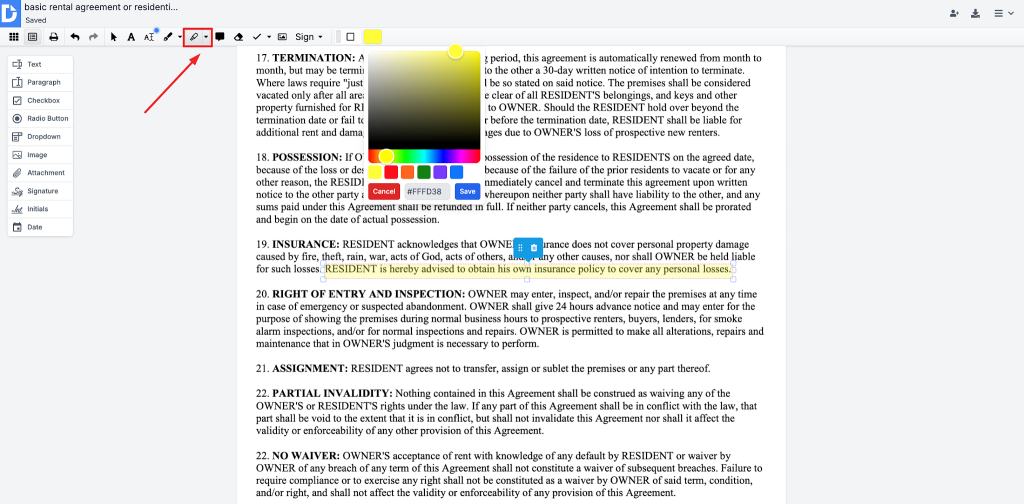
Text highlights are stored as annotation objects in the page’s /Annots array. This is separate from the page content stream.
Each highlighted area is defined by quad points. These are sets of four corner coordinates that describe the highlighted rectangle. If a highlight spans multiple lines, each line gets its own set of quad points.
Because these highlights live in the annotation layer, they are non-destructive. A PDF viewer renders a colored overlay, while the digital text underneath remains selectable and searchable.
Page rotation can complicate this. Quad points must be remapped to account for rotated pages, or the highlights may appear in the wrong position.
The Highlight tool is displayed in the user interface as follows:
How does collaborative annotation work in asynchronous teams?
DocHub’s collaboration model is asynchronous. Multiple people can annotate the same document, but they do not see live cursor movement or real-time co-editing presence.
Instead, teamwork relies on threaded comments and @mentions. A comment annotation can notify a tagged user, helping teams handle questions, reviews, and approvals without long email chains.
Changes made by one collaborator are reflected for others when they reload or return to the document. An activity trail records annotation creation, edits, and deletions at the document level.
This works well for document review workflows. For example, a reviewer can highlight a sentence, add a note, mention the author, and leave a clear record of what changed and why.
How do you fix mistakes and manage document edits?
When you read and write in digital documents, mistakes happen. Since PDF markup is not the same as live word processing, you manage edits through object deletion, permissions, and document history.
Here is how to manage edits securely:
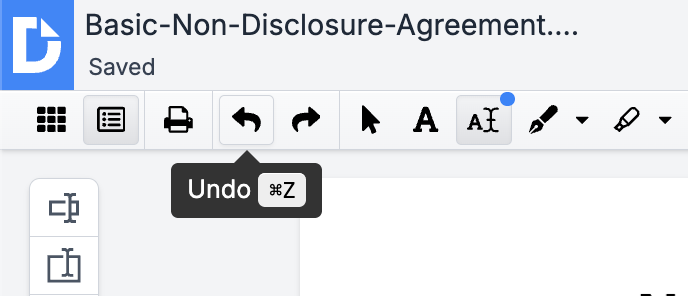
- How to undo changes in PDFs: If you add a shape, drawing, comment, or text box by mistake, select the object and click Delete or the trash can icon.
- How to redo edits easily: If you remove a mark you still need, recreate the annotation from the toolbar.
- How to erase unwanted text: Use Whiteout to hide sensitive text. To remove the underlying content permanently, finalize the document.
- How to recover from mistakes: Check the document-level activity log to see who changed what and when.
- How to use editing history: Export the activity log when you need a record for review, compliance, or sign-off.
Permissions control who can delete what. In sign requests, only the annotation creator can remove their annotation. Comments can be deleted by the creator or document owner. Other annotations require edit rights on the page.
To get a more detailed view of the Undo, Redo and Erase functionality of DocHub, see our blog:
What happens when you export or finalize annotated digital documents?
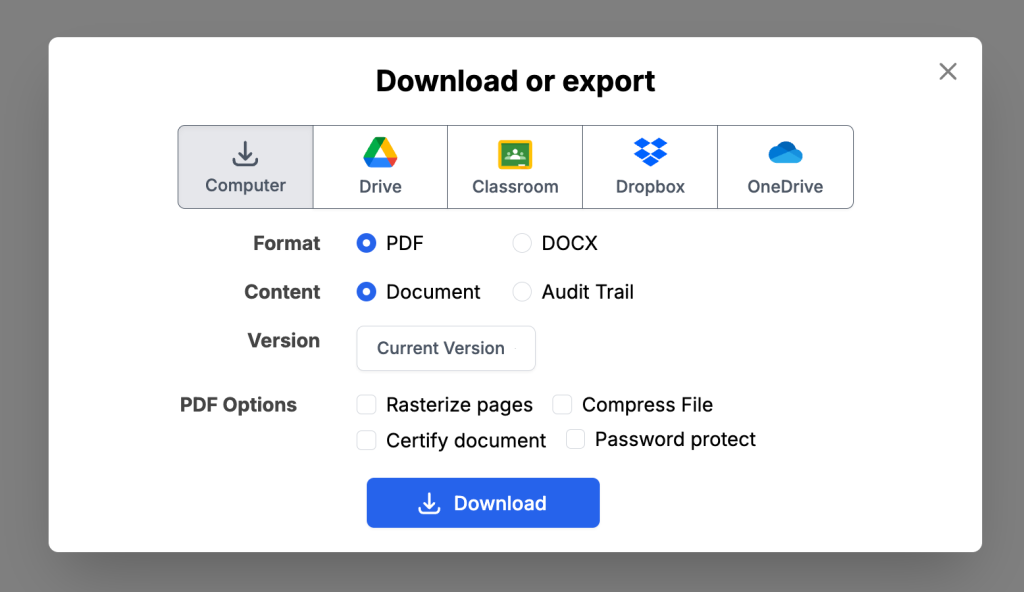
When you export a document from DocHub, annotations are handled based on their type and export settings.
Flattening versus preserving
Flattening embeds visual elements directly into the PDF. Shapes, drawings, images, stamps, and whiteouts are burned into the page content. They look like they did on screen, but they are no longer editable as separate annotation objects.
Highlights and comments can remain as proper PDF annotation objects in the exported file. That means another PDF application may still list, filter, or remove them independently.
The activity log can be exported separately. This is useful for compliance and audit reviews, but it records the history of actions rather than exporting annotation content as a standalone JSON or CSV file.
Final thoughts on document markup
Using the right annotation techniques makes digital document review easier and safer. Highlights, comments, shapes, and whiteout each serve a different purpose, and understanding how they interact with the PDF structure helps you avoid mistakes.
DocHub gives teams a practical way to edit, annotate, sign, and complete forms in the cloud, with strong Google Workspace integration and clear activity tracking. This article provides general information and should not be treated as legal advice for redaction or compliance decisions.
Ready to streamline your document editing, signing, and form completion? Get started with DocHub for free today.
Glossary
Activity trail: A chronological document-level log that records annotation creation, edits, and deletions.
Annotation layer: The part of a PDF structure where markup, comments, and form fields are stored separately from the main content.
Flattening: The process of merging annotations into the page content, making them permanent and non-editable as separate objects.
Quad points: Coordinate sets that define the exact location of text markup, such as highlights.
Whiteout: A DocHub redaction tool used to cover content and permanently remove underlying content when the document is finalized.
FAQ
What is the difference between a comment and text markup?
Text markup, such as highlights or underlines, sits over existing text to emphasize it. A comment is a sticky note style annotation that attaches to a location on the page and holds longer feedback or a conversation.
Can anyone delete my annotations?
There isn’t such a possibility. Permissions control deletion. Generally, you can delete your own marks. Document owners can delete comments, and other users need the right edit permissions.
Does a whiteout box delete the text immediately?
No, it works otherwise. Whiteout hides the content visually first. The underlying content is permanently removed only when the document is finalized.
Can I export just my comments without the PDF?
DocHub does not offer a standalone native export for annotations in JSON or CSV format. Annotations travel with the document, while the activity log can be exported separately.
Why do my highlights look misplaced when I rotate a page?
Highlights rely on quad points, which are page coordinates. If those coordinates are not remapped after rotation, the highlight overlay can appear in the wrong place.
Is it possible to edit a shape after I flatten the PDF?
No. Once flattened, shapes and drawings become part of the page content and cannot be edited as individual annotations.
Can two people edit a document at the exact same time?
DocHub supports asynchronous collaboration. Multiple people can work on the same document, but they will not see live cursor movement. Updates appear when collaborators reload or return to the document.
Do highlights change the original text of my document?
No, they don’t. Highlights exist in a separate annotation layer, so the original words remain intact, searchable, and selectable.
- TL;DR: How PDF markup works
- Key takeaways for your annotation process
- A quick note on data annotation versus document markup
- What are the different types of PDF annotations?
- How do highlighting mechanisms affect PDF file structure?
- How does collaborative annotation work in asynchronous teams?
- How do you fix mistakes and manage document edits?
- What happens when you export or finalize annotated digital documents?
- Final thoughts on document markup
- Glossary
- FAQ