


To prepare a PDF for electronic signature, finalize its content, add fillable fields, assign them to the right people, and check required fields before sending. Set the signing order and reminders so recipients know when to act.
This guide is for document professionals to help HR, sales, and administrative teams prepare business documents for signing in DocHub. It’s helpful because these simple steps enable you to build a signing-ready PDF document, add your own signature when needed, and manage the signing process.
Summary
A signing-ready document needs these checks:
- Confirm the final content, page order, and recipient details.
- Add signature, initials, date, and other form fields.
- Assign every field and require essential responses.
- Review routing, reminders, and delivery settings before sending.
The sections below break preparation into easy steps, starting with the document itself.
What does preparing a document for signing mean?
Preparation connects the agreement, the people signing it, and the information each must provide. A printed signature line identifies a location; an interactive signature field gives a recipient a place to sign electronically.
For example, HR can prepare an offer letter with employee and employer signature fields. A sales team can assign customer details and acceptance fields to the buyer, followed by a company countersignature. Keep signed contracts with their supporting records.
What should you check before uploading your PDF?
Have the approved PDF file, recipient email addresses, a DocHub account, and an internet connection ready. This online tool works in a browser on your computer or mobile device, with no software installation required.
Check names, amounts, dates, attachments, page orientation, and blank spaces. Resolve contract edits before requesting signatures, and retain an unsigned original. For sensitive files, confirm that uploading and sharing comply with your organization’s security and retention policies.
How do you prepare a PDF for electronic signature in DocHub?
Follow these steps to prepare the fields and recipients before sending.
1. Upload and review the document
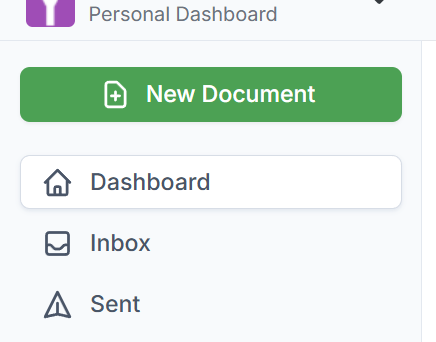
Sign in to DocHub and select + New Document to upload your PDF from your device or supported cloud storage. You can also drag and drop a file into the upload area. If you convert Word documents or another supported format to PDF format, inspect every page before adding fields.
2. Add fillable fields
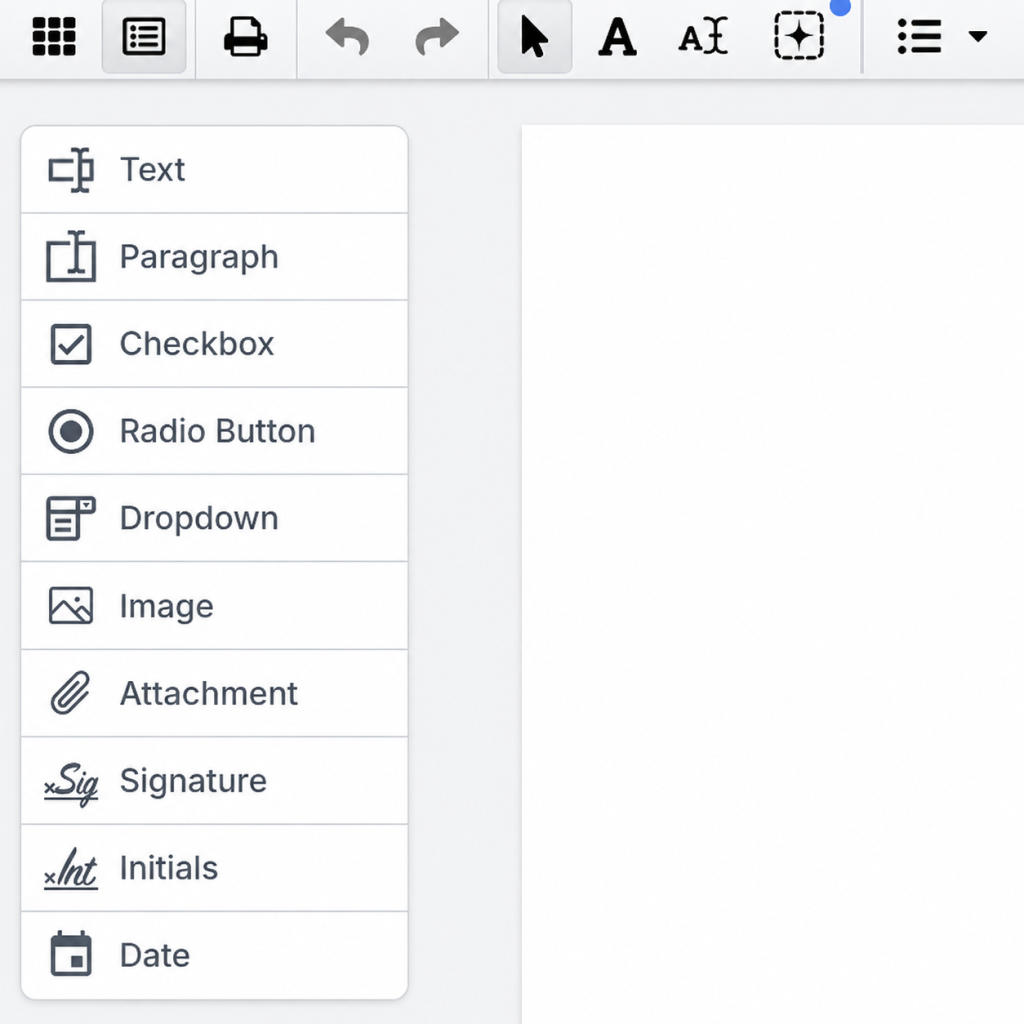
Click Manage Fields or Edit Template for a template. Select a field type from the left column, then click the page to insert it. Drag fields into position and resize them without covering agreement text. Select an existing field to customize its settings.
DocHub supports Text, Paragraph, Checkbox, Radio Button, Dropdown menu, Image, Attachment, Signature, Initials, and Auto Date fields.
For detailed field setup, follow the guide to adding fillable fields to a PDF. For signing areas specifically, see adding signature fields and lines.
3. Assign fields and require essential information
To prepare PDF eSignature fields for a regular document, enter each person’s email address on the People tab and assign each field to the correct signer. Templates use roles, including a default Client role, which you connect to recipients when sending.
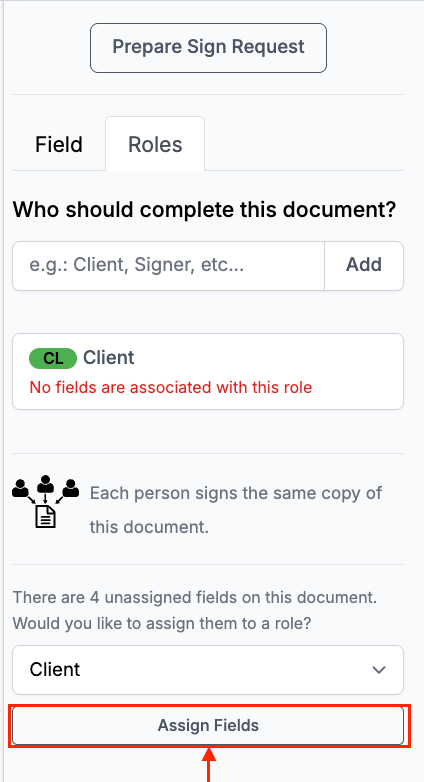
Signature, Initials, and Auto Date fields are required by default. For more info on adding initials, see our guide: How to add initials to PDFs. Other fields start as optional; select each essential field and enable Required so the signer must complete it before Finalize. Check assignments individually on multi-signer documents.
4. Create your own signature to sign a PDF
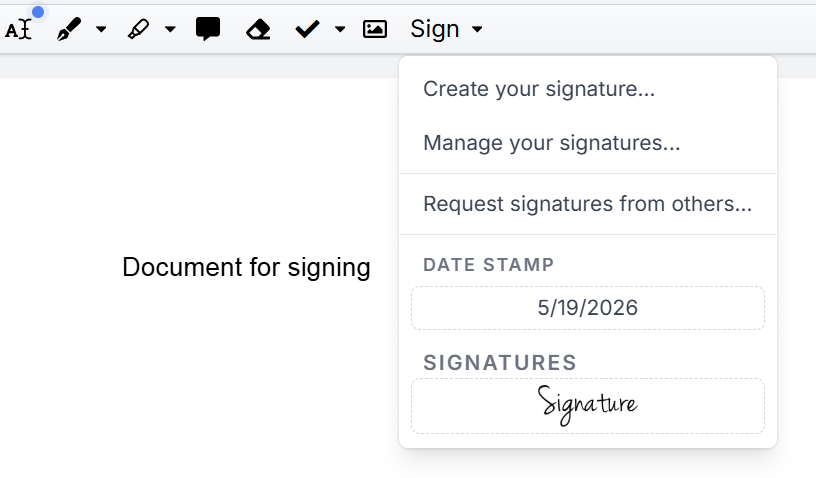
If you also need to sign, select the Sign tool and then Create your signature. Leave other people’s signature fields for them to complete.
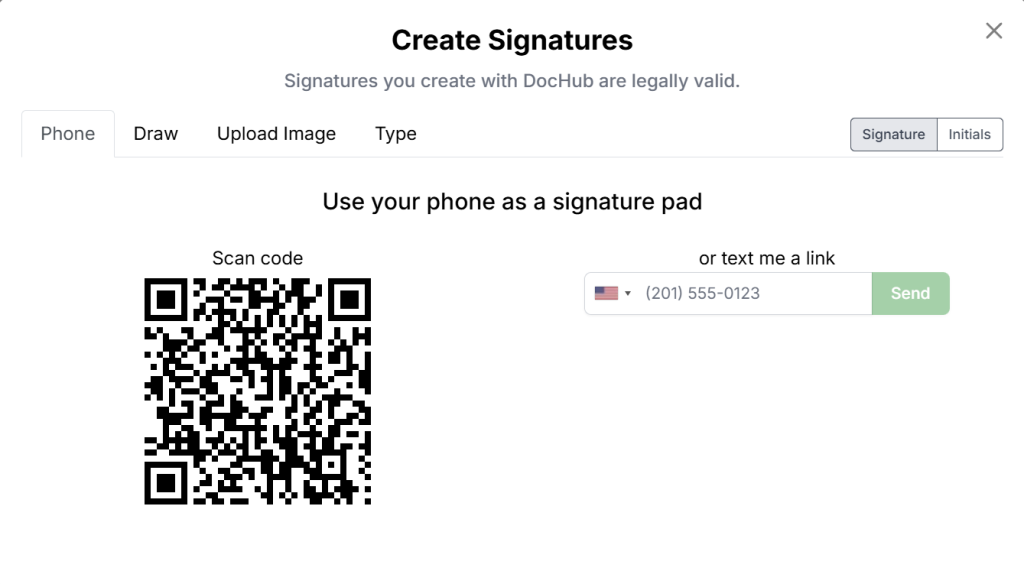
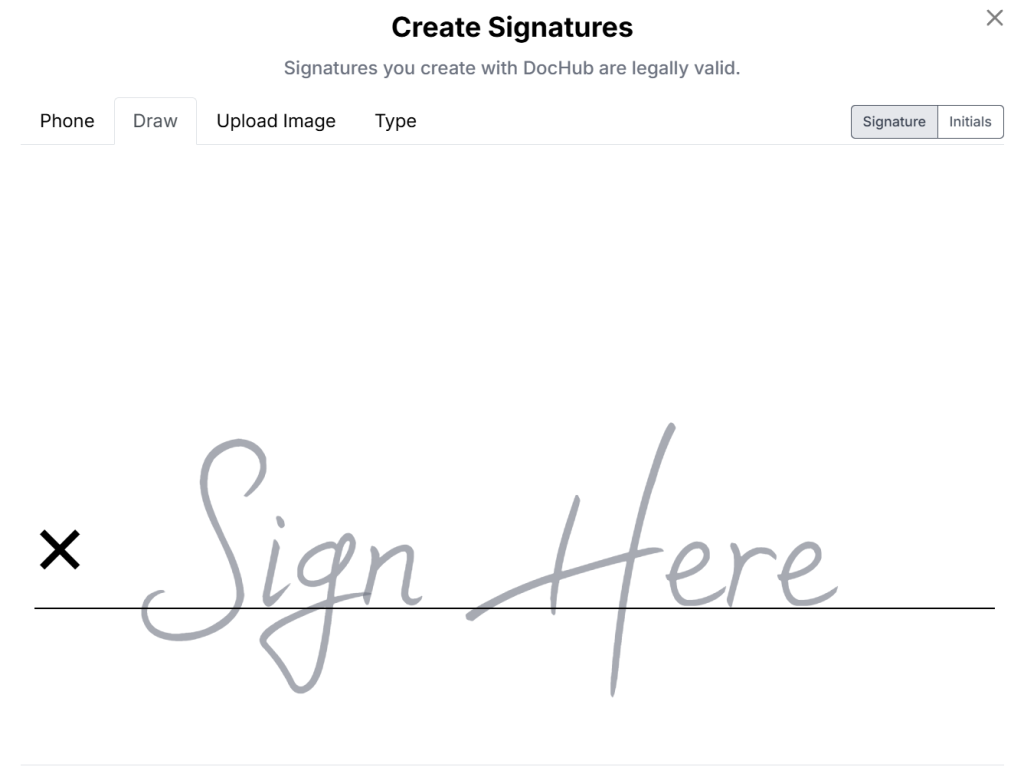
Choose a signing method that suits your device and preferred appearance:
- Phone: Scan the QR code or request a text link to use your phone as a signature pad.
- Draw: Create a drawn signature in the drawing area using your mouse, trackpad, or touchscreen.
- Upload Image: Select Upload Signature to import an image of your handwritten signature.

- Type: Enter your name and select a style for your typed name.
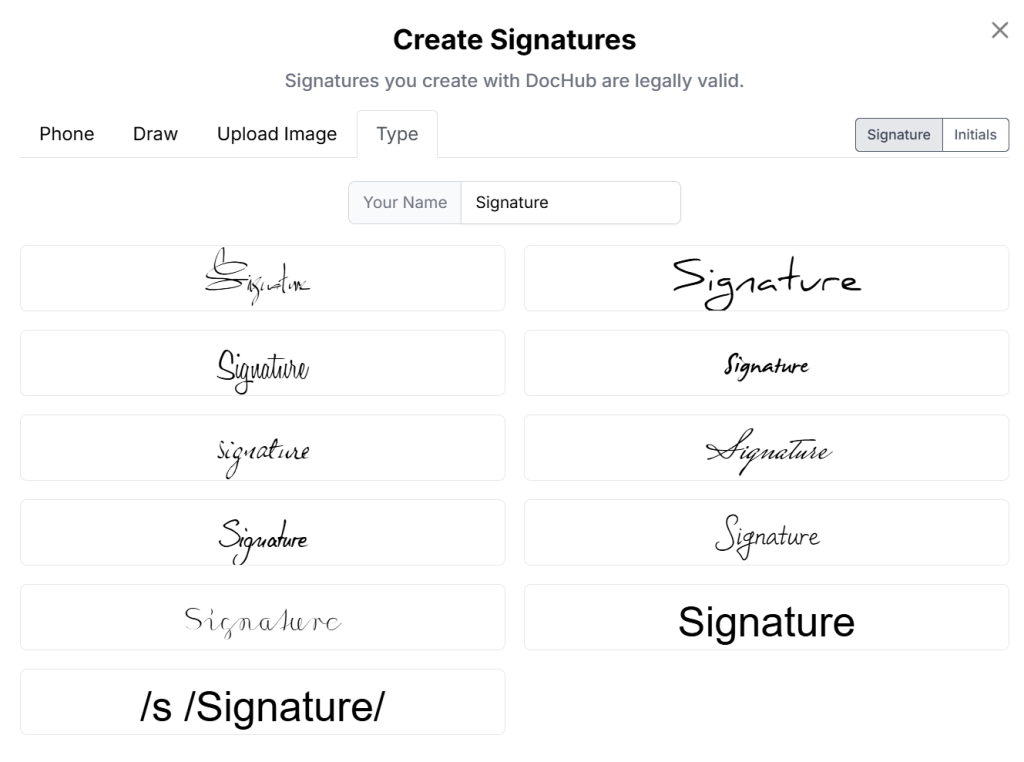
A saved signature lets you add a signature to another document in just a few clicks. Place it where needed, then check its size. For a fuller walkthrough, see creating and adding signatures to PDFs.
You can also capture your signature image using a camera of your phone and DocHub mobile app. We have a separate blog article about capturing photos of signatures for PDF documents, please see it for more detail.
5. Review recipients and send
Open Prepare Sign Request, or select Request signatures from others from Sign. Add recipients, then confirm their email addresses and field assignments.
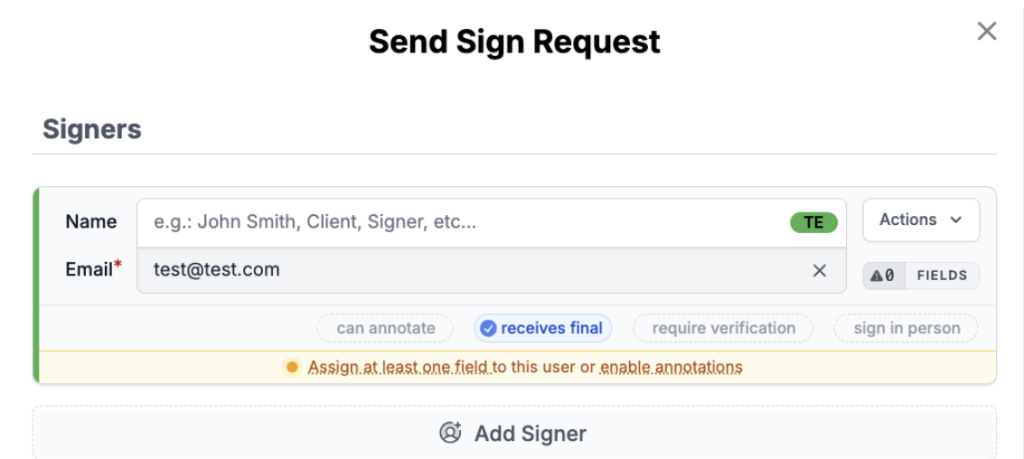
Choose sequential signing when one person must finish before the next is notified, or All at once for independent responses. Review permissions, your email message, automated reminders, and Receives Final Copy, then select Send Request. Recipients can sign through their links without creating a DocHub account.
Use the detailed guide to requesting signatures and the instructions for sending documents with reminders for follow-up settings.
Which document signing workflow should you use?
Choose tools according to who signs and how much preparation you need.
| Workflow | Useful for | Preparation needed |
|---|---|---|
| DocHub Sign Request | Assigned fields and remote signing | Check recipients, required fields, routing, and reminders |
| Self-signing a PDF | Adding your own signature | Review content, sign, and save the signed file |
| Print, sign, and scan | Recipients requiring paper signatures | Arrange printing, delivery, scanning, and storage |
| Adobe Acrobat e-signature request | Teams already using Adobe | Add recipients and review signing fields before sending |
What mistakes should you avoid before sending?
Use this final checklist:
- Unassigned fields: Verify who completes each one.
- Optional essentials: Require necessary names, selections, and responses.
- Covered text: Keep fields clear of clauses and labels.
- Wrong version: Confirm everyone is reviewing the same approved agreement.
- Missing records: Plan where to store the signed copy and audit trail.
Finalizing document content prevents invalidation of signatures due to edits. After sending, use Manage and Audit to review status. For a pending signer, Signer Actions → Send Reminder sends another email notification. Download and save the completed signed PDF document and any audit trails required by your organization. Keep signed documents in the approved location. An audit trail records events; it does not independently prove every aspect of a signer’s identity.
Does preparation make a signed PDF legally binding?
Preparation supports a complete record but cannot guarantee enforceability. The ESIGN Act generally prevents covered records from losing legal effect solely because they are electronic. UETA provides a framework for electronic transactions under applicable state law, while eIDAS Article 25 addresses electronic signatures’ legal effect in the EU.
Intent, consent, attribution, document type, and local requirements still matter. The difference between an e-signature and certificate-based digital signatures is important: the latter use cryptographic validation to help verify document integrity. A signature image alone does not provide that validation. For digitally signed PDFs, use a compatible application to validate the signature and certificate. Confirm certificate, witnessing, or notarization requirements before choosing a workflow.
Disclaimer: The information in this blog post is provided for general informational purposes only and does not constitute formal legal advice.
Final thoughts
Clear fields and correct assignments help recipients electronically sign documents without avoidable follow-up. Make checking the approved version your final step before sending.
Get started with DocHub to prepare your next PDF and send it for signing.
Glossary
- Signature field: An interactive placeholder assigned to a signer.
- Electronic signature: Electronic data or a process adopted with intent to sign.
- Digital signature: A cryptographic signature using digital certificate information.
- Audit trail: A record of document and signing events.
FAQs
Can I prepare scanned PDF forms for signing?
Yes, you can place fields over a readable scanned page. Check that the scan includes every page and leaves enough space for responses. Adding fields does not make the underlying scanned text editable.
Can I prepare recurring agreements in just a few steps?
Use a template for recurring agreements with the same field layout. DocHub creates a new copy for each Sign Request. Review recipient details and variable terms before each send.
Can I use a free electronic signature workflow?
DocHub offers a free plan with usage limits. Check the current plan details against your document volume and required fields. Free access does not mean unlimited signing or requests.
Should I flatten the PDF before requesting signatures?
Keep interactive fields available while recipients still need to complete them. Flattening can remove that interactivity. Retain the working original and check any export settings before sharing.
Should I use Adobe Acrobat or DocHub to prepare a PDF for signing?
Both Adobe Acrobat and DocHub let you add signing fields and request electronic signatures. DocHub is a practical option for preparing, assigning, and sending documents in a browser, while Acrobat also offers certificate-based digital signing tools. Choose based on your required signing method, existing software, and plan limits.
- Summary
- What does preparing a document for signing mean?
- What should you check before uploading your PDF?
- How do you prepare a PDF for electronic signature in DocHub?
- Which document signing workflow should you use?
- What mistakes should you avoid before sending?
- Does preparation make a signed PDF legally binding?
- Final thoughts
- Glossary
- FAQs