
How online PDF merging works: Merging algorithms, cloud processing, and security

Online PDF merging combines pages from multiple PDF documents into a single PDF file in your chosen order. Merging algorithms read the source documents, copy the required page content and resources, and write a combined document, enabling users to review related material in one file. Cloud-based services process uploaded files on remote infrastructure, while some browser tools process files locally.
For HR, sales, and administrative teams, understanding these combination processes helps prevent missing pages, broken fields, and inappropriate sharing. This guide explains the technical basics, security checks, and how to merge PDF files online with DocHub when preparing a package for review or signatures.
Summary
Before combining PDF files, keep these essentials in mind:
- Select current documents and decide their page order.
- Merging, conversion, and compression serve different purposes.
- Check fields, page orientation, and access permissions afterward.
- Assemble documents before requesting signatures whenever possible.
Here is what happens behind the thumbnails.
How do PDF merging algorithms work?
PDF merging algorithms combine selected pages from multiple PDF documents into one file while maintaining their content and order. A PDF, short for Portable Document Format, contains objects that describe text, images, fonts, and document structure. A structural merge handles these objects and their references rather than simply joining the files’ raw bytes.
In DocHub, pages are not redrawn during the merging process. Existing selectable text stays selectable, and images retain their original resolution. The result still depends on the source: merging PDF files does not sharpen a blurry scan or turn photographed text into selectable text.
Reading and copying page objects
In a typical structural merge, the PDF merger reads the selected PDF pages and brings their content and referenced resources into the output file. References must remain correctly associated with each page, even when different files use the same internal object numbers. Shared font names alone do not necessarily create a conflict.
Document organization and page sequence
DocHub lets you control the page sequence and how the merged document is organized:
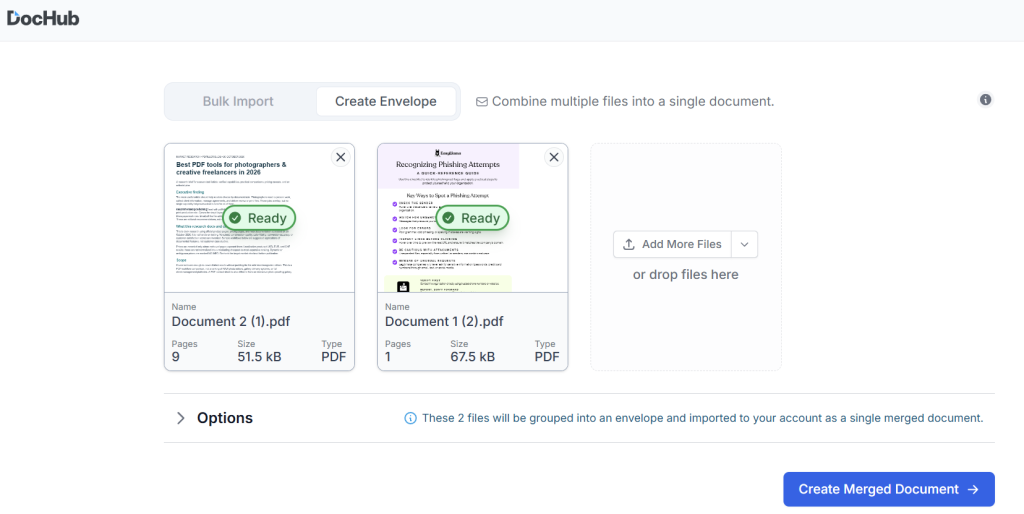
- Create Envelope (Combine Files): When uploading several files, drag them into the desired sequence before creating the combined document.
- Merge and Append File: Within an existing document, choose where to insert additional pages. The surrounding pages retain their relative order, and you can rearrange pages afterward in Page Manager.
- Merge Pages: Create one continuous document without dividers between the original files.
- Preserve document groups: Add a labeled divider at the beginning of each original file, making longer packets easier to navigate.
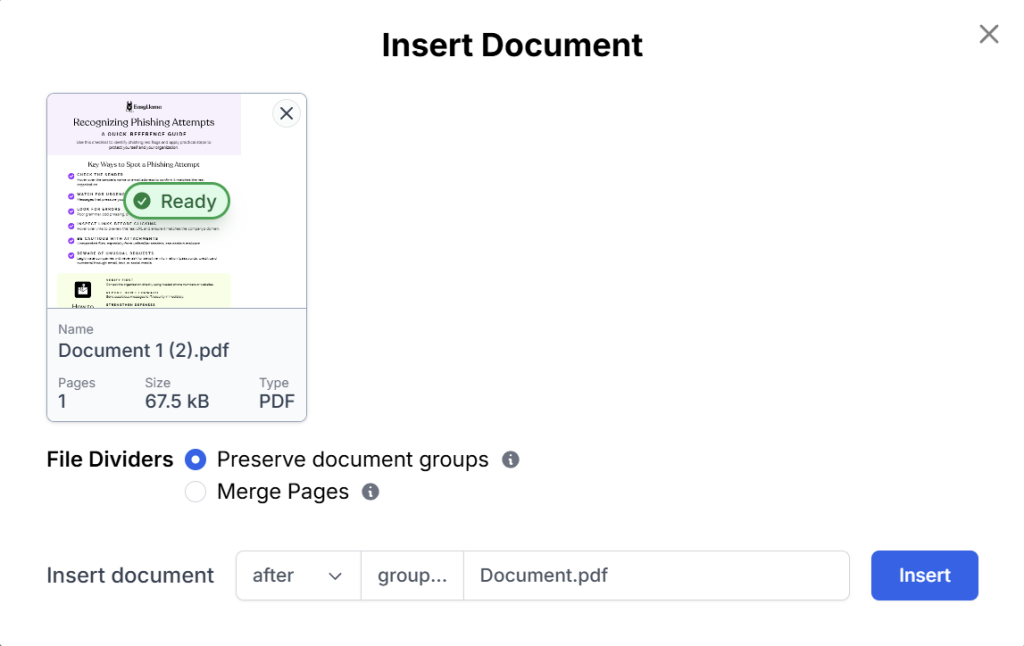
For example, preserving document groups helps a recipient find where a lease ends and its addendum begins without opening separate files.
Handling fields and other document features
DocHub carries existing fields, signatures, text, and other edits along with their pages into the merged document. You can continue working on the combined file while the source documents selected for merging remain unchanged in your account.
When possible, merge multiple PDFs before filling fields or requesting signatures so everyone works from the same assembled document. Fields already added will still carry over if you merge later. However, carrying over a signature’s appearance does not establish that a certificate-based digital signature remains valid in the new output file.
What happens in the cloud? Online assembly explained
DocHub processes document combinations in the cloud, within your account. When you use this online PDF merger, the service assembles your selected pages, enabling users to combine multiple documents from a computer or phone without performing the merge locally. Your device and internet connection still affect how you upload, preview, and interact with large files.
Document access and permissions
You can merge only documents you have permission to open. The workflow does not send you to a separate converter site or require you to download existing account documents and upload them again. The merged document remains available for further PDF editing, while the source files remain in your account.
Practical limits for combining PDFs:
- Total page count: DocHub caps the number of pages in a single document and notifies you when a merge exceeds that limit.
- File preparation: If recently uploaded files are still being prepared, wait until they are ready before merging.
- Internet access: An active connection is required to merge files and work with the result.
- Upload requirements: Check applicable file size limits separately from the combined document’s page limit.
A simple user interface does not indicate whether a service processes files simultaneously or queues them, and cloud processing does not guarantee instant results. Allow time for large uploads and file preparation, then inspect the merged document before distribution. Merging also does not automatically delete documents; manage retained documents in accordance with your organization’s policies and the provider’s retention terms.
When should you combine multiple PDF files?
Combine multiple PDFs that belong to a single recipient-facing package. Combining several PDF files into a single package can simplify document management by keeping related digital documents together. A sales team might combine a proposal, pricing schedule, and an unsigned agreement; HR might assemble an offer and policy acknowledgments for a new hire.
Keep individual files separate when their audiences differ. An onboarding package should not include an internal salary approval simply because it concerns the same employee.
PDF document merging workflows comparison
The table below illustrates the main differences between PDF document combining options and helps you choose the right way.
| Workflow | Useful when | Main consideration |
| DocHub | You want to merge, edit, and prepare documents for signatures in one account | Confirm cloud use is appropriate for the content |
| Locally configured desktop PDF editor | Documents must remain on a managed device | Verify the selected operation does not upload files |
| Separate email attachments | Documents need an independent review or distribution | Recipients must track several files and versions |
How do you merge PDF documents in DocHub?
A client reviewing your proposal shouldn’t have to search through several attachments to find the pricing and agreement. Merging related PDF documents in DocHub brings those pages together in the order you want them to be read.
Retain source copies, confirm permission to use them, and check password protection. Decide the sequence and remove outdated versions. For Word documents created in Microsoft Word, Excel spreadsheets, or PowerPoint presentations, prepare copies in PDF format and inspect their layout before assembly. Conversion handles different file formats; the merging process then combines their pages. You do not need to convert PDFs to another format just to merge them.
DocHub’s document merging workflow
- Open the document or template that will receive the additional pages.
- Open Page Controls on the left side of the toolbar.
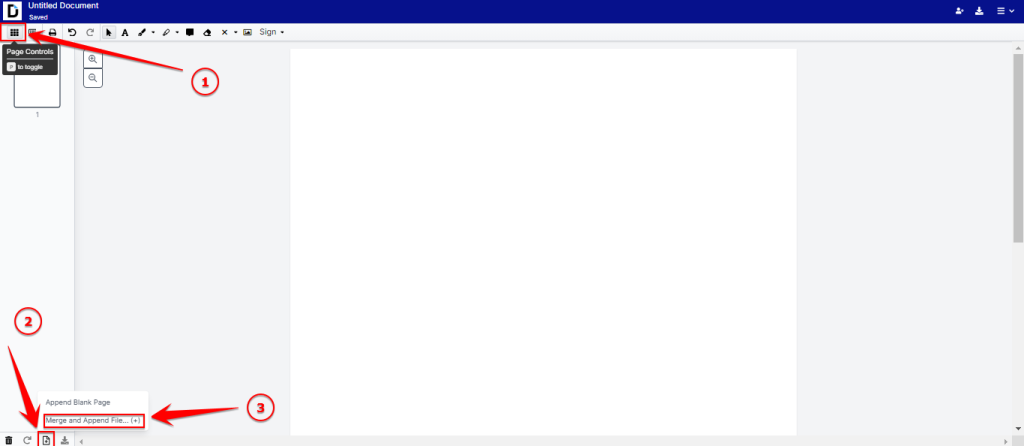
3. Click Merge and Append Files at the bottom of the panel to open the import dialog.
4. Select from Your DocHub to choose existing account documents, or use an available import option for another file.
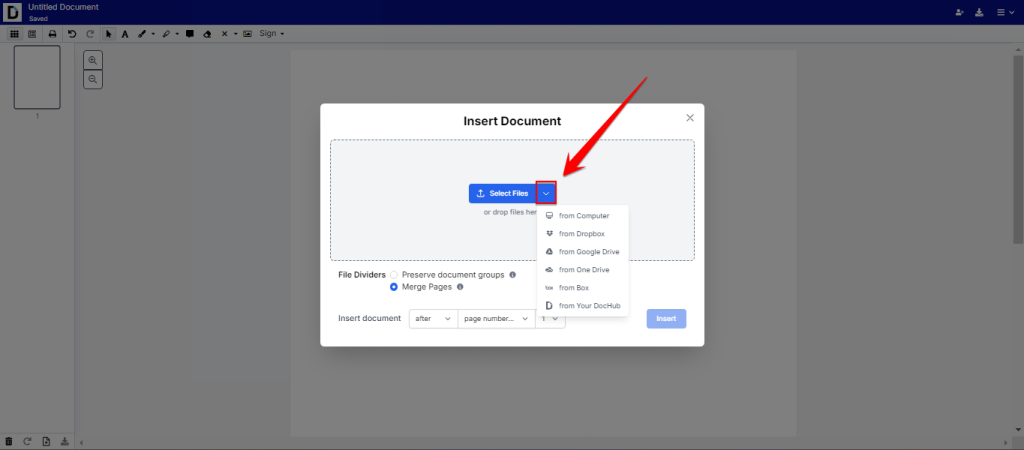
- Select the files, choose where their pages should appear, and click Insert.
- Review the combined document. Use Page Controls to rearrange pages, correct rotation, or remove unnecessary pages.
- Download or export the finalized file.

You can continue editing the PDF in the combined document or send it for signatures. Merging also works with templates; if conversion back to a template is needed, choose File > Actions > Convert to Template.
We’ve described the process of merging PDF documents with your existing file in the guide: How to merge PDF files online: Explore a secure way to combine documents.
What security checks matter before merging sensitive documents?
When evaluating security features, review encryption, permissions, and retention. DocHub’s approach to security includes encryption in transit and at rest, infrastructure safeguards, and access controls. These measures support document protection, but do not replace your organization’s approval of a particular workflow.
Confirm recipients may see every page. Check the resulting document’s sharing settings rather than assuming permissions from the original files carry over.
Security measures for merging signed documents
For signed records, retain the originals. For example, Adobe’s guidance on signed PDF limitations explains that digital-ID signatures can restrict editing. A visible signature in a merged copy does not establish that the original cryptographic signature remains valid. If you need information on requesting multiple signatures, see our blog: How to request and track multiple signatures.
Disclaimer: The information in this blog post is provided for general informational purposes only and does not constitute formal legal advice.
What common merging issues should you check?
Before sharing one document assembled from different files, inspect these potential problems:
- Incorrect order: When merging PDF documents with multiple pages, verify transitions between documents, not just the first page.
- Unexpected file size: Merging does not automatically compress PDFs. Check upload and delivery limits separately.
- Broken fields: Test independent values in forms with similar field names.
- Missing document features: Check bookmarks, links, and attachments that matter to the recipient.
- Unreadable scans: Combining image files or scanned pages does not itself perform text recognition.
Check the exported PDF before distribution.
How do you choose the best PDF combiner for your workflow?
The best PDF combiner for a one-time handout may differ from the right choice for recurring client packages. Compare online PDF combiners using a representative sample of multiple documents, and check the following key features.
Features of modern solutions for combining PDF files
- Basic features: Can you merge files into a single document, preview the result, and correct page order? A drag-and-drop feature can help with arrangement, but verify the exported sequence. DocHub preserves file quality while merging. Among other tools, UPDF allows merging multiple PDFs without losing formatting.
- Editing needs: Decide whether basic assembly is sufficient or advanced editing capabilities are needed afterward. Evaluate advanced features against actual tasks, such as correcting text or preparing forms.
- Compatibility: Test your browsers and operating systems. A web-based tool should fit the devices your team uses; a user-friendly interface should make selection, placement, and export clear. File upload requirements also matter: for example, Smallpdf accepts up to 5GB per file for merging.
- Cost and limits: A free tool may suit occasional work. Some tools offer limits you can use without payment; for example, iLovePDF has a free version limit of 100MB total uploads. In DocHub’s plan comparison, you can see merging in the free version.
If your team already uses Adobe Acrobat, include it in the evaluation. Adobe Acrobat DC allows merging of various file types. For installations labeled Adobe Acrobat DC, confirm the installed edition and available tools rather than relying on the name alone.
Final thoughts
A good PDF merge produces a complete, usable package with the right pages and audience. DocHub is useful when assembly leads directly into editing or signature preparation.
Get started with DocHub to combine your documents and review the result before sending.
Glossary
- PDF object: A component describing content or structure within a PDF.
- Structural merge: Combining pages and their underlying resources into one PDF.
- Cloud processing: Running document operations on a service’s remote infrastructure.
- Compression: Reducing file size, separately from combining documents.
FAQ
How should I organize a PDF containing documents in different languages?
Place each translation next to its corresponding original so recipients can compare them easily. Use clear labels to identify the language and version of each document. Merging does not translate text, so have any required translations prepared and reviewed beforehand.
How do I avoid confusing page numbers after merging PDFs?
Check whether each source document starts its printed page numbers at 1, which can make references unclear in the combined file. For a review packet, consider adding continuous numbering while keeping original numbers that recipients need for citations. If you retain separate numbering, identify references by both document name and page number.
How can I avoid including an outdated document in a merged PDF?
Confirm the approved version of each file with its owner before merging, especially when filenames or dates are similar. Compare details such as pricing, deadlines, and agreement terms rather than relying on the filename alone. Keep superseded drafts out of the selection folder to reduce the chance of accidentally including them.
Should I merge all project files into one PDF or create separate packets?
Combine documents when the same recipients need to review them together for one task or decision. Create separate packets when files have different audiences, access restrictions, or approval requirements. For example, keep an internal pricing approval separate from the proposal and agreement you send to a client.
- Summary
- How do PDF merging algorithms work?
- What happens in the cloud? Online assembly explained
- When should you combine multiple PDF files?
- How do you merge PDF documents in DocHub?
- What security checks matter before merging sensitive documents?
- What common merging issues should you check?
- How do you choose the best PDF combiner for your workflow?
- Final thoughts
- Glossary
- FAQ