

To annotate PDF files online, you need a secure online PDF editor that lets you add text, highlights, shapes, and comments directly from your browser. Tools like DocHub allow you to upload your document, select markup tools from the toolbar, and easily share the edited file with your team. This process makes reviewing contracts, grading papers, and collaborating on documents simple and secure.
- Annotating PDFs online saves time and eliminates the need for desktop software.
- Use PDF annotations to leave feedback right on the page and skip confusing email chains.
- DocHub’s intuitive online PDF editor lets you highlight or underline text, add shapes, and insert comments in seconds from anywhere.
- All files are handled with robust encryption, so your sensitive documents stay protected.
Why annotating PDFs matters
Working with digital documents is a daily reality for most professionals, students, and businesses. Contracts, reports, research papers, presentations, and invoices all arrive as PDF files. But reading a document is rarely enough — you often need to respond to it, mark it up, or pass feedback to someone else.
PDF annotation solves that problem. Instead of printing pages, writing notes by hand, and scanning everything back in, or sending long emails explaining what needs to change on page three, you can add comments, highlight text, and mark key points directly inside the file. This visual feedback keeps everything in one place, eliminating confusion and speeding up the review process.
This guide is for anyone who needs to annotate a PDF online — students, teachers, legal teams, and other professionals. We’ll show you how to easily add annotations with DocHub and share some best practices to make your review process even better.
How do people use PDF annotation?
Common use cases for a PDF annotator span almost every industry:
- Lawyers use markup tools to redline contracts and suggest revisions.
- Teachers grade assignments by adding a pop-up note or drawing freehand to explain a concept.
- Teams preparing presentations can emphasize key points and collaborate on changes before the final pitch.
Knowing how to annotate a PDF saves time and prevents miscommunication. With the right tool, you can highlight important details, provide clear feedback, and keep everyone on the same page.

Challenges of annotating PDFs online
Despite how common PDF annotation is, many users run into real frustrations before they find a tool that works for them.
- Complicated tools. When you just want to add a quick note or highlight, the last thing you need is confusing software with a steep learning curve.
- Device and browser limits. You might start reviewing a doc on your Mac, but need to finish adding comments on your Android tablet. Many tools lock you into one operating system or make you download heavy apps, which slows you down.
- Security risks. If you’re handling sensitive documents like financial reports or legal agreements, you can’t risk uploading them to a random website. Free tools may lack proper encryption, leaving your private information vulnerable.
- Version control headaches. When multiple people download a file, add their own notes, and email it back, you end up with a dozen different versions. Without real-time syncing, combining feedback is a tedious, manual chore.
- Limited sharing and collaboration options. Annotating is only half the job — you also need to share a document with your team or clients, get feedback, manage revisions, and send it for final approval. Tools that make sharing difficult just add unnecessary steps to your workflow.
How to annotate PDFs online with DocHub
DocHub helps people get their documents done fast. As a browser-based PDF editor, it lets you edit and annotate documents online without downloading any software.
Here are the PDF annotation tools you’ll find in DocHub:
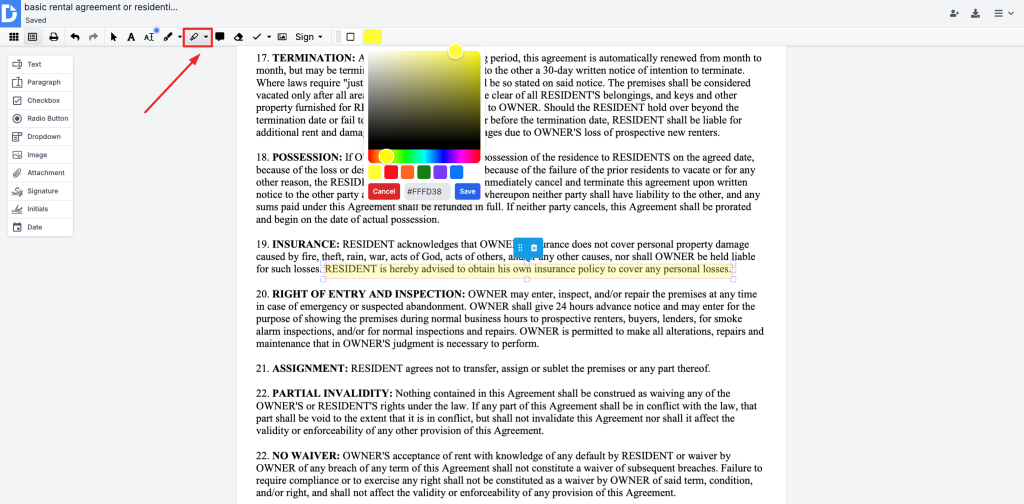
- Highlight PDF: Select the highlight tool and drag your cursor over the text you want to stand out. You can change colors to color-code your review.
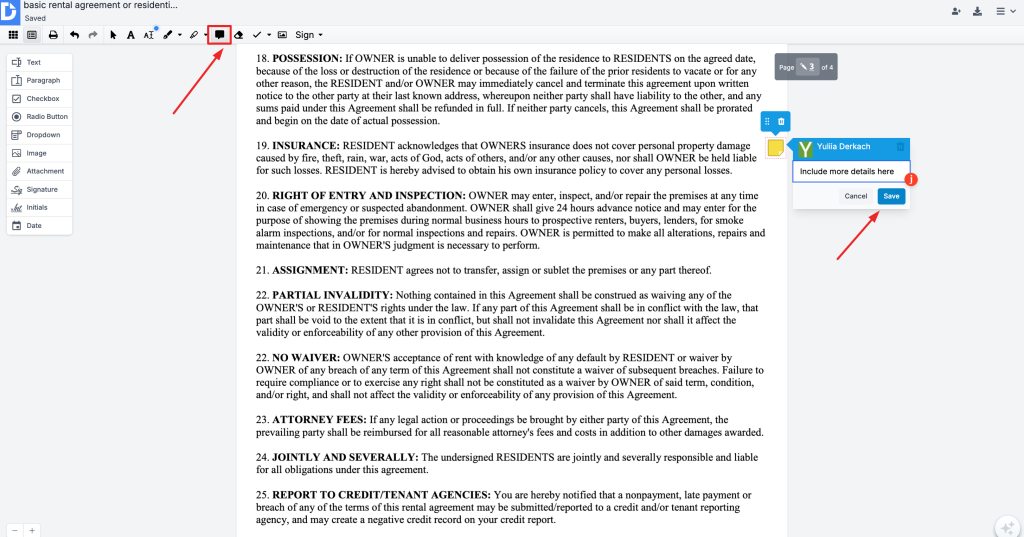
- Comment PDF: Use the comment tool to click anywhere on the page and leave a note. This is perfect for leaving detailed feedback for your team.
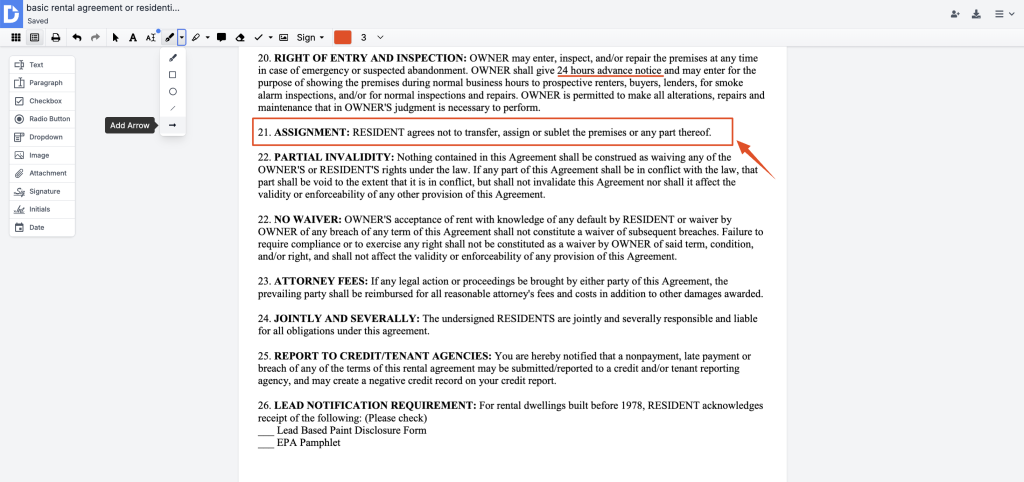
- Add shapes PDF: Use the shapes menu to insert circles, rectangles, lines, and arrows. These tools help you draw attention to specific areas or visually emphasize key points.
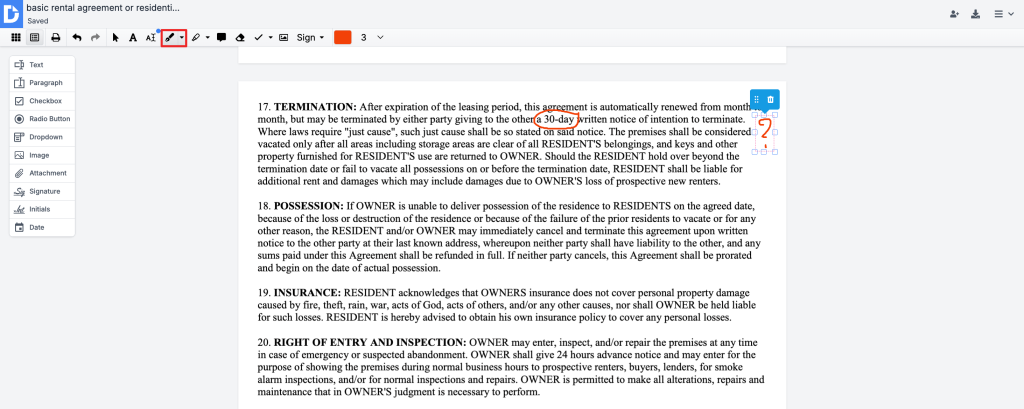
- Draw on PDF: Find the “pencil” Draw Freehand tool. It’s especially useful for sketching diagrams, circling items, or adding handwritten-style notes.
Let’s walk through how to use each of these features.
How to highlight a PDF
- Select the Highlight tool in the toolbar.
- Click and drag your cursor over the text you want to highlight.
- Click the Highlight color box in the toolbar to choose the appropriate color from the palette.
How to add a comment to a PDF
- Choose the Comment tool from the toolbar.
- Click where you want to add your note.
- A text box will pop up. Type your comment and click Save.
How to add shapes to a PDF
- Click the dropdown next to the Draw Freehand tool in the toolbar to open the shapes menu.
- Select the shape you want to use — a circle, rectangle, line, or arrow.
- Pick a color and line thickness for your shape.
- Drag the cursor over the document to draw the shape.
- To move or resize the shape, just click on it and drag the handles.
How to draw on a PDF
- Select the Draw Freehand tool (it looks like a pencil).
- Click and drag to sketch circle items or add handwritten notes.
- If you don’t like the result, click Undo to cancel the last action and redraw.
If you need more help with any of these tools, you can always check out our Help Center.
Remove or edit annotations
If you make a mistake, do not worry. Removing annotations is very simple: click your annotation to edit or delete it. DocHub lets you modify, reposition, or delete any annotation at any time before saving, keeping the editing process flexible. To delete your comments, drawings, or highlights, click on them and select the Trashbin icon. You can also use the Undo tool to cancel your last actions.
Save and share your annotated PDF
DocHub saves your changes in real-time, so you never lose your progress.
Once you finish marking up the file, you can share your PDF with others. You can send the document directly to a colleague’s email address or generate a secure link. You can also assign permissions, ensuring that only the right users can view or edit your document.
If you need a hard copy or want to save it locally, simply hit download to export the finalized PDF to your device.
What makes DocHub different from other PDF annotation tools?
Many online PDF editors have limitations and only offer basic markup features. DocHub combines a comprehensive annotation toolkit with collaboration, security, and platform integration, setting it apart.
Real-time collaboration and cloud sync
DocHub makes work easy with shared editing workspaces for teams. Several users can view and annotate a PDF. Instead of emailing large files back and forth, everyone works on a single, centralized document. This eliminates version confusion and ensures your team always has the most up-to-date information.
Cross-device compatibility
You shouldn’t be tied to a specific desk or operating system to get work done. DocHub is entirely cloud-based, meaning it works flawlessly in your browser on Mac, Windows, Linux, and Chromebooks.
You can also annotate on the go. Whether you are using a phone or a tablet, DocHub offers intuitive mobile apps for iOS and Android, letting you review, edit, annotate, eSign, and share PDFs from anywhere.
Secure file handling with encryption
DocHub prioritizes security. When dealing with contracts and private records, it really matters. Our platform protects your data with robust 256-bit encryption, ensuring your files remain private during transit and at rest.
DocHub’s digital signatures are legally binding and comply with laws like the ESIGN Act and eIDAS. Each signature is unique, verifiable, and linked to the document, so any changes made after signing are easy to spot.
Google integration
DocHub works with the cloud tools you use every day. With deep integration into Google Workspace, you can open and edit PDF files directly from Gmail, Google Drive, or Google Classroom. This is particularly valuable for teams that already use Google Workspace. Integrations with Dropbox and OneDrive are also available.
Why choose DocHub: Feature comparison
To help you understand the value, here is a quick breakdown of how DocHub handles document workflows compared to basic free online tools.
| Feature | DocHub | Basic free PDF editors |
|---|---|---|
| Highlight text | Yes | Yes |
| Add comments / pop-up notes | Yes | Yes |
| Add shapes (circle, rectangle, line, arrow) | Yes | No |
| Freehand drawing (pencil tool) | Yes | No |
| Text box tool | Yes | Yes |
| Legally-binding eSignatures | Yes | No |
| Collaboration features | Yes | No |
| Integrations | Yes | No |
Tips for effective PDF annotation
Having a powerful PDF annotator is only half the battle. Using it effectively ensures your feedback is clear, actionable, and easy to understand. Here are some best practices for annotating documents like a pro.
- Color-code your highlights. Don’t use one color for everything. Create a system using different colors to categorize your feedback. For example, use yellow for general information, pink for items that need immediate revision, and green for approved sections. This visual system helps the reader quickly scan and prioritize their tasks.
- Add comments for detailed feedback. If you have a lot to say, do not crowd the margins with a giant text box. Instead, use a comment tool. This keeps the document looking clean while still providing the necessary context.
- Be specific with shapes and arrows. When reviewing complex diagrams or dense text, highlighting might not be enough. Use the “add shapes PDF” feature to draw a red rectangle around a specific chart or arrows to point exactly to the sentence you want changed. The clearer you are, the faster the revision process will go.
- Keep it tidy. Before you share annotated PDFs with a client or manager, review your own marks. If you changed your mind about a comment, delete it. If you accidentally drew a stray line with the pencil tool, remove it. A clean, organized document looks more professional and is easier to read.
Final thoughts
Annotating documents shouldn’t be a hassle. Whether you’re grading papers, negotiating a contract, or giving feedback on a design, the right tools make all the difference. You need a platform that’s secure, accessible, and easy to use.
DocHub delivers exactly that. It strips away the unnecessary complexity found in other software, giving you a clean, intuitive interface to get your work done. You can highlight text, add comments, insert images, and sign documents without missing a beat. Beyond that, DocHub also provides peace of mind with its advanced security measures, ensuring your sensitive data is always protected.
Ready to make paperwork feel easy? Try DocHub for free today and experience a smarter way to edit, sign, and share your PDF documents.
Disclaimer: The information provided in this article is for general informational purposes only and does not constitute legal advice.
Glossary
- PDF annotation: The process of adding notes, highlights, shapes, or comments to a PDF document to provide feedback or emphasize information.
- Digital signature: A secure, legally compliant electronic signature that verifies the identity of the signer and ensures the document has not been altered.
- Markup tools: A collection of digital instruments (like highlighters, pencils, and shapes) used to edit and review documents visually.
- Text box: A designated square or rectangular area inserted into a document where a user can type new text.
- Cloud syncing: The automatic process of saving and updating digital files across multiple devices via the internet, ensuring you always access the latest version.
FAQ
To highlight text, simply open your document in an online PDF editor like DocHub. Select the highlight tool from the main toolbar at the top of the screen. Click and drag your cursor over the specific words or sentences you want to emphasize, and the color will apply automatically.
Yes, provided you use a reputable and secure platform. DocHub uses advanced 256-bit encryption to protect your files while they are uploaded, edited, and stored. Always ensure the tool you choose complies with standard data privacy regulations before uploading highly sensitive information.
Locate the shapes icon in your document toolbar. Click it to reveal a dropdown menu of different shapes, including rectangles, circles, lines, and arrows. Select the shape you need, then click and drag on the document page to draw it exactly where you want it.
Absolutely. Cloud-based platforms like DocHub allow you to access and edit your documents from any device with an internet connection. Simply log in to your account from a mobile browser or via a mobile app for Android or iOS to highlight text, draw, or add comments on the go.
To sketch or draw freehand, select the Draw Freehand (pencil tool) from the DocHub editing toolbar. Use your mouse, trackpad, or touchscreen to draw directly onto the document. This is particularly useful for circling typos, drawing quick diagrams, or providing visual feedback.
To share an annotated PDF, click the Share or send button within the editor. Generate a secure link or email the document directly to your colleagues. You can also set specific permissions to control who can view or edit the file.