
How to delete and insert pages in a PDF: A practical guide to organizing documents

To delete PDF pages or insert pages into a PDF, you need a PDF page remover or a reliable online PDF editor like DocHub to keep documents relevant, organized, and professional. You can simply open your document in the online tool, navigate to the page manager, and drag, drop, delete, or add pages with a few clicks. Your updated file is then ready to save, download, or share securely.
- DocHub offers user-friendly, drag-and-drop online tools to remove unwanted pages or add blank pages without hassle.
- Your files remain completely secure thanks to advanced encryption, ISO certifications, and GDPR compliance.
- You can also reorder, merge, annotate, and download your final PDF file in seconds.
- No need to download heavy software — edit your PDF online, right from your browser.
Why does managing PDF pages matter?
PDF documents are everywhere — contracts, reports, academic papers, and invoices all rely on this format. But PDFs don’t always come in perfect shape. You might receive a multi-page contract with blank pages in the middle, a report with an outdated section that needs to go, or a presentation with duplicate content. Deleting pages from a PDF cleans up the file, making it more relevant and easier to read for your team or clients.
On the other hand, you might need to insert pages into a PDF to add missing content. Whether you’re adding a new clause to a contract, attaching an appendix, or inserting a signature page, keeping your PDFs updated ensures your records are accurate. You might also need to combine reports by merging multiple files into one cohesive document. Knowing how to remove PDF pages and add new ones gives you full control over your documents.
With so many PDF tools out there, it can be tough to find the right one. DocHub is a secure, user-friendly, and cost-effective online PDF editor that lets you quickly edit and manage documents from your desktop or mobile device. In this guide, we’ll show you how to properly organize your documents by deleting and inserting pages to a PDF online using DocHub tools.
Before you start: Pre-editing tips to consider
Before you start editing a PDF, it’s important to take a few quick steps to protect your work from losing crucial data or causing any accidental changes. Here are some tips to consider before you begin your editing process:
- Make a copy: Always work on a copy of the original PDF before making structural edits. Use filenames that indicate the version, such as “contract-original.pdf” and “contract-edits-v1.pdf”. This way, if you accidentally remove pages or save over the original file, you won’t send out the wrong version.
- Check for sensitive info: If your document contains things like Social Security numbers, bank details, or private customer data, simply deleting PDF pages might not be enough to fully protect that information. You may need to take extra steps to permanently redact or remove sensitive data.
- Look for signatures or forms: If the PDF has already been signed or contains interactive form fields, changing the page order could invalidate the signatures. It’s best to keep a copy of the original signed document and a quick note of the edits you made.
How to remove unwanted PDF pages with DocHub
Removing unnecessary pages from a PDF is a quick and straightforward process. DocHub gives you a clear, visual interface with robust PDF page management features that make it easy to select and remove exactly the pages you want — nothing more, nothing less.
To get started, log in to your DocHub account and upload a PDF from your device or a cloud storage, like Google Drive or Dropbox. You can also use the from Your DocHub option, select a previously uploaded document to create its copy, and start editing it. If it’s already in your Dashboard, simply click a file name to open it in the editor.
Easy steps to delete pages in PDFs
- Open the page manager: When the PDF opens in the editor, click the Page Controls button (page manager icon in the top-left corner of the screen). This opens a panel showing thumbnail previews of every page in your PDF document.
- Select the pages: Click on the thumbnail of the specific page you want to remove. If you need to delete several pages, hold Control or Command to select multiple options. Highlighting the selected page ensures you do not make a mistake.
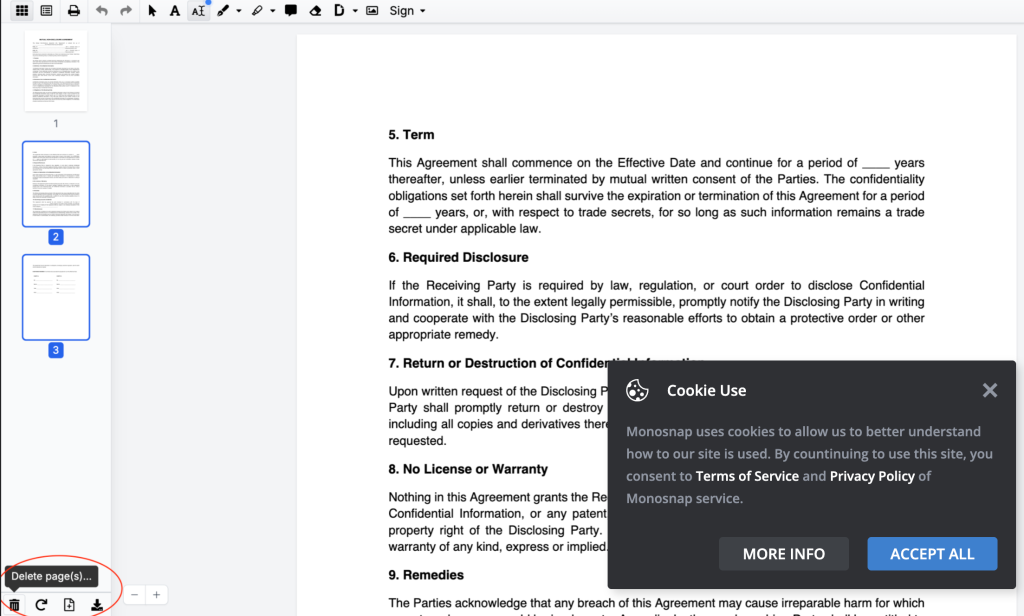
- Delete the pages: Right-click the selected thumbnails and select Delete from the dropdown, or use the Trash icon at the bottom. Confirm your choice by clicking Yes, delete it! in the pop-up window. If you make a mistake, don’t worry: DocHub features an Undo option so you can instantly recover the page.
- Save and share your PDF: Once you finish editing, save your new PDF file on your device or to the cloud, or share it with others via email or a secure link.
How to add new pages to existing PDFs
Sometimes, you need to expand your document by adding fresh content. Knowing how to add new pages to existing PDFs saves you the trouble of creating an entirely new file from scratch. DocHub gives you total control over your document’s structure, letting you add one or more pages exactly where they belong.
Here’s how to do it:
- Access the page controls: In the editor, click on the page manager icon on the left side of the toolbar to open the page thumbnails panel.
- Choose your insertion point: Scroll to the exact spot where you want to insert the new page. You can choose to add a page before or after any existing page.
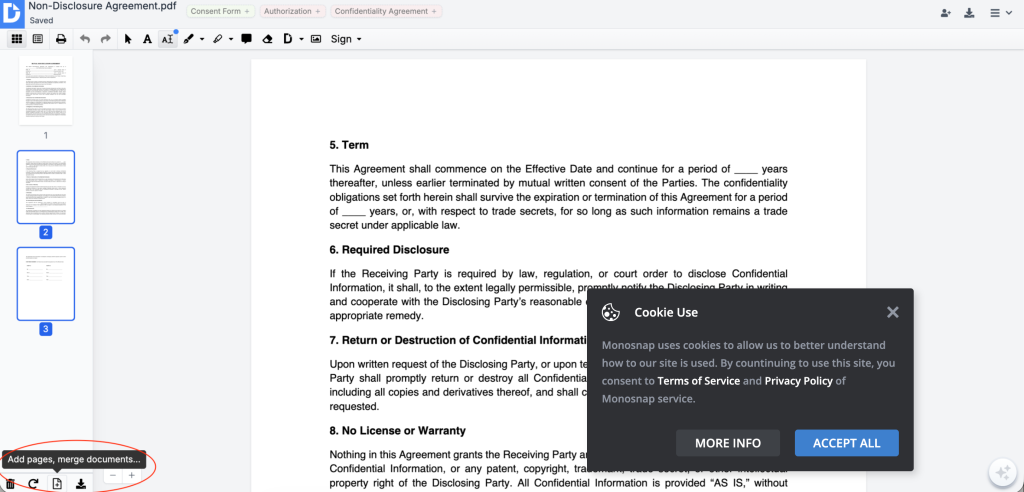
- Insert blank PDF pages: Click Add page > Append Blank Page. In the pop-up, specify whether you want to add new PDF pages before or after the selected page number and click Insert.
- Add pages from other PDFs: Click Add page > Merge and Append File to insert another document into your current PDF. Choose the file you want to add. Decide whether to include dividers between the merged pages and where to place them, then click Insert.
- Make final edits: Review and edit your new PDF. Add and edit text, place and assign fillable fields, insert images, and sign your new PDF with a legally-binding eSignature if necessary.
DocHub offers excellent flexibility during this process. If you need to combine information from several files, you can merge pages from multiple PDFs and reorder them however you like. You can also rotate PDF pages if they import in the wrong orientation, ensuring your final document looks professional and polished.
How to reorder PDF pages after insertion
Once you delete or insert pages, the flow of your document might need a quick adjustment. Knowing how to reorder a PDF is vital for maintaining a logical sequence in your reports, contracts, or academic papers. DocHub makes this process incredibly intuitive.
- Open the page manager to view your thumbnails.
- Click and hold the thumbnail of the page you want to move.
- Drag it to the correct insertion point and drop it into place. The surrounding pages will automatically shift to accommodate the new order.
This drag-and-drop feature works for your whole document. Whether you need to move a single page or shift entire sections, the process is quick and simple. You can review the new layout right away to make sure everything is perfectly organized before you save or share it.
Why choose DocHub for PDF page management?
There are various PDF tools out there, but many are clunky desktop apps that require installation. Let’s see what makes DocHub a good choice for editing and managing PDFs without downloading any software.
Feature comparison: DocHub vs. traditional PDF editors
| Feature | DocHub | Traditional desktop software |
|---|---|---|
| No installation required | Browser-based | Requires download |
| Free tier available | Yes | Often subscription-only |
| Works on any operating system | Yes | Often Windows/Mac only |
| Encrypted file handling | Yes | Varies |
| GDPR-compliant | Yes | Varies |
| Annotations and e-signatures | Built-in | Often add-ons |
| eSignatures | Yes | Often add-ons |
| Collaboration tools | Yes | Limited |
When compared to basic free online PDF editors, DocHub stands out as a more comprehensive and versatile tool. While many free editors offer limited functionality, such as basic text editing or form filling, DocHub provides a broader suite of features like annotations, eSignatures, and collaboration tools. The platform offers both free and paid subscriptions, allowing users the flexibility to choose the level of document editing and management they need.
Advanced collaboration features
DocHub also makes it easy to work with others. Beyond just removing pages from a PDF, you can add annotations, leave comments, and request eSignatures. Every DocHub signature complies with US law and includes a digital certificate to verify the signer’s identity and detect any later changes to the document.
Strong Google Workspace integration
DocHub seamlessly integrates with Google Workspace, making document management smooth and efficient. Users can quickly import files from Google Drive or Gmail, edit them directly in DocHub, and save the updated paperwork back to their Drive without any hassle. The tool also integrates with Google Classroom, ensuring a smooth workflow for educators.
Security & compliance
DocHub takes document security seriously. Files are encrypted during upload, processing, and download. The platform adheres strictly to GDPR guidelines and ISO certifications. It also complies with the eIDAS and ESIGN Act standards, ensuring your eSigned documents remain safe and legally valid.
What are the best tips for efficient PDF management?
Good PDF management habits save time and reduce errors over the long run. Here are practical tips for anyone who regularly works with PDF documents.
- Name files clearly: Save your files with descriptive names like “Q3_Marketing_Report_Final.pdf” instead of “Document1.pdf”. Including dates or project titles makes them easier to find.
- Optimize file size: Large files are slow and hard to share. Use a PDF compression tool to reduce the size of PDFs with high-resolution images without losing quality.
- Merge and split PDFs with purpose: If you regularly manage large documents, use DocHub’s merge and split tools to keep your files better organized.
- Check your edits: Before downloading, double-check your page numbers and bookmarks to make sure your changes look right.
- Use advanced features: Don’t just delete pages. Try splitting large PDFs, redacting sensitive info, or annotating pages for team feedback where possible.
Conclusion
Managing PDFs is a daily routine that should not require much time and resources. Whether you need to delete PDF pages to remove outdated information, insert pages in a PDF to update a report, or reorganize merged files, you need a reliable solution. The right online tool turns hours of formatting into a few simple clicks.
DocHub makes it easy to handle paperwork without the runaround. With its intuitive drag-and-drop interface, powerful security compliance, and deep Google Workspace integrations, your paperwork gets done fast. You can manage multiple pages, reorder your layout, and legally sign documents all in one place.
Try DocHub for free today and see how straightforward PDF management can be.
Key terms
- PDF (Portable Document Format): A versatile file format created to present documents consistently across any operating system or device, regardless of the software used to view them.
- PDF page remover: A tool or software feature that allows users to delete unwanted or unnecessary pages from a PDF document, streamlining its content.
- Thumbnail: A miniature visual representation of a document page. Thumbnails make it easy to quickly scan, select, reorder, or delete pages within a PDF online.
- Digital signature: A highly secure, encrypted electronic signature that verifies the identity of the signer and ensures the document has not been altered after signing.
- Encryption: The process of converting data into a secure code to prevent unauthorized access. It ensures that your files and personal information remain private on secure servers.
FAQ
Yes, removing pages from a PDF generally reduces the file size. This is especially true if the pages you delete contain large graphics, images, or dense formatting. Reducing file size makes it much easier to share the document via email or upload it to a company portal.
Absolutely. DocHub allows you to import and combine pages from multiple documents effortlessly. You can upload a secondary file and then manage pages in the newly created PDF. This is ideal for assembling comprehensive reports or combining signed contracts.
When you use a trusted platform like DocHub, your documents are highly secure. The platform uses advanced encryption and complies with strict privacy standards like GDPR and ISO certifications. Your files are never left exposed, ensuring maximum privacy for your sensitive business information.
If you accidentally delete a selected page, don’t panic. DocHub includes an instant undo feature located in the top toolbar. Simply click the Undo button immediately after the mistake, and your deleted page will be restored to its original insertion point.
Yes, you can manage your PDF documents from almost any device. DocHub is a browser-based application, meaning it works smoothly on smartphones and tablets. The platform also offers robust mobile apps for Android and iOS devices, allowing you to view and edit documents on the go.
- Why does managing PDF pages matter?
- Before you start: Pre-editing tips to consider
- How to remove unwanted PDF pages with DocHub
- How to add new pages to existing PDFs
- How to reorder PDF pages after insertion
- Why choose DocHub for PDF page management?
- What are the best tips for efficient PDF management?
- Conclusion
- Key terms
- FAQ