
How to merge PDF files online: Explore a secure way to combine documents

To merge PDF files online, you simply upload your separate documents to a secure web-based platform like DocHub, combine the pages into a single file, and arrange them in your desired order. This process lets you combine multiple PDFs into a single cohesive document without installing any extra software.
- Combining PDF documents helps you organize pages, reduce clutter, and share information more efficiently with others.
- DocHub offers a secure way to merge PDF files, organize pages, and share the final document directly from your browser.
- Avoiding common mistakes, such as forgetting to check page orientation or neglecting file security, ensures a smooth merging experience.
Why is merging PDFs important for professionals?
Every day, professionals across legal, education, and corporate sectors deal with fragmented documents. You might receive invoice pages, contract terms, and appendix images as separate PDFs from different team members. Sending multiple PDF files to a client or other recipients looks unprofessional and increases the chance that they will miss an important document.
Merging PDF files into a single document solves this problem directly. Combining your materials into a single PDF keeps everything neat and easy to track. It reduces email clutter, keeps related content together, and creates a more professional presentation. Many people still believe they need desktop software to merge PDFs, worrying about losing document quality or compromising sensitive data with web-based tools.
The reality is that you can combine PDF files entirely online, even for free, without downloading anything to your hard drive. Tools like DocHub make the process accessible to anyone with an internet connection and a browser.
In this article, we’ll show you how DocHub simplifies document management by letting you combine multiple PDFs into a single file, organize pages, make annotations, and add compliant digital signatures—all in one place.
What does merging PDF files online mean, and why does it matter?
Merging PDF files online is the process of combining two or more separate PDFs into a single file in a web browser. Instead of relying on a program installed on your hard drive, you use an internet connection to access an online tool, which processes your documents on secure servers and delivers a unified, merged file that you can download or share. There is no version to update, and there are no compatibility issues across Mac, Windows, or mobile operating systems.
Online PDF merging matters because document workflows have moved to the cloud. Teams collaborate across locations, share files via links, and store data in services like Google Drive. Legal teams often need to combine case files, contracts, and evidence into a single document for court submissions. Educators and students compile research papers, assignments, and reading materials into one PDF to make grading and studying much easier. An online merge PDF tool fits naturally into these workflows, letting users combine PDFs from wherever their files already live.
Merging PDFs without installing software saves you time and space on your device. It preserves the formatting of your original files, creating a seamless reading experience for the recipient. Combining PDF documents this way also helps you present a polished, professional final product.
How PDF merging tools compare
When choosing a PDF merging tool, it’s important to consider your specific needs and the features offered by different options. Let’s take a closer look at how different approaches compare so you can make an informed decision.
PDF merging techniques: Online vs. offline tools
| Approach | Software installation required | Cost | Works on Mac/Windows/mobile | Collaboration features |
|---|---|---|---|---|
| Desktop PDF software | Yes | Often, a paid license needed | Varies by version | Limited |
| Online PDF merge tool (e.g., DocHub) | No | Paid subscriptions, with a free tier or tree trial period available | Yes, any browser | Yes |
| Built-in OS tools (e.g., Mac Preview) | No (pre-installed) | Free | Mac / Windows only | No |
| Word documents converted to PDF | No | Depends on the app | Yes | Limited |
For most users, an online tool offers the best balance of convenience, cost, and compatibility. DocHub’s both free and paid plans let you merge and organize PDF files, making it practical for occasional and regular users alike.
How to combine multiple PDFs into one using DocHub
Creating a single file from multiple documents is easy with the right online tool. DocHub’s user-friendly interface lets you combine files quickly and organize them exactly the way you need. Follow these steps to merge PDFs for free.
Step 1: Access DocHub
Open your browser and log in to your DocHub account. If you are a new user, create an account and select a subscription. Both the free and paid plans support PDF merging. However, the free plan has limitations on the number of documents you can edit and sign each month. Paid plans offer unlimited use and more advanced features.
Step 2: Upload a document
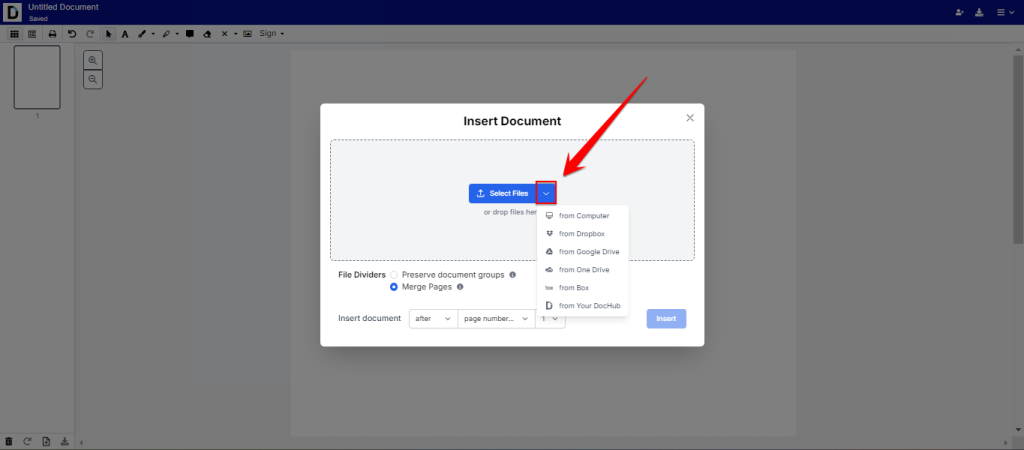
Once logged in, click New Document to upload files. You can drag and drop your PDF directly into the upload area. Alternatively, click the dropdown next to the Select Files button and browse your computer or cloud storage. DocHub will display your uploaded file, allowing you to preview the content before proceeding.
Step 3: Open the page manager
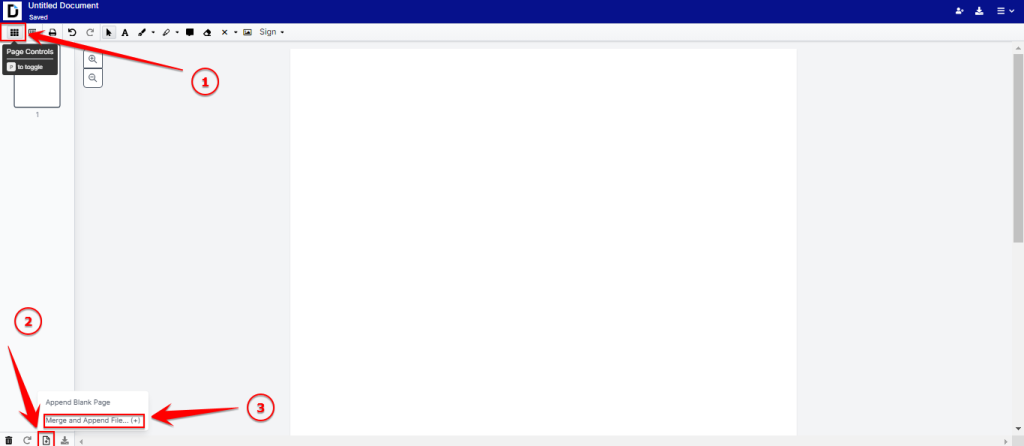
In the editor, open the Page Controls button on the left side of the toolbar. A page manager will open in the left-side panel. Click the Add pages icon at the bottom.
Step 4: Select files from storage
After you click, a pop-up window will open with several options for uploading files. You can either import a new file from your device or cloud, or choose the ‘Your DocHub’ option.
Step 5: Import extra PDFs
Select the files you need to merge with the document you are already working on. You can choose one or multiple PDFs from your storage.
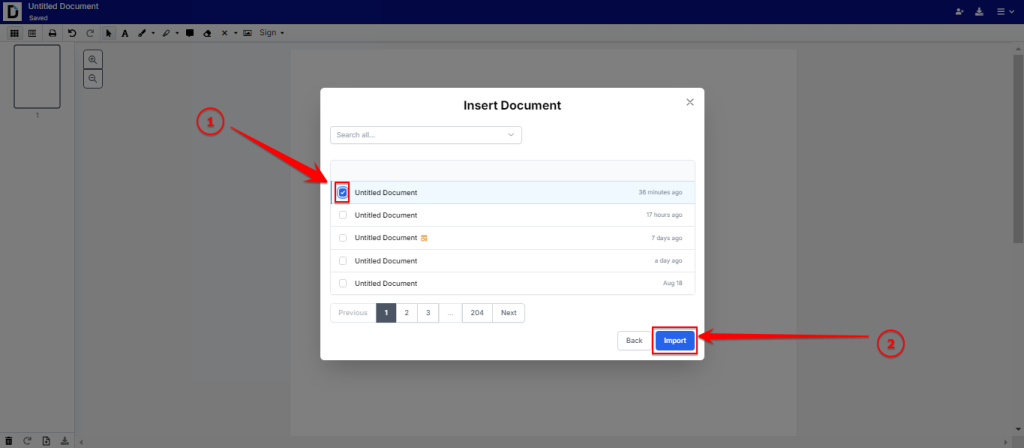
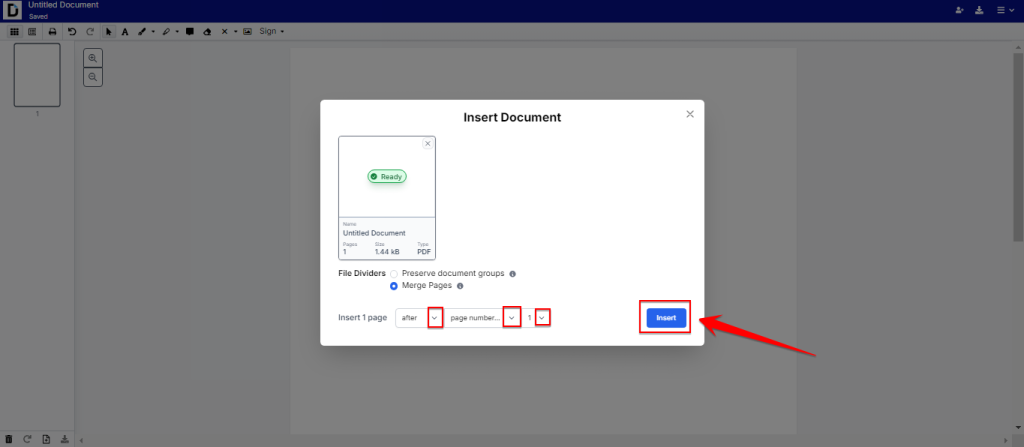
Now, when you’ve selected all the files you need, you can decide where to insert them – after or before a particular page of your current document. After that, click Insert.
Step 6: Edit and save the final PDF
Once your PDFs are merged into a single document, you can edit it: add or edit text, insert and edit images, leave comments and other annotations, add fillable fields, and electronically sign it if necessary. When you’re happy with the final result, proceed to the editor’s upper right corner to download, export, or share your combined document.
Now you have a polished combined PDF containing all the necessary information in one place.
Practical tips:
- Rename your files before uploading so the thumbnails are easy to identify during reordering.
- If you are combining image files (such as PNG or JPG scans) with PDF documents, convert images to PDF first using DocHub’s conversion tools.
- For large documents, check your internet connection before uploading to avoid interruptions.
- Use DocHub’s sharing features to send the merged file directly to recipients, without downloading and re-uploading it elsewhere.
How to organize pages after merging
Merging PDFs is the first step, but organizing the pages is what makes the file truly usable. DocHub makes this easy: you can add blank pages, drag and drop to reorder, rotate, duplicate, and delete pages as needed.
- Open the Page Controls panel to see the page thumbnails.
- For reordering, click and hold a page, then drag it to a new position in the numbered list.
- Click the Rotate icon at the bottom of the page manager to rotate one or all pages in the PDF.
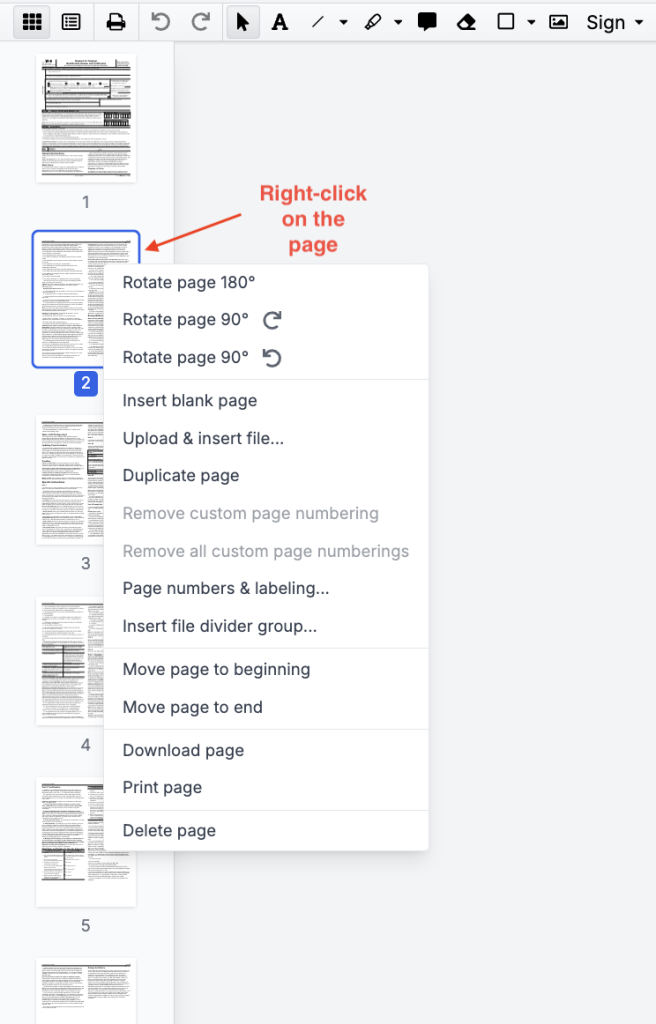
- Right-click a page and use the context menu to rotate it 90 or 180 degrees, duplicate it, move it to the beginning or the end of the file, or delete it.
How to secure merged documents
A merged PDF contains more information than a single source file, making it easier to share. However, this also increases the risk if it’s sent in error, made public, or uses a weak password.
DocHub is a reliable platform that puts your data security first. Our tool encrypts data in transit and at rest. It uses AWS infrastructure, secure connectivity, multi-factor authentication, and regular security audits to ensure the safety of user data.
You can also protect your merged PDF with a secure password before sharing it. This step ensures only intended recipients can open the document, reducing the risk of unauthorized access. DocHub also offers different user permission levels, allowing you to control who can view, edit, or sign documents. This feature is particularly useful when collaborating with multiple parties on a sensitive document.
What are the most common mistakes to avoid when you merge PDFs?
Even a simple task like combining PDF files has pitfalls. Knowing them in advance saves time and prevents frustration.
- Uploading files in the wrong order. This is the most common mistake. Double-check the page sequence using the thumbnails merging files.
- Ignoring file quality. Low-resolution source files will result in a low-quality merged PDF. For text-heavy documents, use optical character recognition (OCR) to make the content searchable.
- Not securing sensitive documents. When merging sensitive files, such as contracts or medical records, it’s crucial to protect the final document. DocHub lets you control sharing permissions to prevent unauthorized access.
- Combining incompatible file types. You can’t merge a Word document or Excel spreadsheet directly with a PDF. Convert other file types to PDF first, then merge them to avoid errors or poor formatting.
- Skipping a final review. Always open and scroll through the merged document to check for missing, rotated, or duplicated pages before sharing.
How do professionals succeed when combining PDF files?
Real-world examples highlight the value of a reliable PDF merging tool.
- Human resources: HR managers can consolidate separate employee documents, such as contracts, tax forms, and direct deposit information, into a single, comprehensive employee record. This consolidated file is easier to store securely and retrieve when needed.
- Legal: Attorneys and legal assistants can combine multiple case files—such as evidence, witness statements, and court filings—into a single, chronologically organized document. They can then apply a compliant digital signature to certify the complete file.
- Education: Professors can merge syllabus pages, scanned book chapters, and assignment guidelines into a single course packet. This makes it easier for students to access and read all course materials on any device.
Conclusion
Merging PDF files online is not complicated, but doing it well — with attention to page order, file quality, and document security — makes a meaningful difference in professional contexts. The ability to combine multiple PDF files into a single, organized document directly in a browser, without installing software, is a practical capability that saves time across legal, academic, and business workflows.
DocHub brings together the tools needed to merge, organize, edit, sign, and share PDF documents in one place. The flexible pricing policy makes it accessible to individuals and teams, while the platform’s security features make it suitable for handling sensitive materials.
Get started with DocHub today and discover how easy it is to combine, edit, and sign your PDF files online.
Disclaimer: This article provides general information about document management and does not constitute legal advice.
Glossary
- Merge PDF: The action of taking two or more separate PDF documents and combining them into a single, unified file.
- Thumbnail: A small, low-resolution image representation of a larger document page, used to preview and organize pages.
- Optical Character Recognition (OCR): Technology that converts different types of documents, such as scanned paper documents or image files, into editable and searchable data.
FAQ
Can I merge PDF files for free online?
Yes, DocHub’s free plan allows you to merge PDFs online without a paid subscription. You can upload and arrange multiple PDF documents, then download the combined file at no cost. The free plan includes the core merge function and basic editing tools, but has a monthly limit on the number of documents you can process. For users who frequently work with PDFs, DocHub offers flexible paid plans with more advanced functionality, without those restrictions.
Is it safe to merge PDF files using an online tool?
Yes, DocHub protects your data by encrypting file transfers and letting you control access to shared documents. Before uploading sensitive materials like legal or financial records, it’s wise to review any platform’s privacy policy. DocHub is designed for professional workflows and includes robust access controls. For maximum security, avoid using public Wi-Fi for confidential files.
How do I merge PDF files with a specific page order?
After you upload your files to DocHub, you’ll see thumbnails of each page. You can reorder pages by dragging and dropping them exactly where you suppose them to appear. This gives you precise control over the final document structure. DocHub’s page management tools even let you interleave pages from different documents.
Can I merge PDF files with other file types, like Word documents or images?
Yes. DocHub supports converting other file types to PDF during the workflow. Word documents, Excel spreadsheets, PNG images, and other file types are converted to PDF format when you select them for merging. The process takes only several seconds.
What happens to my files after I merge them on DocHub?
DocHub stores your documents in your account, where you can manage, share, or delete them. You can download the merged file to your local hard drive or export it to Google Drive from within DocHub. If you are working with confidential documents and prefer not to store them in the cloud, download the file promptly after merging and manage storage in accordance with your organization’s data-handling policies.
- Why is merging PDFs important for professionals?
- What does merging PDF files online mean, and why does it matter?
- How to combine multiple PDFs into one using DocHub
- How to organize pages after merging
- How to secure merged documents
- What are the most common mistakes to avoid when you merge PDFs?
- How do professionals succeed when combining PDF files?
- Conclusion
- Glossary
- FAQ