

Capturing your handwritten signature once gives you a reusable image for signing PDFs, so you can keep the familiar look of pen on paper without printing, signing, and scanning every new agreement or form. To capture a signature with a camera, use the Capture signature option in DocHub mobile app for iPhone and Android devices.
To use a camera-captured signature in DocHub’s desktop or mobile browser version, sign a blank sheet of paper, photograph it with your phone, crop the image around the handwriting, and add it through Upload Image.
For professionals handling client agreements, HR paperwork, and forms, this guide explains how to take a picture of a signature and use it in DocHub without printing each document. It walks you through the signature image creation and upload, explains best practices, and gives smart hints for the best experience.
Summary
The camera-to-PDF workflow has four main steps:
- Write your signature on plain white paper with dark ink.
- Photograph it in even light, then crop and check the image.
- Capture the signature in the DocHub mobile app, or upload a JPEG or PNG in the browser-based version.
- Place your signature, review the document, and download the completed PDF.
What does capturing a signature with a camera mean?
Camera capture creates a reusable digital version of your handwritten signature for digital documents. You can make it close to the wet signature appearance and use it where such a replacement is appropriate. See our guide on How to add a wet signature to PDF.
An image adopted with intent to sign can serve as an electronic signature, or eSignature. It differs from a certificate-based digital signature, which uses cryptography to help verify authenticity and detect changes. Different tools give you options to extract signatures: for example, Canva’s Background Remover extracts signatures in seconds. If you want to connect several tools in your workflow, think of their compatibility.
How do you scan a signature with DocHub on a phone?
Use the DocHub mobile app to capture your handwritten signature with your phone’s camera and add it to a PDF. The steps below take you from opening a document to saving a reusable signature on your iPhone or Android device.
- Download the DocHub mobile app for your device.
- Log in to your DocHub account. If you’re new, tap Create to sign up and follow the prompts to start the free trial.
- On your account dashboard, choose the document you want to sign or upload a new file.
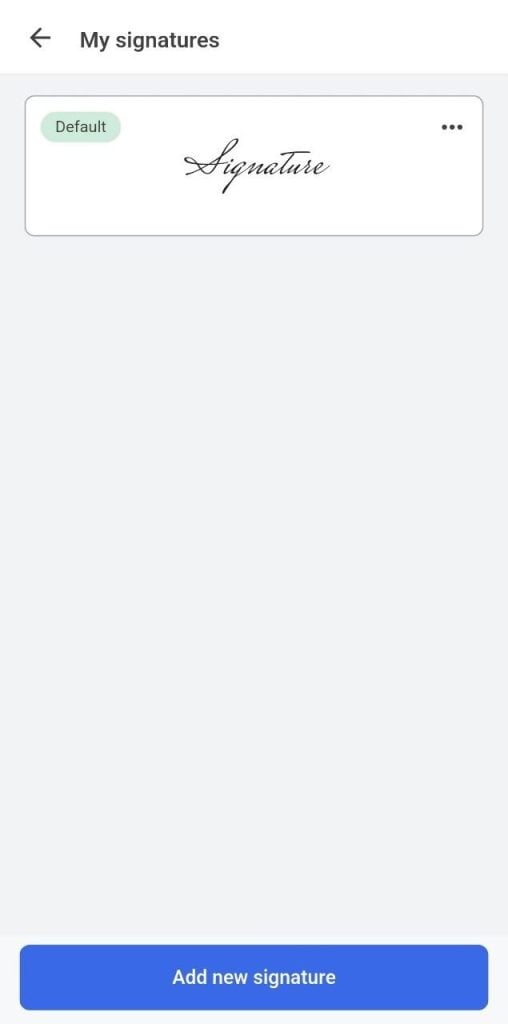
- Choose Open document, select Sign, and tap the place on the page where you want your signature. Choose Add new signature.
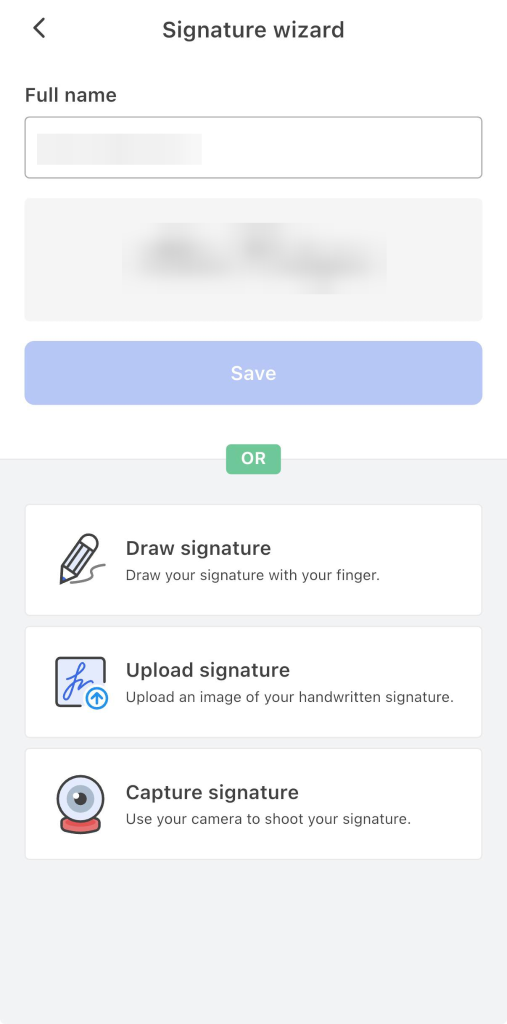
- Select Capture signature with camera and photograph your handwritten signature, following the photography tips below.
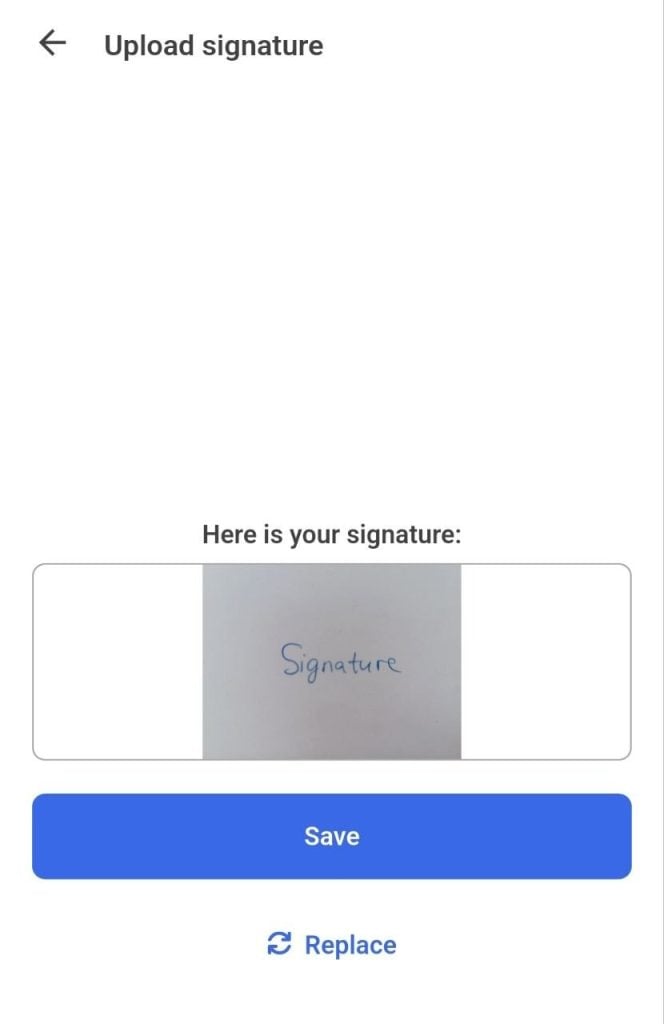
- Review the captured image in Upload signature. Tap Save if the handwriting is clear, or Replace to retake the picture.
- Select your captured signature from the available signature options to use it in the document.
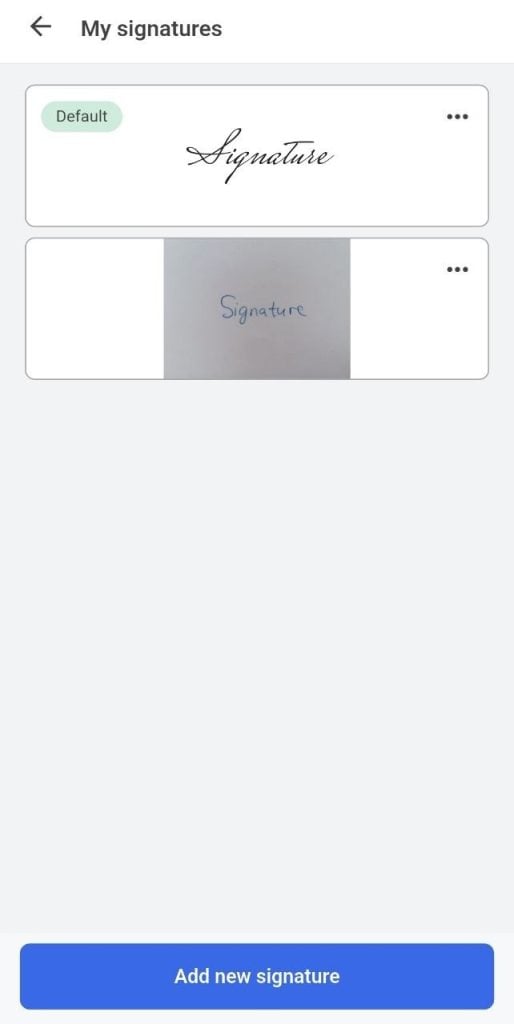
Your camera-captured signature is now among your signature options, ready to choose when needed.
What are the best practices for taking a signature picture?
Prepare blank paper, a dark pen, and a flat surface before opening the camera:
- Sign plain white paper, away from ruled lines, logos, or text that could enter the image.
- Shoot in bright, even, natural daylight to avoid shadows.
- Avoid direct sunlight and flash, which can create glare and hotspots.
- Hold your camera strictly parallel to the paper and steady to avoid blurred images.
- Step back enough for the camera to focus while keeping the whole signature visible. Minimize digital zoom to preserve image quality.
- Tap directly on the signature area to lock focus and exposure.
- Take several photos and choose the sharpest one.
Check that every stroke is visible before saving your signature in the app.
How can you make the signature background transparent?
For a transparent signature, use an image editor or signature background remover to remove the paper background. Export a transparent PNG signature before uploading.
PNG supports transparency; saving a white-background photo in PNG format does not automatically remove background pixels. Check the transparent image on both light and dark surfaces to spot pale edges or missing ink.
If a background remover automatically removes handwriting, restore the strokes. Check the result even when a signature extractor promises cleanup in one click.
How do you upload a camera-captured signature to DocHub?
If you already have a signature photo saved as a JPEG or PNG, use Upload Image in the browser editor, following DocHub’s signature upload instructions.
- Sign in to DocHub. Select + New Document, upload the PDF you need to sign, and open it in the editor.
- Open Sign and select Create your signature.
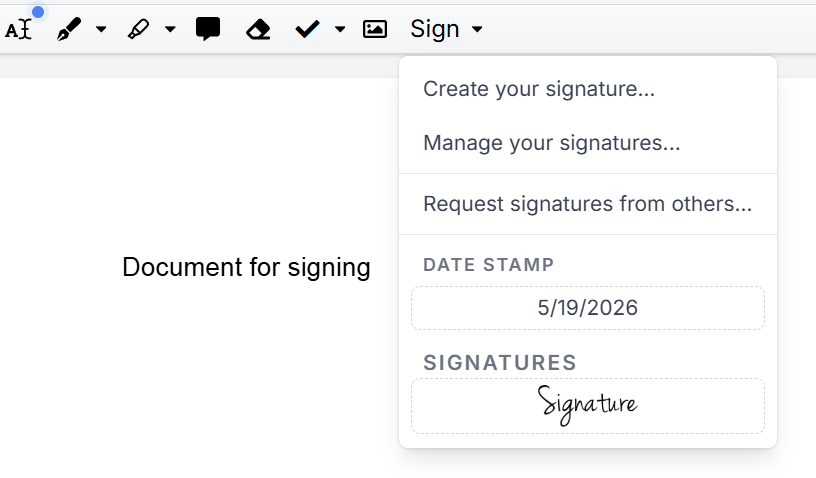
- Select Upload Image, then Upload Signature, and choose your saved photo.
- Select your created signature from Sign. Drag and drop it onto the signing area; some browsers require selecting it and clicking the page instead.
- Resize without stretching the handwriting. Review names, dates, and placement, then download the completed document.
In the browser editor, Phone uses your phone as a signature pad for drawing; Upload Image accepts a saved camera photo. The DocHub mobile app provides the camera-capture workflow described above. See the signature creation guide for alternatives.
What are the best practices for uploading a signature image?
When uploading an existing signature photo, prepare the file first and check its appearance in the completed PDF:
- Crop around the handwriting with a small margin. Adjust contrast gently without erasing lighter strokes.
- Save a high-resolution PNG to preserve detail. PNG images work in Word documents and PDFs and can also be inserted into Google Docs.
- Use a transparent PNG if you need the signature to appear without a visible paper background. Inspect the edges after background removal to check that the handwriting remains intact.
- Upload the signature as an image file, not a PDF scan of the paper page.
- After signing, check the downloaded PDF at normal reading size for white rectangles, cropped strokes, distortion, or incorrect placement.
Share the document once the signature is clear, correctly positioned, and does not cover nearby text.
When should you use camera capture instead of another method?
Choose a method that fits your workflow.
| Method | Useful when | Main trade-off |
| Capture signature with the DocHub mobile app | You want to photograph your handwritten signature and sign a PDF directly on your iPhone or Android device | Requires the app and access to your phone’s camera |
| Upload Image in DocHub’s browser version | You already have a signature image saved as a JPEG or PNG | Requires preparing the image before uploading it |
Consultants can reuse their signature for client agreements; HR managers can sign onboarding paperwork while requesting employees’ signatures separately. Check DocHub’s pricing for free and paid plan limits.
How should you protect your signature image?
Treat the source image as sensitive and restrict access to it. Review DocHub’s security page and any external signature extractor’s secure processing and retention information. Do not assume uploads are automatically deleted.
Under the U.S. ESIGN Act, covered signatures cannot be denied legal effect solely because they are electronic. Acceptance still depends on applicable requirements and the transaction. Use your own signature and confirm the recipient accepts this method.
Disclaimer: The information in this blog post is provided for general informational purposes only and does not constitute formal legal advice.
Final thoughts
Capturing your signature with the DocHub mobile app keeps it ready when a PDF needs signing while you’re away from your desk. And the signature image upload option in DocHub’s browser-based version enables you to upload the captured signature as a file.
Get started with DocHub to capture your handwritten signature with your phone’s camera and use it to sign PDFs on the go.
Glossary
- Signature image: A photo or scan of handwriting used for signing.
- Transparent PNG: An image file that can preserve transparent backgrounds.
- Electronic signature: An electronic mark or process adopted with intent to sign.
FAQ
1. What if the DocHub mobile app cannot access my camera?
Check your phone’s app permissions and allow DocHub to use the camera. On iPhone, look for camera permissions in Settings; on Android, check the app’s permissions in Settings. Reopen DocHub and try camera capture again.
2. How should I name a signature image saved outside the app?
Use a descriptive filename such as signature-black-ink.png so you can recognize the ink color and file type. Add a version date if you keep more than one style. Avoid including client names or agreement details in a reusable file’s name.
3. Does a signature photo contain location information?
A photo saved to your phone may contain location or other metadata, depending on camera settings. Review the file details and remove unnecessary metadata before sharing the standalone image. Cropping alone does not guarantee that metadata is removed.
4. Can I shrink the file size by renaming PNG to JPG?
No, changing the extension does not convert an image or reduce its file size. Use an image editor’s export settings if you need a smaller signature download. Keep the original because exporting to JPEG discards transparency and may introduce compression artifacts.
5. What should I do before signing on a shared phone?
Confirm that DocHub is signed in to your own account before adding a personal signature. When finished, sign out and remove any standalone signature photos you saved on that device. Avoid leaving reusable signature files where the next person could access them.
6. Should I include a date in my signature image?
Keep the date separate if you plan to reuse the signature image. A date captured in the photo could appear on later documents where it is no longer accurate. Enter the appropriate date in each document’s date field instead.
7. Should I use portrait mode or filters when photographing a signature?
Use the standard camera mode without decorative filters or background blur when preparing a photo outside DocHub. These effects can soften fine strokes or change the appearance of the ink. Capture the handwriting as clearly as possible before making basic image adjustments.
- Summary
- What does capturing a signature with a camera mean?
- How do you scan a signature with DocHub on a phone?
- How can you make the signature background transparent?
- How do you upload a camera-captured signature to DocHub?
- What are the best practices for uploading a signature image?
- When should you use camera capture instead of another method?
- How should you protect your signature image?
- Final thoughts
- Glossary
- FAQ