
How to add an electronic signature: PDF instructions and best practices


You can add an electronic signature to a PDF by uploading the PDF document, creating a signature, placing it on the page, and saving the signed PDF. You can create a signature by typing, drawing, or uploading an image, then drag it into the correct signature field or another suitable place on the document.
This guide explains how to sign a PDF, when to use an electronic signature versus a digital signature, and how DocHub supports signing, PDF editing, form completion, and sign requests.
Summary
Here is an example of the basic process for signing PDF files online:
- Upload the PDF file to DocHub.
- Create a signature by typing, drawing with a mouse or trackpad, or uploading an image.
- Drag and drop the signature onto the page or into a signature field.
- Add initials, dates, text fields, or form fields if needed.
- Save, download, share, or send the signed document for others to sign.
What does it mean to add an electronic signature to a PDF?
Adding an electronic signature means placing a visible signature element on a document to show agreement, approval, or acknowledgment. An eSignature can look like a typed name, a drawn signature, or an uploaded image of a handwritten signature.
An electronic signature is different from a certificate-based digital signature. A digital signature uses encryption and a digital certificate to help verify the signer’s identity and detect changes after signing. This distinction matters when a recipient needs stronger validation or when a workflow has specific compliance requirements.
For many everyday business workflows, an electronic signature may be enough. For regulated, government, or high-assurance workflows, you may need to digitally sign a PDF with a valid certificate.
When should you sign a PDF online?
You may need to sign PDF forms online when you want to avoid printing, scanning, mailing, or manually storing paper copies. Common business use cases include approvals, onboarding forms, purchase agreements, permission slips, intake forms, internal policy acknowledgments, and client documents.
DocHub is useful when a PDF also needs editing before signing. You can add a signature, fill out form fields, create text fields, add a date, insert initials, resize elements, and complete the document in a browser with an internet connection.
How does DocHub help with electronic signatures?
DocHub supports two common signing workflows: self-signing and sign requests. If you are the only person who needs to sign, you can use the signing tools and drag your signature onto the document. If other people need to sign, you can create signature fields and assign them through a sign request.
The solution also supports PDF editing, forms completion, document sharing, and collaboration in a cloud-based environment. Its Google Workspace integration helps users import, export, modify, and sign documents directly from Google apps. DocHub has also supported millions of users in document editing, signing, distribution, and forms completion.
How do you add an electronic signature in DocHub?
Adding an electronic signature in DocHub is an intuitive process. Here’s a simple, step-by-step guide to walk you through it.
Steps for eSignature creation
- Log in to your DocHub account and upload your PDF document by clicking + New Document.
- If you drag and drop the document to your dashboard, click Create Document to open the editor.
- Select Sign from the toolbar or add a signature field for yourself.
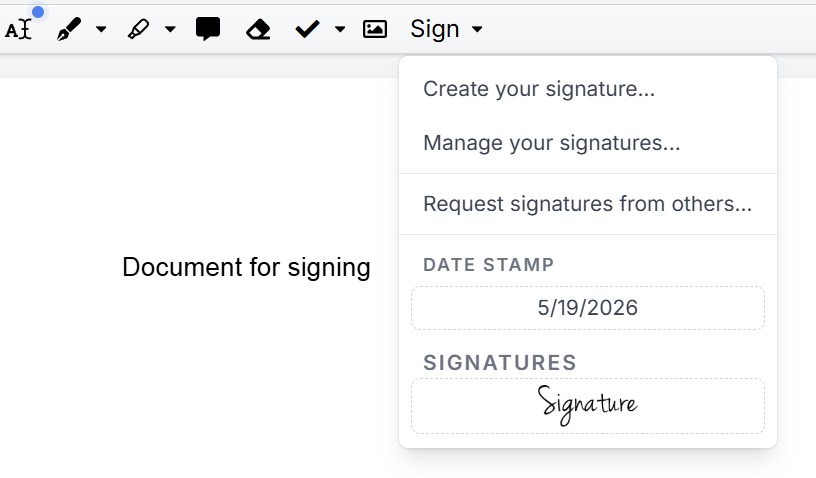
4. Choose an existing signature or select the option to create a signature.
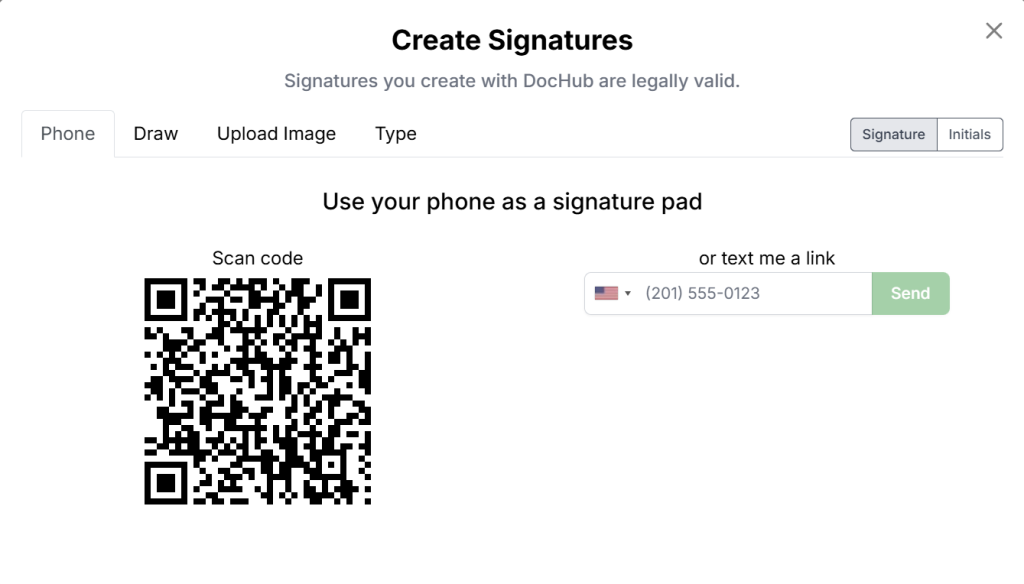
5. Create a signature by typing your name, drawing it with a mouse or trackpad, or uploading an image of your signature.
6. Place the signature on the document. Drag it to the correct signature field or open area.
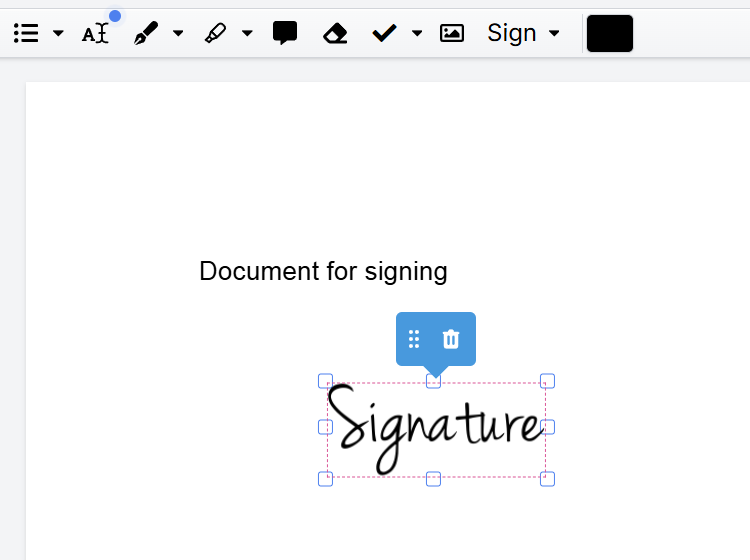
7. Resize the signature if needed so it fits the form without covering other text.
8. Add related fields such as Date, Initials, or Text if the document requires them.
9. Review the signed document for missing pages, wrong fields, or incomplete information.
10. The document is saved automatically. Then you can choose to download, share, email, or send the completed PDF.
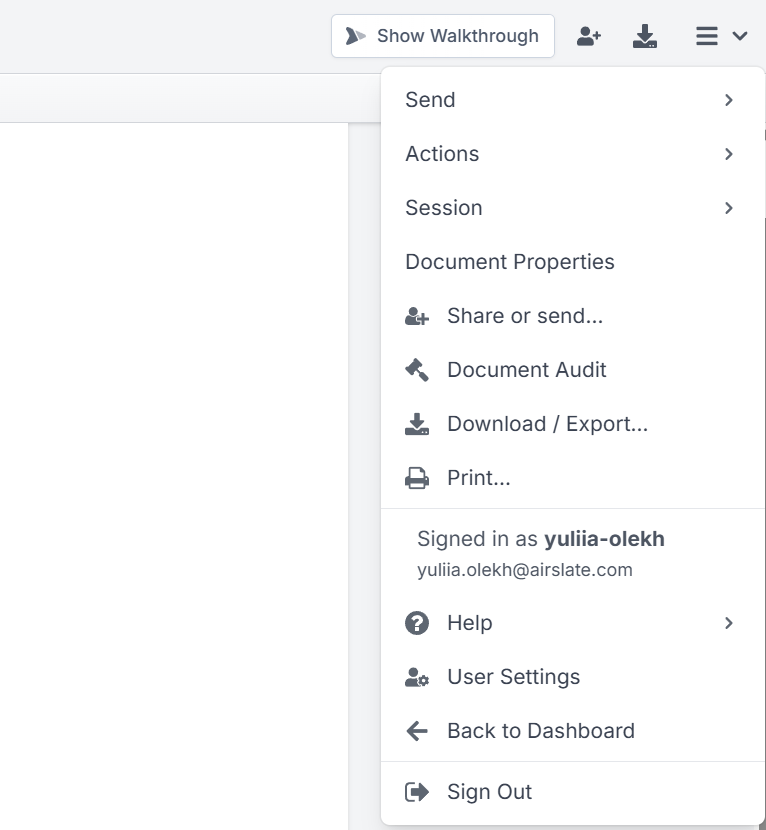
This process helps you add a signature without printing, scanning, or using a desktop PDF editor.
How do you request signatures from others?
If other people need to sign, use a sign request instead of placing your own signature. In DocHub, sign requests let you add signature fields and assign them to the right recipient.
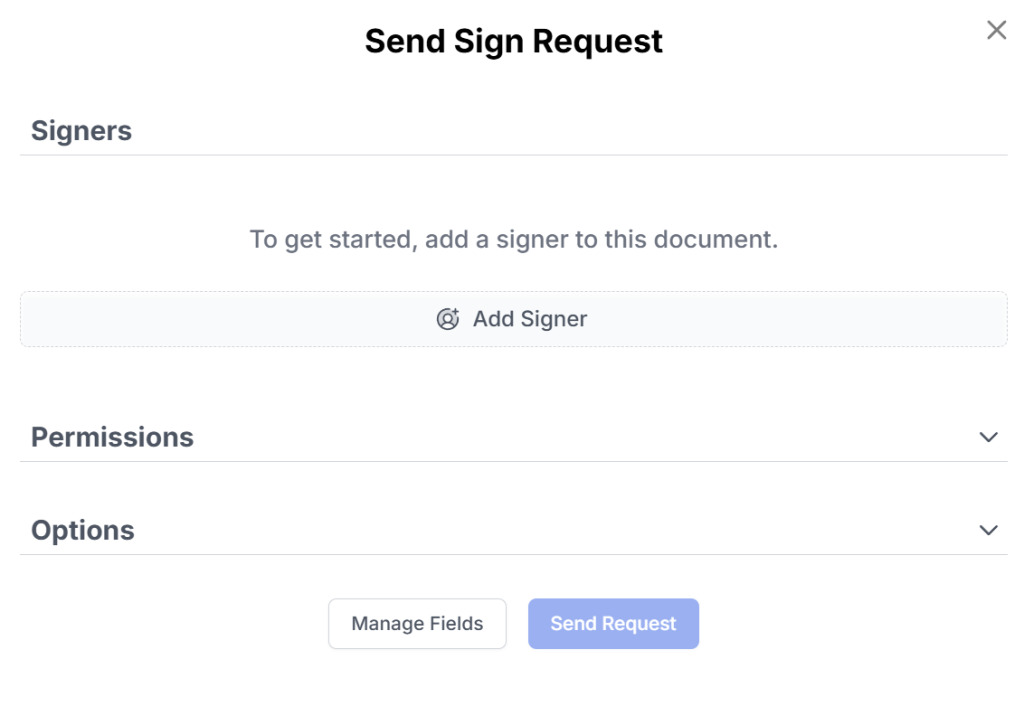
A typical request workflow includes uploading the document, adding signature fields, assigning signers, reviewing the signing order if needed, and sending the request. This is useful when multiple people must complete a contract, approval form, HR document, or client agreement.
How does DocHub’s signing process compare with printing and scanning?
| Workflow | What it involves | Best for | Main limitation |
|---|---|---|---|
| DocHub eSigning | Upload, sign, save, share, or request signatures online | Fast PDF signing, form completion, and collaborative workflows | Requires internet access |
| Printing and scanning | Print the PDF, sign on paper, scan, and email it | Occasional paper-only processes | Slower and harder to track |
| Desktop PDF editor | Open the file in installed software and sign locally | Offline editing or certificate workflows | Offline editing or certificate workflows |
| Email-only workflow | Send attachments back and forth | Simple review loops | Versions can become confusing |
DocHub is a practical option when you need to sign a PDF online, fill out fields, and send the completed document from a browser-based workspace.
What security and legal points should you know?
Electronic signatures can be legally valid in many business contexts, but validity depends on the jurisdiction, document type, signer intent, consent, and recordkeeping. In the United States, the ESIGN Act supports the legal effect of electronic records and signatures in interstate and foreign commerce.
A signed PDF may also need an audit trail, signer authentication, access controls, or a digital certificate. If a recipient needs to validate the signature in Adobe Acrobat or Acrobat Reader, confirm whether the workflow requires a certificate-based digital signature rather than only a visible signature element.
Disclaimer: The information contained in this blog post is provided for general informational purposes only and does not constitute formal legal advice.
What mistakes should you avoid?
Avoid placing a signature on the wrong page, covering important text, or saving before all form fields are complete. Check whether the document needs initials on multiple pages, a date field, or a full name in a text field.
Do not assume every electronic signature is the same as a certificate-based digital signature. If a recipient needs stronger validation, confirm whether the signing process requires a digital certificate.
Also, avoid sending editable documents when you need a finalized record. Save or download the signed PDF in the format required by your organization.
What are practical examples of using DocHub signatures?
An HR team can send onboarding forms to new employees and collect documents signed before the first day. This helps reduce printing and keeps the signing process organized.
A sales team can add signature fields to a proposal and request client approval without mailing paper copies. The team can also add dates, initials, or text fields before sending the document.
A school administrator can fill out PDF forms, add a date, and send completed documents to parents or staff. A real estate office can prepare PDF forms, add initials, and request signatures from multiple parties.
Final thoughts
Adding an electronic signature to a PDF should be straightforward. DocHub is a useful option when you need browser-based signing, PDF editing, form completion, collaboration, and sign requests in one workflow.
Get started with DocHub to sign, edit, and complete PDF documents online.
Glossary
Electronic signature: A typed, drawn, or uploaded signature used to show agreement electronically.
Digital signature: A certificate-based signature that uses encryption to help verify identity and document integrity.
Digital certificate: A credential used to confirm the identity behind a digital signature.
Signature field: A designated place in a document where a signer should add a signature.
Audit trail: A record of signing activity, such as signer actions and timestamps.
FAQ
Can I create a signature without scanning paper?
Yes, you can. Create a signature by typing your name, drawing with a mouse or trackpad, or uploading an image. This lets you eSign PDFs without printing or scanning.
Is an electronic signature the same as a digital signature?
No, they have different meanings. An electronic signature is a broad term for signing electronically, while a digital signature usually refers to a certificate-based signature with encryption. Use a digital certificate when the recipient requires stronger identity and integrity validation.
Can I sign PDF forms online?
Yes, you can. With a PDF document management solution, you can upload PDF forms and easily add text, complete form fields, and place signatures before saving. This is particularly useful for business forms that require names, dates, initials, or signatures.
Can I ask someone else to sign a document?
If a document requires another person’s signature, create a sign request and assign the signature fields to them. This ensures proper approval rather than placing your own signature on their behalf.
Do I need Adobe Acrobat to sign a PDF?
Not necessarily. Tools like DocHub allow you to add an electronic signature online directly within your browser. Adobe Acrobat or Acrobat Reader becomes relevant when you require certificate-based digital signatures or need validation within the Acrobat ecosystem.
- Summary
- What does it mean to add an electronic signature to a PDF?
- When should you sign a PDF online?
- How does DocHub help with electronic signatures?
- How do you add an electronic signature in DocHub?
- How do you request signatures from others?
- How does DocHub’s signing process compare with printing and scanning?
- What security and legal points should you know?
- What mistakes should you avoid?
- What are practical examples of using DocHub signatures?
- Final thoughts
- Glossary
- FAQ