

Signing paperwork shouldn’t slow your day. Whether you’re a freelancer closing a contract, a small business owner approving an invoice, or a professional handling legal or financial files, you can sign a PDF online without printing, scanning, or mailing anything. This guide shows you exactly how to add a signature to a PDF using DocHub, how electronic signatures hold up legally, and which security features protect your documents along the way.
Here’s what you’ll learn:
- How to upload your PDF and create an electronic signature
- The efficient ways to build a signature: use your phone as a signature pad, draw, type, or upload an image
- What makes a signed PDF legally binding
- How DocHub’s audit trail and encryption keep sensitive documents safe
What’s the fastest way to sign a PDF online free?
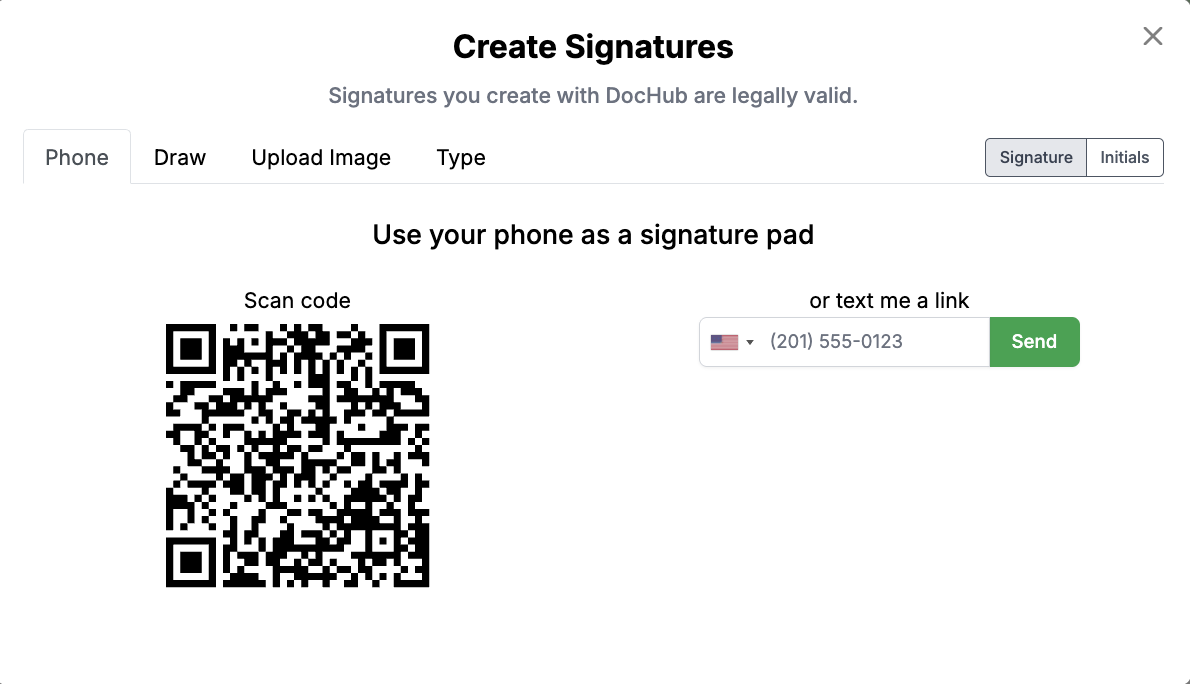
Short answer: upload your PDF to DocHub, create a signature by using your phone as a signature pad, drawing, typing, or uploading an image, drag it onto the signature field, then download or send the signed file. You can do all of this from any browser with an internet connection—no additional software required.
DocHub’s Free plan lets you sign PDF online and request signatures within set usage limits, so you can start signing without a credit card. That makes it a practical option when you need to sign a PDF online free for personal projects, quick approvals, or low-volume work.
Why sign a PDF online instead of on paper?
Paper signing adds steps you don’t need. You print, sign, scan, and email—then repeat when someone misses a field. Signing a PDF online removes that friction.
When you sign PDF files digitally, you can:
- Sign documents from a desktop or mobile device in just a few clicks
- Skip the printer, scanner, and trips to the post office
- Store documents securely in one place
- Collect signatures from several people without chasing them by email
For freelancers and small teams, this means faster turnaround on contracts, proposals, and permission slips. For legal and financial professionals, it means a clear record of who signed and when.
Key takeaway: Signing online saves time and creates a cleaner, more traceable signing process than paper.
How do I add a signature to a PDF in DocHub?
Follow these steps to add a signature to a PDF and download your signed file.
Step 1: Sign up and upload your PDF
Create a free DocHub account, then upload your PDF. You can pull files from your computer, mobile device, or cloud services like Google Drive, Dropbox, and OneDrive. You can also create a PDF from scratch if you don’t have one ready.
Step 2: Open the Sign menu
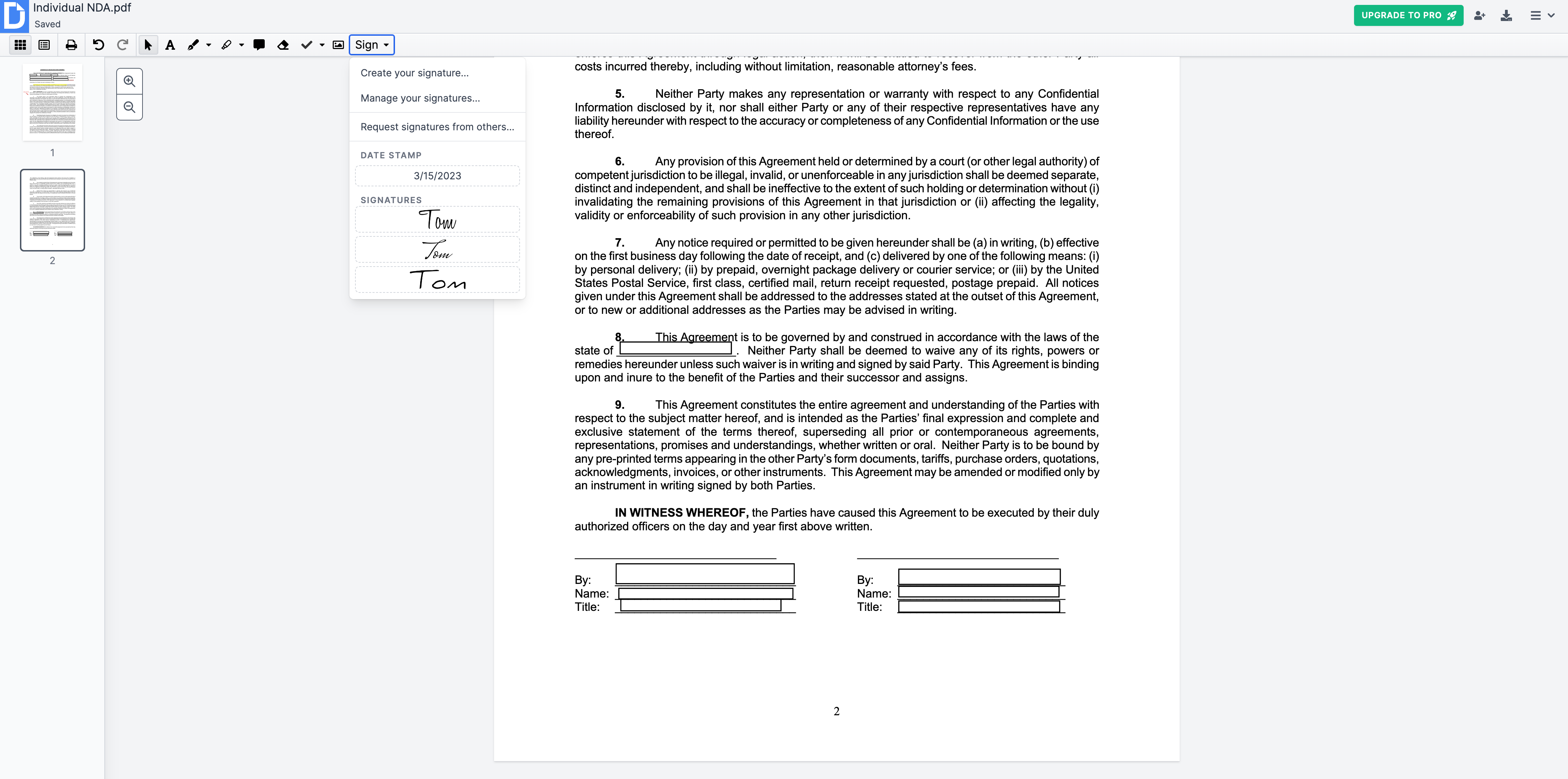
Inside the editor, find the Sign menu on the right side of the toolbar. This is where you create and manage your electronic signature and initials.
Step 3: Create your signature
DocHub gives you three ways to build a signature:
- Phone – Use your phone as a digital signature pad to create a precise and elegant signature. We’ll save it as a vector file, ensuring it remains sharp and clear when resized. You’ll also have the flexibility to adjust its color and thickness after creation.
- Draw it – Use your mouse, trackpad, or phone screen to draw a handwritten signature.
- Type it – Enter your name and pick from several fonts that resemble hand-drawn signatures.
- Upload an image – Add a photo or scan of your existing signature.
You can also create matching initials the same way.
Step 4: Place your signature on the document
Drag and drop your signature onto the correct spot. Use the Date Stamp option in the Sign menu—it sets to the current day, so you can drop it onto any date field. You can also add text to fill in names, titles, or other details.
Step 5: Save and reuse your signature
DocHub saves your signature and initials in the Sign menu. Next time you sign a PDF, you can apply your saved signature in seconds instead of recreating it. To remove or update a saved signature, open Manage Signatures in your settings.
Step 6: Download or send the signed file
Once the document is signed, you can:
- Download it to your computer
- Export it to Google Drive, OneDrive, Dropbox, or Google Classroom
- Share it with a link or send it as an email attachment
Key takeaway: Four signature options, saved signatures, and auto date make the DocHub signing process quick and repeatable. Read more on how to annotate, edit, and sign PDF documents using the Tool Bar.
How do I send a PDF for others to sign?
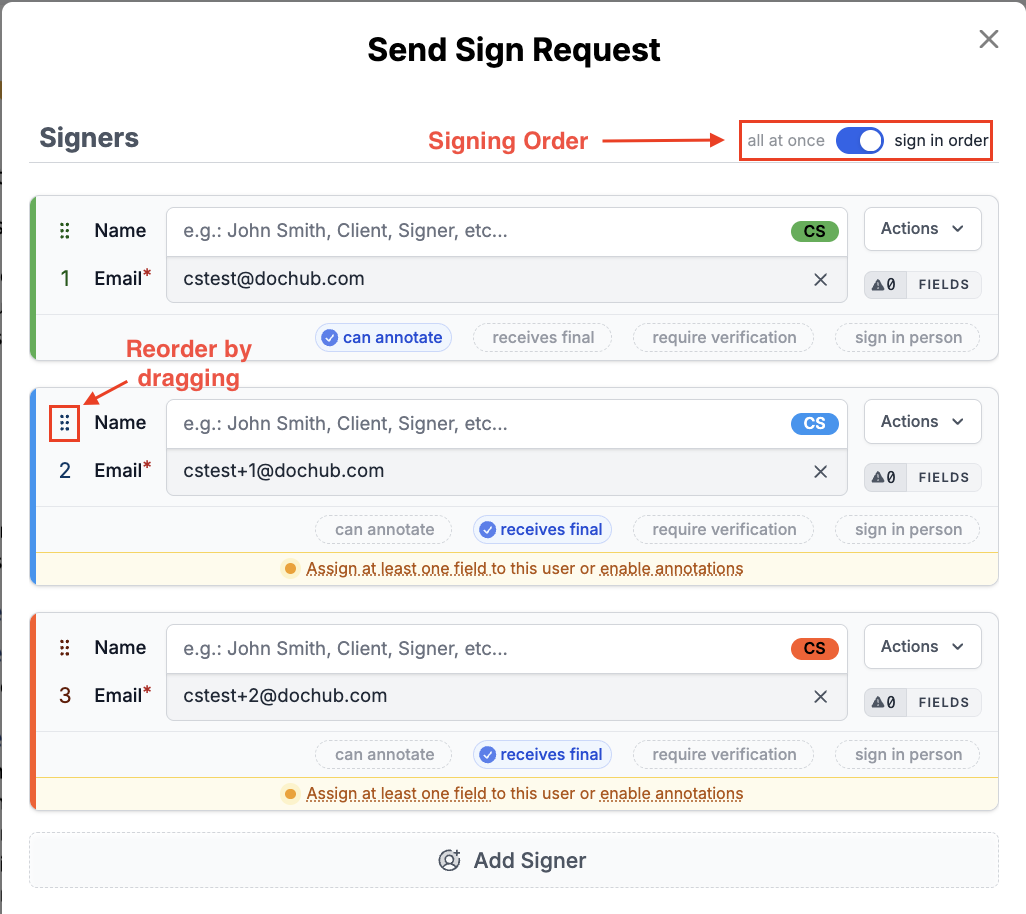
If you need someone else to sign, use a Sign Request. This is built for collecting legally binding eSignatures from third parties without back-and-forth emails.
Here’s how it helps:
- No account needed for signers. Recipients open a secure link and sign right away—no sign-up required.
- Signing order. With multiple signers, choose “One at a time” for sequential signing or “All at once” for simultaneous signing.
- Automated reminders. DocHub can send up to three reminders so recipients don’t forget to sign.
- Final copy delivery. Signers can receive a copy of the completed, signed PDF by email.
- Verification options. For added security, you can require a one-time code before a signer opens the document.
You can also turn frequently used files into reusable templates, so you don’t rebuild the same form each time you collect signatures.
Are electronic signatures legally binding?
In most cases, yes. Electronic signatures are generally recognized as legally binding under laws such as the US ESIGN Act and the EU’s eIDAS regulation. These frameworks treat valid eSignatures much like handwritten signatures on paper.
DocHub is designed to meet the requirements of the US Federal ESIGN Act. Under US law, a DocHub signature can qualify as a digital signature, not just an electronic one, because it:
- Is unique to the signer
- Can verify the signer’s identity
- Stays under the signer’s sole control
- Links to the document so any later changes can be detected
Disclaimer: The information contained in this blog post is provided for general informational purposes only and does not constitute formal legal advice.
How does DocHub keep signed documents secure?
Security matters most when you handle sensitive documents like contracts, financial forms, and agreements. DocHub uses several layers of protection.
- Encryption. Data is encrypted end-to-end between you and the server, and files are stored using encrypted cloud storage.
- Audit trail. Every sign request records a detailed event log: views, consent to eSign, signatures, and other changes, each with date and time stamps.
- Signer data captured. The audit trail can include the signer’s email address, IP address, geolocation, browser, and operating system.
- Two-factor authentication. Adds an extra check so only you can access your account.
For added proof, documents signed on DocHub can be downloaded as a PDF with an embedded digital signature. This signature ensures the document hasn’t been modified and proves its authenticity. You can create digitally signed PDFs by downloading certified copies of your documents or through Sign Requests.
Key takeaway: Encryption, a full audit trail, and certified PDFs give legal and financial users a verifiable record of every signed document.
Free vs. paid: what’s included?
DocHub’s Free plan covers core signing for light use. As your needs grow, paid plans remove usage limits and add advanced features.
The Free plan is a solid starting point for occasional signing. If you sign documents often or manage a team, Pro removes signing limits and unlocks tools like bulk send and certified downloads.
Disclaimer: The information contained in this blog post is provided for general informational purposes only and does not constitute formal legal advice.
Final thoughts
Signing a PDF online is faster, cleaner, and easier to track than handling paper. With DocHub, you upload your file, create a signature by drawing, typing, or uploading an image, and apply it in just a few clicks. When you need others to sign, features like sign requests, signing orders, reminders, and a detailed audit trail help keep the process organized and verifiable.
Start with the Free plan to sign your first documents, or try DocHub Pro free for 30 days to unlock unlimited eSignatures, bulk send, and certified downloads. Create your free DocHub account and start signing today!
Glossary
- Electronic signature (eSignature): A digital mark, such as a typed, drawn, or uploaded signature, used to sign a document.
- Digital signature: A type of eSignature backed by encryption and digital certificates that verify the signer and detect changes to the file.
- Audit trail: A time-stamped log of every action taken on a document, including views, consent, and signatures.
- Sign request: A workflow for sending a PDF document to others to sign, often with a shareable link and no account needed.
- Certified document: A signed PDF with an embedded digital certificate that confirms its authenticity.
FAQ
1. Can I sign a PDF online for free?
Yes. DocHub’s Free plan lets you sign PDF documents and request signatures within monthly usage limits, with no credit card required to start.
2. How do I add my handwritten signature to a PDF?
Open the Sign menu, choose to draw your signature or upload an image of your handwritten signature, then drag it onto the document.
3. Do recipients need a DocHub account to sign?
No. With a sign request, recipients open a secure link and can access, complete, and sign the document without signing up.
4. Are signatures made in DocHub legally binding?
Yes. DocHub is built to meet the US ESIGN Act, and electronic signatures are widely recognized under laws like ESIGN and eIDAS. This is general information, not legal advice.
5. Can I sign a PDF on my phone?
Yes. DocHub works on desktop and mobile devices, so you can sign documents from anywhere with an internet connection.
6. How do I prove a document was signed?
Each sign request includes an audit trail with signer details and time stamps. You can view and download it as a PDF, and Sign Request files are automatically certified.
7. Can I collect signatures from several people in order?
Yes. Set a signing order so signers complete the document one at a time, and use automated reminders to keep things moving.
- What’s the fastest way to sign a PDF online free?
- Why sign a PDF online instead of on paper?
- How do I add a signature to a PDF in DocHub?
- How do I send a PDF for others to sign?
- Are electronic signatures legally binding?
- How does DocHub keep signed documents secure?
- Free vs. paid: what’s included?
- Final thoughts