

AI digest
Signing a PDF used to mean printing, signing by hand, scanning, and emailing back. That process could take hours—or longer if a printer wasn’t nearby. Now, with a tool like DocHub, you can sign a PDF document online in under a minute, from any device, without installing a thing. DocHub works right in your browser, so there’s no software to download and no complicated setup to wade through—just a fast, simple way to get your documents signed and sent.
This guide covers everything you need to know about adding a signature to a PDF document, including:
- The different ways to create a signature
- How to add a signature block to a PDF
- What makes an online signature legally valid
- How to handle more complex workflows like multi-signer documents
Whether you’re signing a lease agreement, an employment form, a vendor contract, or a school document, the steps below will get you there quickly.
PDF Signature
A PDF signature is a mark—drawn, typed, or uploaded—placed on a PDF document to indicate a person’s intent to sign. It is electronically attached to the document and can be paired with an audit trail to verify who signed and when.
How do you add a signature to a PDF online with DocHub?
DocHub is an online PDF editor that lets you sign PDFs without downloading any software. Here’s how to sign a PDF document in DocHub:
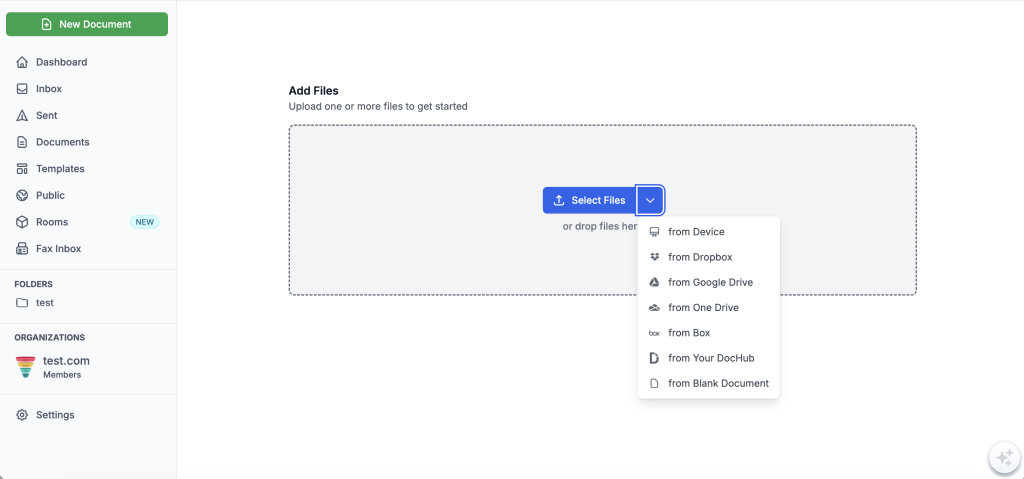
1. Upload your PDF. Go to DocHub and drag and drop your file into the browser, or click New document to select files from your device. You can also import directly from Google Drive, Dropbox, OneDrive, or Box.
2. Open the Sign tool. In the editor toolbar, select the Sign option.
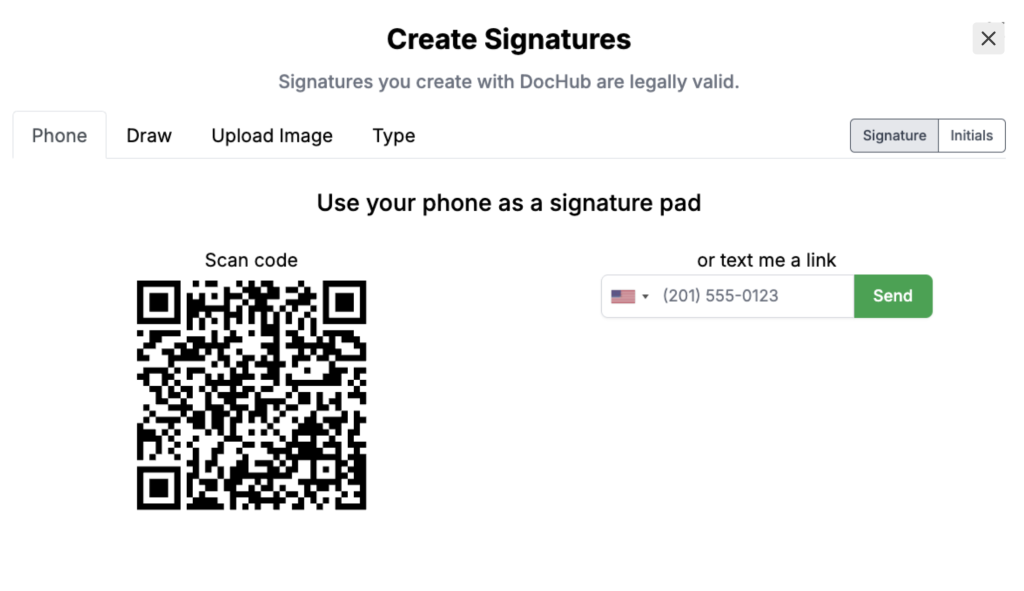
3. Create your signature. Choose how you want to sign—draw, type, upload, or reuse a saved signature (more on these options below).
4. Place your signature. Click anywhere on the document to drop the signature where it belongs. Resize or reposition it as needed.
5. Download or share. When done, you can send the signed PDF as an email attachment, download it to your device, or export it to Google Drive, Dropbox, or OneDrive.
That’s it. No printing. No scanning. Need more details on editing the document itself? Check out DocHub’s document editing guide (Mac and Windows).
What are the different ways to create a signature?
DocHub gives you four methods for creating a signature. Each suits a different situation.
| Method | Best For |
|---|---|
| Use your phone as a signature pad | Stored as a vector so it’ll be lossless when resizing |
| Draw (mouse or touchscreen) | A natural, handwritten look |
| Type (choose a font) | Quick signing when appearance isn’t critical |
| Upload image (PNG or JPG) | Matching an existing handwritten signature |
Once you create your signature in DocHub, it is securely saved to your account. Every future document you sign can reuse it—no redrawing, no re-uploading.
What’s the difference between adding a signature and adding a signature field?
These two actions serve different purposes. Knowing which one to use depends on whether you’re signing a document yourself or preparing it for someone else to sign.
Signature Field
A signature field (also called a signature block) is an interactive placeholder placed on a PDF that tells a signer exactly where to sign. It is part of a fillable PDF form and can be assigned to a specific person.
| Feature | Add Signature | Add Signature Field |
|---|---|---|
| Who uses it | Someone signing their own document | Someone preparing a document for others to sign |
| How it works | Places your actual signature onto the PDF | Inserts an empty field a recipient clicks to fill |
| Saved for reuse | Yes | Field layout is saved in templates |
| Used in sign requests | No | Yes—assigned to specific signers |
| Example use | Signing your own lease agreement | Sending a vendor contract for a client’s signature |
Putting it simply: if you’re signing right now, use Add Signature. If you’re setting up a document for someone else to sign on PDF document, use Add Signature Field.
How to add a signature block to a PDF
A signature block is a designated area in a document that combines a signature field with supporting fields—initials, date, printed name, or title. Here’s how to add one using DocHub’s field editor:
1. Open the Fields Manager. In the DocHub editor, click Manage Fields in the top left corner. This opens the fillable fields tool.
2. Insert a Signature field. Select Signature from the field panel, then click on the document where you want the field to appear.
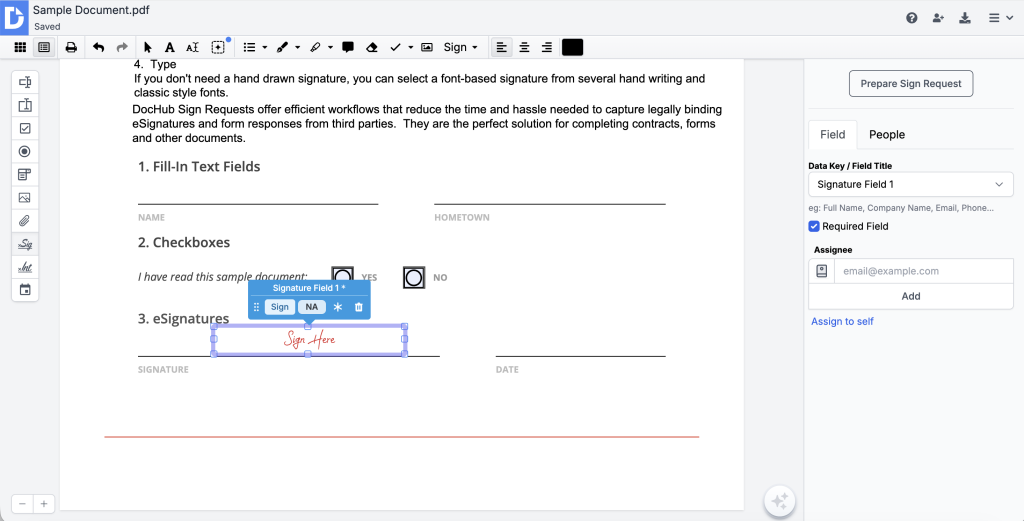
3. Resize and reposition. Drag the corners of the field to adjust its size. Move it to the correct location on the page.
4. Assign a signer. Assign the field to a specific signer by email.
5. Add supporting fields. Use the same process to add Initials, Date, and Text fields to complete the signature block.
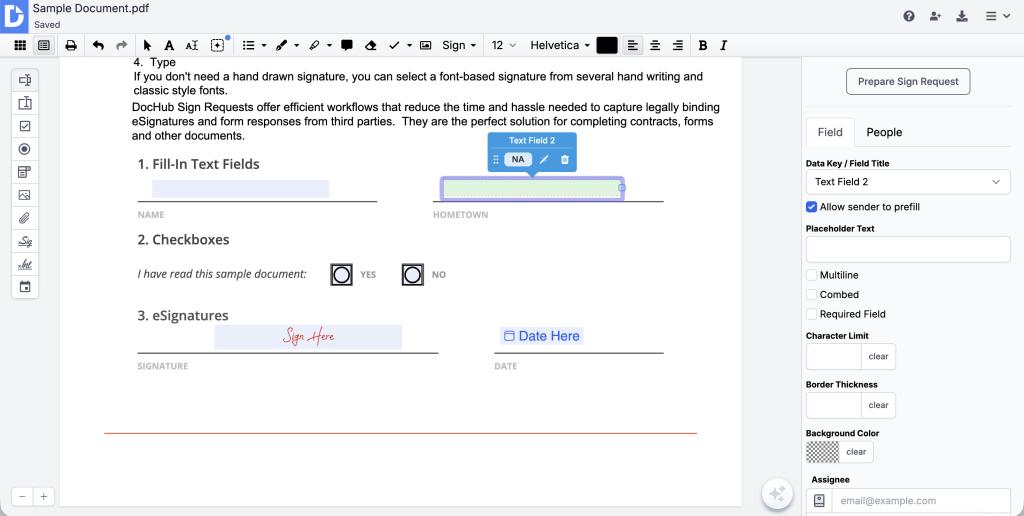
6. Save the document. Once all fields are placed, save and send the document as a sign request.
For a full walkthrough of adding fillable fields to a PDF, see DocHub’s guide on creating a PDF form by adding fillable fields to a document.
How to sign a PDF someone emailed you
Received a PDF in your inbox and need to sign and return it? Here’s the fastest way to handle it:
- Open the email attachment. If you use Gmail with the DocHub add-on installed, you can open and sign the PDF directly from your inbox without switching tabs.
- Upload the PDF to DocHub. Alternatively, download the file and drag it into DocHub.
- Add your signature. Use the Sign tool to place your signature in the required location. Add a date or initials if needed.
- Send it back. Download the signed file and reply to the email with it attached—or use DocHub to send it directly. You can also save the signed document to Google Drive, Dropbox, or OneDrive for cloud sharing and future reference.
This workflow is especially useful for employment forms, client contracts, and school permission documents that arrive as email attachments.
Can multiple people sign the same PDF?
Yes. DocHub supports multi-signer workflows, which let you collect signatures from several people on a single document. Here’s how it works:
- Assign signing order. When sending a sign request, there is a Signing Order option. You can specify whether signers sign sequentially (One at a time) or in parallel (All at once).
- Place signature fields. Each signer is assigned their own signature field, initials field, and any other required fields. Signers only see the fields assigned to them.
- Send sign requests. DocHub notifies each signer automatically. You can send reminders if someone hasn’t signed yet.
- Track completion status. DocHub shows you in real time who has signed and who hasn’t.
- Audit trail. Every signing event—who signed, when, and from where—is recorded in DocHub’s audit trail, which attaches to the document for verification purposes.
Multi-signer workflows are common for vendor contracts, partnership agreements, and any document that requires sign-off from more than one party.
Is an online PDF signature legally valid?
For most everyday documents—yes. DocHub electronic signatures comply with the requirements of three major legal frameworks:
- ESIGN Act (U.S.)—The Electronic Signatures in Global and National Commerce Act of 2000 gives electronic signatures the same legal weight as handwritten ones in the United States.
- UETA—The Uniform Electronic Transactions Act reinforces ESIGN at the state level across the US.
- eIDAS—The EU regulation on electronic identification and trust services covers electronic signatures across European Union member states.
DocHub signatures qualify as digital signatures under US law because they are unique to the signer, capable of verifying the signer’s identity, under the sole control of the signer, and linked to the document in a way that detects any subsequent changes.
That said, an electronic signature alone does not guarantee legal enforceability. The overall signing process matters too—specifically, these four requirements must be met:
- Intent to sign—The signer must take an action that demonstrates consent (clicking to sign counts).
- Consent to do business electronically—Both parties must agree to transact digitally.
- Attribution—There must be a way to link the signature to the signer.
- Record retention—The signed document and its audit records must be preserved.
DocHub addresses all four. For details on DocHub’s compliance posture, see DocHub’s eSignature compliance page.
Is it safe to sign PDFs online?
DocHub uses multiple layers of security to protect documents and signature data:
- TLS encryption—All data transmitted between your browser and DocHub’s servers is encrypted in transit.
- Encrypted storage—Documents are stored on AWS S3 with encryption at rest.
- Audit logs—DocHub records a detailed event log (a.k.a. audit trail) for all actions taken by all parties with a Sign Request and filled copies of a template.
- Authenticated access—Signers must receive a sign request via email or log in to DocHub to sign, which creates a verifiable link between the signer and the document.
- Permission controls—You can set password protection and two-factor authentication for sensitive documents.
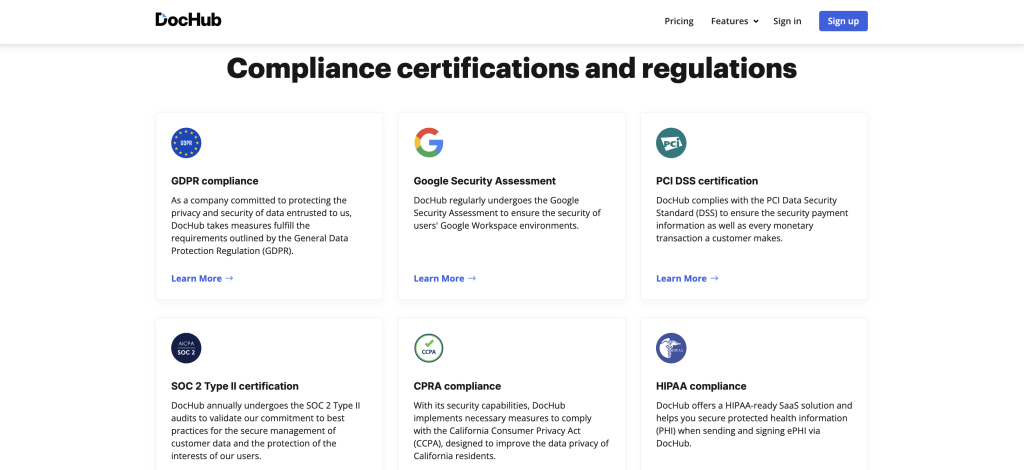
DocHub is also SOC 2 Type II certified and compliant with HIPAA, GDPR, PCI DSS, FERPA, and CPRA—making it suitable for handling sensitive documents in healthcare, education, and financial contexts.
Best practices before signing a PDF
Before you put your signature on any document, run through this checklist:
- Review the entire document. Read every page, not just the signature page. Look for blank fields, missing terms, or anything that seems off.
- Verify the sender. Confirm the document came from a legitimate source, especially for employment forms, lease agreements, and financial contracts.
- Check the dates. Make sure any effective dates, expiration dates, and deadlines are correct.
- Confirm all required fields are filled. Don’t leave required fields blank—they may need to be completed before your signature is valid.
- Keep a signed copy. Always download and store a copy of the signed document for your records.
- Use secure storage. Save your signed PDFs to a password-protected or encrypted location, whether that’s Google Drive, Dropbox, or another cloud service with access controls.
DocHub allows you to easily manage electronic signatures as well as collect signatures from other users. For more information, watch our quick video on YouTube:
Disclaimer: The information contained in this blog post is provided for general informational purposes only and does not constitute formal legal advice.
Final thoughts
Adding a signature to a PDF doesn’t need to be complicated. With DocHub, the process takes under a minute—upload, sign, done. Whether you’re handling a single employment form or managing a multi-party vendor contract, the tools are all in one place and work in any browser.
Start a free trial of DocHub and sign your first document today. No installation, no learning curve, no runaround.
Glossary
- Electronic Signature: Any electronic mark—typed name, drawn image, or click-to-sign action—that indicates a person’s intent to sign a document. Legally equivalent to a handwritten signature under ESIGN, UETA, and eIDAS.
- Digital Signature: A type of electronic signature that uses cryptographic technology to verify the signer’s identity and detect any changes made to the document after signing.
- Signature Block: A structured area in a document that groups together a signature field with related fields—such as initials, date, and printed name—to capture a complete signing record.
- Audit Trail: A tamper-evident record attached to a signed document that logs every action taken—who signed, when, and from which device. DocHub’s audit trail includes a SHA256 identifier stored in Bitcoin’s blockchain for perpetual verification.
FAQ
1. How do I add a handwritten signature to a PDF?
Use DocHub’s Draw option in the Sign tool. You can draw directly with your mouse, use a touchscreen, or use your phone as a signature pad—drawing on the phone screen and syncing it instantly to your desktop. The result is a natural-looking handwritten signature attached to your document.
2. Can I sign a PDF without Adobe Acrobat?
Yes. DocHub is a full-featured online PDF editor that lets you sign PDFs directly in your browser without Adobe Acrobat or any other desktop software. It works on Mac, Windows, and mobile devices.
3. What’s the difference between an electronic signature and a digital signature?
An electronic signature is any electronic mark that indicates a person’s intent to sign a document—it can be as simple as a typed name or a drawn image. A digital signature is a specific type of electronic signature that uses cryptographic technology to verify the signer’s identity and ensure the document hasn’t been altered after signing. DocHub signatures qualify as digital signatures under US law because they are uniquely tied to the signer and linked to the document in a tamper-detectable way.
In short: all digital signatures are electronic signatures, but not all electronic signatures are digital signatures. For more, read our comprehensive guide on electronic and digital signatures.
4. Can I remove a signature after signing?
This depends on how the document was signed. If the signature was placed as an annotation using the Sign tool, you may be able to delete it before the document is finalized. Once a document has been completed and an audit trail attached, removing a signature is not advisable, as it may affect the document’s legal integrity.
5. How do I add a signature block to a PDF?
Open the Fields Manager in DocHub, select the Signature field type, click to place it on the document, and assign it to the relevant signer. Add Initials, Date, and Text fields as needed to complete the block. See the full walkthrough in the section above.
6. Can multiple people sign one PDF?
Yes. DocHub’s multi-signer workflow lets you assign signature fields to different people, set a signing order, send automated notifications, and track completion in real time—all from one document.
7. Can I sign a PDF on my phone?
Yes. DocHub works in any modern mobile browser without requiring an app download. You can also download the DocHub mobile app from the App Store or Google Play for additional features like document scanning.
8. Is an online signature legally binding?
In most cases, yes—provided the signing process meets the requirements of ESIGN, UETA, or eIDAS (depending on your location). These include signer intent, mutual consent, attribution, and record retention. DocHub is designed to satisfy all four requirements. That said, some document types (such as certain wills, court orders, or real estate transfers) may have specific requirements that go beyond standard electronic signature law. When in doubt, consult a legal professional.
9. Can I send the signed PDF directly by email?
Yes. After signing, DocHub lets you send the document directly via email or fax—without needing to download and re-attach the file manually.
- How do you add a signature to a PDF online with DocHub?
- What are the different ways to create a signature?
- What’s the difference between adding a signature and adding a signature field?
- How to add a signature block to a PDF
- How to sign a PDF someone emailed you
- Can multiple people sign the same PDF?
- Is an online PDF signature legally valid?
- Is it safe to sign PDFs online?
- Best practices before signing a PDF
- Final thoughts