

Create signature: PDF documents may be signed by selecting your signature, placing it on the page, and saving or sending the signed document. In DocHub, you can create an electronic signature by typing, drawing, using your phone, or uploading a signature image.
Add signatures online: After you create your signature, insert it into a PDF document in just a few clicks.
This guide explains how to create signatures for PDF workflows, draw signatures, upload a scanned signature, request signatures from recipients, and download a signed document. It also explains when you may need a digital signature or certified copy instead of a simple eSignature.
Disclaimer: The information contained in this blog post is provided for general informational purposes only and does not constitute formal legal advice.
Summary
Here is the basic process for creating and adding signatures to PDFs:
- Upload your PDF file or other document to DocHub from your device, cloud storage, or connected apps.
- Add a signature field to your document and click on it to fill.
- Create your own signature by typing, drawing, using your phone, or uploading an image.
- Drag the signature onto the right page, resize it, and add dates, initials, or text fields if needed.
- Use a Sign Request when recipients need to complete and sign PDF forms.
- Download or export the signed document, depending on your recordkeeping needs.
The right method depends on whether you are self-signing, collecting signatures, or preparing documents for legal or compliance review.
What does it mean to create a signature for a PDF?
Creating a signature for a PDF means generating a reusable signing element that can be inserted into a digital document. It may appear as typed letters, a hand-drawn signature, a captured phone signature, or a PNG image of a handwritten signature.
An electronic signature is different from a certificate-based digital signature. An electronic signature shows intent to sign, while a digital signature uses encryption and certificate data to help authenticate the document and detect changes. In DocHub, users can add eSignatures and, when needed, download the audit trail for the document with a detailed record of all the modifications.
When should you sign PDF documents online?
You should sign PDF documents online when you want to avoid printing, signing with ink, scanning, and emailing paper documents. This is common for contracts, consent forms, tax forms, onboarding packets, school documents, real estate paperwork, and internal approvals. In our previous blog post, we compared in detail how wet signatures differ from electronic signatures.
Online document signing is also useful when multiple users need to fill fields, track progress, or complete a form from different locations. Instead of sending attachments back and forth, DocHub lets you prepare the document online, add fields, request signatures, and keep the completed version in your document history. Read more about adding electronic signatures to PDF in our previous blog.
How do you create signatures for PDFs in DocHub?
DocHub’s electronic signature generator is seamlessly embedded into a broader document workflow. Follow these simple steps to create and apply your signature.
Online signature creation with DocHub: A step-by-step guide
- Log in to your DocHub account using your email credentials.
- Click + New Document to upload the file from your chosen storage.
- Click Create document to open the document in DocHub.
- Select the Sign tool from the toolbar and click Create signature.
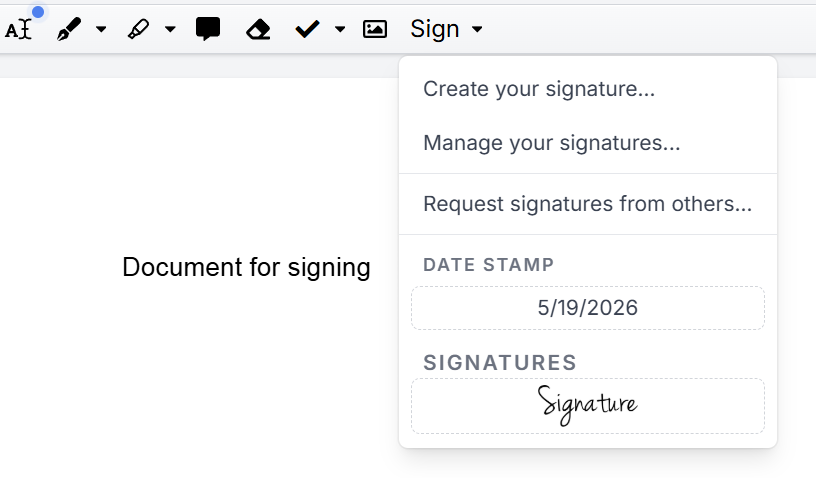
5. Choose how you want to create the signature. You can use your Phone as a signature pad.
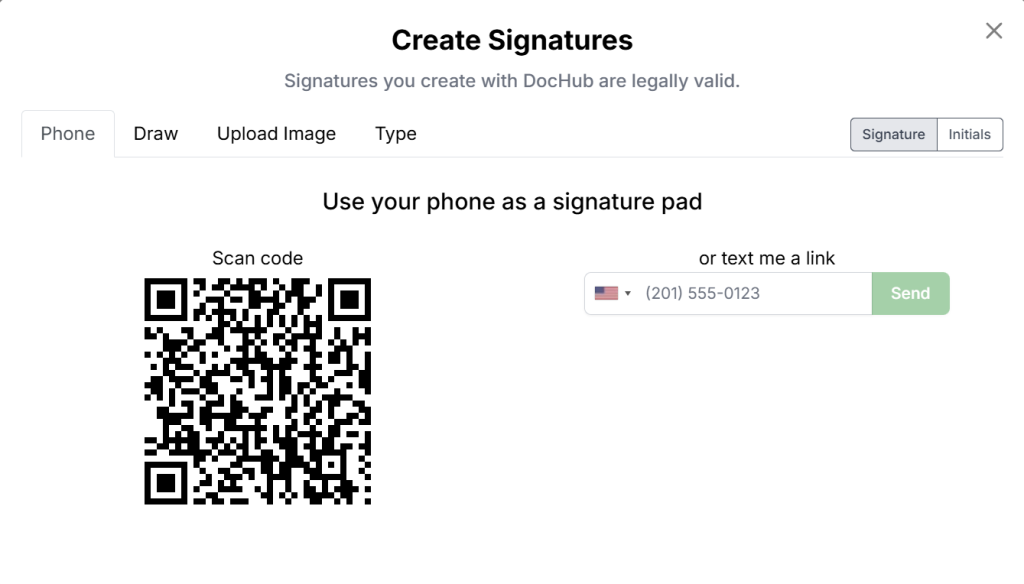
6. Select the Draw tab to draw your signature using your mouse or touchpad.
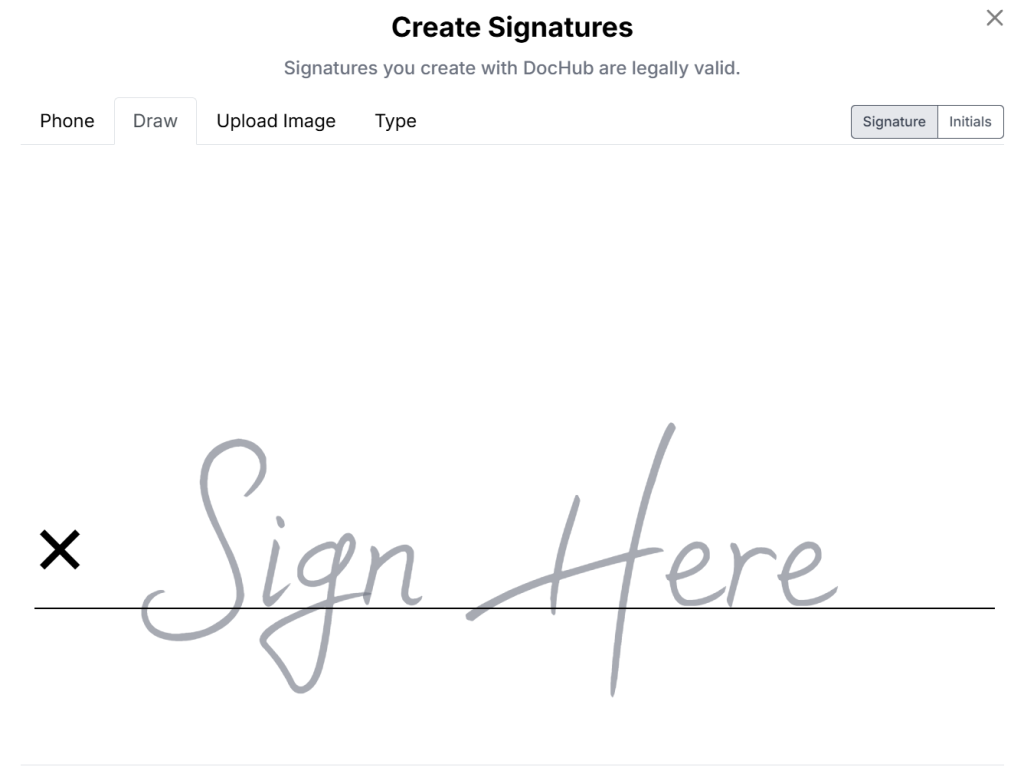
7. Select Upload image to add an image of your signature from the device or cloud storage.

8. Choose the Type option to create your signature by typing it out. From there, you can customize its font and style to match your preference.
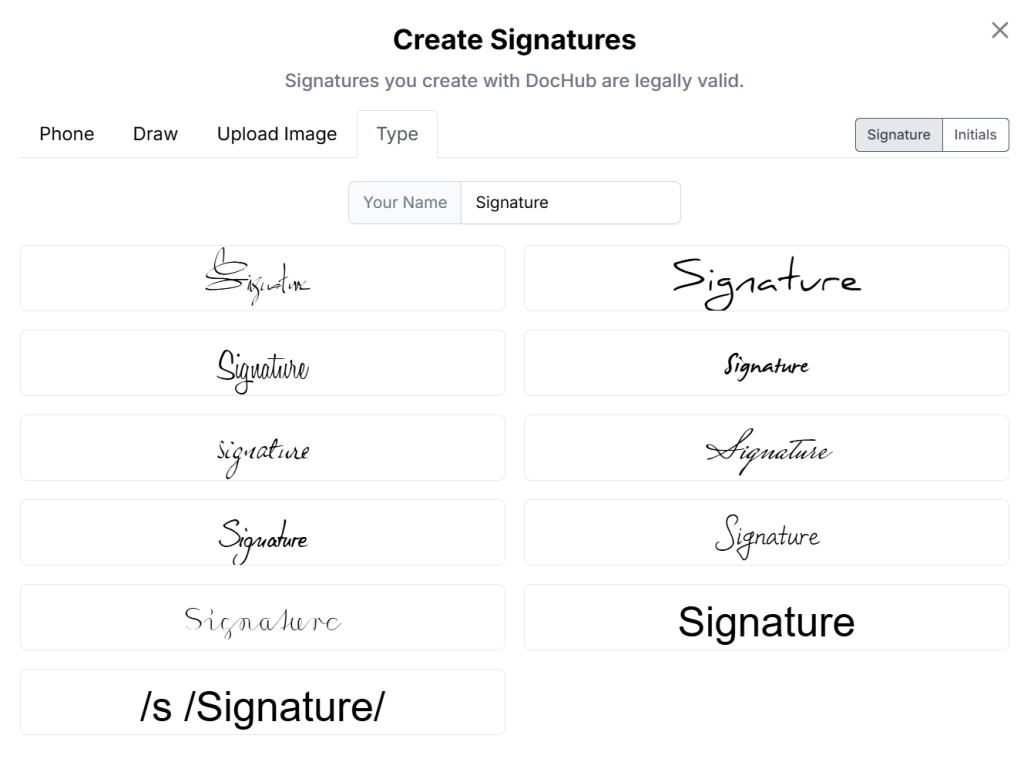
The signature will be saved as your default one. You’ll be able to replace it any time.
If you already have a saved signature, selecting a signature field can insert your default signature or prompt you to choose from saved options.
How do you secure a digital signature?
While a standard electronic signature suffices for most daily business documents, a certificate-based digital signature offers enhanced security. It embeds cryptographic information that verifies the document’s authenticity and detects any modifications made after signing. For added assurance, DocHub allows you to download an audit trail for signed documents, providing stronger proof that the signed PDF has not been altered. See our blog about the safety of online PDF editors to learn more.
How do you send a PDF for someone else to sign?
Use a Sign Request when you need another person to sign, initial, or complete fields in a document.
- Choose a document on your dashboard to request signatures for.
- Under the Sign tool in the toolbar, choose Request signatures from others.
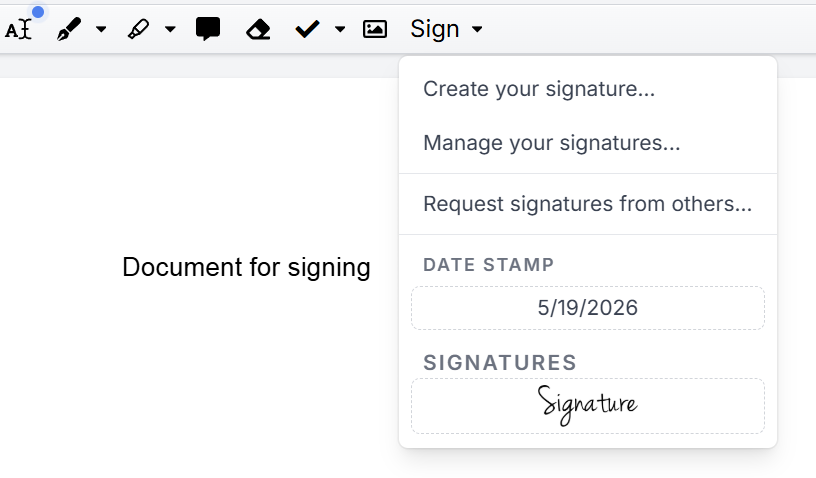
3. Prepare the Sign request: add recipients by email addresses, set permissions and options for them.
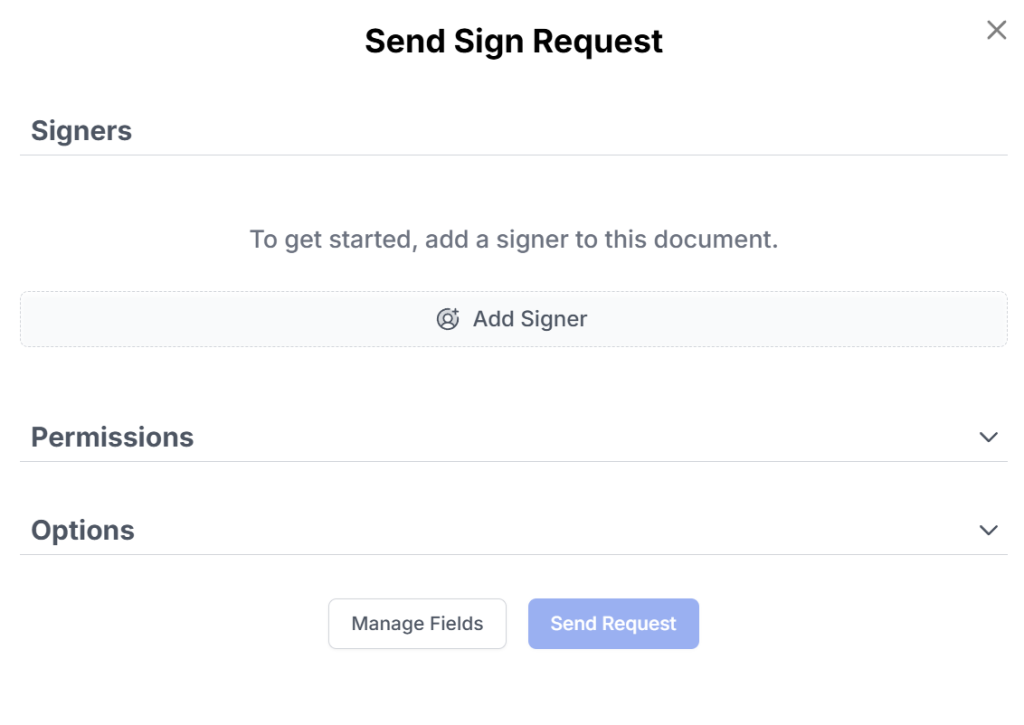
4. Click Send Request, then get notifications upon signing.
Signers do not need to have a DocHub account or log in to sign a document. They will receive an email with a secure link to open and sign the document directly.
How does DocHub compare with manual signing?
| Workflow | How it works | Practical considerations |
|---|---|---|
| Printing and scanning | Print the file, sign it with a pen, scan it, and email it back | Familiar, but slow and prone to image quality issues |
| Email attachment workflow | Send the PDF, ask the recipient to edit or sign it, then wait for the return file | Simple for one-off tasks, but hard to track with multiple recipients |
| Desktop PDF editor | Open the file in the installed software and use local signing tools | Useful for offline work, but may require setup or paid software |
| DocHub online signing | Upload, create a signature, sign, request signatures, and save or share online | Useful for browser-based signing, forms, collaboration, and repeat document workflows |
DocHub is especially practical when your team already handles PDF editing, form completion, and eSignature collection online.
What mistakes should you avoid when signing PDFs?
The most common mistake is signing without reviewing the full content of the document. Always check names, dates, amounts, required boxes, and page order before saving or sending the signed PDF.
To ensure a smooth signing process, use a high-quality signature image, place it within the designated field, and include your initials where required. When sending documents, clearly assign all necessary fields and mark them as mandatory to prevent incomplete submissions.
It’s also important to understand that not all electronic signature workflows meet every legal or compliance standard. Depending on the country, document type, parties involved, and industry, specific laws like the ESIGN Act, UETA, eIDAS, and various privacy regulations may apply.
How can business teams use PDF signatures?
HR teams can send offer letters, policy acknowledgments, and onboarding forms for e-signatures without printing a single page.
Sales and legal teams can prepare and send contracts, then store the completed versions for their records.
Education, finance, real estate, and administration teams can use digital signatures for permissions, applications, and approvals, making routine forms faster to complete than paper versions.
Final thoughts
Creating and adding signatures to PDFs is easier when the signing process stays inside the document workflow. With DocHub, you can create your own signature, draw it, upload a signature image, sign PDF forms, request signatures from others, and save or share completed documents online.
Get started with DocHub when you need a practical browser-based tool for editing, filling, signing, and sending digital documents.
Glossary
Electronic signature: A digital mark, typed name, drawn signature, or uploaded image used to show agreement. It matters because many routine business documents can be signed electronically.
Digital signature: A certificate-based signature that uses encryption to help verify authenticity. It matters when a document needs stronger validation.
Signature image: A picture of a handwritten signature, often saved as PNG. It helps users keep a familiar handwritten appearance.
Sign Request: A DocHub workflow for sending a document to recipients for signature. It helps assign fields, collect responses, and track completion.
Audit trail: A record of signing-related events. It can support document history and help show what happened during a signing workflow.
FAQ
Can I create a signature for free in DocHub?
Yes, you can create your signature in DocHub for free. However, the free plan has some limitations: you can sign up to five PDFs and send three sign requests per month. If you need more than that, you may want to upgrade your plan. Visit our pricing page to find the option that best suits your needs.
Can I draw my signature with a mouse?
Yes, you can draw a signature with a mouse, trackpad, stylus, or your finger on a touchscreen. For the best result, we recommend using a touchscreen device if you find drawing with a mouse challenging.
Can I upload a scanned signature?
Yes, you can upload an image of your signature to sign PDFs. For best results, use a high-quality PNG file with a transparent or plain white background. This ensures your signature looks clean and professional. A blurry photo or an image with a busy background may not appear as clear.
Is an electronic signature the same as a digital signature?
No, there’s a difference between these terms. An electronic signature is a visible signing mark, while a digital signature uses certificate-based technology to verify authenticity and detect document changes.
Can I send a PDF to multiple people for signature?
Yes, you can. You can add signature and form fields, assign them to recipients, and send the document as a Sign Request. For multi-signer workflows, review field assignments before sending.
Can I sign Word documents in DocHub?
DocHub streamlines your document workflows by supporting more than just PDFs. You can easily upload Word documents and other common file types. For editing, your document is automatically converted to a PDF. Once you’ve made your changes, you can download or export the file back to its original DOCX format.
- Summary
- What does it mean to create a signature for a PDF?
- When should you sign PDF documents online?
- How do you create signatures for PDFs in DocHub?
- How do you secure a digital signature?
- How do you send a PDF for someone else to sign?
- How does DocHub compare with manual signing?
- What mistakes should you avoid when signing PDFs?
- How can business teams use PDF signatures?
- Final thoughts
- Glossary
- FAQ