
Add signature field PDF guide: How to add signature lines and boxes with DocHub


To add a signature field to a PDF, open the file in a form-building tool and drag a signature field onto the page where you want the signer to sign. DocHub lets you do this directly in your browser or on mobile, then mark the field as required, assign it to a specific signer, and send the document out for signature.
TL;DR
- A signature field, signature line, and signature box serve different purposes: a field captures an actual eSignature, a line is a visual placeholder, and a box is a customizable container that can combine both.
- In DocHub, Manage Fields lets you add Signature, Initials, Date, Text, Checkbox, and other form fields and assign them to specific signers.
- Signature fields can be marked as required, assigned to specific signers, and combined with dates, initials, text, and checkboxes to build a complete PDF form.
- DocHub supports legally binding electronic signatures under the ESIGN Act, with audit trails and account security.
- Once a form is set up, you can save it as a reusable template so you never have to rebuild it from scratch.
Introduction: Why should you add signature fields instead of simply placing a signature on a PDF?
A PDF may look ready to sign because it has the word “Signature” followed by a blank line. However, that line does not necessarily function as an interactive field. If you are preparing an agreement for a client, employee, vendor, or other recipient, adding a signature field tells the signer exactly where to interact with the document.
This distinction matters in business workflows. A signature field can be assigned to a specific person, marked as required, and included in a Sign Request. A plain line or shape is useful for visual organization, but it does not by itself collect a signature.
DocHub lets you handle both tasks in one PDF editor. You can build form fields, draw lines and shapes, assign fields to signers, and send the finished PDF for eSignature without rebuilding the document from scratch. If your goal is simply to sign your own file rather than prepare it for another person, see DocHub’s guide on how to add a signature to a PDF.
Disclaimer: The information contained in this blog post is provided for general informational purposes only and does not constitute formal legal advice.
Signature field vs. line vs. box: what’s the difference?
These three terms are often used interchangeably. However, they describe different PDF elements, and choosing the right one affects how your document behaves once you send it out. Let’s see this difference in the table below.
| Element | What it does | Interactive? | Best use |
|---|---|---|---|
| Signature field | Gives a signer a designated place to add an eSignature | Yes | Contracts, approvals, consent forms, HR documents |
| Signature line | Shows visually where a signature belongs | No, unless paired with a field | Forms originally designed for paper signing |
| Signature box | Creates a clear rectangular signing area | Depends on how it is created | Forms with limited or visually complex layouts |
| Signature | Represents the signer's signing action or mark | Not a field itself | Completing a document |
A signature field is an important element when you need another person to sign, but a signature line is different. The line improves the document’s visual structure, but you should place an interactive Signature field with it when the recipient must sign electronically. In DocHub, you can create one with the Draw tool, which supports straight lines, rectangles, arrows, circles, and freeform drawing.
In practice, a signature field is what makes a PDF form functional — it’s the component a signer interacts with directly and the one that feeds into an audit trail. DocHub’s Fields Manager supports Signature fields and lets you assign them to a person or role.
How do I add a signature field to a PDF?
Adding a signature field to a PDF document takes only a few steps once you know where to look. Here is a step-by-step breakdown of how to complete this process.
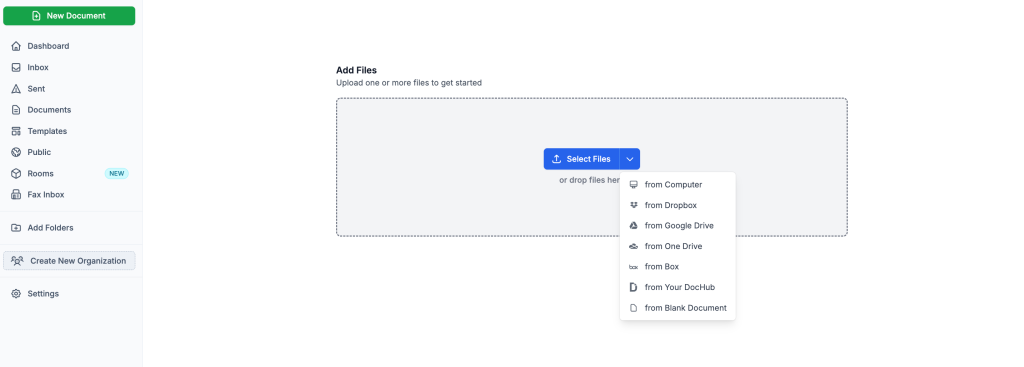
1. Upload or open your PDF. Start by logging into DocHub. Open an existing document, or click New Document to drop or upload a new file from your device or cloud storage, such as Google Drive, OneDrive, Dropbox, or Box.
2. Open Manage Fields. Open your document in the editor and click Manage Fields — the form field panel will open on the left side of the screen.
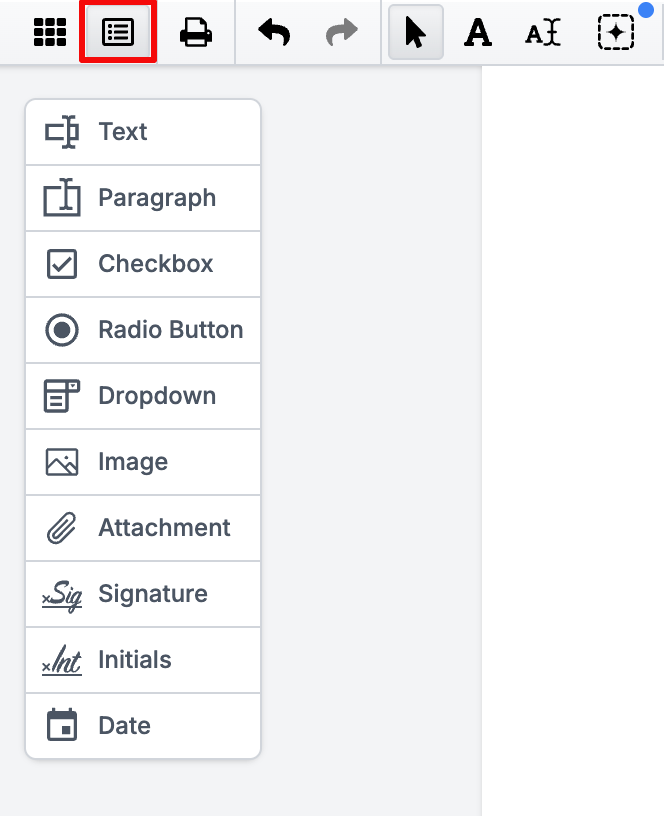
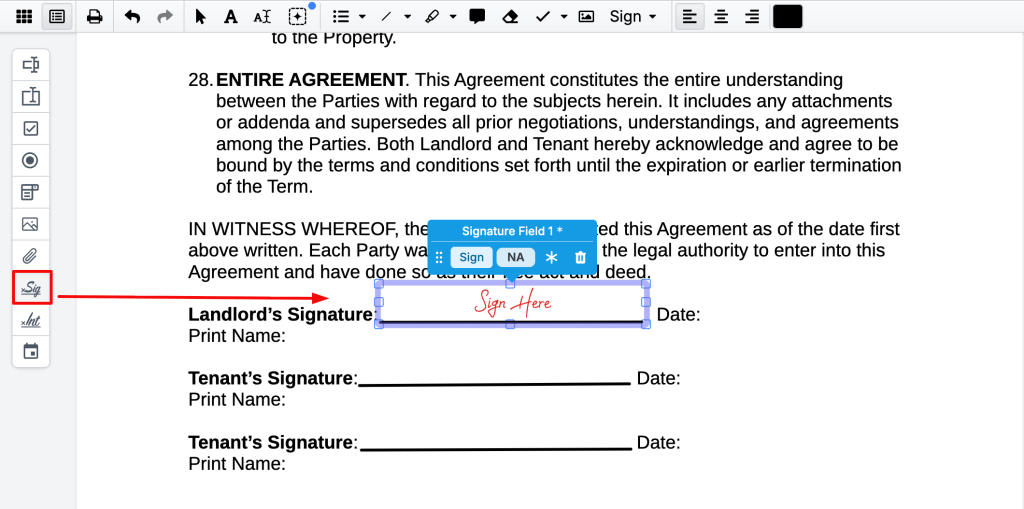
3. Choose Signature. Select the Signature field type from the available options.
4. Place the field. Click the part of the PDF where the signer should add a signature.
5. Resize and reposition it. Adjust the field so it fits the available space without covering labels, dates, or other form content.
6. Assign it to a signer. Navigate to the right panel to assign all unassigned fields to a certain Role or person, so DocHub knows who must complete that field.
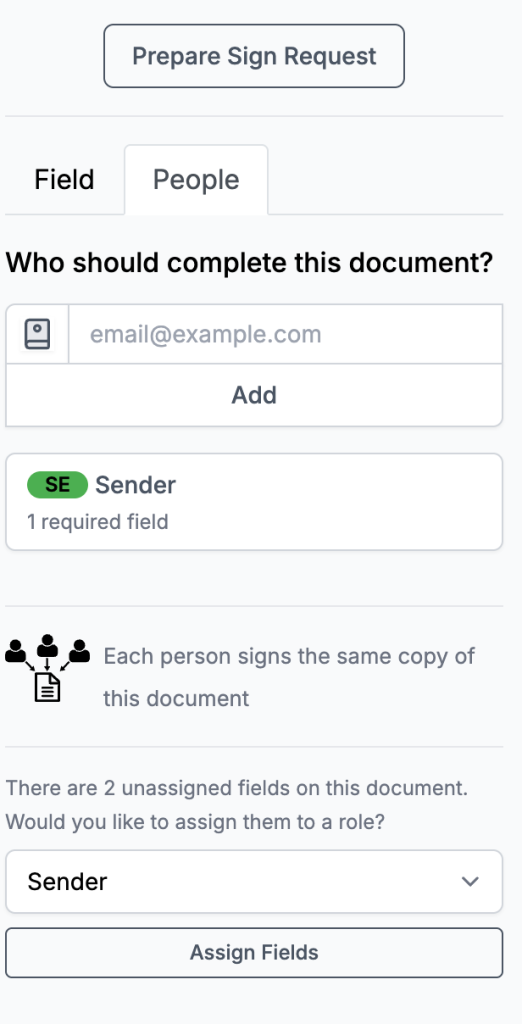
7. Review the required setting. DocHub automatically sets Signature fields as Required, helping prevent a signer from finalizing the workflow without completing the field.
When working with a regular document, you can assign fields to a specific person’s email address. For forms that you plan to reuse, DocHub recommends creating a template and assigning fields to roles such as Client, Employee, or Signer.
That distinction can save substantial setup time. Instead of adding new form fields whenever a new employee or customer needs to complete the same agreement, you can prepare the layout once and reuse it.
For a broader walkthrough of building interactive forms, see how to create a fillable PDF form.
Does DocHub keep signed PDFs secure and compliant?
Yes, DocHub’s electronic signatures are secure and compliant with the ESIGN Act, meaning a signed document carries the same legal weight as a handwritten signature, provided the signer intended to sign and agreed to do so electronically. Every signature also comes with a built-in audit trail that records details such as who signed, when, and from where, so you have a clear record if a document’s validity is ever questioned.
On top of that, DocHub protects your account and documents with encryption, password protection, and recipient authentication options, keeping sensitive agreements secure from upload through signing.
For a deeper look at what makes an electronic signature enforceable, see our post on electronic signature legal validity.
How to draw a signature line in a PDF
A signature line works well when you want a simple visual marker rather than a fully interactive field — for example, on a printed form or a document where the signature itself will be added by hand later. Here’s how to add a signature line to a PDF:
1. Open your PDF in the editor.
2. Select Draw from the toolbar.
3. Choose Add line from the dropdown and drag the cursor across the required area.
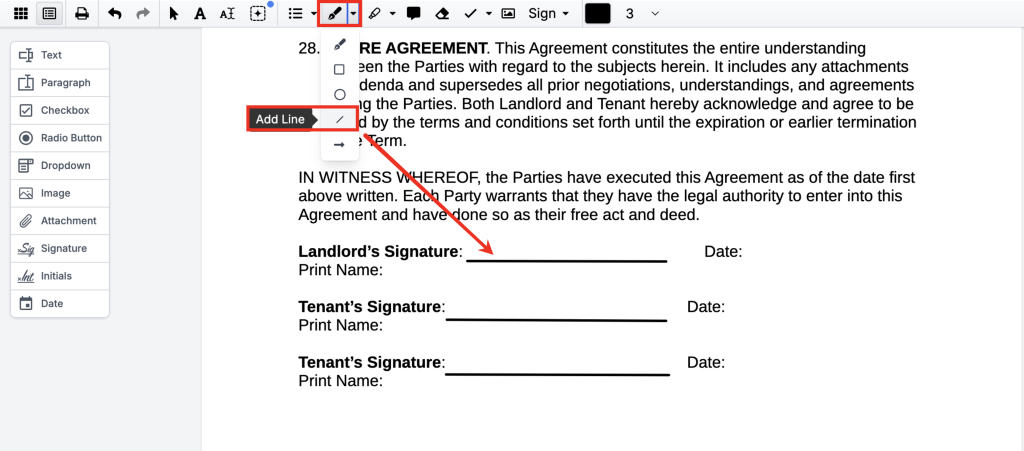
4. Use alignment assistance to keep the line consistent with the surrounding document.
5. Add a Signature field over or directly above the line if the recipient needs to sign electronically.
When adding a signature line to a PDF, you can adjust its length, color, and position, and pair it with a text label underneath, such as “Signature” or “Authorized representative.”
The essential point is that the line and the field serve separate purposes: the line shows where to sign; the signature field enables the signing action.
How do you add and customize a signature box in a PDF?
When users search for how to add signature box PDF elements, they may mean either an interactive field or a visible rectangle around the signing area.
For an interactive box, add a Signature field via Manage Fields, then move and resize it to fit the available space in the form. You can also assign the field to a particular signer and confirm its required status.
For a purely visual box, choose Draw → Rectangle and draw a boundary around the intended signing area. DocHub’s drawing tools support rectangles and other shapes, so you can make an unclear paper-style form easier to follow.
Keep visual customization functional. A large border, excessive annotation, or cramped signature box can make a form harder to complete, especially on a smaller screen.
How should you place signature fields in PDF forms? Tips & best practices
Good field placement reduces errors before they happen. A signer should not need to figure out which field belongs to them or whether they should sign above, below, or beside a printed line.
Follow these placement practices:
- ut each signature field directly next to the relevant “Signature,” “Authorized by,” or similar label.
- Leave enough width and height for a natural-looking signature.
- Keep fields away from important document text.
- Align related fields such as signature, name, title, and date.
- Use consistent spacing when several signers appear on the same page.
- Check every page for additional initial or signature requirements.
- Assign fields to the correct signer before sending the PDF.
For multiple signers, separate each person’s fields clearly. DocHub allows fields to be assigned to individuals or roles and supports workflows in which recipients sign sequentially or all at once.
If several people must sign the same PDF, see the guide on how to add multiple signatures to a PDF and how to request signatures from multiple recipients.
How can you combine signature fields with dates, initials, text, and checkboxes?
Most business forms require more than a signature. An employment agreement may need a printed name and date, while an approval form may require a checkbox, comments, initials, and a final signature.
DocHub’s Fields Manager includes Text, Paragraph, Checkbox, Radio Button, Dropdown, Image, Attachment, Signature, Initials, and Date fields.
A useful field combination depends on the workflow:
| Requirement | Useful field |
|---|---|
| Full approval | Signature |
| Page-by-page acknowledgment | Initials |
| Signing date | Date |
| Printed name or title | Text |
| Consent to a condition | Checkbox |
| Selection between choices | Radio Button |
| Longer explanation | Paragraph |
| Supporting file | Attachment |
For example, an NDA might use an Initials field on key pages followed by Signature and Date fields at the end. An HR form could pair Text fields for employee information with checkboxes for acknowledgment and a required signature.
Combining related form fields creates a more structured workflow than asking users to manually annotate every blank area. If you need a broader completion workflow, you can also review how to fill and sign PDFs.
How do I test signature fields before sending the PDF?
Testing is one of the most important steps when adding signature fields to a business form. A misplaced or optional field may not become obvious until a client or employee has already received the document.
Use this pre-send checklist:
- Switch to the Pointer tool. DocHub lets users interact with existing PDF form fields using the Pointer tool.
- Click each field. Confirm that it behaves as expected.
- Press Tab. Check whether navigation moves logically from one field to the next.
- Review field assignments. Make sure each Signature, Date, and Text field belongs to the intended signer.
- Check required fields. Critical information should not remain optional by accident.
- Review page layout. Look for overlapping fields, shapes, or text.
- Check every signer. Multi-party agreements may contain fields for several roles.
- Run an end-to-end test when the form is important. Duplicate the document or template and send a test Sign Request to yourself before using it in a live workflow.
Why isn’t my PDF signature field working? Troubleshooting common issues
When a signature field fails to open, save, or show up for a signer, it typically stems from one of several common issues:
- Non-interactive elements: Drawing a static line or shape instead of adding a functional form field prevents signers from interacting with it. Switch to Fields Manager mode to create interactive fields.
- Incorrect signer assignments: In documents requiring multiple signatures, assigning a field to the wrong recipient can render it hidden or uneditable. Verify all field assignments prior to sending.
- Restricted or flattened PDFs: Documents saved with strict permissions or flattened fields disable form interactivity. Adjust the security permissions and export the document with active form fields.
- Browser and network problems: Web-based tools like DocHub require a stable connection. Refreshing the page or switching browsers often resolves display glitches caused by network lag or outdated browser versions.
If none of these fixes the problem, download a fresh copy of the source document and rebuild the form fields from that version, since corrupted or heavily edited PDFs sometimes carry over structural errors that are easier to fix by starting clean.
Final thoughts
Signature fields, lines, and boxes each play a different role in a PDF document, and choosing the right one determines whether your form actually works the way you expect. A signature field is what turns a document into something signers can complete and submit with a real, trackable eSignature, while lines and boxes give you more control over layout and presentation. Combining signature fields with dates, initials, text, and checkboxes turns a basic PDF into a complete, professional form — and testing it before sending saves you from chasing down avoidable errors later.
DocHub centralizes your complete workflow within a single browser-based editor. You can securely design forms, insert signature fields, assign designated signers, and distribute documents without ever leaving your account.
Try DocHub today to explore everything you can do with your documents.
Glossary
- Signature field: An interactive PDF form field that captures an eSignature when a signer clicks or taps it.
- Digital signature: A signature backed by a digital certificate that uniquely identifies the signer, is under their sole control, and can reveal if the document was altered after signing.
- Electronic signature: Any electronic mark, such as a typed name, drawn signature, or clicked checkbox, made with the intent to sign.
- Form field: Any interactive element in a PDF form, including text fields, checkboxes, date fields, and signature fields.
- Audit trail — A record of actions taken on a document, including when it was viewed, filled out, and signed, used to verify authenticity later.
FAQ
A signature field is an interactive form element that captures an actual eSignature and can be set as required, assigned to a specific signer, and tracked in an audit trail. A signature line is typically just a visual marker, often a straight line with a label, that shows where a signature belongs without capturing any data on its own. If you need a document that functions as a real, submittable form, a signature field is the right choice; a line works better for documents meant to be printed or signed by hand.
In the United States, the ESIGN Act recognizes a typed name, a drawn signature, or another electronic mark as legally binding as long as the signer intended to sign and consented to signing electronically. That said, using a proper signature field rather than a plain image or line adds a layer of structure, since it can be tied to a specific signer, timestamped, and included in an audit trail. For higher-stakes documents, a signature field backed by a digital certificate offers stronger evidence of who signed and whether the document was altered afterward
Yes. When you add a signature field in DocHub, the system automatically marks it as required to prevent signers from missing it. This is useful for contracts and agreements in which a missing signature would render the document incomplete or unenforceable. You can apply the same required setting to other fields, such as dates or checkboxes, so the entire form is validated before it’s sent back.
Add each Signature field through Manage Fields and assign it to the person responsible for completing it. Repeat this process for every signer and include related date, initials, or text fields where needed. DocHub also supports signing order, so recipients can complete a document one at a time or all at once depending on the workflow.
Yes. DocHub Templates are designed for documents that need to be sent repeatedly to different recipients. You can prepare the form once, add and position the necessary fields, and assign them to roles rather than rebuilding the field layout for each new signer. Each use can then create a separate signing copy while preserving the reusable template structure.
- TL;DR
- Introduction: Why should you add signature fields instead of simply placing a signature on a PDF?
- Signature field vs. line vs. box: what’s the difference?
- How do I add a signature field to a PDF?
- Does DocHub keep signed PDFs secure and compliant?
- How to draw a signature line in a PDF
- How do you add and customize a signature box in a PDF?
- How should you place signature fields in PDF forms? Tips & best practices
- How can you combine signature fields with dates, initials, text, and checkboxes?
- How do I test signature fields before sending the PDF?
- Why isn’t my PDF signature field working? Troubleshooting common issues
- Final thoughts
- Glossary
- FAQ