

Undo, redo, and erasing in PDF editing help users correct mistakes, move backwards through recent edits, restore changes, and remove unwanted content without restarting a document. In DocHub, the Undo functionality is available during the active editing session, where recent user actions are stored as document states so the editor can revert or restore changes.
This guide explains how editing history is stored, how an undo operation works, why redo can disappear, and how erasing differs from deleting. It also shows how DocHub supports everyday PDF editing tasks with tools for text, annotations, fields, whiteout, form completion, signing, sharing, and collaborative document workflows.
Summary
Here are the core concepts behind undo, redo, and erasing in PDF editing:
- DocHub stores editing history during the current session and allows users to undo up to 50 steps.
- Undo moves backwards through recent edits and reverts the last command or action performed.
- Redo restores an undone action unless the user makes a new edit, which clears the redo history.
- Deleting an annotation or field may be recoverable through undo before it is permanently erased.
- Whiteout covers visible content on the page, while deleting removes an editable object from the document.
Knowing how these features work helps users protect their work, fix mistakes quickly, and edit PDFs with more confidence.
What are the undo mechanisms in PDF editing?
Undo mechanisms are the systems that let a program reverse recent user actions. When a user adds text, moves an object, deletes a field, or modifies a page, the PDF editor needs enough information to return the document to its previous state.
In many applications, undo mechanisms are explained through an undo stack. A stack is a data structure where the most recent action is placed on top. When the user undoes an edit, the last command on the stack is popped and reversed.
The command pattern
Some software architecture models use the command pattern. In that approach, a command object represents each action, often created from a command class. The command can execute the action and may also define a reverse operation. For example, a command that moves an annotation could store the original and new pointer positions, so the program can move the object back.
Other design patterns, such as the memento pattern, store snapshots of the current state. Instead of reversing each command manually, the system can restore a previously stored state. DocHub’s user-facing behavior is similar to a snapshot-based workflow: recent states are stored during the session so users can return to earlier points in their document history.
How is editing history stored in DocHub?
DocHub tracks editing history during the active session as a series of saved document states. Each time a user action happens, such as writing text, resizing a field, moving an annotation, deleting an object, or modifying a page, the previous state is stored so the user can go back.
DocHub maintains up to 50 steps of undo history in the current session. This gives users enough information to recover from recent mistakes without creating unlimited memory demands. From a memory management perspective, this type of limit helps balance recovery ability with system resources.
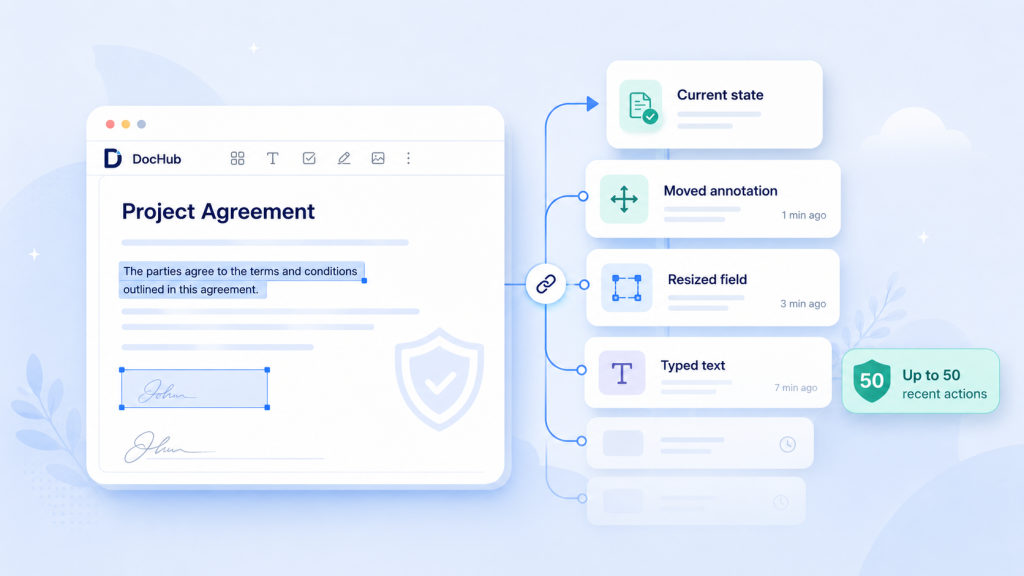
This history is session-based. If the page is closed or reloaded, the undo stack from that session is no longer available. However, DocHub preserves the latest saved state of the document, so the file does not revert to the initial state unless the user has undone changes before saving.
How does the undo operation work in DocHub?
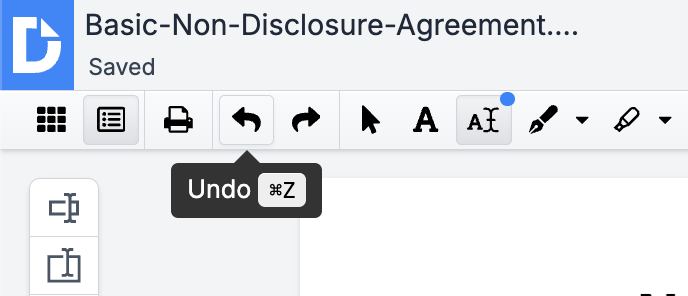
An undo operation reverses the latest action performed in the document. In DocHub, users can press Cmd+Z on Mac or Ctrl+Z on Windows to step backwards through recent edits.
Steps to undo a change in DocHub
- Open the PDF document in the DocHub editor.
- Perform an edit, such as adding text, moving a field, resizing an object, or deleting an annotation.
- Use the Undo tool from the toolbar. You can also press Cmd+Z on Mac or Ctrl+Z on Windows.
- Review the page to verify that the last command was reversed.
- Repeat the shortcut if you need to move backwards through additional actions.
A single Undo reverses one recent action. If multiple users are collaborating or reviewing a document, users should confirm the current state before undoing actions, especially in shared workflows where changes may affect annotations, fields, or page content.
DocHub syncs the updated state to the document after undo, so the current document reflects the reverted version. This is useful when correcting mistakes in real time, such as placing text in the wrong area, deleting the wrong field, or moving an object too far on the page.
How does redo work after undoing actions?
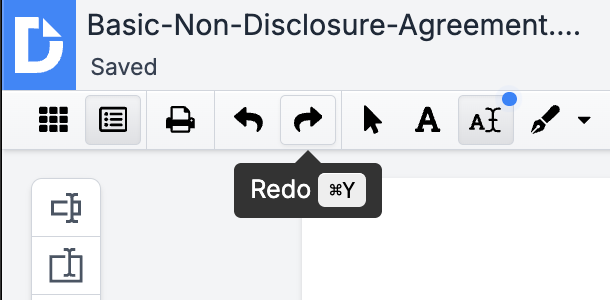
Redo restores an action after the user undoes it. In DocHub, users can press Cmd+Y or Cmd+Shift+Z on Mac, or Ctrl+Y or Ctrl+Shift+Z on Windows, to move forward again.
Steps to redo an edit in DocHub
- Use Undo to reverse a recent edit.
- Review the document and decide whether the undone action should return.
- Press Redo using the tool from the toolbar or the keyboard shortcut: Cmd+Y or Cmd+Shift+Z on Mac, or Ctrl+Y or Ctrl+Shift+Z on Windows.
- Check the page, text, fields, and annotations.
- Continue editing once the correct state is restored.
Redo depends on the redo stack, which stores actions that were undone and can still be restored. If the user undoes several actions and then performs a new edit, the redo stack is cleared. This is normal behavior in most applications, including a text editor, because the new edit creates a fresh history path.
For example, if a user deletes a note, undoes the deletion, and then writes new text, the system treats the new action as the current direction of the document. The possibility of redoing the earlier deleted action is removed because the document history has changed.
What is the difference between deleting, erasing, and using Whiteout?
Deleting removes an editable object, such as an annotation, form field, text box, signature element, or other selectable item. Erasing usually means hiding or covering visible content on the page. In DocHub, the tool used for erasing and redaction is Whiteout.
Whiteout is useful for indirect content editing. For example, a scanned PDF may contain text embedded in an image. The user cannot modify that image-based text the same way they would modify text in a text editor. Instead, they can cover the unwanted area with Whiteout and then create a new text field over it.
When a user deletes an annotation or field in DocHub, the object disappears immediately from view. It may still be recoverable with undo during the active session and within the available history. Once the recovery window closes and the deletion is permanently erased, it cannot be restored from within the editor.
How can you erase unwanted content in DocHub?
Use Whiteout when you need to cover visible text, outdated information, or content that should not appear in the updated document.
Erasing visible content in DocHub
- Open the PDF in DocHub.
- Go to the page with the content you want to cover.
- Select Whiteout.
- Drag over the specific words, numbers, or section you want to hide.
- Add a Text field if you need to write replacement content.
- Review the page at a close zoom level to check alignment.
- Save, download, share, or continue editing the updated document.
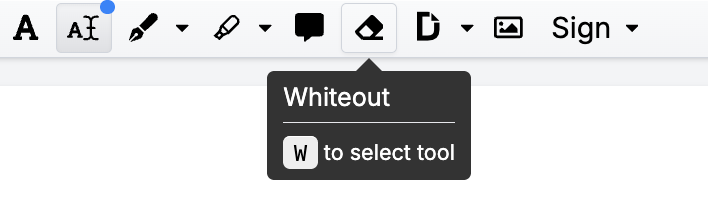
Whiteout can help clean up PDFs. In DocHub, the tool works for permanent redaction. But when using other tools, Erase/Whiteout should not be treated as the default method for legal redaction or regulated data removal. If the document contains confidential information, verify the final file carefully and follow your organization’s data protection process.
Disclaimer: The information contained in this blog post is provided for general informational purposes only and does not constitute formal legal advice.
When should you use undo, redo, or erase in DocHub?
Use Undo when an edit was made by mistake. Common examples include deleting the wrong object, moving a text box, changing a field, or placing content on the wrong part of the page.
Use Redo when you undo an action and then decide the previous edit was correct. This is helpful when comparing layouts, checking spacing, or reviewing whether a change improves the document.
Use Whiteout when you need to cover visible content that cannot be edited directly. This can happen with scanned PDFs, flattened documents, or files where text is part of the page image rather than an editable field. You can also use the tool for document redaction in DocHub.
For more information about using these features, see our blog: How to use Undo, Redo, and Erase tools on PDF editing.
How does DocHub compare with manual correction workflows?
| Workflow | How it works | Benefit | Limitation |
|---|---|---|---|
| DocHub: Undo and Redo | Revert or restore recent edits during the active session | Fast recovery from common mistakes | Undo history is limited to the session |
| DocHub Whiteout | Cover visible page content and add replacement text | Useful for scanned or fixed-layout PDFs | The final document should be reviewed carefully |
| Printing and scanning | Print, mark up, scan, and resend | Familiar for many teams | Slow and may reduce file quality |
| Email-based edits | Send revised versions back and forth | Simple for occasional review | Can create version confusion |
| Desktop PDF software | Edit documents in the installed software | May support specialized local workflows | Requires installation and device access |
Beyond the correction options, DocHub combines editing, undo redo functionality, permanent redaction, form fields, signatures, and sharing in an online document workflow. Learn more about PDF editors for small business teams from one of our previous blog posts.
What mistakes should users avoid?
Avoid relying on Undo as a permanent version history feature. DocHub’s undo stack is designed for active-session recovery, not long-term document rollback.
Avoid making a new edit after undoing actions unless you are sure you no longer need redo. Once a new action is pushed into the history, the redo path is cleared.
Avoid using Whiteout without reviewing the final page. Covering content can change spacing, leave visible edges, or require replacement text to match the surrounding layout.
Avoid assuming every PDF behaves like a text editor. Some PDFs contain editable text, while others contain scanned images, flattened fields, or objects that must be covered rather than modified directly.
Final thoughts
Undo, redo, and erasing help make PDF editing safer and more flexible. DocHub gives users this practical PDF editing functionality in a cloud-based workspace where they can edit, fill, sign, share, and manage documents.
Get started with DocHub when you need to correct PDF mistakes, revise forms, clean up pages, or keep document work moving without printing and scanning.
Glossary
Undo: A function that reverses the most recent edit. It matters because it helps users recover from mistakes during the active session.
Redo: A function that restores an action after undo. It helps users compare document states before choosing the final version.
Undo stack: A data structure that stores recent actions or states. It explains how a system can move backwards through editing history.
Redo stack: A data structure that stores actions available after undo. It is cleared when a new edit creates a different history path.
Command pattern: A software design pattern where an action is stored as a command object. It helps explain how a program can execute and reverse actions.
Command object: A stored representation of an action performed by the user. It may contain enough information to undo or redo that action.
Memento pattern: A design pattern where a program stores prior states. It helps explain snapshot-based recovery in editing software.
Whiteout: A DocHub tool used to cover visible content on a PDF page. It is useful for hiding or replacing text in fixed-layout or scanned files.
FAQ
Can I undo changes after closing a PDF in DocHub?
No, it is not possible. Undo history is available during the active editing session. After closing or reloading the page, the session history is gone, but the latest saved document state remains.
How many undo steps does DocHub support?
DocHub supports up to 50 undo steps during the current session. This helps users recover from recent edits while keeping memory and system resources manageable.
Why did redo stop working?
Redo stops working when the user undoes actions and then makes a new edit. The new action changes the document history and clears the redo stack. To continue using redo, simply undo the most recent action and then redo.
Is Whiteout the same as deleting text?
No, it works otherwise. Deleting removes an editable object, field, or text element. Whiteout covers visible content on the page, which is especially useful for scanned PDFs or flattened content. DocHub’s Whiteout also works as a redaction tool for permanently removing the content.
Can DocHub restore permanently erased content?
DocHub can restore deleted content through undo if the action is still available in the active session history. Once content is permanently erased with redaction and no longer available through undo, it cannot be restored from within the editor.
Does undo work for annotations, fields, and text?
Yes, the function works for these cases. Undo can reverse recent changes such as typing text, moving annotations, resizing fields, deleting objects, or modifying page content, as long as the action is still within the available session history.
- What are the undo mechanisms in PDF editing?
- How is editing history stored in DocHub?
- How does the undo operation work in DocHub?
- How does redo work after undoing actions?
- What is the difference between deleting, erasing, and using Whiteout?
- How can you erase unwanted content in DocHub?
- When should you use undo, redo, or erase in DocHub?
- How does DocHub compare with manual correction workflows?
- What mistakes should users avoid?
- Final thoughts
- Glossary
- FAQ