


When a client needs to acknowledge an updated payment term or revised clause, adding initials to the PDF shows exactly which change they reviewed. With DocHub, you can add your own initials or assign an Initials field to another person who needs to complete the document.
The process works in a browser, so no software installation is required. This guide explains how to add initials PDF fields, place your own initials, request initials from recipients, and save the completed PDF online.
TL;DR
To add your own initials, open the PDF in DocHub, select Sign from the toolbar, create or choose your initials, and place them on the page. To collect initials from another person, open Manage Fields, add an Initials field, assign it to the appropriate signer, and send a Sign Request.
Default initials can be saved for quicker access.
What is the difference between initials and a signature?
A signature generally indicates a person’s agreement with or approval of the document as a whole. Initials are shorter marks commonly placed next to individual clauses, corrections, pages, or acknowledgments. We have a separate guide on signature creation for PDF files: How to create signatures for PDF files and add them online.
The exact effect of either mark depends on the document, the signer’s intent, the surrounding transaction, and applicable law. Adding an image of initials does not by itself guarantee that an agreement is legally binding. When legal validity matters, use a controlled eSigning process that records consent, signer activity, timestamps, and the signed file.
Electronic vs. digital signatures: another difference
Disclaimer: The information in this blog post is provided for general informational purposes only and does not constitute formal legal advice.
Electronic signatures and digital signatures are not identical. An electronic signature is a broad way of showing a person’s intent electronically, while a digital signature normally refers to a certificate-based cryptographic method for verifying authenticity and document integrity. Adding your initials visually does not equal applying a certificate-based digital signature.
How to add initials: PDF instruction to initial a document yourself
Use this method when you are completing or reviewing the PDF document rather than requesting initials from another person.
Step-by-step guide to adding your initials in DocHub
- Sign in to DocHub and upload your PDF by clicking New Document. You can add a file from your device or import one from a connected source such as Google Drive.
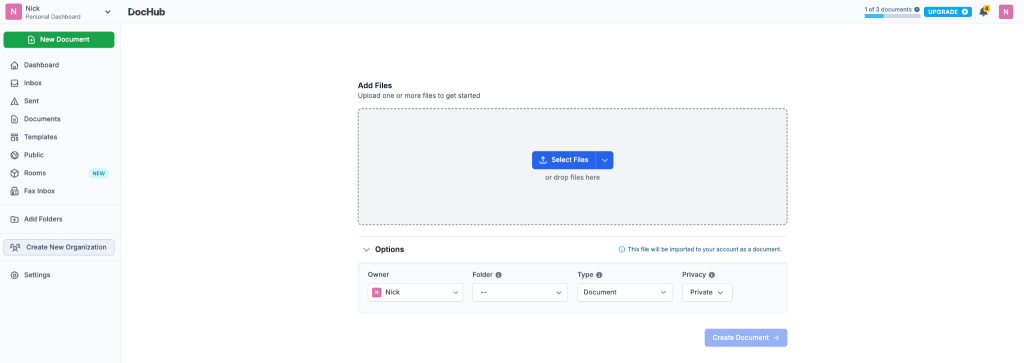
- Open the PDF in the DocHub editor.
- Select the Sign tool from the toolbar and choose your initials if you already have a saved set.
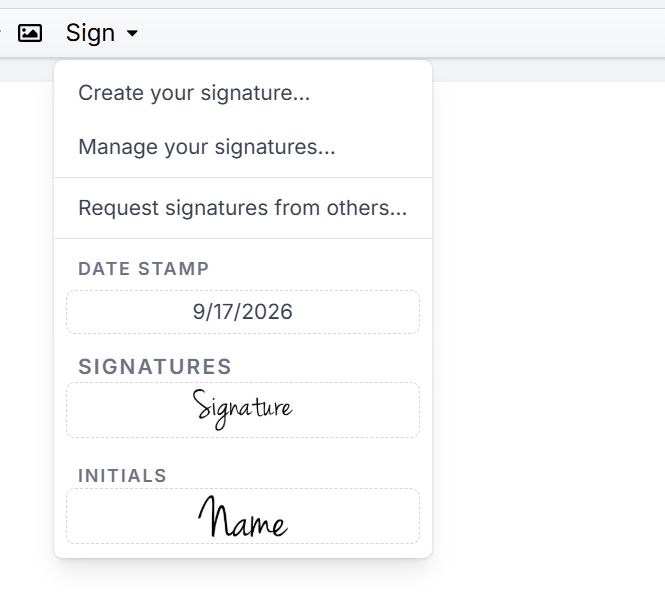
- Choose Create your signature.
- Switch to Initials and create them.
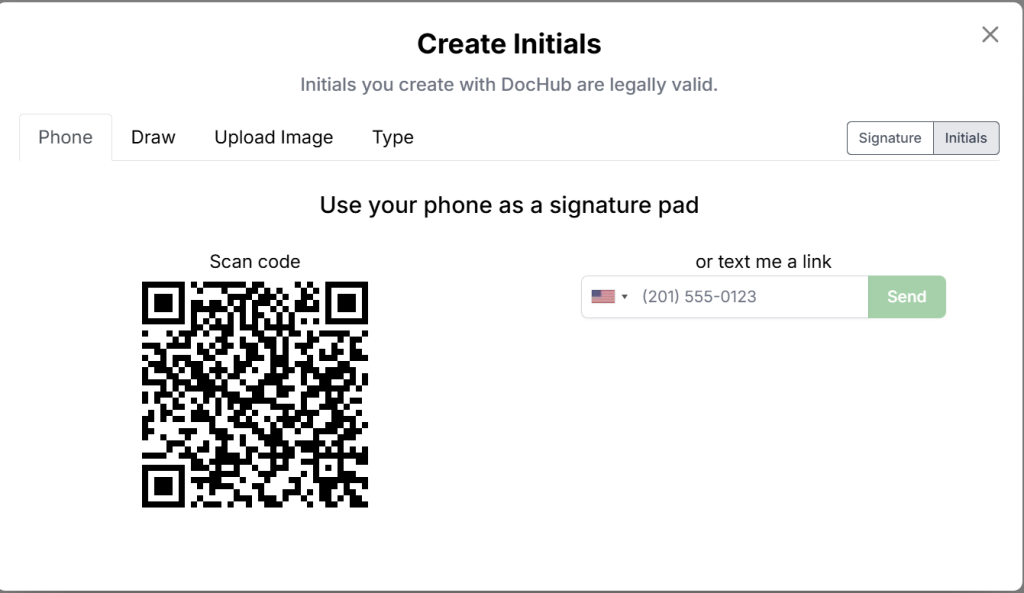
- Enter or create your initials using one of the available styles. You can draw, type, use an uploaded image, or create them with a mobile device.
- Drag the initials to the appropriate place on the PDF. Depending on the browser, you may need to select the tool and then click the page instead.
- Resize or reposition the initials if necessary.
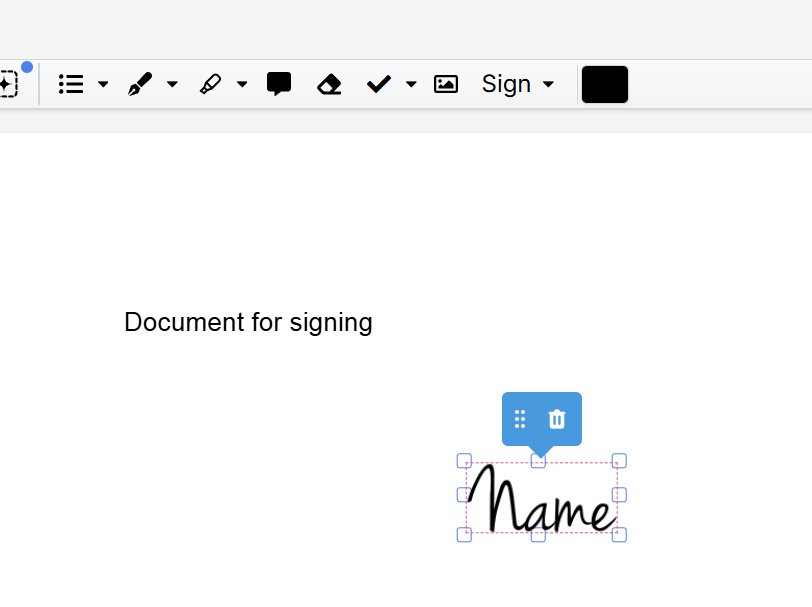
- Repeat the process wherever additional initials are required.
- Save or download the completed PDF.
DocHub stores created signatures and initials in the Sign menu, so you can reuse them in just a few clicks without recreating them for every document. You can remove saved items through Manage Signatures or the signature settings page. Learn more about electronically signing and initialing a PDF.
How do you assign initials and signatures to PDF recipients?
When someone else needs to enter initials, do not place your own initials on their behalf. Instead, add an Initials field and assign it to that signer when you request signatures.
Assigning an initials field in DocHub
- Upload the PDF to DocHub and open it.
- Select Manage Fields on the left side of the toolbar.
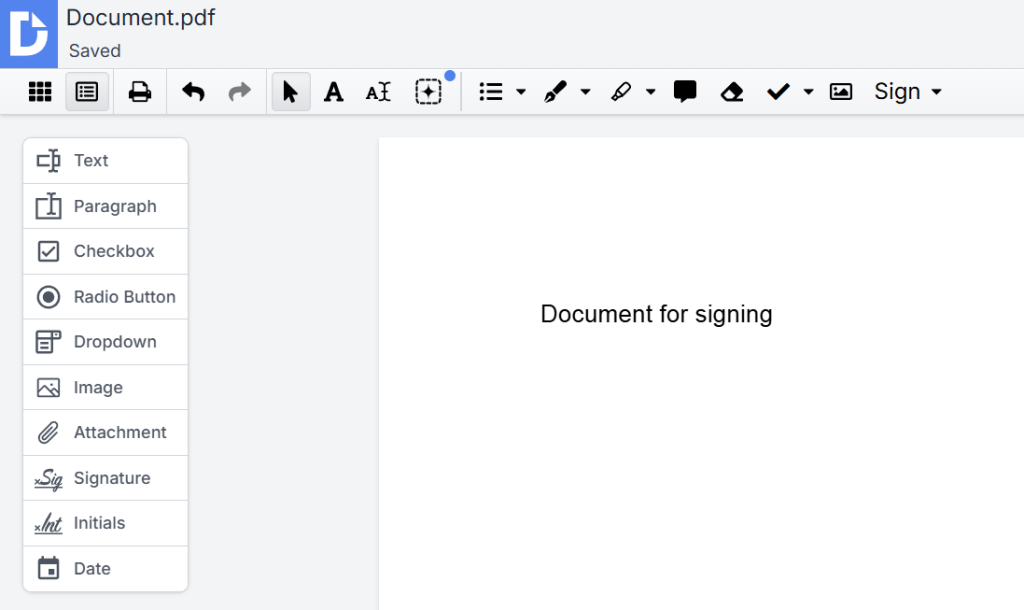
- Select the Initials field and place it where needed on the page.
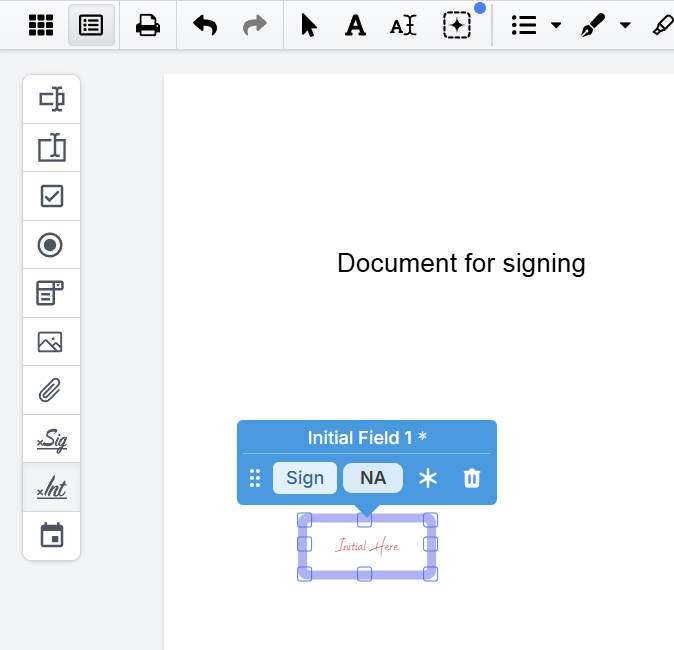
- Enter the assignee’s email in Prepare Sign Request, which opens automatically after you add the initials field.
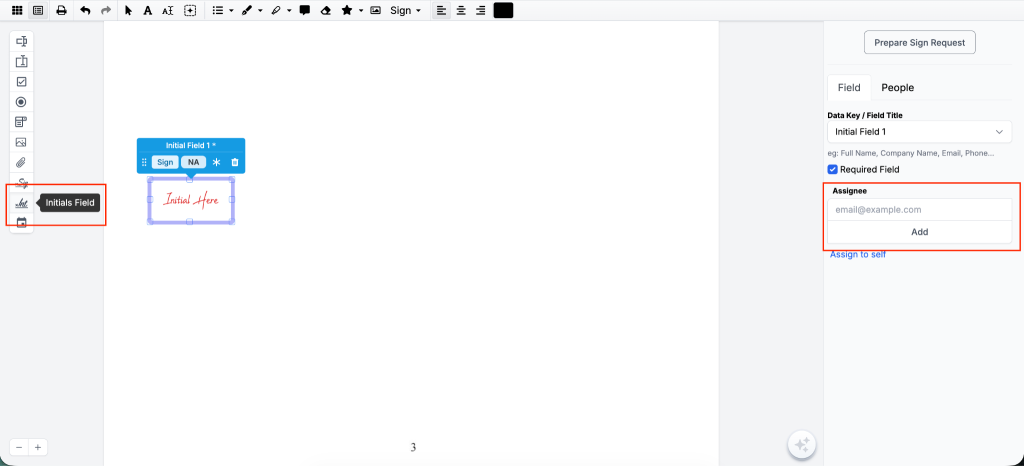
- Click Add and assign the field to the recipient.
- Select Prepare Sign Request at the top of the sidebar.
- Click Send Sign Request to start the e-signing process.
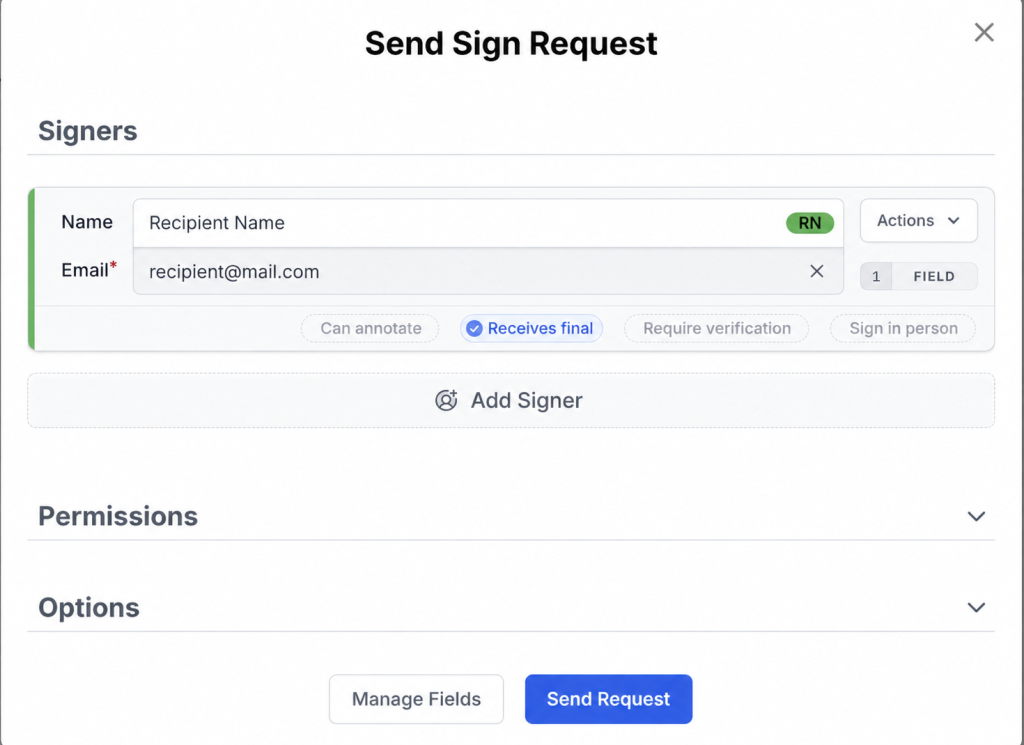
DocHub supports fields including Text, Paragraph, Checkbox, Radio Button, Dropdown, Image, Attachment, Signature, Initials, and Auto Date. Signature, Initials, and Auto Date fields are required, helping prevent a signer from finalizing the document without completing them. See how to insert and assign fillable fields.
For a single-use PDF form, fields can be assigned directly to specific email addresses. For a document that will be sent repeatedly, use a template and assign fields to generic roles such as Client, Employee, or Manager. You can enter the recipients’ email addresses when creating each Sign Request.
Common issues when adding initials to a PDF
Adding initials is straightforward, but a few setup mistakes can affect the finished document. Let’s see how to prevent or correct them for the best document signing experience.
- Initials appear in the wrong place. Select the placed element and reposition or resize it before saving the PDF. Review every page to confirm that the initials do not cover important text or form fields.
- The wrong person is assigned to the Initials field. Check the assignee’s email address or signer role before sending the request. Do not add your own initials on another person’s behalf.
- A recipient cannot finalize the document. Signature, Initials, and Auto Date fields in DocHub are automatically required. Confirm that the recipient has completed every field assigned to them.
- Saved initials are outdated or incorrect. Open Manage Signatures or the signature settings page to remove the saved item, then create a new set of initials.
- An uploaded image looks unclear. Use a legible image with enough contrast or create the initials by drawing or typing them instead. Check how the mark appears at its final size before downloading or sending the PDF.
- Initials are treated as proof that the entire document was accepted. Initials commonly acknowledge a specific page, clause, or change, while a signature may indicate broader approval. Their legal effect depends on the signer’s intent, the document, the available evidence, and applicable law.
Add initials to PDFs with DocHub
DocHub brings PDF editing, form fields, initials, electronic signatures, and signature requests into one browser-based tool. You can add your own initials in a few clicks or create a controlled request so each recipient enters their own mark.
Create a DocHub account to add initials, sign PDFs, and send a document for completion online.
Glossary
- Digital signature: A certificate-based cryptographic method used to verify a signer’s identity and detect changes to a document. It is different from simply placing visible initials on a PDF.
- Electronic signature: An electronic sound, symbol, or process used by a person with the intent to sign a record. Typed, drawn, or uploaded signatures and initials may form part of an electronic signing process.
- Initials field: A fillable field that requires an assigned recipient to enter their initials. It is useful for confirming review of a particular clause, page, or change.
- Sign Request: A DocHub workflow for assigning fields to recipients and sending a document for completion.
- Signer role: A reusable label such as Client, Employee, or Manager that identifies who should complete particular fields in a template.
FAQ
1. How do I add initials to a PDF online?
Upload the PDF to DocHub, open Sign, and create or select your initials. Place them on the required page, adjust their size or position, and save or download the file. See How free browser-based signing works for more information.
2. Can I assign an initials field to another person?
Yes. Open Manage Fields, add an Initials field, and assign it to a recipient’s email address or signer role. The recipient can enter their own initials when completing the Sign Request.
3. Can I reuse my initials in another document?
Yes. DocHub saves created initials in the Sign menu by default, giving you quick access for another PDF. You can manage or remove them from your account settings.
4. Are electronic initials legally binding?
Electronic initials may help show acknowledgment or intent, but their legal effect depends on the transaction, evidence, document requirements, and applicable law. Consult a qualified legal professional when a document has significant legal consequences.