

To add handwritten signature PDF content, you can draw your signature with a mouse, trackpad, phone, or touchscreen, or upload an image of a signature you created on paper. If you want to scan signature PDF content instead, capture your handwritten signature as a PNG or JPEG, upload it to DocHub, place it in the correct signature field, and save or securely share the completed document. DocHub supports reusable signatures, Sign Requests, audit trails, encrypted document storage, and PDF certification for workflows that need stronger evidence of the signing process.
TL;DR
- You can create a handwritten signature in DocHub by drawing it with a mouse or trackpad, using your phone as a signature pad, uploading an image, or choosing a typed signature.
- For a scanned signature, write your signature clearly on paper, capture or scan it, crop the image, and save it as a PNG or JPEG before uploading it.
- You can sign scanned PDF pages even when the original page is essentially an image; place your signature and other annotations over the correct areas.
- A saved signature can be reused across multiple documents, saving time on contracts, invoices, and forms.
- DocHub maintains an audit trail for every signed file, helping confirm who signed what and when.
A handwritten signature can give digital paperwork a familiar, personal touch without requiring the old process of printing, signing, scanning, and emailing. You can draw a signature directly on a PDF or create an image from a signature written on paper and insert it into the document.
Whether you’re closing a sales contract, approving an HR form, or signing a lease, you need a fast way to add your signature to a PDF without leaving your browser. DocHub brings these tasks into the same browser-based environment. This guide is designed for professionals, remote teams, and individuals who want to simplify the document signing process. It provides step-by-step instructions on how to add a handwritten signature to a PDF, scan a signature into a PDF, and ensure that the signature appears clean and professional. Also, check our How to add a signature to a PDF online.
Disclaimer: The information contained in this blog post is provided for general informational purposes only and does not constitute formal legal advice.
What’s the difference between a handwritten, scanned, electronic, and digital signature?
These four terms describe related but distinct things, and knowing the difference helps you choose the right method for your document.
- A handwritten signature is the mark you create by writing your name or another identifying mark by hand; an autograph, made with a pen on paper or with a finger, stylus, or mouse on a screen. In digital paperwork, that handwritten appearance can be captured by drawing on a mobile device, touchscreen, mouse, or trackpad. To learn more about how physical signing compares to digital alternatives, read our guide on wet signature vs. electronic signature.
- A scanned signature is an image file created from a signature originally written on paper. You might use a scanner or photograph the paper with a mobile device, crop the picture, and save it as a PNG or JPEG. The image can then be inserted into a PDF.
- An electronic signature, or eSignature, is a broader legal and technical concept. Under the U.S. ESIGN Act, a signature or contract generally cannot be denied legal effect solely because it is electronic. ESIGN defines electronic signing broadly enough to cover electronic symbols or processes adopted with the intent to sign. You can find more on electronic signature validity in our blog.
- A digital signature is a specific, cryptographically secured type of electronic signature. It relies on a digital certificate and encryption to confirm the signer’s identity and detect any changes made to the document after signing. Every digital signature is electronic by its nature, nit not every electronic signature is digital. For additional details on how these differ, check out our blog post “Electronic vs. digital signatures: What’s the difference?“
A handwritten or scanned signature image becomes an electronic signature the moment it’s applied to a digital file through a signing tool. DocHub adds a layer of security on top of that: signatures created and applied in DocHub are backed by a digital certificate, so each signature is unique to the signer, tied to their control over the signing session, and linked to the document in a way that flags any later edits. In practical terms, this means that the same drawn or uploaded signature that feels handwritten also carries the audit trail and tamper-evident features associated with digital signing. To learn more, read our article on how eSignature platforms verify the signer’s identity.
Now, let’s see the practical ways of adding handwritten and scanned signatures to a PDF.
How do I add a handwritten signature to a PDF in DocHub?
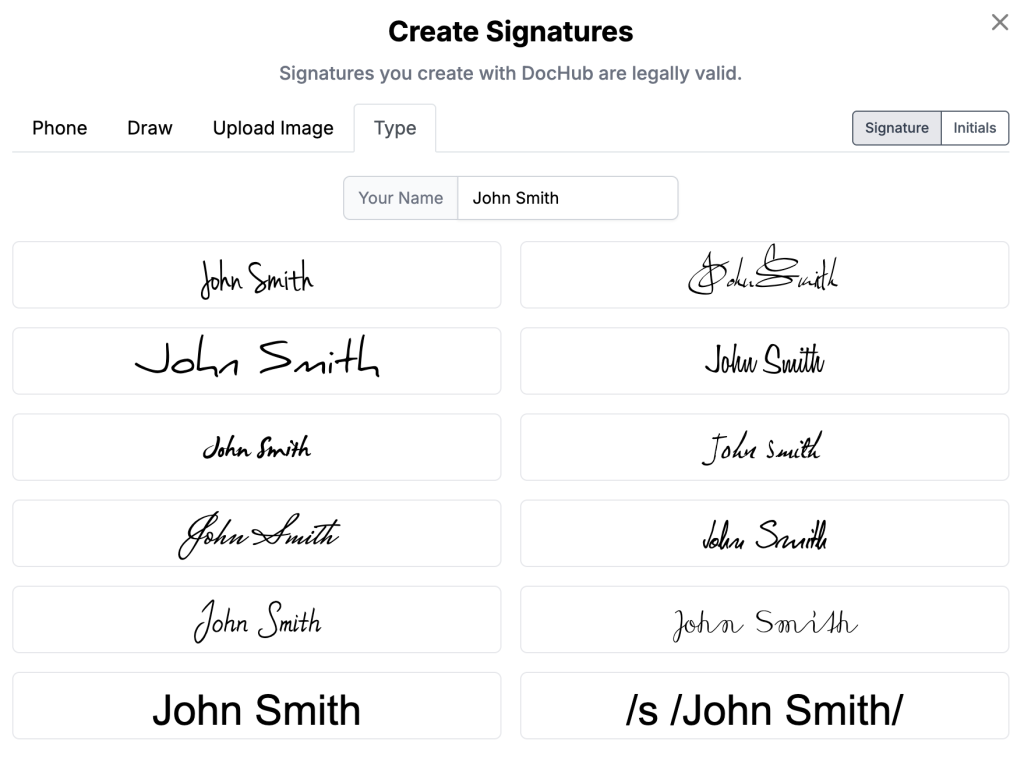
DocHub provides four ways for you to sign PDFs: Phone, Draw, Upload Image, and Type. The phone option is more preferable and recommended when you want a more accurate handwritten result. Phone-created and drawn signatures are stored as vectors, allowing them to remain sharp when resized. For more background, see How signature creation works in PDFs.
Steps to add a handwritten signature to a PDF
Creating a signature in DocHub is quick and easy, regardless of the device you use. Here is a simple step-by-step guide:
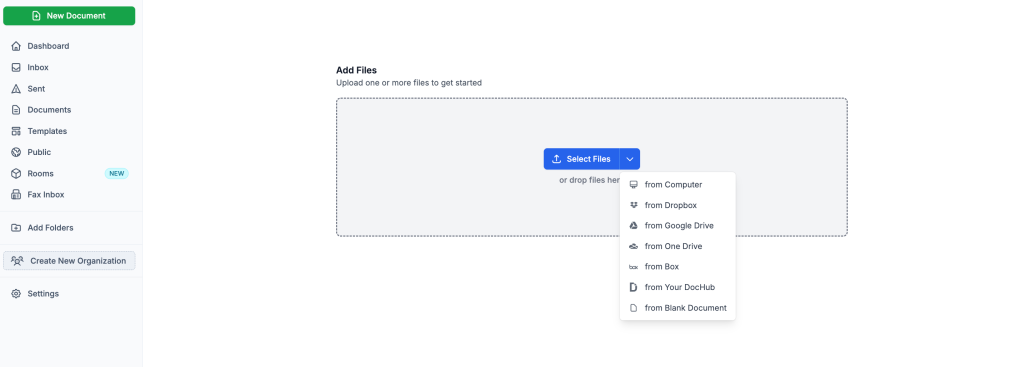
1. Upload your PDF to DocHub. Click New Document, then choose the file upload option: drag and drop a PDF into the uploader, browse to it on your device, or import it from the cloud. Then open the document in the editor.
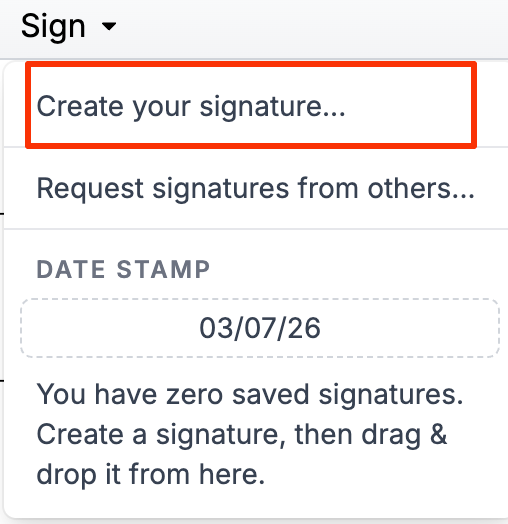
2. Open the Sign menu. Click Sign in the top toolbar and select Create your signature from the dropdown if you do not have any saved signatures yet. Then, choose your preferred signing method in the Create signatures window.
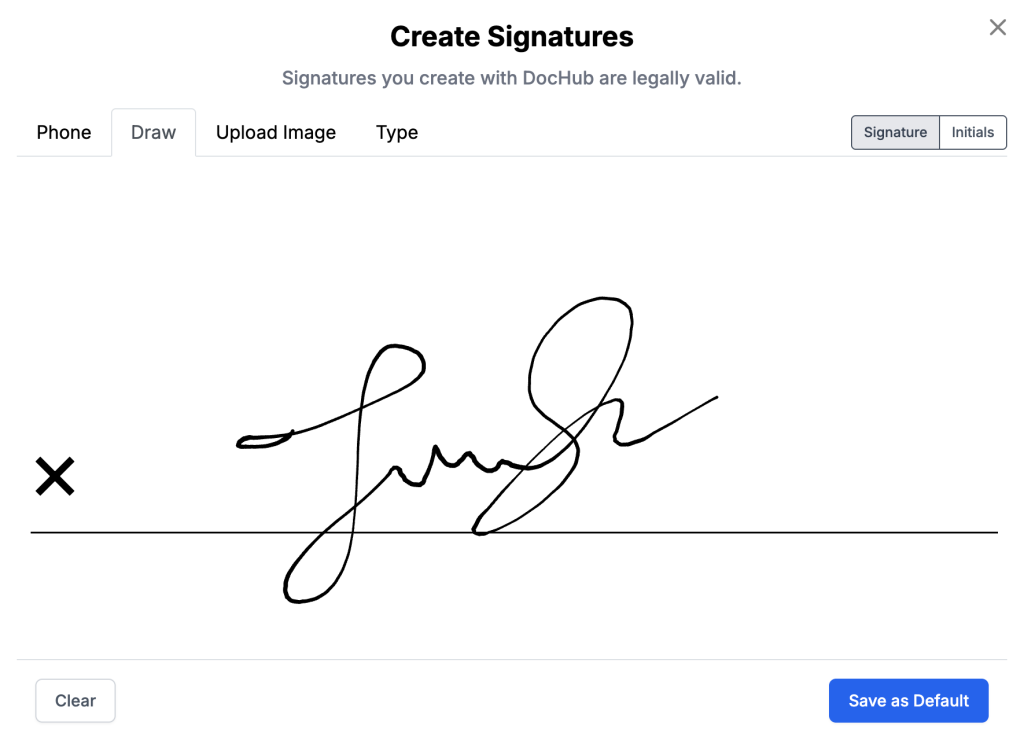
3. Draw your name. Use your mouse or trackpad to write the signature in the drawing box. If you’re not satisfied with the result, click Clear and repeat once again.
4. Type your name. Enter your full name into the designated field, then pick a handwriting style to generate your signature.
5. Choose Phone. Use your mobile device as a signature pad for smoother handwritten results.
6. Save the signature. Click Save, and your signature will become available from the Sign menu for future documents. Later, you can select one as your default signature via the Manage Signatures option.
7. Insert and adjust the signature. Click or drag your stored signature into the designated signing area, then scale it so it aligns seamlessly with surrounding text blocks and maintains a professional layout.
DocHub stores created signatures in your account, so you can reuse them on future documents without repeating the entire flow. If you are completing a prepared Sign Request with a Sign Here field, clicking that field can insert your default signature or prompt you to create one. This is especially useful for HR teams processing onboarding paperwork or sales professionals signing agreements throughout the week.
To learn more about creating efficient signature workflows in DocHub, check our dedicated articles on How to add multiple signatures in eSign workflows and How to request a signature.
How to make a drawn signature look natural
Drawing with a mouse can feel less natural than writing with a pen. For best results, use a touchscreen, stylus, or DocHub’s phone signing option when available.
A few practical techniques help:
- Draw slowly and in one continuous motion rather than several short strokes.
- Use a stylus or your finger on a touchscreen device instead of a mouse for smoother lines.
- Practice your signature two or three times before saving the final version.
- Check the final size against nearby text and the signature line.
DocHub stores Phone and Draw signatures as vectors, so resizing them does not cause the same loss of sharpness that can occur when a small raster image is enlarged. Phone-created signatures can also be adjusted for color and thickness.
How do you scan and import a signature image into a PDF?
If you want the PDF signature to closely match the one you normally write on paper, create a clean signature image first. Scanning a signature produces an image of your handwritten autograph, which some people prefer for a more personal or formal look.
Follow the step-by-step guide below.
- Write your signature on plain paper. Use clean, unlined white paper and a dark pen. Leave enough blank space around the signature so it is easy to crop.
- Scan or photograph the paper. A scanner can create a consistent image, but a mobile device can also work well when the paper is flat and evenly lit.
- Adjust the image. Crop the image, removing as much unused paper as possible without cutting into the signature. Check the contrast: the handwriting should have clean edges and should not contain distracting shadows or background marks.
- Save the image file. PNG and JPEG are both supported for handwritten signatures in DocHub.
- Upload it to DocHub. Go to your Sign menu > Create your signature > Upload image, then click Upload Signature, and select the image from your device. The platform will automatically save it as your signing option.

6. Insert and reshape signature. Pick your signature from the Sign menu and place it in the correct field. Resize and reposition it before saving or sending the document.
This method works well for anyone who wants their PDF signature to match the one on file for banks, government forms, or notarized paperwork. Since the image comes from your own pen and paper, it preserves the exact shape and flow of your natural signature.
Watch the complete video walkthrough on how to eSign PDF documents in DocHub.
How can you customize a scanned signature’s appearance?
A scanned signature often needs a little cleanup before it looks polished on a digital document. Small formatting choices affect how professional the final result appears.
- Background: Save the image with a transparent background so it sits cleanly on the page without a white box around it.
- Size: Resize the signature to match the scale of the surrounding text, usually a bit larger than a single line of body text.
- Color: Keep the signature in black or dark blue ink for a traditional, professional look, or adjust the color to match your document’s specific branding needs.
- Contrast: Increase the contrast slightly if the scan looks faint, so the signature reads clearly even when printed.
- File format: Use PNG for a transparent background, since JPG files keep a solid white box behind the image.
DocHub allows inserted images and signatures to be moved and resized directly on the PDF. If you want an especially flexible signature for future use, drawing through the Phone or Draw methods may be the better option because DocHub stores those signatures as vectors.
How do you sign a scanned PDF?
A scanned PDF is a PDF created from a physical document that was run through a scanner, often as an image-based file rather than text. Signing one works almost the same way as signing any other PDF in DocHub.
- Upload the scanned PDF to your DocHub account.
- Open the document and select the Sign tool from the toolbar.
- Choose your saved signature, or create a new one by drawing or uploading an image.
- Drag the signature onto the correct field on the scanned page.
- Add the date, initials, or any other required fields.
- Save, download, or share the finished document directly from the editor.
If the scanned PDF doesn’t already have defined signature fields, you can still drop your signature exactly where it’s needed using drag-and-drop placement. This makes it possible to sign old paper contracts, printed forms, or faxed documents without ever touching a printer. However, if you need to modify the existing text in a scanned document, you’ll first need to run it through an optical character recognition (OCR) tool to convert the image-based PDF into an editable text format.
Drawn vs. scanned signature: Which one should you use?
While both the drawn and scanned methods generate legally valid electronic signatures, each one excels in different scenarios. Selecting the right approach depends on your available hardware, how often you intend to reuse the signature, and how precisely you require the digital mark to match your handwriting. Refer to the table below to determine the ideal option for your document workflow.
| Factor | Drawn signature | Scanned signature |
|---|---|---|
| Speed | Fastest — no scanner or camera needed | Requires signing on paper first, then scanning or photographing it |
| Best device | Touchscreen phone or tablet | Any device, once the image file is ready |
| Appearance | Can look slightly less natural with a mouse | Matches your real, on-paper signature exactly |
| Best for | Quick approvals, internal forms, and everyday documents | Formal contracts, bank documents, or forms requiring a signature match |
| Reusability | Save once, apply to unlimited future documents | Save once as an image file, apply the same way |
| Setup effort | Minimal — draw and save | Requires access to a scanner, printer, or camera |
If appearance is the priority, a scanned signature or phone-drawn signature can provide the best results. If speed matters more, drawing directly or using an existing saved signature reduces the number of steps.
What problems can happen with handwritten or scanned PDF signatures?
A few common issues come up with handwritten and scanned signatures, and most have simple fixes.
- Blurry or pixelated scans: Low scan resolution or poor lighting can make a signature look messy. Rescan at a higher resolution or retake the photo in better light. For optimal quality, high-resolution scans should be at least 300 DPI (dots per inch) or higher.
- Visible white box around the signature: This usually means the image was saved as a JPG instead of a PNG. Re-save the file with a transparent background.
- Signature doesn’t match the one on file: Some institutions require the signature to closely resemble a previously registered one, so a fresh scan of your actual signature works better than a mouse-drawn version.
- Wrong placement on the page: Signature fields can shift if the document layout changes. Always check the final PDF before sending it to confirm the signature landed in the correct field.
Overall, taking a moment to properly prepare your signature image and verify your file formatting will prevent most of these common issues before you sign or send your PDF.
Final thoughts
Adding a handwritten or scanned signature to a PDF no longer requires a printer, a pen, or a trip to the mailbox. Whether you draw your signature directly on screen or upload a scanned image of your real autograph, DocHub gives you a fast, secure way to complete the signing process from any device. Save your signature once, and it’s ready to use on every future document.
If you regularly handle contracts, approvals, or onboarding paperwork, explore DocHub’s full signing and editing toolkit to see how it fits into your document workflow. From drawing a signature to filling out complex forms, everything happens in one place, with the security and audit trail your documents need.
Try DocHub today to effortlessly sign PDFs online and streamline your digital document management without relying on paper-based workflows.
Glossary
- Electronic signature: Electronic data, a symbol, or a process associated with a record and used by a person with the intent to sign it.
- Handwritten signature: A signature produced through handwriting, either on paper or by drawing electronically with a mouse, stylus, touchscreen, or similar input method.
- Scanned signature: An image created from a handwritten paper signature and saved as an image file, such as PNG or JPEG.
- Digital signature: A type of electronic signing mechanism generally associated with technologies that can help establish signer identity and detect document changes. The exact legal and technical meaning can vary by jurisdiction and implementation.
- Signature field: A designated area in a digital document where a signer is expected to place or create a signature.
- Audit trail: A record of events associated with a document and signing process, such as views, signer information, consent, signatures, timestamps, and other activity.
FAQ
1. How do I scan my signature and add it to a PDF?
Sign your name on a plain sheet of paper, then scan or photograph it and save the image as a PNG or JPG file. Upload your document to DocHub, select Sign > Create your signature, then pick the option to upload an image. Position the signature on the correct field and save your document when you’re finished.
2. Can I sign a scanned PDF online?
Yes. Even though a scanned PDF is essentially an image of a physical document rather than an interactive form, you can still easily overlay signatures, dates, initials, and custom text. In DocHub, upload the scanned file, select or create your signature, and position it over the correct signature block. Review the document carefully before saving or sending it.
3. Is PNG or JPG better for a scanned signature?
PNG is generally the better choice because it supports a transparent background, so your signature doesn’t appear inside a white box. JPG files keep a solid background, which can look less polished on a formal document. If your scanning tool only offers JPG, you can often convert the file to PNG afterward. Whichever format you choose, start with a clear source image and avoid excessive compression that can make the signature blurry.
4. How do I make a scanned signature look transparent?
First, crop the scanned or photographed image tightly around the signature. Save or export the signature image with a transparent background instead of a white one, which most scanning apps and photo editors allow. If your original scan has a white background, many basic photo editing tools can remove it before you upload the file. A transparent signature blends into any document color or template without a visible box around it.
5. Is a scanned signature the same as an electronic signature?
Not exactly. A scanned signature is primarily an image of handwriting, while an electronic signature refers to the broader electronic process or symbol used by a person to sign a document. A scanned signature becomes an eSignature once it’s applied to a digital document through a signing tool. On its own, a scanned image is just a picture file, but placing it on a PDF as part of a deliberate signing process gives it the same legal status as other electronic signatures under laws like the ESIGN Act.
6. Is a scanned signature legally valid?
In most cases, yes, a scanned signature applied through a signing platform is considered legally valid under electronic signature laws in the US and many other countries. Validity generally depends on showing a clear intent to sign and consent to do business electronically, rather than on the specific signing method used.
7. Can I reuse the same handwritten signature in DocHub?
Yes. DocHub saves your created signatures and initials so you can access them again from the Sign menu instead of recreating them for each PDF. You can also upload an existing PNG or JPEG handwritten signature and use it on future documents. Reusing a saved signature keeps your signing process fast and consistent across every contract, invoice, or form you sign.
- TL;DR
- What’s the difference between a handwritten, scanned, electronic, and digital signature?
- How do I add a handwritten signature to a PDF in DocHub?
- How to make a drawn signature look natural
- How do you scan and import a signature image into a PDF?
- How can you customize a scanned signature’s appearance?
- How do you sign a scanned PDF?
- Drawn vs. scanned signature: Which one should you use?
- What problems can happen with handwritten or scanned PDF signatures?
- Final thoughts
- Glossary
- FAQ