
How signature creation works in PDFs: Algorithms, digitization, and customization

How signature creation works in PDFs depends on two things: the visible signature you add to a document and the evidence recorded around that signing action. In DocHub, users can create an electronic signature by drawing, typing, uploading a signature image, or using a mobile device, then place that signature directly on a PDF or supported document format.
This guide explains how an online signature is created, how a handwritten signature becomes a digital asset, where digital signature certificates fit, and how DocHub helps users sign documents online without requiring each signer to manage cryptographic technology. DocHub is built for editing, signing, distributing, and completing documents, with deep Google Workspace integration and cloud-based document workflows.
Summary
Here is the short version before we go deeper:
- An electronic signature is a visible signing mark, such as a drawn signature, typed name, or uploaded signature image.
- A digital signature is a technical method that may use digital certificates and cryptographic methods to verify document integrity.
- DocHub focuses on electronic signature creation, signer consent, audit trails, and document certification.
- A handwritten signature can be digitized by capturing the stroke shape from a mouse, trackpad, finger, or stylus.
- Saved signatures are reusable account assets that can be placed on PDFs and supported documents.
Disclaimer: The information contained in this blog post is provided for general informational purposes only and does not constitute formal legal advice.
What does signature creation mean in a PDF?
Signature creation means producing a signing mark that can be added to a PDF document. That mark may be drawn, typed, uploaded as a signature image, or created through an online signature generator.
In practical document workflows, the signature is only one part of the process. A trustworthy eSignature workflow also needs signer intent, consent to sign electronically, timestamps, document association, and an audit trail. In DocHub, Sign Requests can include an audit page that records signer details and an event timeline with date and time stamps.
This is why a downloaded signature image alone is not the same as a completed electronic signature workflow. The image shows a mark, but the workflow helps show who signed, when they signed, and what document they signed.
How signature creation works in DocHub
In DocHub, a signature is created as a reusable asset and then applied to a document. You can create your own signature by drawing it, typing it, uploading an image, or drawing it on a phone.
Once placed, the signature becomes part of the signed document. For signature requests, DocHub can also record signing context, including signer information and event history. When the document is complete, certification can help show whether the file was modified after signing or certification.
This means DocHub does not require every signer to run a private key process or obtain a personal digital certificate before signing. Its main model is electronic signature capture supported by consent, audit trails, and document-level certification.
How do algorithms for generating digital signatures differ from eSignatures?
The phrase digital signature is often used casually, but technically it can mean something different from an electronic signature.
An electronic signature is a broad signing method. It can include typed names, drawn marks, uploaded images, checkbox consent, or other electronic actions that show intent. A digital signature is a more technical method that may use cryptographic technology, cryptographic methods, private key infrastructure, and digital certificates to help validate document integrity.
DocHub creates electronic signatures and supports document-level certification.
How are hand-drawn signatures digitized?
A hand-drawn signature is digitized by capturing the shape of the strokes you make on screen. In DocHub, you can draw your signature with a mouse, trackpad, finger, or stylus directly on a mobile device.
The system captures the stroke path instead of treating the signature like a rough photo. This helps the generated signature stay crisp when resized on a PDF page. DocHub also cleans up the appearance by smoothing lines and trimming extra empty space, so the signature looks more consistent.
This process is useful when you want the feel of a handwritten signature without printing, signing, scanning, and uploading a paper document. It also makes sense for users who want a personalized signature they can reuse across digital documents.
How do you create and add a signature in DocHub?
Use this process when you need to sign digital documents, contracts, forms, or legal documents in DocHub.
- Log in to your account using your email credentials.
- Upload or open your document in DocHub.
- Select Sign or the signature tool in the editor’s toolbar.
- Choose how to create your signature: Draw, Type, Upload, or draw on a mobile device.
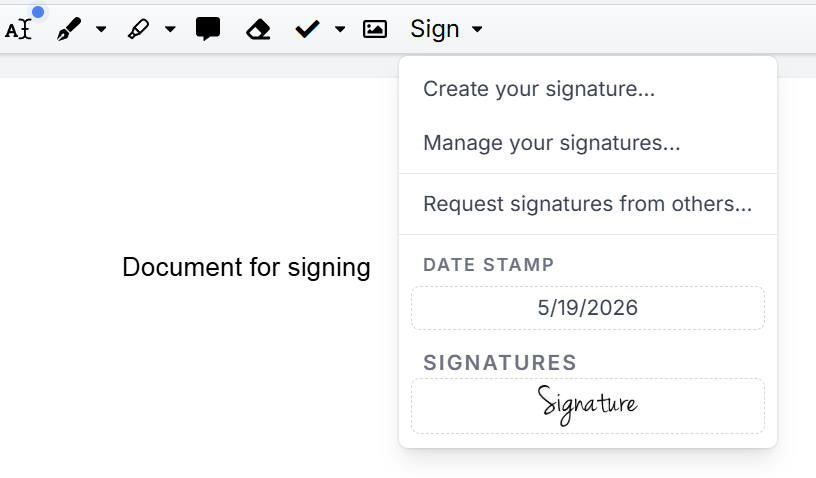
5. Place the signature directly where it belongs on the document.
6. This signature will be saved as your default. You can update or replace it at any time.
This workflow works well for personal use, business forms, approvals, contracts, and sign documents online workflows, where a full paper process would add unnecessary manual steps.
What role do certificates play in signature validity?
Certificates matter most when people are talking about digital signatures in the technical sense. A certificate can help verify document integrity by connecting a signed file to cryptographic validation.
DocHub’s validity model should be described more carefully. For standard electronic signatures, trust comes from the signer’s consent, signer context, audit trail, and completed document record. An audit trail may include signer information, timestamps, IP addresses, document activity, and consent events, depending on the workflow and available data.
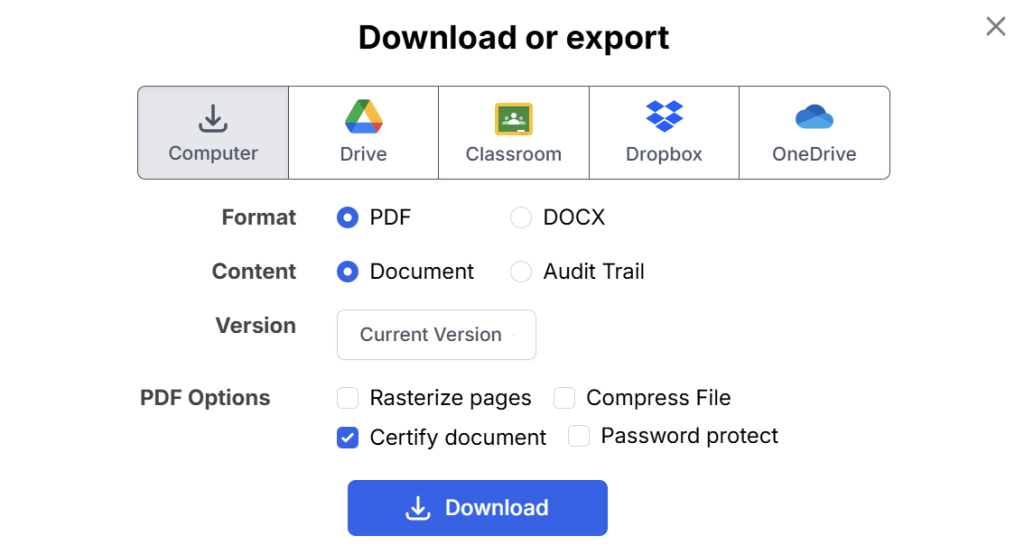
In DocHub, certification is applied at the document workflow level through the Certify document option before saving or exporting.
How can you customize a signature’s appearance?
DocHub lets users customize signatures in several practical ways. You can draw your signature for a handwritten look, type your signature using an available signature style, or upload a signature image.
Typed names can work well when consistency matters more than handwriting style. Drawn signatures make sense when the signer wants a personalized signature that resembles their own handwriting. Uploaded signatures are useful when a user already has a clean image prepared.
DocHub also treats signatures and initials separately. This helps when a document requires both full signatures and initials across multiple pages. Users who create signatures often benefit from saving one full signature and one set of initials for repeated document workflows.
How are saved signatures stored and reused securely?
Saved signatures in DocHub are account-based assets. After you create a signature, you can reuse it later instead of recreating it for every PDF file.
For safer use, create signatures only in your own account, avoid uploading someone else’s signature, and protect account access with strong login practices. A signature belongs to the person signing, so teams should avoid sharing saved signature assets between users.
How does DocHub compare with manual signing and signature generators?
| Workflow | How it works | Best for | Main limitation |
|---|---|---|---|
| Printing and scanning | Print the file, sign it by hand, scan it back, and send it by email | One-off paper processes | Adds manual steps and can reduce image quality |
| Signature image only | Paste a downloaded signature image into a document | Informal personal use | Does not create a complete signing record by itself |
| Free online signature generator | Create a generated signature and download it as an image | Creating a reusable visual mark | May not include audit trails or signer context |
| DocHub eSignature workflow | Create, place, request, track, and finalize signatures online | Business documents, forms, contracts, and approvals | Not a substitute for legal advice or specialized certificate-based signing needs |
DocHub is strongest when users need more than a signature maker or free signature generator. It combines signature creation with PDF editing, form completion, request signatures, audit trails, and document completion in one online tool.
What legal cautions should you know?
Electronic signatures can be legally valid when the right legal requirements are met. In many workflows, signer consent, document association, audit trails, and reliable record retention all matter.
Still, legal validity depends on the document type, jurisdiction, signer consent, identity evidence, retention, and applicable rules. Some legal documents may require a specific signature type, digital certificates, identity verification, witnesses, notarization, or qualified electronic signatures.
Final thoughts
Understanding how signature creation works helps you choose the right signing method. A free online signature generator can create a visual mark, but business workflows often need more: consent capture, signer context, audit trails, and a finalized document record.
DocHub is a useful option when you need to create a signature, add it to a PDF, request signatures, and manage signed documents online. Get started with DocHub to create, customize, and add signatures to your documents without printing or scanning.
Glossary
Electronic signature: A digital action or mark that shows a person’s intent to sign. It matters because most online signing workflows rely on this broader category.
Digital signature: A cryptographic signature method that may use digital certificates. It matters when a workflow requires stronger technical proof of integrity.
Online signature generator: A tool that helps users create a visual signature online. It may be useful for creating a signature image, but it does not always provide an audit trail.
Signature image: A visual image of a signature. It can be useful, but it is not the same as a complete signing workflow.
Audit trail: A record of signing events, signer details, and timestamps. It helps show what happened during the signing process.
Digital certificate: A technical credential used in some digital signature workflows. It can help connect a signed document to cryptographic validation.
Private key: A cryptographic key used in certificate-based digital signature systems. DocHub users do not need to manage a private key for standard electronic signatures.
Identity verification: A process for checking who the signer is. The required level depends on the document, workflow, and legal context.
FAQ
Is a signature generator the same as an eSignature tool?
No. A signature generator creates a visual signature, while an eSignature tool can also connect that signature to a document workflow. DocHub supports creating and placing signatures, requesting signatures, and maintaining audit trails for signing activity.
Can I draw my signature in DocHub?
Yes. You can draw your signature with a mouse, trackpad, finger, or stylus directly on a mobile device. DocHub digitizes the stroke shape so the signature can be placed cleanly on a document.
Can I use DocHub instead of a free online signature generator?
Yes, when you need to create a signature and add it directly to a document. A free online signature generator may only create a downloadable signature image, while DocHub helps users place signatures, request signatures, and complete documents online.
Are DocHub signatures legally binding?
Electronic signatures may be legally valid when applicable legal requirements are met. Validity can depend on the document type, jurisdiction, signer consent, identity evidence, and record retention.
Can I reuse my saved signature?
Yes. DocHub securely stores your signature, allowing you to easily apply it to future documents. To maintain security, only save your own signature and ensure your account credentials remain private.
- Summary
- What does signature creation mean in a PDF?
- How signature creation works in DocHub
- How do algorithms for generating digital signatures differ from eSignatures?
- How are hand-drawn signatures digitized?
- How do you create and add a signature in DocHub?
- What role do certificates play in signature validity?
- How can you customize a signature’s appearance?
- How are saved signatures stored and reused securely?
- How does DocHub compare with manual signing and signature generators?
- What legal cautions should you know?
- Final thoughts
- Glossary
- FAQ