

To add multiple signatures to a PDF, create a Sign Request, add each recipient, insert and assign the required signature fields, choose a signing order, and send the document. DocHub tracks the request until all required people have completed their assigned fields in the same document.
This guide explains how to add multiple signatures PDF users need for contracts, forms, approvals, and other business workflows. It covers multiple digital signature fields, signing order, signer options, reusable templates, reminders, and the audit trail available in DocHub.
Summary
A multiple-signature workflow generally includes these steps:
- Prepare the PDF file and identify each person who must sign.
- Add recipients and assign the correct signature field to each signer.
- Choose whether recipients sign one at a time or all at once.
- Send the Sign Request and track its status.
- Review the completed PDF and the audit trail.
Correct field assignments and an appropriate signing method help reduce errors and prevent conflicting changes.
Disclaimer: The information in this blog post is provided for general informational purposes only and does not constitute formal legal advice.
What does adding multiple signatures to a PDF mean?
Adding multiple signatures means placing more than one signature field in the same PDF and assigning those fields to one or several people. Each signer completes only the fields assigned to them.
When is adding multiple signatures useful?
For example, a contract may require a first signature from a client, a second signature from a company representative, and initials from both parties on selected pages. These several signatures can remain in the same document instead of being managed across separate files.
One person can also sign the document in more than one place. In that instance, the user can create several signature or initials fields and assign all of them to the same recipient.
What is the difference between an electronic and a digital signature?
People sometimes use the term “digital signature” broadly for any electronic signing method. Technically, certificate-based digital signatures may use a digital ID, certificate validation, and cryptographic controls. DocHub’s sign requests support electronic signature workflows but should not be presented as a replacement for a specific certificate-based or qualified digital signature when one is required. We’ve zoomed in on the difference between digital and electronic signatures in our blog: Electronic vs. digital signatures: understanding the mechanisms, differences, and applications.
When do businesses need multiple signatures?
Businesses may need multiple signatures when a document requires approval, acknowledgment, consent, or completion by more than one person.
Common examples include:
- Sales contracts signed by a client and a company representative
- Employment forms completed by an employee and an HR manager
- Real estate documents requiring several signatures
- Vendor agreements reviewed by procurement and finance
- Education forms requiring parent and staff approval
- Internal policies requiring employee initials and manager confirmation
- Office forms that need approval from multiple departments
- Client documents that require both a signer and an internal reviewer
Before starting the process, determine whether each person must digitally sign, add initials, complete text fields, or only acknowledge the document.
What should you prepare before creating the Sign Request?
Use the final reviewed version of the PDF file. Avoid editing material terms after recipients begin signing.
The list of assets you may need for seamless sign requests:
- The correct email address for every signer
- The fields assigned to each person
- The required signing order
- The reminder schedule
- Any inactivity expiration period
- A custom email subject or message
- Whether each signer should receive the final copy
- Whether verification or annotation access is needed
- Whether the same PDF will be reused as a template
Check every first signature field, second signature field, text box, date field, and initials field before sending. Incorrect field assignments can prevent recipients from completing the document properly.
How do you add multiple signatures in DocHub?
DocHub supports cloud-based document editing, signing, sharing, and form completion, including workflows connected with Google Workspace. Follow these steps to add multiple signatures in DocHub:
How to create and send a Sign Request to multiple people
- Log in to DocHub with your email credentials or sign up for free.
- Open or upload the document
Open the PDF file in DocHub from your browser, connected cloud storage, or dashboard. Review each page and confirm that the content is ready for signatures. - Use the Sign tool options to request signatures
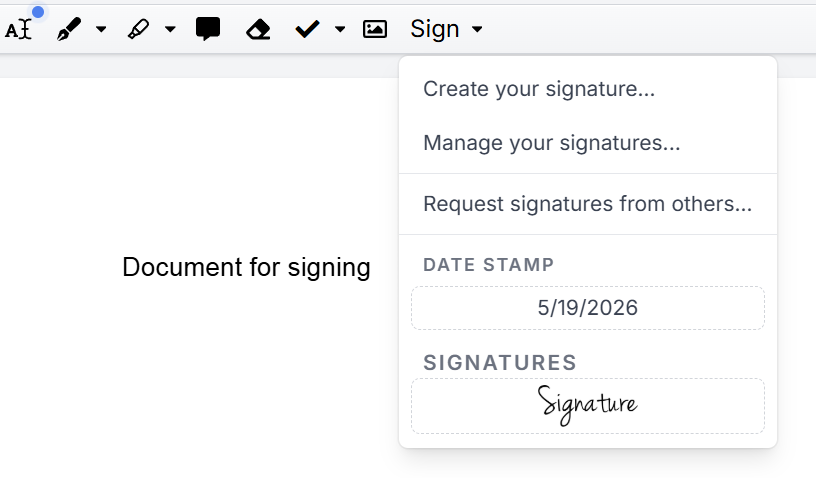
In the dropdown menu of the Sign tool, choose Request signatures from others.
- Create a Sign Request
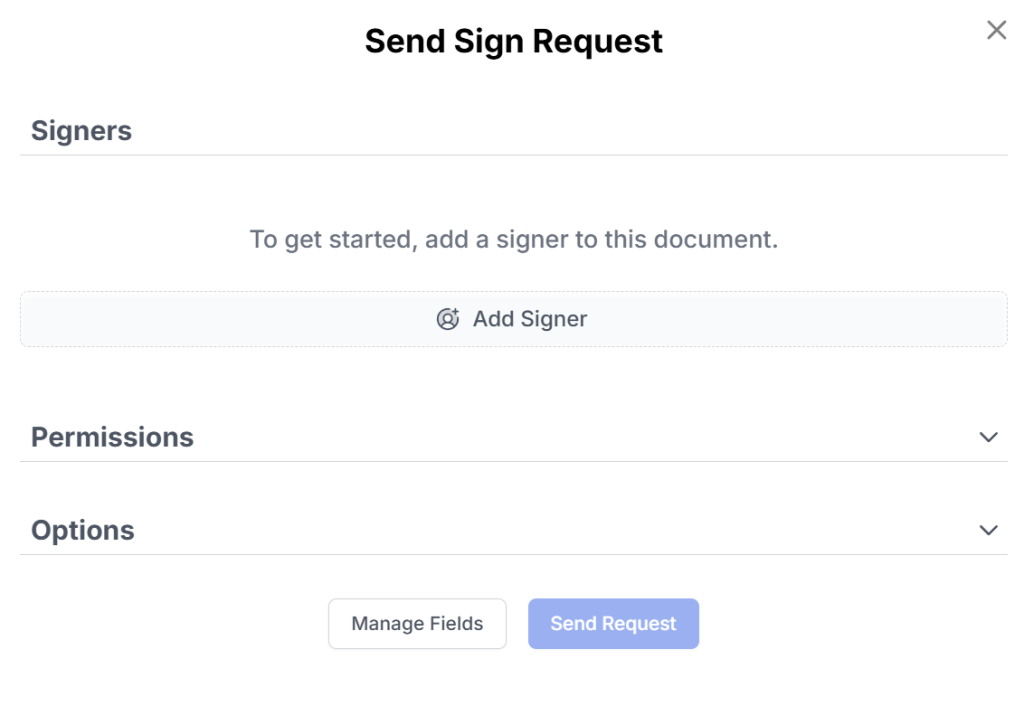
Start the Sign Request process from the document. Add the name and email address of every person who must fill out or sign the document.
- Insert the required fields
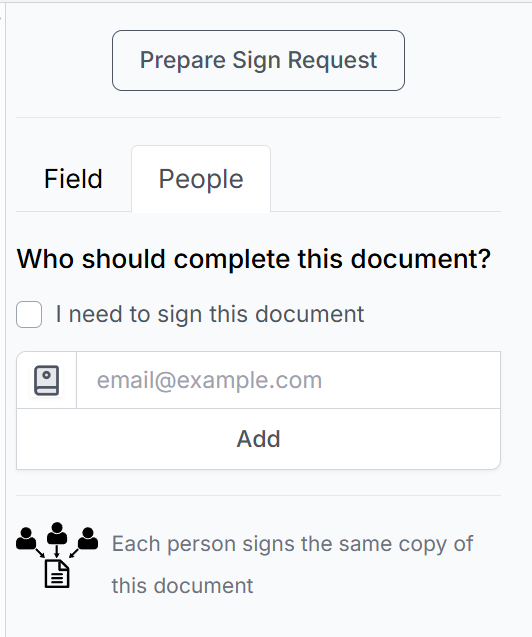
Use the Prepare Sign Request option to assign signature, initials, date, text, checkbox, or other fields. Add as many signatures as the document reasonably requires.
- Assign each field
Add each signature field and assign it to the correct recipient. For example, assign the first signature to the client and the second signature to the company representative.
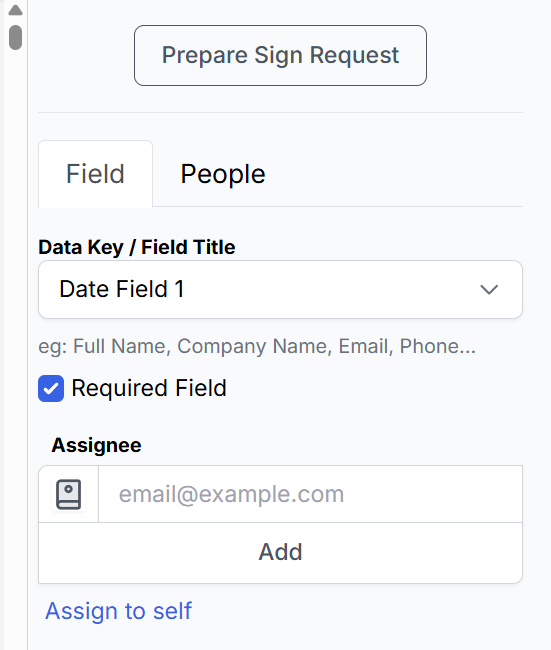
A single signer can receive more than one signature or initials field in the same PDF. Multiple people can also receive separate fields on the same page or across several pages.
- Choose the signing order
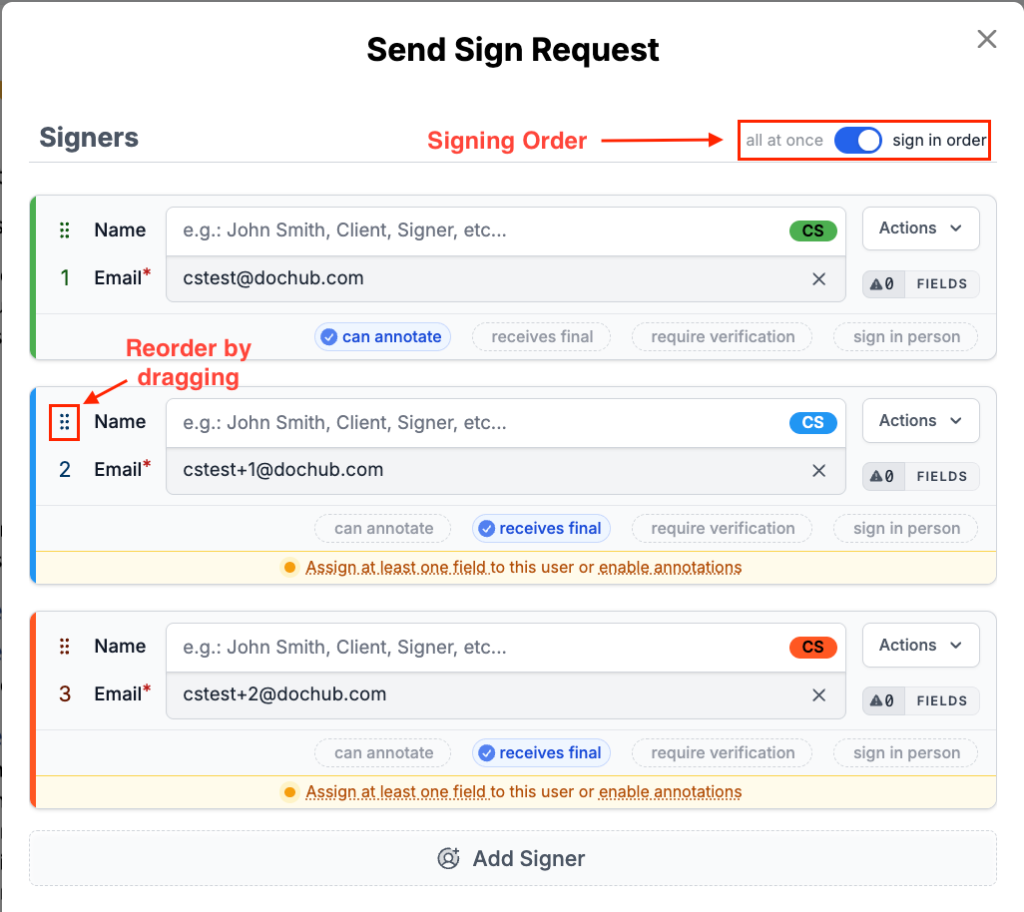
Select sign in order for sequential signing or all at once for simultaneous signing.
With sign in order, DocHub notifies the first signer. After that person finalizes their changes, the next signer in the queue receives access. You can change the order by dragging the control beside each recipient.
With all at once, all recipients receive access and can complete their assigned fields during the same stage of the process.
- Configure signer options
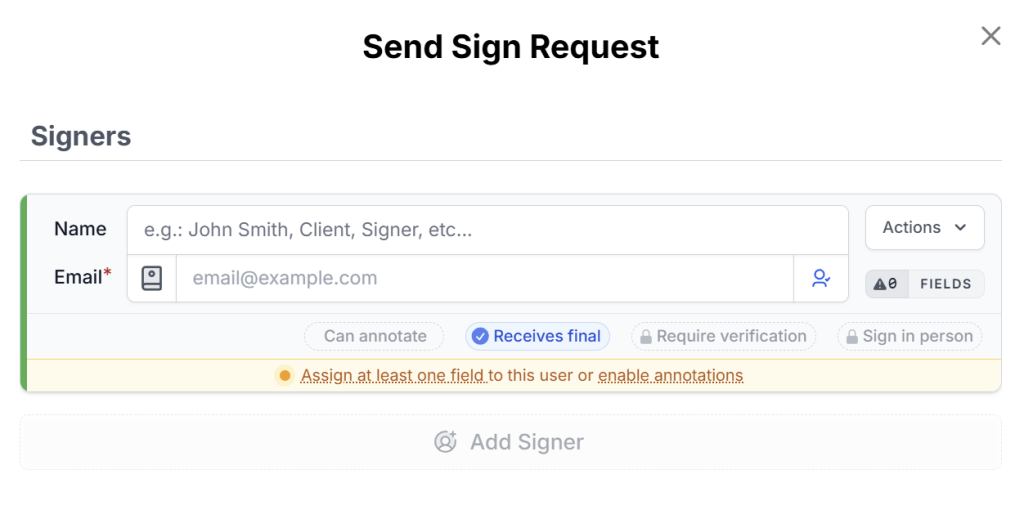
Available options may include receives final, can annotate, require verification, and sign in person.
Enable only the features needed for the specific workflow. For security reasons, annotation access may be inappropriate when recipients should only fill fixed fields or sign the document.
- Set reminders and expiration
DocHub can send up to three automated reminders. You can enable or disable reminders for an individual Sign Request, manage and schedule messages in Sign Request settings.
You may also enable inactivity expiration and choose a period from 1 to 90 days after the last reminder. This setting is disabled by default and must be selected before it applies.
- Add a custom email message
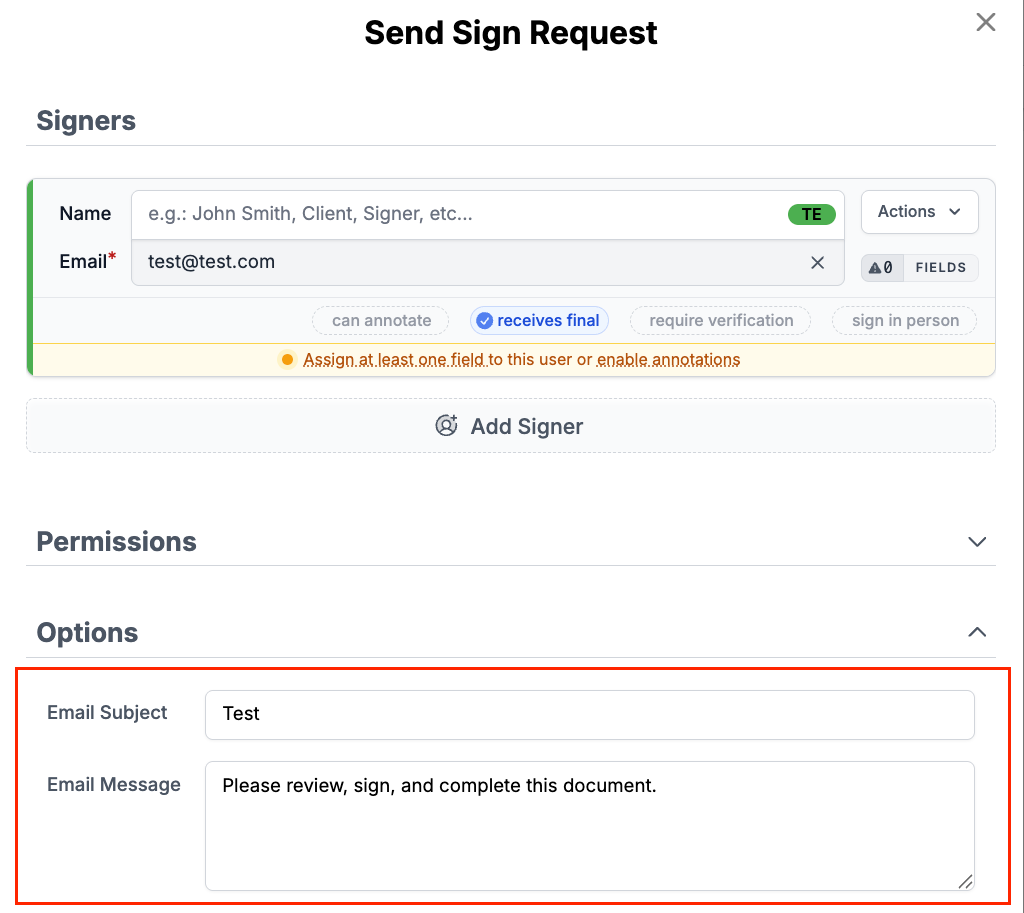
Open Options to create a subject and message for recipients. Identify the document, explain the requested action, and include any relevant deadline or instructions.
- Review and send
Scroll through the PDF and verify recipient email addresses, field assignments, signer options, and signing order. Send the request after confirming that each field belongs to the intended person.
- Track the process
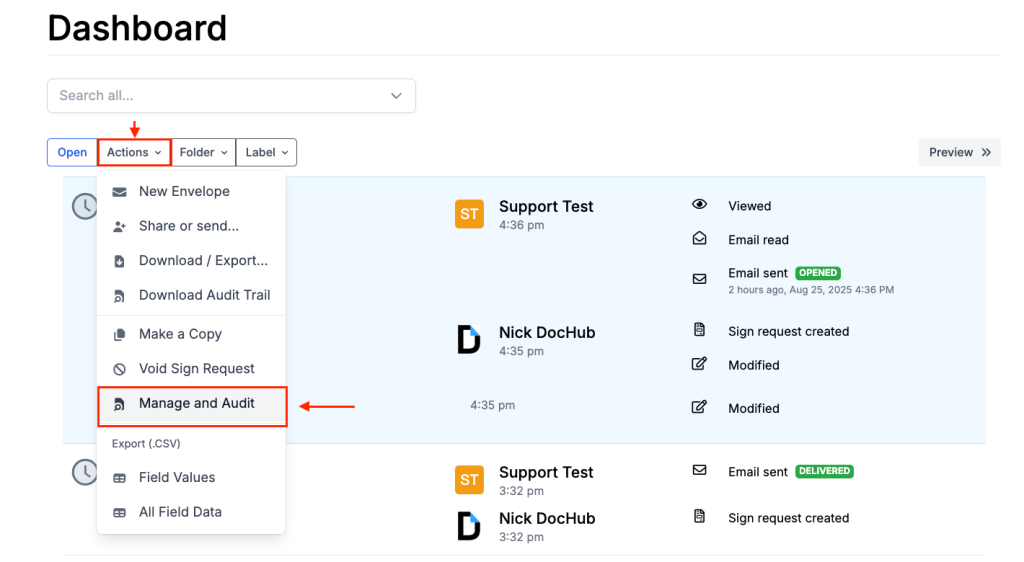
After sending, the document is saved in the Sent folder or the organization’s Sent dashboard. Open Manage and Audit to review progress and available signer or document actions. After the signing workflow is completed, DocHub may generate a finalized or certified version that helps indicate whether the document was modified afterward.
The final version appears after all required signers have finalized their changes.
If you are also interested in a signing process without payments, see our blog: How to sign a PDF online for free.
Should signers work one at a time or all at once?
Sequential signing is generally more appropriate when recipients can edit text or add annotations that may affect the meaning of the same document. Simultaneous signing is better suited to independent fields that do not overlap.
You may choose Adobe Acrobat desktop software for offline workflows or certificate-based digital signatures that use a digital ID. For browser-based workflows, preparing, sending, completing, signing, and tracking sign requests, you may choose DocHub.
How does DocHub track multiple signers?
The audit trail lists events associated with the Sign Request. It can help the sender track signer activity, document status, and outbound email delivery.
How does DocHub report email delivery status?
Email delivery may be displayed as delivered, failed, or error, depending on the response from the recipient’s server. If delivery fails, DocHub notifies the sender. The sender can then verify the email address and reassign the signer when necessary.
The audit trail helps managing the process and reviewing what happened during the workflow. It does not determine whether a signature meets every legal, regulatory, or contractual requirement.
How do reusable templates support several signatures?
A reusable template comes in handy when the same PDF structure must be sent repeatedly to different recipients. Each Sign Request creates a new copy, while the original template remains stored and available for future use.
Templates can reduce repeated setup for contracts, onboarding forms, client approvals, and recurring office processes. A regular document may be more appropriate for a one-time file that will not be reused.
Final thoughts
DocHub’s sign requests allow users to add multiple signatures to the same PDF, assign fields, control signing order, send reminders, manage recipients, and review an audit trail. The workflow can support contracts, forms, approvals, and other documents involving multiple people. You can also use DocHub’s extensions for Google Chrome and Microsoft Edge to work with your documents right from your browser.
Get started with DocHub today and streamline your document signing process!
Glossary
Audit trail: A chronological record of events connected with a document and its Sign Request.
Digital ID: A certificate-based identity credential used in some digital signature systems.
Digital signature: A signature method that may use certificates and cryptographic validation to verify document integrity and signer identity.
Electronic signature: An electronic action or mark used to indicate an intention to sign.
Field assignment: The process of linking a form or signature field to a specific recipient.
Finalization: The step through which a signer submits their completed changes.
Sequential signing: A process in which recipients sign one at a time in a defined order.
Simultaneous signing: A process in which multiple recipients complete assigned fields at the same time.
Sign Request: A document workflow sent to one or more recipients for completion or electronic signing.
Frequently asked questions
Can one person add more than one signature to the same PDF?
Yes, they can. One signer can be assigned several signature or initials fields in the same PDF. Each field should correspond to a required signing or acknowledgment point.
Can several people sign the same document?
Yes, that’s possible. You can add multiple people as recipients and assign separate fields to them in the same document. The sender can choose whether they sign sequentially or all at once.
Do signers need a DocHub account?
No, that’s not a requirement. Signers receive an instant-authentication link and can access the request without creating a DocHub account. The sender may also enable a one-time verification code.
Can I add multiple digital signature fields in DocHub?
You can add multiple electronic signature fields and assign them to one or several recipients. A workflow that specifically requires a certificate-based digital signature or digital ID should be evaluated separately.
Can I change a signer after sending the document?
You can reassign the email address of a signer who has not finalized the document. DocHub then sends a new notification and reassigns the relevant fields.
Does every signer receive the final PDF?
A signer receives the final copy when Receives Final Copy is enabled. With multiple signers, the PDF is finalized after all required recipients complete their assigned fields.
Can I add multiple signatures to a PDF on mobile?
Yes, you can. Adding multiple signatures with DocHub’s mobile app is effortless. Simply add as many signature fields as your document requires and assign them to the appropriate recipients with ease.
- Summary
- What does adding multiple signatures to a PDF mean?
- When do businesses need multiple signatures?
- What should you prepare before creating the Sign Request?
- How do you add multiple signatures in DocHub?
- Should signers work one at a time or all at once?
- How does DocHub track multiple signers?
- How do reusable templates support several signatures?
- Final thoughts
- Glossary
- Frequently asked questions