

You can fill and sign a PDF together by opening the document in an online PDF editor, entering the required information, adding your electronic signature, and downloading or sharing the finished file. This workflow removes the need to print, complete, scan, and resend paper forms.
This guide explains how to fill and sign PDFs with DocHub, when to add fillable fields, how to handle signature requests, and what to check before distributing signed documents. It is intended for professionals who process contracts, consent forms, applications, internal approvals, and other PDF forms through a browser.
Summary
The basic fill-and-sign process involves four actions:
- Upload or import the PDF document.
- Enter information with existing form fields, added fillable fields, or the Text tool.
- Create and place your own signature.
- Save, download, print, or send the completed document.
The exact workflow depends on whether you are completing the PDF yourself or requesting signatures from other people.
What does it mean to fill and sign a PDF?
To fill and sign a PDF means adding information and an electronic signature to the same PDF file without printing it.
Form filling may involve entering text, selecting options, adding dates, or completing signature fields. Signing involves placing a signature that you create by drawing, typing, or uploading an image, depending on the available sign tool.
Electronic vs. digital signatures: what’s the difference?
An electronic signature is any electronic action, mark, or process that indicates a person’s intent to sign a document. A digital signature, on the other hand, is a more technical form of signing that uses certificate-based information and cryptographic validation to verify the signer’s identity and detect any changes made to the document. While the two terms are often used interchangeably, they are not the same thing. You can learn more about electronic signature creation in DocHub from our blog: How signature creation works in PDFs.
When should you fill and sign PDFs online?
A combined workflow is useful whenever a form requires both completed information and a signature.
Common examples
- Employment and onboarding documents
- Vendor agreements and purchase approvals
- School or training consent forms
- Sales contracts and order forms
- Real estate disclosures
- Internal policy acknowledgments
- Client intake forms
For instance, an HR administrator can upload an onboarding packet, add fillable fields, complete the employer section, and send a signature request to the new employee. Meanwhile, a sales representative can enter deal information, add signature fields, and route the same document directly to the customer for signing.
What should you prepare before starting?
Check the PDF before editing it. Confirm that you have the correct version, that all pages are present, and that the names, dates, and required supporting data are available.
Information and assets needed for form filling
- The PDF file or access to its cloud location
- A stable internet connection
- A DocHub account
- The information required by the form
- An image of your signature, if you plan to upload one
- Recipient email addresses when requesting signatures
Sensitive documents should only be shared with authorized recipients. Review your organization’s access, retention, and data-handling policies before uploading financial, medical, employment, or legal records.
How do you fill and sign a PDF in DocHub?
Getting started with DocHub is easy. Once you have created an account and uploaded your PDF file, follow these simple steps to fill and sign the document:
1. Upload or import the document
Sign in to your free account and select New Document from the Dashboard.
You can then:
- Drag and drop the PDF into the browser.
- Select Select Files to upload it from your device.
- Import it from Google Drive, OneDrive, Dropbox, or Box.
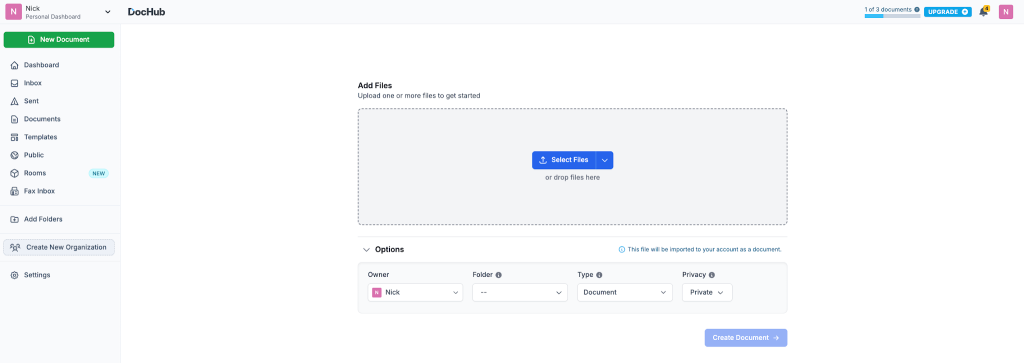
After the file opens in the PDF editor, review the page order and confirm that you uploaded the intended document.
2. Decide how you will fill the form
If the PDF already contains interactive form fields, click each field and enter the requested data.
If it is a flat PDF or scanned form, you have two options:
- Use Manage Fields to create a fillable PDF form.

If you need to fill multiple fields of the document with the same information, DocHub enables you to link fillable fields.
- Use the Text tool and other annotation tools to type directly on the page.
Adding fillable fields is useful when multiple people will complete the same template or when you need consistent data placement. Direct text entry is faster when you are the only person filling out the form.
3. Enter and review the form data
Click each text field and enter the requested information. Check names, dates, identification numbers, amounts, and contact details carefully.
Keep text within the visible field boundaries. If you are typing directly onto a scanned page, align the text with the printed lines and verify that it remains readable at normal zoom.
4. Add your signature
Choose the available Sign tool and create your signature using the supported method. You may be able to draw it, type it in a handwriting-style font, or upload a signature image.
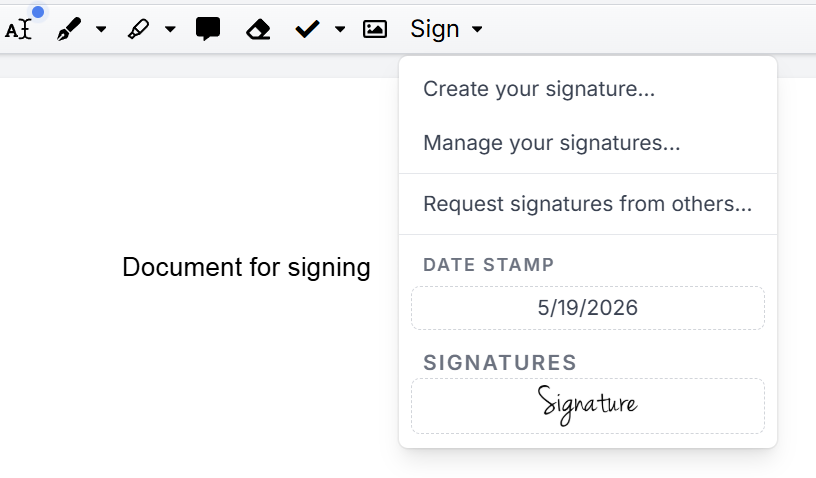
Place the signature in the appropriate signature field. Resize and position it so that it does not cover important document text.
Add initials or dates separately where the PDF form requires them.
6. Save and distribute the finished file
Review every page before completing the signing process. Confirm that all required fields are filled and that the signature appears in the correct place.
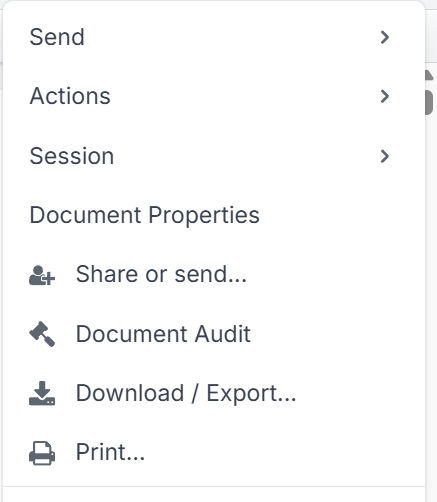
You can then save the document in your account and use the available options to download or print the completed copy. When another person must sign, send the fillable form as a signature request instead of downloading an incomplete version.
How do you request another person’s signature?
Use a signature request (Sign Request in DocHub) when one or more recipients must complete or sign the PDF.
Prepare the document first by placing the required form fields and signature fields. Assign the fields to the appropriate recipient, enter the recipient’s email address, and configure the signing order when the workflow requires sequential signing.
Requesting signatures through a structured workflow is preferable to emailing an editable attachment back and forth because it helps keep the document and signing process together. Depending on the workflow, eSignature platforms may also provide status tracking and an audit trail. We have a separate guide on requesting multiple signatures, see it for more detail.
Do not add a recipient’s signature yourself unless you are specifically authorized to do so.
trail. We have a separate guide on requesting multiple signatures, see it for more detail.
How does online fill and sign compare with other methods?
| Method | Main advantage | Main limitation |
|---|---|---|
| DocHub browser workflow | Combines PDF editing, form filling, signing, and sharing | Requires an account and internet access |
| Printing and scanning | Works with paper-based processes | Slower and may reduce scan quality |
| Basic browser PDF reader | Convenient for viewing and simple annotations | Signing and form-editing features vary |
| Desktop PDF editor | May support offline or advanced certificate-based workflows | Software installation may be required |
| Adobe Acrobat or Acrobat Reader | Familiar PDF form and signing environment | Available features depend on the product and plan |
| Mac Preview | Convenient for basic PDF signing on macOS | Less suitable for multi-recipient workflows |
Various PDF signing tools serve different needs. A basic PDF reader may be sufficient for a one-time personal form, while requesting signatures, assigning form fields, and tracking completion generally require a dedicated document workflow.
What mistakes should you avoid when filling and signing PDFs?
Do not sign before confirming that all form data is complete. Editing a document after signing may create confusion about which version was approved.
Other common mistakes include:
- Uploading the wrong PDF file
- Covering printed content with oversized text
- Leaving required fields blank
- Placing signatures in the wrong field
- Sending a draft instead of the finished file
- Sharing sensitive documents with unintended recipients
- Assuming every electronic signature has the same legal weight
Electronic signatures may be legally recognized under laws such as the U.S. ESIGN Act and UETA, but validity can depend on consent, intent, identity, record retention, and the transaction involved. An audit trail can support the record of a signing process, but it does not guarantee that every document or signature will be enforceable.
Disclaimer: The information in this blog post is provided for general informational purposes only and does not constitute formal legal advice.
Final thoughts
Filling and signing a PDF together is more efficient than separating form completion, signing, printing, and scanning into different tasks. DocHub provides a browser-based PDF editor where users can upload forms, add fillable fields, enter data, add signatures, and distribute completed documents in a connected workflow.
Create a free DocHub account to fill and sign your next PDF online in just a few clicks.
Glossary
Electronic signature: An electronic action or mark used to indicate a person’s intent to sign a document.
Digital signature: A certificate-based signing method that can use cryptographic validation to verify identity and detect changes.
Fillable field: An interactive area where a user can enter text, dates, initials, signatures, or other data.
Signature request: A document workflow that asks one or more recipients to complete assigned signature fields.
Signing order: The sequence in which recipients receive and sign a document.
Audit trail: A record of events associated with a document or signing process, such as actions and timestamps.
Frequently asked questions
Can I fill and sign a scanned PDF?
Yes. A scanned PDF may not contain interactive fields, but you can add text and signature elements over the page. Check the finished file carefully because the original scan may have uneven alignment or low image quality.
Is an account needed to fill and sign with DocHub?
The provided DocHub workflow requires a registered account. A free account can be used to upload a document, complete it, and download or print the result, subject to the current plan limits.
Can I sign PDFs from a mobile browser?
A browser-based workflow may be accessible from a mobile device, but the editing experience depends on screen size, browser support, and the complexity of the form. For documents with many form fields, a larger display may make review and placement more accurate.
Can I edit a PDF after signing it?
Some PDF editing tools allow changes after a signature has been added. However, editing a signed document may affect its status, integrity indicators, or acceptance, so create a revised copy and collect new signatures when material changes are required.
Does every signed PDF include an audit trail?
No. Audit trail availability depends on the signing platform and the workflow used. A signature placed directly on a personal copy may not produce the same supporting record as a formal signature request.
Can I store the completed PDF in Google Drive?
DocHub supports integration with Google Workspace and can import and export documents through connected Google applications. This can help users maintain PDF editing and signing activities within an existing cloud-based document workflow.
- Summary
- What does it mean to fill and sign a PDF?
- When should you fill and sign PDFs online?
- What should you prepare before starting?
- How do you fill and sign a PDF in DocHub?
- How do you request another person’s signature?
- How does online fill and sign compare with other methods?
- What mistakes should you avoid when filling and signing PDFs?
- Final thoughts
- Glossary
- Frequently asked questions