






What a form online means
A form online is a digital version of a paper form that can be completed, edited, signed, submitted, or shared through a web browser or connected app. In practical terms, it replaces a manual paper workflow with a process that can happen on a laptop, tablet, or phone. For many U.S. users, that includes government forms, tax forms, employment paperwork, school forms, healthcare intake forms, and business agreements.
An online form may be a fillable PDF, an interactive web form, or a document that has been converted into fields for typed responses and electronic signatures. The format matters because it determines what users can do with the file. A fillable form can often support text boxes, checkboxes, date fields, signature fields, and dropdown menus, while a flat scanned image may need field placement before it becomes usable online.
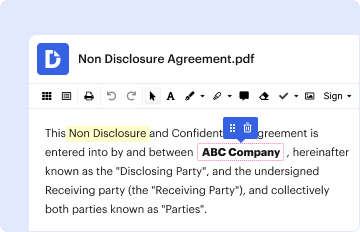
In a document workflow platform such as DocHub, a form online is usually handled as an editable document rather than a static attachment. That means users can insert information directly, assign fields to different people, and preserve a complete record of edits and signatures. This is especially useful when the same form must move between multiple parties, such as an applicant, spouse, employer, landlord, or authorized representative.
For U.S. users, “online” also implies accessibility across state lines and across common devices. A form may be opened from Google Drive, Gmail, Dropbox, OneDrive, or local storage, then completed without printing or rescanning. This is particularly helpful for people managing time-sensitive documents, such as tax records, housing applications, insurance paperwork, or school registration forms.
A form online can be used for both personal and professional purposes. A parent might complete a school emergency contact form, a freelancer might submit a W-9, and a small business owner might route a contractor agreement for signature. The core advantage is not just convenience, but consistency, because every recipient sees the same version of the document.
The legal status of an online form depends on the document type and the method used to complete it. In the United States, many electronically signed forms are valid under the ESIGN Act and related state laws, but certain documents still require notarization, wet signatures, or special handling. That distinction matters when the form is used for legal, financial, healthcare, or government purposes.
How to use a form online
Using a form online usually starts with opening the file in a browser-based editor or e-signature platform. The document may already contain fillable fields, or it may need to be prepared with text boxes, checkboxes, and signature areas. Once the form is loaded, users can review the content, complete the required information, and check for missing fields before saving or sending it.
A practical workflow often begins with identifying the form type and its purpose. For example, a tax form such as a W-9 is used to provide taxpayer identification information, while an employment form such as a direct deposit authorization collects banking details. A rental application, by contrast, may require contact information, employment history, and consent for screening. The way the form is used depends on the downstream process, not just the file itself.
Many users complete a form online by typing directly into the document. Others use a combination of typed text, uploaded images, dropdown selections, and electronic initials. For documents requiring multiple signers, the form can be routed so that each recipient completes only the assigned section. That reduces confusion when several people are involved, such as in a business contract or family-related application.
Typical use cases include:
- Filling out personal information, such as name, address, and date of birth.
- Adding checkmarks or selections in required boxes.
- Entering dates in a consistent format.
- Signing electronically using a drawn, typed, or uploaded signature.
- Forwarding the completed form to another party for review or approval.
When a form online is handled correctly, it becomes easier to maintain version control. Instead of email attachments with multiple file names, one document can reflect the current state of the form and show who changed what. This is valuable in team environments, where a human resources department, accounting team, or legal reviewer may need to confirm the latest version before approval.
For sensitive forms, users should review whether password protection, access permissions, or an audit trail is available. These controls are especially important for forms containing Social Security numbers, banking information, protected health information, or other confidential data. A secure online workflow helps reduce unnecessary exposure while still allowing the form to move efficiently through the approval process.
Steps to complete the form online
Completing a form online usually involves a sequence of preparation, entry, review, and final submission. The exact steps vary by document type, but the general process is consistent across most U.S. forms. A fillable or editable format makes the work faster, but accuracy remains critical because the information often has legal, financial, or administrative consequences.
1. Open the correct file
The first step is confirming that the document is the current version of the form. This matters because many forms are updated periodically, and outdated versions can be rejected by employers, schools, lenders, agencies, or agencies with filing rules. If the form includes a revision date, that date should be checked before any information is entered.
The file may come from a local computer, cloud storage, email, or a shared work system. If the document is a scanned copy, it may need to be converted into a fillable format before it can be completed efficiently. A well-prepared form reduces rework and helps avoid overlooked sections.
2. Review instructions carefully
Most forms include instructions that explain what information is required, which sections are mandatory, and whether any attachments are needed. These details are often the difference between a valid submission and a delayed one. For example, tax forms may require matching names and taxpayer identification numbers, while healthcare forms may require an emergency contact and consent language.
A careful review also helps identify whether the form should be completed by one person or by multiple parties. In many cases, an applicant fills out the main fields, while a spouse, employer, witness, or authorized representative completes another section. That division of labor should be understood before any signatures are added.
3. Fill in required fields
The next step is entering the requested information accurately. This may include legal names, addresses, dates, identification numbers, account details, or eligibility answers. Where the form uses checkboxes or dropdowns, the selections should match the intended response exactly, especially for compliance-related documents.
Examples of common field types include:
- Text fields for names and addresses.
- Date fields for birth dates, effective dates, or signature dates.
- Checkboxes for yes-or-no questions.
- Signature fields for authorization or certification.
- Conditional fields that appear only if certain answers are selected.
If the form asks for information that is not available, the instructions may allow “N/A,” “unknown,” or a blank space, depending on the document’s rules. However, that should only be done when the instructions clearly permit it. Unexplained blanks can delay review or trigger rejection.
4. Add signatures and initials
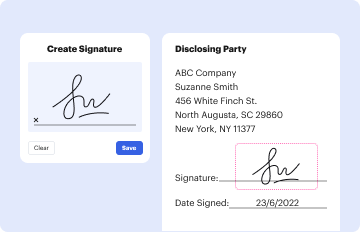
Many online forms require one or more signatures, and some require initials on selected pages or disclosures. Electronic signatures are widely used in the U.S. and may be legally valid when the document type and process meet applicable law. Some forms also require a date next to each signature to confirm when the signer approved the content.
If multiple people must sign, the order may matter. A landlord might sign after the tenant, a client might sign after the provider, or a company officer might sign after internal review. In forms with signatory sequencing, the signing order should be followed exactly to avoid processing problems.
5. Review before finalizing
A complete review is one of the most important parts of the online form process. Names should match identification documents, numbers should be formatted correctly, and required sections should not be left incomplete. This is especially important for forms used in legal or government contexts, where small errors can create significant delays.
A useful review often includes:
- Verifying spelling of names and business entities.
- Confirming dates are entered in the expected format.
- Checking that all required signatures are present.
- Making sure attachments are included, if needed.
- Ensuring no field was left blank without permission.
6. Save, export, or submit
After review, the form can be saved, exported, or submitted according to the recipient’s instructions. Some forms are sent directly to an internal team, while others are downloaded and filed elsewhere. In cloud-based workflows, the completed version may be saved back to the original storage location so it remains linked to the source record.
Submission may also require a final check of file naming conventions, page order, or attachment requirements. For time-sensitive forms, it is especially important to confirm that the correct version was sent and that the recipient can access it without compatibility problems.
Required details and supporting documents
Most forms online require more than basic contact information. The supporting details depend on the purpose of the form, but the data requested usually reflects the legal, financial, or administrative role of the document. In the U.S., forms often ask for identity, eligibility, tax status, residency, or consent information so that the recipient can verify the submission.
Common details include:
- Full legal name, including suffixes when applicable.
- Current residential or mailing address.
- Phone number and email address.
- Date of birth or other identity indicators.
- Government identification numbers, when allowed by law.
- Employer, business, or account information.
- Signature and date.
Some forms also require attachments. A housing form may need proof of income, a government form may require prior notices or records, and a tax-related form may require tax identification details. Supporting documents are often essential because the form alone does not always provide enough evidence to complete the review.
Examples of supporting documents can include:
- A driver’s license or other government-issued ID.
- Social Security card information, when requested and legally appropriate.
- Pay stubs, W-2s, or 1099s.
- Bank statements for payment-related forms.
- Proof of address, such as a utility bill.
- Business formation documents or EIN confirmation letters.
- School or medical records, depending on the form.
The quality of uploaded supporting documents matters. Blurry scans, cropped pages, or missing pages can create delays, especially when the recipient needs to verify details precisely. For multi-page attachments, page order should be preserved so the review process is not slowed by incomplete or disorganized files.
Some forms include certification language that makes the signer responsible for accuracy. In those cases, supporting documents are not just administrative add-ons; they are part of the evidentiary record. That is common in tax forms, loan packages, insurance applications, and regulated disclosures where accuracy affects legal rights or obligations.
Legal and compliance concerns
A form online can have legal force, but only when the specific form type and signing method satisfy the relevant rules. In the United States, the ESIGN Act and UETA support many electronic signatures and records, but they do not apply in exactly the same way to every document. Certain forms may still require notarization, witnessed signatures, or a physical filing method.
Legal review is especially important for forms involving:
- Tax reporting and withholding.
- Employment eligibility or payroll records.
- Real estate or rental agreements.
- Healthcare consent or release forms.
- Financial authorizations and account access.
- Court-related filings or sworn statements.
A common issue is assuming that every electronic signature has the same legal effect. In reality, legal validity depends on the record of intent, consent to do business electronically, authentication, and the integrity of the stored document. Platforms that preserve audit trails, timestamps, and signer identities support that evidentiary record more effectively than informal email exchanges.
Another compliance concern is whether the form contains personally identifiable information. Forms with Social Security numbers, bank details, or medical information should be handled with appropriate access controls. Password protection, limited permissions, and secure transmission help reduce the chance of unauthorized exposure.
State law can also affect whether a form online is acceptable. For example, some state agencies, courts, or professional boards have their own submission rules, and those rules may differ from general electronic signature standards. A form that is valid for one purpose may still be rejected if the receiving authority requires a specific format, seal, witness, or portal submission.
Retention requirements matter as well. Some forms should be saved for several years, while others should be retained for the duration of a contract, audit period, or statutory recordkeeping period. The online process should preserve a reliable copy of the completed form, along with any signature history or revisions that may be needed later.
Who uses forms online
Forms online are used by individuals, families, professionals, and organizations across many industries. The common thread is the need to collect, review, or authorize information without relying on paper routing. In the United States, this includes private businesses, schools, medical offices, nonprofit organizations, landlords, lenders, and public agencies.
Typical users include:
- Employees completing onboarding paperwork.
- Independent contractors submitting tax forms.
- Tenants filling out rental applications.
- Parents handling school or childcare forms.
- Patients completing intake and consent forms.
- Small business owners managing vendor and client documents.
- Accountants and bookkeepers processing tax-related records.
Self-employed individuals often use online forms for contractor agreements, client onboarding, and tax documentation. Retired individuals may use them for benefit forms, account changes, or healthcare authorizations. Students and families may use them for enrollment, financial aid, or permission slips, depending on the institution and age of the student.
Businesses also benefit from online forms because they reduce internal bottlenecks. A company can route a document to accounting, then legal, then an executive for final signoff without printing or scanning. That matters for fast-moving organizations where procurement, hiring, and client service depend on timely document handling.
Government and quasi-government processes also rely heavily on online forms. Federal, state, and local agencies increasingly accept electronic records for many types of applications and declarations, though the rules vary by agency. Users often need to confirm whether the agency allows uploaded forms, native online submissions, or printed copies from a digital draft.
Versions, variants, and filing methods
Many forms online exist in more than one version. There may be a current edition, a prior edition, an agency-specific variant, or a fillable PDF alternative. The correct version is important because even a small revision change can alter required fields, legal language, or instructions.
Common variants include:
- Current official edition versus older archived editions.
- Fillable PDF versus static scan.
- Agency-issued form versus employer or vendor adaptation.
- State-specific version versus federal version.
- English-language version versus translated support materials.
Submission methods also vary. Some forms are submitted entirely online through a portal or e-sign workflow, while others are completed online and then printed for mailing. In some situations, the form can be delivered in person, such as when a counter requires original identification or a notarized paper copy.
A few practical distinctions matter here. An online form may be accepted for review, but not for final filing. A digital signature may be acceptable, but a wet signature may still be required for a particular agency. A completed PDF may be valid as a working copy, but the receiving party may want data entered into a separate portal or database. Those differences are important because they affect whether the form is merely convenient or formally sufficient.
Compatibility also matters. Many users need their forms to work with tools in the broader document ecosystem, including Google Workspace, Microsoft-based workflows, and accounting or tax software. A form might need to be opened, completed, and exported without losing field integrity or signature records. This is especially relevant when documents move between systems used by clients, staff, and external reviewers.
Older versions may still appear in circulation because documents are often saved, forwarded, or reused. That creates a risk of outdated language or obsolete instructions. A careful online workflow should help users identify the correct version before data is entered, especially where deadlines, compliance language, or official formatting standards are involved.
State rules and special cases
State-specific rules can shape how a form online is completed, signed, and accepted. While many online forms are recognized under general U.S. electronic signature law, individual states may impose additional requirements for certain document categories. This is common in areas such as real estate, notarization, family law, consumer disclosures, and professional licensing.
Some states accept a broader range of electronic workflows than others, particularly for notary services and remote online notarization. Others maintain tighter controls over which documents may be signed electronically or filed digitally. That means users should not assume that one state’s acceptance rules automatically apply everywhere else.
Special cases often arise with:
- Notarized affidavits.
- Real estate closing documents.
- Court filings.
- State benefit forms.
- Professional licensing applications.
- Vital records requests.
A form can also be affected by county, municipal, or agency-level rules. For example, a local housing authority may accept a digital form, while a state board requires a PDF with a handwritten signature. In a healthcare context, a hospital may accept electronic intake forms, but a specific release authorization may need a witness or additional identity verification.
For multi-state businesses, the challenge is consistency. A company may use the same base form across several locations, but the state addendum, notice language, or required disclosures may differ. This is common in employment, consumer lending, insurance, and landlord-tenant workflows. The form online should reflect the correct jurisdiction before it is sent or signed.
When a form involves interstate parties, extra care is warranted. A contract may be governed by one state’s law while signed by people in another state, and that can influence enforceability, notice requirements, and dispute handling. The online format makes cross-state use easier, but it does not remove the need to confirm which legal rules apply.
Common errors and practical examples
Many problems with a form online come from small but important mistakes. These errors are often easy to avoid once users know what to watch for, but they can lead to delays, rejections, or requests for correction. The most common issues involve incomplete fields, incorrect versions, mismatched information, and missing attachments.
Frequent errors include:
- Using an outdated form edition.
- Entering a nickname instead of a legal name.
- Leaving a required field blank without explanation.
- Selecting the wrong checkbox or filing category.
- Forgetting a date, signature, or initials.
- Uploading unreadable supporting documents.
- Sending the form to the wrong recipient or department.
A tax example illustrates the point clearly. If a contractor submits a W-9 with a misspelled legal name or wrong tax classification, the payer may have to issue corrected records. A housing example is similar: a rental application with inconsistent income details may trigger a second review. In a school setting, an emergency contact form with outdated phone numbers can create an actual safety risk.
Another example is a business authorization form. If a signer is not the person legally authorized to approve the document, the form may be rejected even if the signature field is complete. The online format makes completion faster, but it does not replace the need for correct authority and accurate data.
A useful real-world pattern is the team review workflow. One employee fills in the form, a supervisor checks the details, and a final approver signs after confirming the record. This reduces mistakes, especially when the form affects compensation, compliance, or customer rights. For documents with legal significance, that review step is often more important than the speed of completion itself.
In edge cases, a form may be accepted even if one nonessential field is blank, but that depends entirely on the instructions. Some agencies accept “N/A” in place of unavailable data, while others reject anything incomplete. The safest online workflow is to follow the form instructions closely, preserve the final copy, and keep any related records together in the same file set.


