





Definition and Meaning
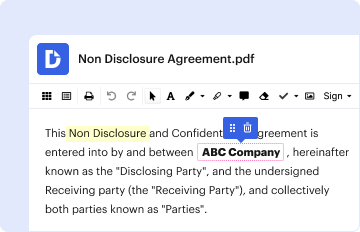
Understanding what it means to complete a form online provides clarity and context in a digital-first world. Completing a form online involves filling out a document or template through an internet-connected device, utilizing web-based tools that facilitate data entry and submission without the need for paper. The shift towards digital forms is driven by efficiency, accessibility, and eco-friendliness. Online forms can range from simple contact forms on websites to complex tax documents requiring detailed information. Utilizing platforms like DocHub allows users to edit and complete forms with ease, enhancing productivity and streamlining document workflows.
Advantages of Online Forms
- Convenience: Fill out forms from anywhere, at any time, without the need for physical paperwork.
- Speed: Instant submission and processing reduce wait times typically associated with paper forms.
- Access to Tools: Use digital tools for editing, annotating, and signing documents directly within the form.
How to Use the Form Online
Effectively using forms online involves understanding the tools and processes that enable seamless completion and submission. Begin by accessing the form through a web platform like DocHub, which offers intuitive interfaces and robust editing tools.
-
Access the Platform: Open your preferred web browser and go to the DocHub platform. Log in or create an account if necessary.
-
Import Your Document: Upload the form from your device, or import it directly from connected cloud services like Google Drive or Dropbox.
-
Fill Out the Form: Utilize the platform’s editing tools to enter the required information. You can add text, checkboxes, and other elements as necessary.
-
Review and Edit: Double-check your entries for accuracy. Use annotation tools to highlight or comment on areas of interest or concern.
-
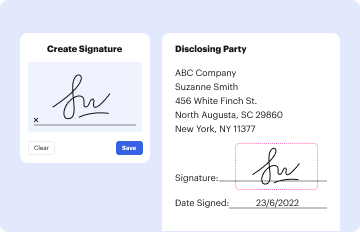
Signature Process: Use DocHub’s electronic signature feature to add legally binding signatures directly to the form. Choose from drawing, typing, or uploading your signature.
-
Submit the Form: Once completed, submit the form online by sending it through email or saving it to cloud storage.
Tips for Effective Usage
- Save Regularly: To prevent data loss, ensure to save your progress periodically.
- Use Placeholder Texts: Easily guide where specific information needs to be entered by using placeholder texts in form fields.
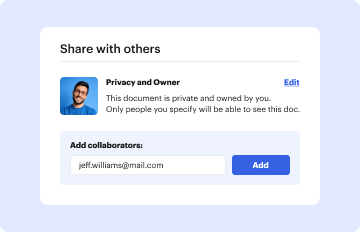
- Customize Settings: Adjust settings for form access and permissions when sharing with others to ensure data privacy.
Steps to Complete the Form Online
Completing an online form can be broken down into structured steps to guarantee accuracy and efficiency. Below are the general steps that ensure successful completion:
-
Identify the Required Form: Determine which form you need to complete, whether it’s a tax form, a legal document, or a simple application form.
-
Gather Necessary Information: Collect all required information beforehand to streamline the data entry process. This may include personal identification details, financial records, etc.
-
Begin the Process in DocHub:
- Open DocHub: Go to the DocHub website and sign in.
- Upload or Select Form: Either upload your form from your local device or select one hosted in your cloud storage.
- Start Filling: Use the editor to input data. Input text, checkboxes, and dropdowns as needed.
-
Validate Information: Review every section of the form for accuracy and completeness. This is especially critical in legal and financial forms where errors can have significant consequences.
-
Add Required Signatures: Use the signature tool to add any necessary signatures to the form, ensuring all parties have signed in the correct places.
-
Submit or Save Form: Save the completed form to your device, email it to relevant parties, or store it in a cloud application.
Practical Example
A practical illustration of this process can be seen when filing a W-9 form using DocHub. Start by uploading the W-9, then fill in your taxpayer information, use the signature tool to sign the form, and finally submit it to the requesting party via email.
Why Should You Form Online
Opting to fill out forms online comes with numerous benefits, making it an advantageous way to manage documentation in today’s digital age.
-
Efficiency: Reduces the time spent on tasks by eliminating the need for printing, mailing, and manual data entry.
-
Accuracy: Minimizes errors with guided fields and validation checks integrated within the form.
-
Accessibility: Supports access from any internet-enabled device, allowing for completion across various platforms, including desktops, tablets, and smartphones.
-
Environmental Impact: Reduces paper usage and waste by supporting a paperless environment.
-
Integration: Many online form platforms, like DocHub, offer seamless integration with third-party services, enabling easy import and export functions with Google Workspace, etc.
Case Scenario
Consider a business needing multiple stakeholders to complete sections of a form: using DocHub, each participant can fill out their relevant parts from any location, streamlining project management and execution.
Key Elements of the Form Online
Understanding the critical elements of an online form ensures that it is utilized effectively. Here are some typical parts to be aware of:
-
Header: Contains the form title, date, and any applicable form ID or number.
-
Instructions: Provides guidelines on how to fill out the form correctly, often including examples or clarifications.
-
Input Fields: Various types of fields are available, such as text boxes for names and addresses, dropdown menus for selecting options, and radio buttons for multiple-choice questions.
-
Signature Area: A designated section for digital signatures, ensuring authenticity and compliance with legal standards.
-
Submission Instructions: Details on how and where to submit the completed form, whether electronically or through another specified method.
Tips
- Utilize Required Fields: Pay attention to required fields that must be completed before submission.
- Check for Conditional Sections: Some forms include conditional sections that depend on prior responses, ensure all required fields are visible and completed.
Who Typically Uses the Form Online
The versatility of online forms allows for wide applicability across various fields and professions. Here’s who typically benefits from using forms online:
-
Businesses: Enterprises use forms for HR tasks, client onboarding, and internal surveys.
-
Educational Institutions: Schools and universities employ forms for applications, registrations, and administrative paperwork.
-
Government Agencies: Agencies offer online forms for permits, licenses, and tax filings to improve service delivery.
-
Non-Profit Organizations: Utilize forms for volunteer registrations, donations, and event management.
-
Individuals: Everyday users fill out forms for applications, renewals, and personal record-keeping.


Examples
Consider a contracting company that uses online forms to submit building permits or a higher education institution that processes student admissions predominantly through online forms.
Important Terms Related to Form Online
Familiarizing yourself with relevant terms related to online forms helps in comprehending their functionality and application. Here's a glossary of terms:
-
eSignature: An electronic method of signing a form, providing the same legal standing as handwritten signatures.
-
Fillable Field: An interactive field where the user can enter information directly on the document.
-
Validation Check: Automated checks that ensure the data entered meets specified criteria or format before submission.
-
Cloud Integration: The connection of the form service to cloud-based storage solutions like Google Drive, enabling data synchronization and consistent access.
-
Form Field Manager: A tool within platforms like DocHub that allows users to customize the types of fields used in a form, such as text, dropdowns, checkboxes, etc.
Application in Context
Understanding these terms allows users to navigate platforms like DocHub effectively, ensuring efficient form completion and management.
Legal Use of the Form Online
The transition to online forms raises considerations surrounding legality and compliance. Here’s what to know about using forms online legally:
-
Compliance Standards: Online forms, especially those requiring signatures, must comply with laws such as the ESIGN Act, ensuring that digital signatures are legally recognized.
-
Data Security: Platforms should employ security measures like 256-bit SSL encryption to protect data integrity and confidentiality.
-
Records Retention: Understand the duration and conditions under which form records need to be maintained, especially in regulatory contexts.
-
Cookie and Privacy Policies: Legal notices about data collection and usage should be adhered to when designing online forms, ensuring user consent is obtained.
Real-World Implication
For example, businesses employing online tax forms must ensure that their submission methods and data storage comply with IRS regulations while providing privacy protection for user data.
By understanding these elements, users can better navigate the online form landscape, ensuring efficiency and compliance with legal standards while utilizing platforms like DocHub.


