






Definition and Meaning of Form Online
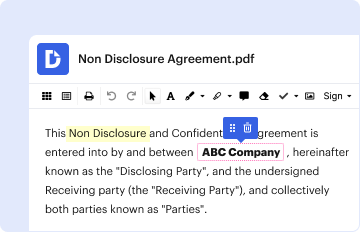
A "form online" refers to digital templates or documents that users can fill out and submit through the internet. These forms can range from simple PDFs requiring basic text inputs to complex, interactive documents with various fields such as checkboxes, dropdown menus, and signature areas. Online forms are widely utilized for applications, registrations, surveys, and more because they streamline data collection, reduce paperwork, and improve accessibility. The capability to form online significantly enhances user experience by allowing individuals to complete necessary documentation without the need for physical copies.
Advantages of Using Online Forms
- Convenience: Accessible anytime and anywhere, reducing the need to visit physical locations.
- Efficiency: Reduces processing time by automating data collection and submission processes.
- Cost-effectiveness: Eliminates the expense of printing and distributing paper forms.
- Environmental impact: Reduces paper waste, supporting eco-friendly practices.
How to Use the Form Online
Using an online form typically involves several straightforward steps designed to facilitate smooth and efficient completion. Understanding these steps ensures that users can easily navigate online forms and submit their information correctly.
Step-by-Step Process
- Accessing the Form: Open the form via a provided link or from a website. Ensure your internet connection is stable.
- Understanding Requirements: Read any provided instructions carefully to ensure you are aware of the fields that need to be filled and any specific requirements.
- Filling Out the Form: Enter the necessary information in the respective fields. Use dropdown menus, checkboxes, and other interactive elements if available.
- Reviewing Entries: Double-check your inputs for accuracy and completeness before submission to avoid errors.
- Submitting the Form: Click the submit button and wait for a confirmation message or email verifying that your form was received.
Tips for Effective Use
- Save your progress if the form platform allows, especially for lengthy forms.
- Use the help or support features if you encounter issues during the filling process.
Steps to Complete the Form Online
Completing an online form involves systematically entering all required details and ensuring the form is submitted properly. The following steps highlight essential actions to take from start to finish.
Filling and Submission Steps
- Preparation: Gather all necessary documents and information before starting the form.
- Entry: Carefully fill in each section of the form, ensuring all fields marked as mandatory are completed.
- Verification: Review all entered information for correctness to prevent the need for resubmission or corrections post-submission.
- Attachments: If required, ensure all necessary documents are uploaded in the specified file formats.
- Submission: Submit the form by clicking the designated submission button. A notification will generally confirm whether the submission was successful.
After Submission
- Save or print a copy of the completed form and the confirmation for your records.
- Follow up if the form requires an official response or if no confirmation is received.
Important Terms Related to Form Online
Navigating online forms can be simplified by understanding key terms associated with them. Recognizing these terms ensures clarity and better comprehension of form functionalities and expectations.
Key Terms
- Interactive fields: Elements like text boxes and checkboxes that users can interact with to provide information.
- Mandatory fields: Fields that must be filled out to successfully submit the form.
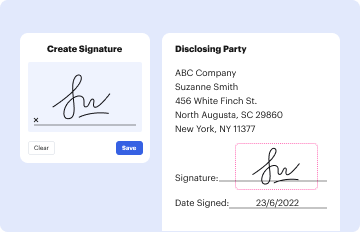
- Digital Signature: An electronic form of a signature, securing the authenticity of the signer.
- Confirmation page/message: A notification verifying that the form has been submitted successfully.
- Encryption: Security process that protects the data entered into an online form from unauthorized access or alteration.
Advantages of Using Form Online
Adopting online forms offers several benefits, enhancing efficiency and security in documentation processes. These advantages make them a preferred choice for individuals and organizations alike.
Key Benefits
- Improved Accessibility: Available across multiple devices such as smartphones, tablets, and computers.
- High Security: Often equipped with encryption to protect sensitive information against breaches.
- Enhanced Data Accuracy: Features like drop-down lists reduce the risk of entry errors.
- Real-Time Processing: Immediate transfer of data to databases, facilitating swift response and action.
Use Cases
- Online job applications
- Tax filings and refunds
- Digital agreements and contracts
- Online customer feedback and surveys
Legal Use of the Form Online
Using online forms encompasses legal implications, ensuring that submitted data adheres to relevant regulations and standards. Understanding these legal aspects is crucial, especially when handling sensitive information.
Common Legal Considerations
- Data Protection Laws: Compliance with laws like the GDPR ensures the protection of user information from misuse.
- E-Signature Legality: Standards like the ESIGN Act in the United States legitimize digital signatures as legal replacements for handwritten signatures.
- Privacy Policies: Websites providing forms often include privacy statements that detail data collection and usage practices.
Ensuring Compliance
- Regularly review form platforms for updates or changes in legal standards.
- Verify that forms adhere to country-specific regulations for data protection and online transactions.
Key Elements of the Form Online
Online forms consist of several elements and features designed to aid user experience and data collection efficiency. Knowing these components aids in effective form completion.
Essential Components
- Form Fields: Includes text boxes for input, checkboxes for options, and dropdown menus for selecting from multiple choices.
- Instructions: Provides users with guidelines on how to fill out the form accurately.
- Validation: Ensures input meets specified formats (e.g., email addresses, phone numbers) before submission is accepted.
- Submission Button: Finalizes and transmits the data entered in the form for processing.
Enhancing User Experience
- Clearly label fields to minimize confusion.
- Enable auto-save features to prevent data loss during long form completion.
Digital Versus Paper Versions
Comparing digital online forms with traditional paper versions highlights significant differences in functionality, environmental impact, and efficiency.
Digital Form Benefits
- Eco-Friendly: Reduces the carbon footprint by eliminating paper usage.
- Time-Saving: Instantaneous submission and processing compared to mailing or manual delivery.
- Real-Time Collaboration: Allows multiple parties to access and fill the form concurrently from different locations.
Paper Form Challenges
- Increased environmental waste due to paper consumption.
- Longer processing times due to physical handling and mailing delays.
- Difficulty in tracking and managing physical copies compared to digital systems.
Understanding these aspects helps in choosing the best approach for form management based on specific needs and constraints.


