
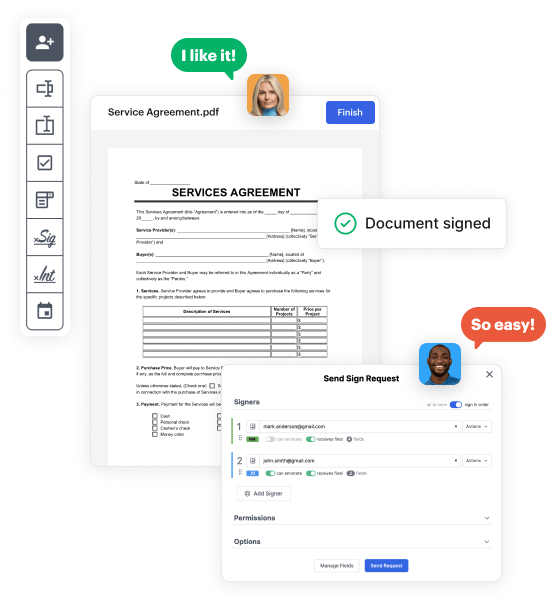
Create your Supply Order Form from scratch

Start Building Now
Title decoration

Here's how it works

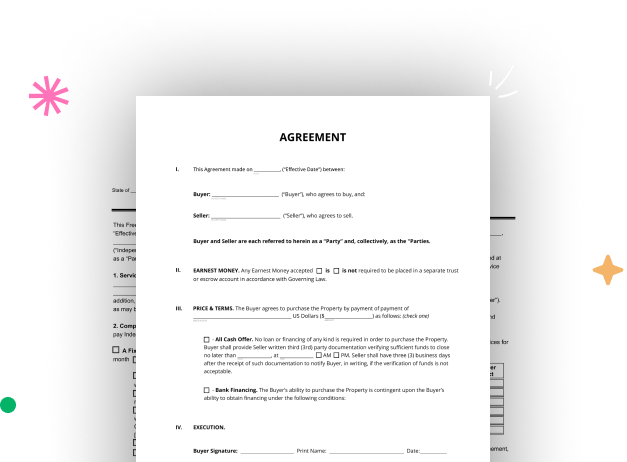
01. Start with a blank Supply Order Form
Open the blank document in the editor, set the document view, and add extra pages if applicable.
02. Add and configure fillable fields
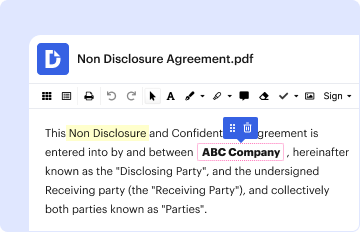
Use the top toolbar to insert fields like text and signature boxes, radio buttons, checkboxes, and more. Assign users to fields.
03. Distribute your form
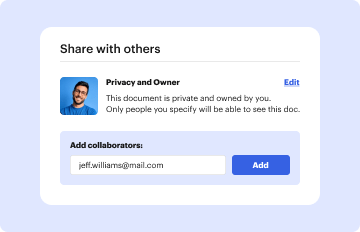
Share your Supply Order Form in seconds via email or a link. You can also download it, export it, or print it out.

A quick tutorial on how to build a professional-looking Supply Order Form

Form edit decoration

Step 1: Sign in to DocHub to create your Supply Order Form.

First, log in to your DocHub account. If you don't have one, you can simply sign up for free.

Step 2: Go to the dashboard.

Once logged in, navigate to your dashboard. This is your central hub for all document-related activities.

Step 3: Launch new document creation.

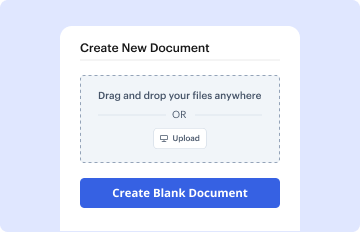
In your dashboard, hit New Document in the upper left corner. Choose Create Blank Document to craft the Supply Order Form from scratch.

Step 4: Incorporate template fillable areas.

Add various items like text boxes, photos, signature fields, and other elements to your template and designate these fields to specific individuals as required.

Step 5: Fine-tune your document.

Customize your form by inserting guidelines or any other vital tips using the text option.

Step 6: Go over and adjust the document.

Carefully review your created Supply Order Form for any errors or needed adjustments. Make use of DocHub's editing tools to enhance your document.

Step 7: Share or export the document.

After completing, save your copy. You can select to save it within DocHub, transfer it to various storage platforms, or forward it via a link or email.


be ready to get more

Build your Supply Order Form in minutes

Start creating now

Got questions?

We have answers to the most popular questions from our customers. If you can't find an answer to your question, please contact us.
Contact us
The information in a basic sales order form breaks down into a few important categories. Contact information. Company name and details. Salesperson name and contact information. Pricing information. Plan, products, or services offered. Discounts. Deal terms. Order number. Order details. Signatures.
Steps to Create an Order Form Decide what to sell. Choose a form builder tool. Customize the template with proper fields. Add photos of the products. Customize the order form with branding. Set up a payment method. Set up a success message. Share the order form.
The information in a basic sales order form breaks down into a few important categories. Contact information. Company name and details. Salesperson name and contact information. Pricing information. Plan, products, or services offered. Discounts. Deal terms. Order number. Signatures. Names and titles for each signature field.
Sales order template framework Selling company name/address. Purchaser contact info (name, address, phone number, email) Order date. Shipping and/or delivery date. Product information. Price (before taxes) Taxes and other fees. Terms and conditions (often drafted by the selling companys legal team)
5 Steps To Make a Supply Order Form Step 1: Client Details. While you make a supply form, you need to be clear about the person or the client for whom you are making the form. Step 2: The Products. Then comes the product details. Step 3: Date And Other Details. Step 4: Total Price. Step 5: Revision.
be ready to get more

Build your Supply Order Form in minutes

Start creating now

Related Q&A to Supply Order Form

Google Forms is a popular tool that allows users to create order forms quickly and easily using pre-made templates or by designing their own forms. PDFs with fillable forms are also an option for creating order forms, which can be filled out and submitted electronically.
Create Sales and Purchase Order Select Sales order or Purchase order. Add a due date to your order. Next step is to add item for the order. After adding all the details click on the Save button to create this order. The order once created will show in the order list for the selected date range.

Additional resources on building your forms