Insights on the DocHub vs. Investments in Adobe Fill & Sign Android comparison
Choose the best editing solution for your business once and for all. Check out the detailed comparison of DocHub and Investments in Adobe Fill & Sign Android
Create free account
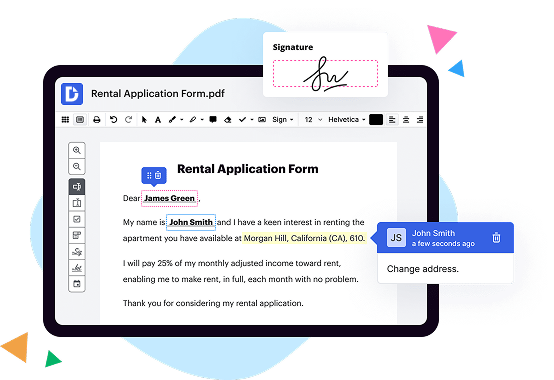
Adobe Fill & Sign Android vs. DocHub Investments comparison in a nutshell

|
Adobe Fill & Sign Android | |
|---|---|---|
| No Downloads | ||
| Search Form Online | ||
| Edit PDF | ||
| Fill Online | ||
| Sign Online | ||
| Unlimited Cloud Storage | ||
| Annotate PDF | ||
| Fax Online | ||
| Track Sending Documents | ||
| Get DocHub for free |
Here are the main differences between DocHub and Investments in Adobe Fill & Sign Android
docHub pdf portfolios are pdf containers for other pdf files. Portfolios can be used to group and organize other pdf files without changing the individual file properties. Why. The main reason the portfolio format is being used is to accommodate Digital Signatures.
Move from Adobe Fill & Sign Android PDF to DocHub in a few steps

01. Register with DocHub using your email address or Google account. It's fast and easy. No credit card required.
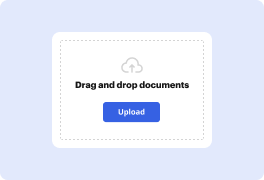
02. Upload the document you need or create it from scratch. Then, customize it by adding images, drawings, and different types of fillable fields.
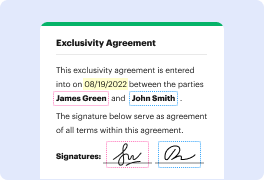
03. Customize your PDF in minutes. Type, highlight, underline, whiteout text, add comments, and sign your document.
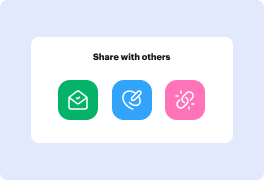
04. Share your PDF with others to collaborate in real-time. Export your document, download or print it out.
Switch to DocHub to enjoy premium PDF customization

Online PDF creator and editor
Explore DocHub vs. Adobe Fill & Sign Android comparison data and choose the best platform for getting your perfect document without hassle. Start with a blank document or modify an existing one. Type text, add shapes, drawings, images, and highlight or whiteout information. Whatever you do with a PDF, the result is always high quality, without rasterized text or removed fields.

Diverse PDF management tools
Manage your PDF to perfection. Add, delete, and rearrange document pages or merge them to create a new document. DocHub supports a variety of file types including PDF, DOC, PPT, XLS, TXT, DOCX, and PPTX, which you can easily convert to a PDF.

Powerful PDF tools on your mobile device
Keep your work flowing from any location. Get DocHub, the most powerful Adobe Fill & Sign Android competitor. With DocHub's capabilities on your mobile device, you can edit, annotate, manage, sign, and share PDFs just as easily as you would on a desktop. No need to install the app.

Google integrations
Boost your productivity and deliver an amazing customer experience by managing your PDFs from your favorite Google apps. Import, edit, and sign your documents directly from your Gmail, Google Drive, and Dropbox.

Interactive PDF forms and templates
Get an intuitive and interactive experience when creating PDF forms and reusable document templates. Modify existing fields or create new ones for checkboxes, signatures, initials, and more. Publish forms on your website, social media, or share them via URL to collect data.

Real-time collaboration
Migrate from Adobe Fill & Sign Android to DocHub to collaborate effectively and securely on documents in real-time. Set document permissions to let others view, comment on, edit, and sign your documents. Stay in the loop with instant email notifications or track the status of your documents with court-admissible audit trails.
Industry-leading security and compliance
DocHub implements reasonable measures to comply with industry-leading standards, regulations, and certifications so you can securely edit, fill out, sign, and send documents and forms.

GDPR compliance
Regulates the collection, use, and holding of personal data for EU residents.

PCI DSS certification
Ensures the security of credit and debit card transactions made by a customer.

CPRA compliance
Enhances the privacy rights of California residents while protecting their personal data.

SOC 2 certification
Ensures the security of your data and the privacy of your clients.

HIPAA compliance
Protects privacy, security, and integrity of sensitive healthcare information.
Check out what our customers are saying about their DocHub experience
Great solution for PDF docs with very little pre-knowledge required.

A Valuable Document Signer for Small Businesses.

I can create refillable copies for the templates that I select and then I can publish those.

DocHub and Investments in Adobe Fill & Sign Android comparison FAQ
How do I create a portfolio in docHub?
Create PDF Portfolios Start Acrobat and choose File Create PDF Portfolio. Drag files into the Create PDF Portfolio dialog box. Alternatively, choose an option from the Add Files menu. You can add a file, folder of files, pages from a scanner, web page, or items in the clipboard.
What is the difference between a portfolio and a binder in docHub?
You can combine documents and images into a Binder. The documents are automatically converted to PDFs and their pages display in consecutive order, as one single file. You also can combine documents into a PDF Portfolio, which resembles a folder of documents. Each file appears separately within the PDF Portfolio.
How do I combine docHub files without making a portfolio?
How to combine and merge files into one PDF: Within Acrobat, click on the Tools menu and select Combine Files. Click Combine Files, and then click Add Files to select the files you want to include in your PDF. Click, drag, and drop to reorder the files and pages. When finished arranging files, click Combine Files.
How do I combine PDF files but not portfolio?
Please follow below steps to Turn off portfolio PDF creation while combing: Launch Acrobat and goto ToolsCombine AppOptions (gear icon). Now under Option uncheck Save as PDF Portfolio and Ok. You are done, combine and get your desire result .
What is the difference between combine files and portfolio in docHub?
Simply combining files means that all the files will be converted to PDF, whereas creating a PDF portfolio preserves the files in their original file format and you can edit or modify them in their native application without removing them from the portfolio.
What does it mean to combine files in docHub?
The Acrobat Combine Files tool lets you merge several PDFs into a single document for easier sharing: Go to the Tools menu in Acrobat and select Combine Files. Click Add Files or drag and drop them into the window. Rearrange your files if necessary, and choose your output settings.