

You can sign a PDF in a browser without installing a desktop app, printing the document, or scanning a handwritten signature. A browser-based PDF signature tool lets you upload a file, create an electronic signature by drawing, typing, or uploading an image, place it on the correct page, and download the signed PDF.
This guide explains the fastest way to sign a PDF with DocHub from Chrome, Microsoft Edge, Firefox, Safari, or another modern browser. It is intended for employees, contractors, students, administrators, and other users who need to complete forms, permission slips, lease agreements, financial documents, or routine business paperwork without additional software. DocHub combines browser-based PDF editing, form completion, signing, sharing, and Google Workspace integration.
Browser-based signing in brief
- Upload or import the PDF document into DocHub.
- Fill in any required text fields, dates, or checkboxes.
- Create a signature by drawing, typing, or uploading an image.
- Drag and drop the signature onto the appropriate signature field.
- Save, download, share, or send the signed file.
The following sections explain each step and the main considerations before electronically signing a document.
Disclaimer: The information in this blog post is provided for general informational purposes only and does not constitute formal legal advice.
What does it mean to sign a PDF in a browser?
Signing a PDF in a browser means adding an electronic signature through an online tool rather than opening the file in installed software such as Adobe Acrobat. The document, signing controls, and form fields appear in a web-based editor that you can access from a computer, tablet, or mobile device.
Common signature types that most online tools support:
- Drawn signature: Draw your handwritten signature with a mouse, trackpad, stylus, or touchscreen.
- Typed signature: Type your name and apply a handwriting-style font.
- Uploaded signature: Add an existing image of your signature.
These methods create an electronic signature. They are different from certificate-based digital signatures, which use a digital certificate to verify the signer and help detect tampering. We’ve described the process of signature creation in more detail in the blog: How to create signatures for PDF files and add them online?
When is browser-based PDF signing useful?
Online document signing without software is practical when you need to complete a document quickly or do not have permission to install a desktop app.
Widespread uses of browser-based signing:
- Signing employment forms or internal approvals
- Completing lease agreements
- Approving sales proposals
- Signing school forms and permission slips
- Filling and signing PDF forms from Google Drive
- Returning a signed contract received by email
- Adding a signature while working on a Mac, Chromebook, or shared computer
For sensitive files or regulated transactions, review your organization’s security requirements before uploading documents to any online tool.
What should you prepare before signing?
Before you sign a PDF online, confirm that you have the assets and information that enable you to initiate the signing workflow.
Assets and settings needed for online signing:
- The correct and complete PDF file
- Permission to sign the document
- The required name, date, initials, and other form information
- A clear signature image, if you plan to upload one
- A stable internet connection
- Access to the email or cloud account where the completed file must be sent
Read the entire document before adding your signature. Check that all pages are present and that no required text fields or signature fields have been left blank.
How do you sign a PDF in a browser with DocHub?
DocHub is a cloud-based PDF editor that lets users import, modify, fill, sign, and distribute documents directly from a browser. Its signing workflow supports typed, drawn, uploaded, and mobile-created signatures.
1. Open DocHub and upload the PDF
Open DocHub in your browser and create or access your free account. Drag and drop the PDF into the upload area, select it from your device, or import it from supported cloud storage such as Google Drive.
The PDF will open in the online editor, so no installation is needed.
2. Complete the document
Use the editing toolbar to fill in the PDF before signing. Add text, dates, checkmarks, images, or other required information.
Review every page and make sure the information is accurate before proceeding.
3. Use the Sign tool
Select Sign tool from the toolbar. Choose the option to create a new signature if you do not already have a saved signature in your DocHub account.
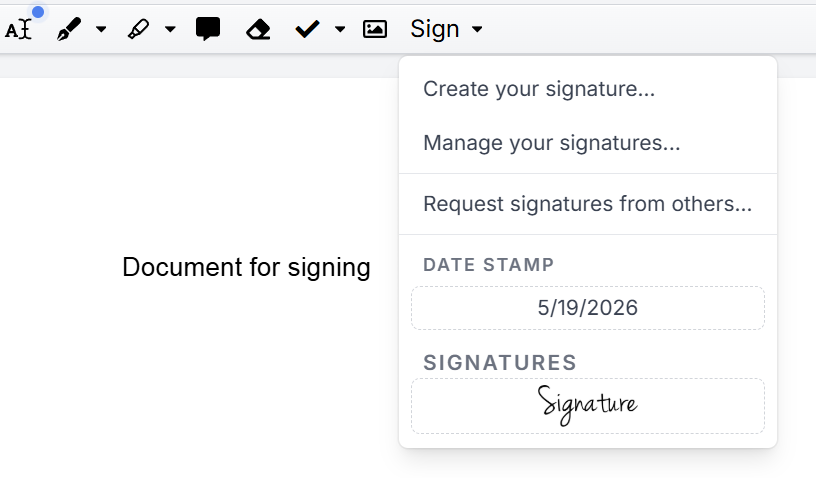
4. Create your electronic signature
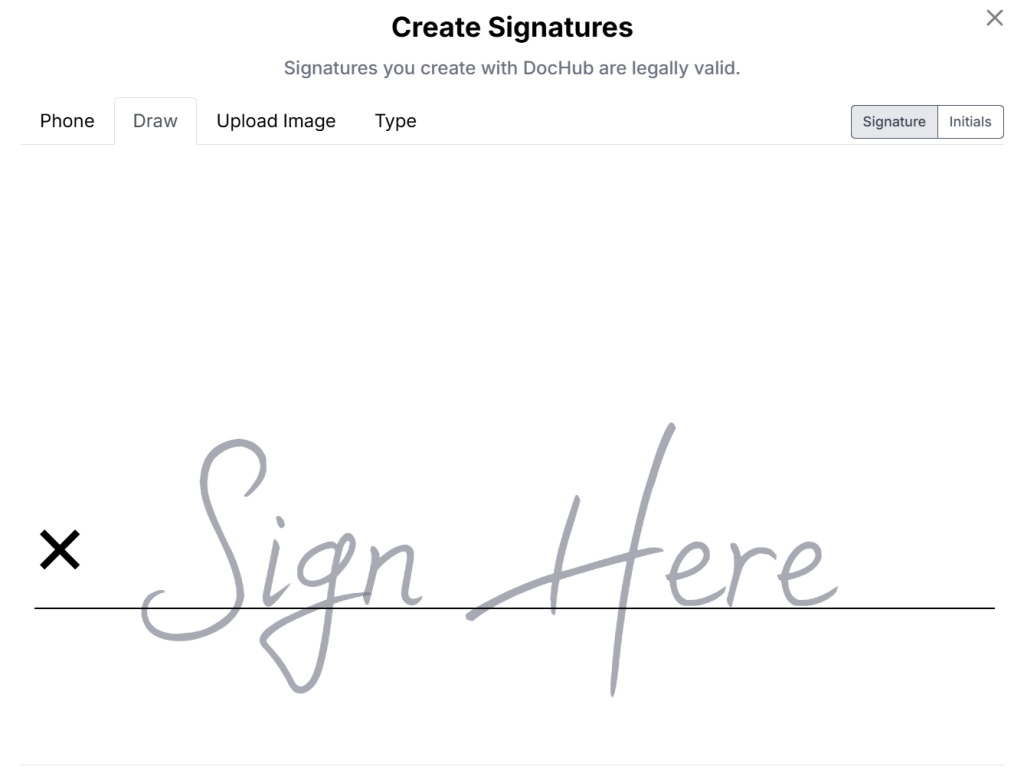
Choose one of the available methods:
- Draw to create a handwritten signature with your mouse, trackpad, stylus, or touchscreen.
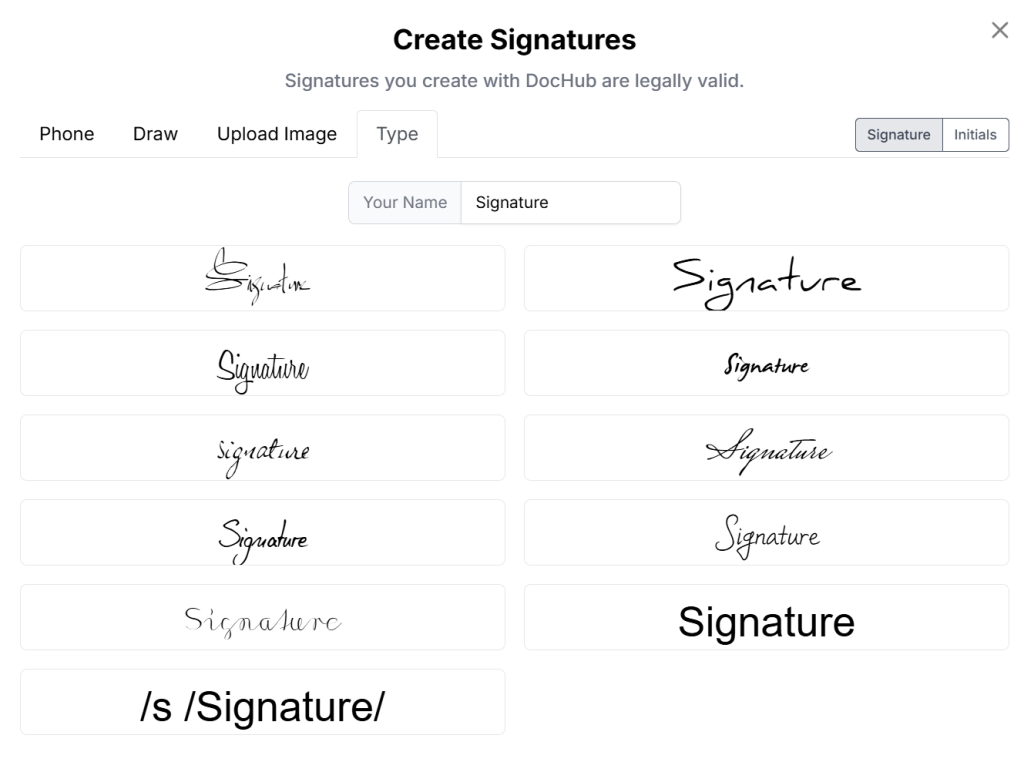
- Type to enter your name and select an available signature style.
- Upload to use an image of your existing signature.

Use a mobile device as a signature pad when that option is available in your workflow.
Save the signature if you expect to reuse it on other documents.
5. Place and resize the signature
Click the location where the signature should appear or drag and drop it onto the appropriate signature field. Resize it so that it fits within the available space without covering nearby text.
Add initials or a signing date where required.
6. Review the signed PDF
Check the signature placement, spelling, dates, and completed form fields. Confirm that you signed the correct version of the document.
Avoid making unrelated changes after signing unless the document owner has requested them.
7. Save or send the signed file
Use Download or export to save the signed PDF to your device or connected cloud storage. You can also use the sharing controls to send the document as an attachment, provide a link, or start a signature request when other people must sign.
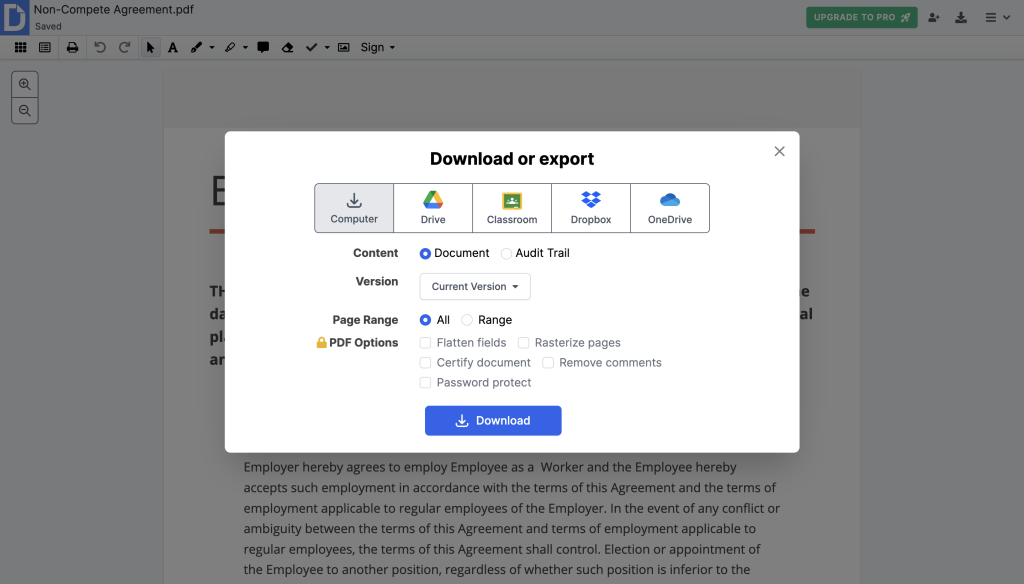
A free DocHub account is required to save and download the completed document.
Is DocHub different from a built-in browser signing tool?
The right method depends on whether you only need a visual mark or a managed eSignature workflow.
A dedicated PDF signing platform is more suitable when you need to request signatures from multiple signers, assign form fields, share the file, or track a signing workflow.
| Method | Main advantage | Important limitation |
|---|---|---|
| DocHub | Supports PDF editing, form filling, saved signatures, sharing, and signature requests | Requires an account to save or download the signed document |
| Firefox PDF viewer | Can type, draw, or upload a signature without a separate PDF app | Mozilla describes the added signature as an annotation, not a legally binding eSignature with authentication |
| Microsoft Edge draw tool | Useful for adding a handwritten mark directly to an open PDF | A drawn mark alone may not provide signer verification or a signing record |
| Desktop PDF editor | May support certificate-based digital signatures and offline work | Requires software installation and may involve a paid plan |
| Print and scan | Familiar for organizations that still use paper | Slower and requires a printer, paper, ink, and scanner |
Boost your browser’s capabilities with DocHub’s Chrome or Edge extensions for a smoother, more convenient signing experience. Simply open your files in DocHub and complete the signing process with ease.
What mistakes should you avoid?
Do not sign an incomplete document or place your signature over important text. Avoid uploading sensitive information to an unfamiliar website without reviewing its privacy and security practices.
You should also avoid confusing a signature image with a certificate-based digital signature. A visual signature may show intent, while a digital certificate can provide additional evidence about the signer’s identity and whether the PDF was altered. Learn more about digital signature validity from our previous blog post.
Final thoughts
A browser-based tool is often the fastest way to sign a PDF when you need to complete and return a document without printing, scanning, or installing software. DocHub lets you fill PDF forms, create a reusable electronic signature, add it to the document, and save or share the signed PDF from one online workspace.
Create a free DocHub account to sign PDFs in your browser and keep document workflows moving from any supported device.
Glossary
Electronic signature: An electronic mark, symbol, or process used to indicate a person’s intent to sign a document.
Digital signature: A certificate-based signing method that uses cryptographic technology to authenticate a signer and help identify later document changes.
Signature field: A designated area in a PDF form where a signer is expected to place a signature.
Signed PDF: A PDF file containing an electronic signature, digital signature, or visible handwritten mark.
Audit trail: A record of actions associated with a signing process, such as invitations, access events, and completion details.
FAQ
Can I eSign a PDF in Chrome?
Absolutely! DocHub offers a Chrome extension that lets you open PDFs directly from your browser or an email attachment. You can then sign and send the document without ever needing to download it.
Can I sign a PDF from Google Drive?
DocHub seamlessly integrates with Google Workspace, allowing users to import, edit, sign, and export documents across Google apps. Simply install the DocHub extension for Google Drive from the Google Marketplace to access your Google Drive files and eSign documents directly in your browser.
Can I sign a PDF on my phone?
Yes, you can. A browser-based PDF signature tool can be accessed from many mobile browsers, although the layout may differ from the desktop version. A touchscreen can also make it easier to draw a handwritten signature.
Does typing my name count as an electronic signature?
A typed name can function as an electronic signature when it is used with the intent to sign and the surrounding process satisfies applicable legal requirements. Whether it is appropriate depends on the document, jurisdiction, and requested signature type.
Should I use a signature image for sensitive documents?
A signature image may be suitable for routine forms, but it offers limited identity verification by itself. For financial, legal, or regulated documents, confirm whether the recipient requires authentication, an audit trail, or a certificate-based digital signature.