

Editing a PDF used to mean converting it to another format, making changes, and hoping the layout survived the round trip. Today, you can edit PDF files directly in a browser or desktop app without that hassle. This guide walks you through practical workflows for Mac and Windows users, with step-by-step instructions using DocHub, a full-featured online PDF editor.
- You can edit PDFs on Mac and Windows using a browser-based tool like DocHub PDF editor—no software installation required.
- DocHub lets you add text, images, annotations, fillable form fields, and eSignatures directly inside a PDF document.
- Edits sync across operating systems because DocHub stores documents in the cloud, not on a single device.
- For team use, DocHub supports role-based sharing, audit trails, two-factor authentication, and multiple signer workflows.
- DocHub integrates with Google Drive, OneDrive, Dropbox, and Gmail, making it easy to fit into existing workflows.
What is the easiest way to edit a PDF on Mac or Windows?
The easiest approach is to use a browser-based PDF editor that works on any operating system. Tools like DocHub let you upload a PDF file from your desktop, mobile device, or cloud storage and begin editing immediately—without downloading separate software or converting the document to a word processor format.
This matters for business users because it removes the version-control risks that come with converting PDFs to Word documents and back again. It also avoids the per-seat licensing costs often associated with desktop software like Adobe Acrobat or PDFelement. If you are evaluating alternatives, see this comparison of free alternatives to PDFelement.
How to use Mac tools for PDF editing
Mac users have a few built-in options. The Preview app lets you annotate PDFs, add text boxes, and fill out simple form fields. However, Preview has limited editing capabilities — you cannot edit existing text, manage pages across multiple files easily, or set up multi-party signing workflows.
For more complete PDF editing on Mac, a dedicated online PDF editor like DocHub provides functionality that Preview does not. You can use it to edit PDF documents online directly in Safari, Chrome, or any other browser without any additional installation.
How to edit a PDF on Mac using DocHub:
1. Open your browser and go to dochub.com. If you are new to the platform, the DocHub quick start guide walks through the setup process and core tools.
2. Sign up for a free account or log in.
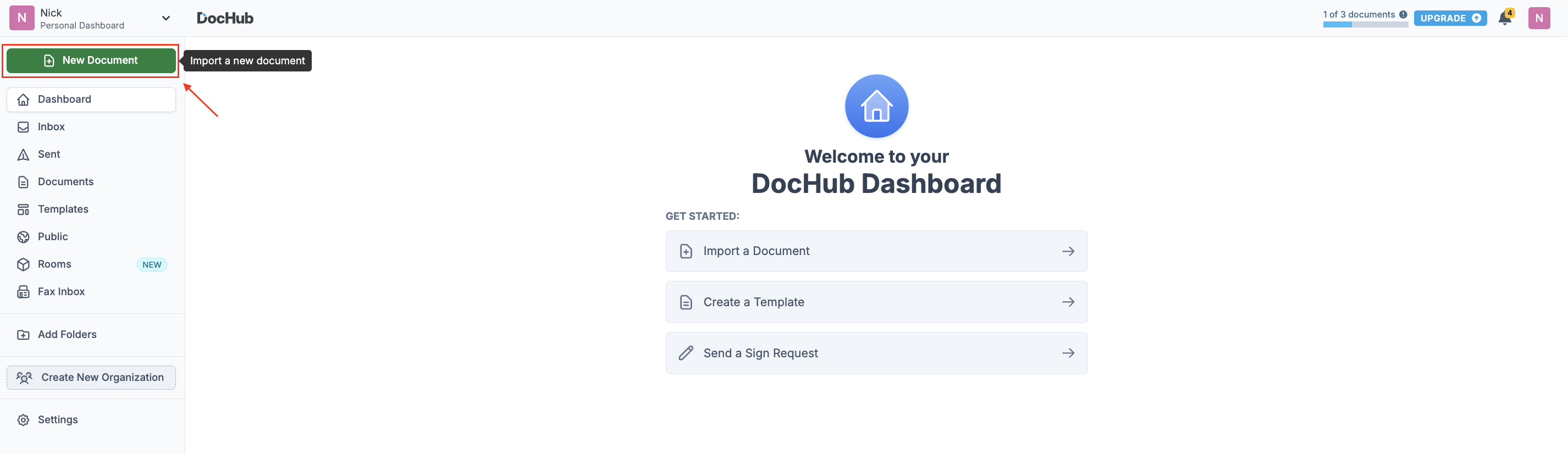
3. Click New Document and select your PDF file from your computer, cloud source, or use an existing document from your DocHub account. If you prefer to create a document from scratch, select the fromBlank Document option.
4. Use the toolbar to add text, highlight text, underline passages, or white out sections you want to remove.
5. Add shapes, drawings, or sticky notes as annotations where needed.
6. Use the Page Manager to rotate, rearrange, delete, or add pages. You can also merge a separate PDF into the current document from this view.
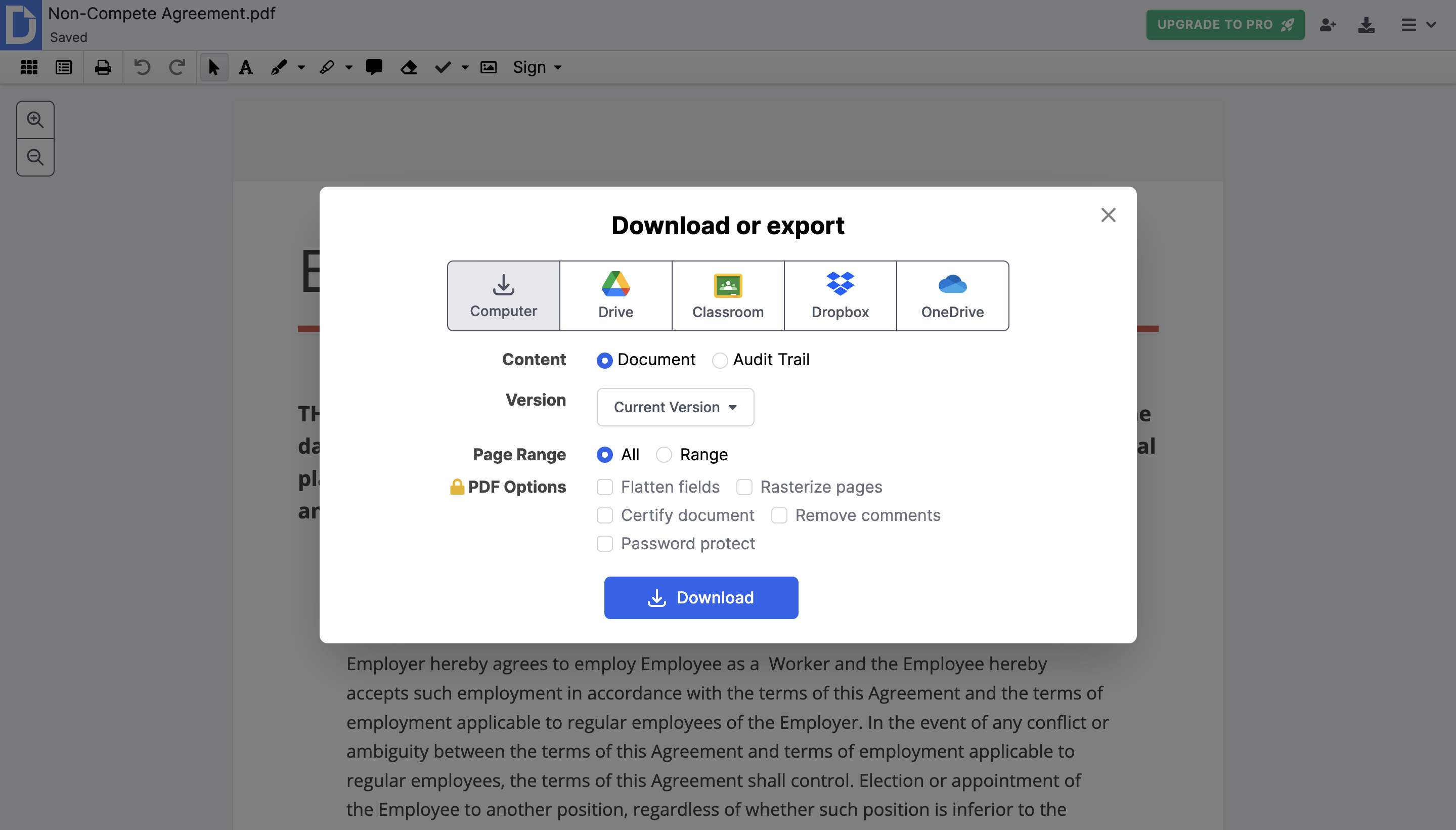
7. When you are done, export the file back to your computer or directly to Google Drive, OneDrive, or Dropbox.
If you use Google Workspace, the DocHub Chrome extension lets you open any PDF directly from the web in DocHub. You can also install the Gmail add-on to edit, annotate, sign, and share documents without leaving your inbox.
How to edit on Windows 10 devices
Windows 10 does not include a robust built-in PDF editor. Microsoft Edge can display PDFs and allows basic annotation, but it does not support adding form fields, managing pages, or collecting signatures. Users who need full PDF editing capabilities on Windows typically turn to third-party tools.
DocHub works in any Windows browser, so the editing workflow is essentially the same as on Mac—with a few platform-specific notes.
How to edit a PDF on Windows 10 using DocHub:
1. Open Chrome, Edge, or Firefox on your Windows device.
2. Navigate to DocHub.com and sign in.
3. Click Upload to bring in your PDF from your desktop or a connected cloud account.
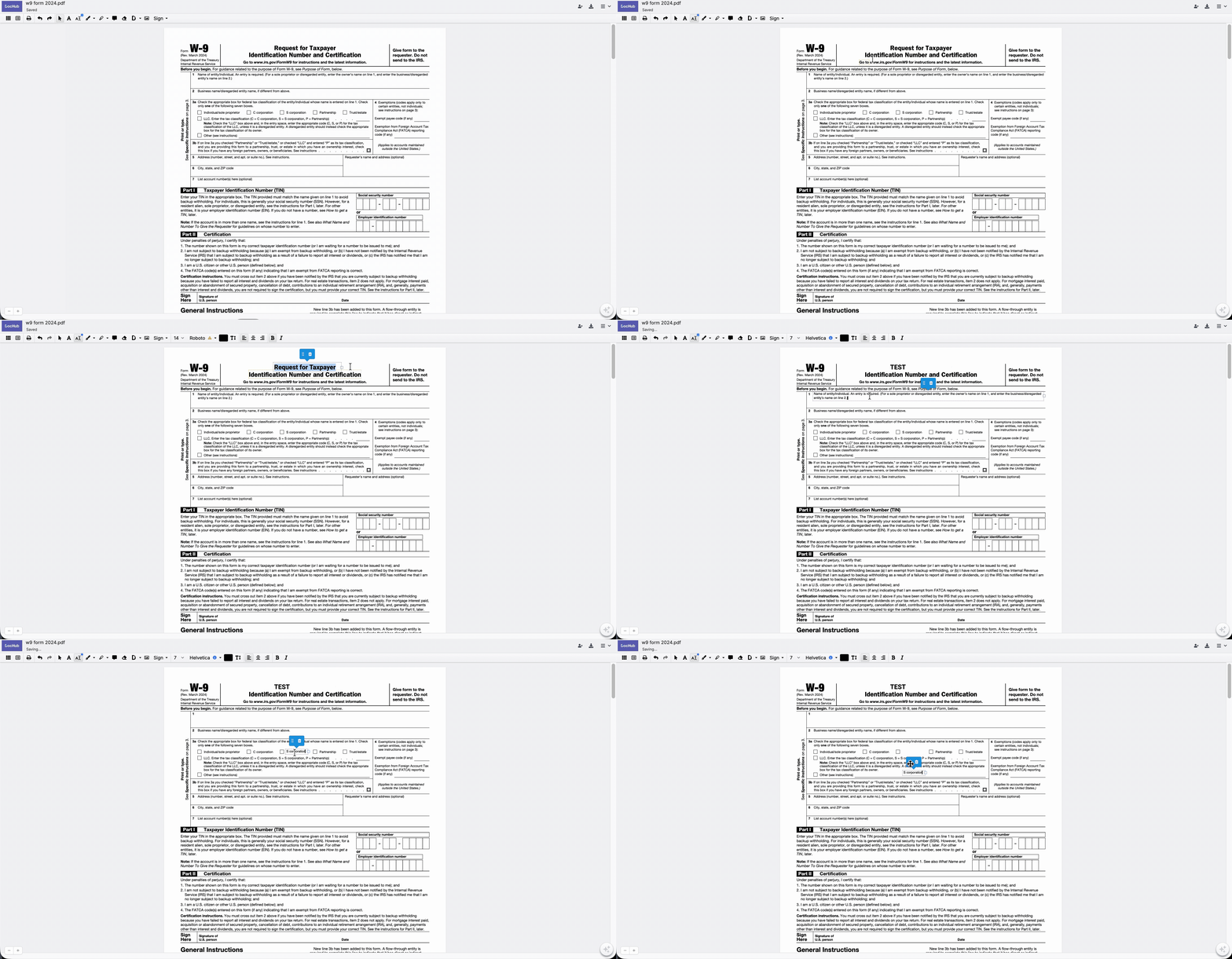
4. To edit PDF text or add new text, select the Text tool from the toolbar and click where you want to place a text box. For a more detailed breakdown of text-layer editing, check out how PDF text editing and addition work and how to edit text in a PDF.
5. Add comments or notes using the sticky note tool to leave context for collaborators.
6. If you need to create a fillable form, use the Field Manager to drag and drop fields — text, checkbox, date, signature, and initials — onto the document. Mark required fields as needed.
7. Save your work and export it to your preferred destination.
One practical advantage of using a browser-based tool on Windows 10 is that it bypasses any organizational IT restrictions on installing desktop applications, since no installation is required.
How to sync edits across operating systems
When you save a PDF to your local hard drive after editing, you create a static file that exists on one device. The moment you open it on a different machine, you are working on a copy, which leads to version conflicts.
DocHub solves this by keeping your documents in the cloud. Any edits you save are immediately available when you log in from another device or operating system. Here is how that workflow looks in practice:
- Start on Mac, finish on Windows: Open a document in DocHub on your Mac, make partial edits, and save. Log into the same DocHub account on a Windows device, and the document—with all saved edits—is right there.
- Use cloud storage as the bridge: Export finalized versions to Google Drive, OneDrive, or Dropbox. These services sync across devices automatically, so your team always accesses the latest version.
- Organizations feature: If you manage a team, DocHub’s Organizations tool lets you upload documents and templates to a shared workspace. Team members access the same files regardless of their operating system.
This approach eliminates the friction of emailing files back and forth or manually tracking which version is current.
How to troubleshoot OS-specific issues
Most problems users encounter when editing PDFs across Mac and Windows fall into a few categories.
PDF displays incorrectly after editing
- Check whether the original file uses non-standard fonts. These sometimes render differently across operating systems.
- In DocHub, use the whiteout tool to cover problematic text blocks, then add clean text on top. Otherwise, you can use Direct Text Modification. You can click into existing text blocks to fix typos, change wording, or update dates without needing to “white out” the original content.
Fillable form fields are missing or not working
- Some PDFs have form fields that are “flat”—meaning they were saved as static images rather than interactive fields. DocHub’s Field Manager lets you add new interactive fields to any PDF, including flat forms.
- Note that optical character recognition (OCR) is a separate function. If you need to extract and edit text from a scanned PDF, check whether the tool you are using supports OCR before uploading.
Signature is not accepted by the recipient’s system
- Confirm that the signing workflow was completed, not just that a signature image was placed on the page. DocHub’s eSignature process creates a signed document with a linked audit trail, which records all changes made to the document.
- For multi-party workflows, use DocHub’s multiple signer feature to specify who signs, in what order, and to send automated reminders.
Export file is larger than expected
- Use DocHub’s password protection and download settings to control the output. You can export the current version or the original version, depending on what you need to share.
How to access advanced features on a desktop
Beyond basic text editing, DocHub provides tools suited for document-heavy business workflows.
Templates
Turn a frequently used document into a reusable template. Any time you share a template or someone fills it out, DocHub creates a new copy automatically. All copies stay linked to the master template in your account.
Form publishing
If you need to collect data from many people — intake forms, consent documents, applications — you can publish a form via a shareable link, embed it on a website, or make it publicly searchable. Responses are collected without requiring respondents to have a DocHub account.
eSignatures and digital signature characteristics
DocHub lets you sign documents by typing your name, uploading an image of your signature, or drawing it using a mouse, trackpad, or touchscreen. You can set a default signature to speed up repeat signing.
For businesses evaluating document workflows against compliance frameworks such as the ESIGN Act (US) or eIDAS (EU), it is worth noting how your tool handles signature integrity. That said, under US law, a DocHub signature may meet the characteristics of a digital signature because it is unique to the signer, capable of verifying the signer’s identity, under the signer’s sole control, and linked to the signed document in a way that detects any subsequent changes. DocHub also supports two-factor authentication, password-protected documents, and a full audit trail — features that help organizations manage document security systematically.
For more details on DocHub’s approach to security and regulatory standards, see the DocHub compliance page.
Collaboration and sharing
Share documents with colleagues using role-based permissions—letting some users view, and others edit. Send via email attachment, fax, or shareable URL. For Google Workspace users, DocHub’s Google Classroom integration allows teachers and students to complete and collaborate on assignments directly.
Learn how to get started with DocHub in just a few minutes by watching our comprehensive video guide.
Mac vs. Windows PDF editing: a quick comparison
| Feature | Mac (Preview) | Windows 10/11 (Edge) | DocHub (Mac or Windows) |
|---|---|---|---|
| Annotate PDFs | Yes | Yes | Yes |
| Edit existing text | Very limited | No | Yes |
| Add fillable form fields | Limited* | No | Yes |
| Multiple signer workflow | No | No | Yes |
| Cloud sync | Via iCloud only | Via Microsoft account/OneDrive | Yes |
| Export to Google Drive/OneDrive | Limited | Limited | Yes |
| Password protection | Limited | No native support | Yes |
| Audit trail | No | No | Yes |
Disclaimer: The information contained in this blog post is provided for general informational purposes only and does not constitute formal legal advice.
Final thoughts
Editing PDFs should not require switching between applications, converting file formats, or managing different software licenses for Mac and Windows teams. A browser-based tool like DocHub gives you consistent editing capabilities across operating systems, with the added benefits of cloud storage, team collaboration, eSignature support, and document security built in.
If you manage documents regularly — contracts, forms, reports, or anything that needs to be reviewed and signed — it is worth trying a dedicated PDF editor that handles the full workflow in one place.
Start your free trial of DocHub today and see how much faster your document workflows can move.
Glossary
- Audit trail: A record of all actions taken on a document, including who made changes, when, and in what order. Used to verify document integrity and support compliance reviews.
- Fillable form fields: Interactive elements added to a PDF — such as text boxes, checkboxes, signature fields, and date fields — that allow recipients to enter data without altering the underlying document layout.
- eSignature: An electronic method of signing a document, such as typing a name, drawing a signature, or uploading a signature image. Governed in the US by the ESIGN Act and in the EU by eIDAS.
- Templates: Master document versions that generate a new copy each time they are used or shared, preserving the original formatting and fields while allowing individual responses to be tracked separately.
FAQ
1. Can I edit a PDF on a Mac for free?
Yes. DocHub offers a free version that lets you edit PDF files, add annotations, fill out forms, and sign documents directly in your browser. Mac users can access it through any browser or via the Chrome extension without installing additional software.
2. What is the difference between editing a PDF in Preview and using an online PDF editor?
Preview on Mac handles basic annotations and form filling, but it cannot edit existing text in most PDFs, add interactive form fields, or support multi-party signing workflows. An online PDF editor like DocHub provides a fuller range of editing capabilities, including page management, templates, and cloud-based collaboration.
3. Does DocHub work on Windows 10 without installation?
Yes. DocHub runs entirely in a browser, so it works on Windows 10 devices without any software installation. This is useful in organizational environments where IT policies limit which applications users can install on their machines.
4. How do I make sure my PDF edits are available on both my Mac and my Windows computer?
Save your documents to DocHub’s cloud storage or export them to a linked cloud account like Google Drive, OneDrive, or Dropbox. Because DocHub is browser-based, logging into your account from any device gives you access to the same files and edits.
5. Are eSignatures collected through DocHub legally valid?
The legal validity of eSignatures depends on jurisdiction and specific use case. In the US, the ESIGN Act generally recognizes electronic signatures on contracts and documents. DocHub’s signatures may meet the characteristics of a digital signature under US law, including signer uniqueness, verification capability, sole control by the signer, and tamper detection. This article does not constitute legal advice — consult a qualified attorney for guidance specific to your situation.
6. How does DocHub handle document security for teams?
DocHub provides several security layers for team use: two-factor authentication on accounts, password protection for individual documents, role-based access permissions, and an audit trail that logs all document activity. Organizations can set up shared workspaces with defined user roles to control who can view, edit, or manage documents.