

To rotate and split PDFs online, simply upload your document to a secure cloud-based editor like DocHub, select the specific pages you need to adjust, and apply the desired rotation. From the same Page Control menu, you can also easily split the document by adding a file divider group and saving the new PDF file to your device.
- Rotating a PDF fixes the orientation of upside-down or sideways pages, while splitting a PDF separates one large document into multiple files.
- Using a secure online PDF tool ensures your data remains private and compliant with industry standards.
- You can easily combine rotation and splitting to organize scanned documents, extract specific pages, and clean up messy files.
- Always use a privacy-focused platform like DocHub that provides robust security features, including digital signatures that comply with the ESIGN Act and eIDAS.
Introduction: managing your PDF files the right way
Managing PDF documents can quickly become frustrating when you are dealing with upside-down scans or massive files containing hundreds of pages. Knowing how to rotate PDF pages for correct orientation and how to split large PDFs into smaller files is essential for maintaining organized and professional documents.
This guide is designed for legal professionals, educators, students, and corporate teams who handle digital documents daily. By reading this article, you will learn how to safely and efficiently use DocHub’s online PDF editing tools to organize your files, protect your privacy, and streamline your workflow.
Before you start: a safe PDF checklist
Online PDF editors offer incredible convenience, but it’s natural to wonder, “Are online PDF editors safe?” Uploading sensitive documents to any online platform can carry security risks. Before you drag and drop files into any browser-based tool, you must ensure the platform protects your data.
Use this quick checklist to evaluate your PDF tools:
- Encryption: Does the platform use advanced encryption (like TLS/SSL) to protect your files during upload and download?
- Data retention policies: Are your files automatically deleted from the servers after a set period (e.g., one hour), or are they stored indefinitely?
- Compliance: Does the tool adhere to global privacy standards like GDPR, and does it support electronic signature standards like eIDAS and the ESIGN Act?
- Account security: Does the service require secure registration and offer features like two-factor authentication to keep your private account safe?
Disclaimer: The information provided in this article is for general informational purposes only and does not constitute legal advice.
When you may need to rotate or split PDF files
There are countless scenarios where adjusting the structure of your PDF becomes necessary. Whether you are a student submitting an assignment or a lawyer organizing case files, knowing how to manipulate pages saves time.
Here are the most common situations where these actions are required:
- Organizing scanned documents: Scanners often pull pages through upside down or sideways, requiring you to rotate pages to make the whole file readable.
- Sharing specific sections: You may receive a 50-page report and need to send a single page, or a specific page range, to a client.
- Managing file sizes: Email providers often limit attachment sizes, making it necessary to quickly split a massive document into smaller, separate PDF files.
- Extracting invoices or contracts: Accounting teams frequently need to separate a bulk PDF of monthly receipts into individual files for proper record-keeping.
Rotate PDF vs. split PDF: what each action changes
Understanding the difference between rotating and splitting helps you choose the right approach for your document workflow.
Rotating a PDF means changing the orientation of one or more pages so they display correctly. PDF rotation tools let users quickly and easily rotate individual pages or entire documents to the correct orientation. It does not alter the text, images, or overall file size. You can choose to rotate a single page that was scanned improperly or batch-rotate multiple PDFs to ensure uniformity across a large set of documents.
Splitting a PDF, on the other hand, fundamentally changes the document’s structure. When you split a PDF, you extract specific pages to create a brand new PDF. This action reduces the file size of the new documents and separates unrelated content. Generally, you can split files by selecting a custom page range or extracting each page into its own file.
Why use DocHub to rotate and split PDFs online
When managing your documents, the first step is knowing what to look for in a PDF tool, especially a free one. You need a solution that requires no heavy software downloads and guarantees the safety of your data. Also, the tool should provide a clear visual interface and offer robust customer support.
DocHub stands out as the premier choice for document management. The platform offers a comprehensive suite of features that handles everything from simple edits to complex workflows. It runs entirely in your browser, so you can access it on Windows, Mac, or any mobile device.
In addition to powerful PDF editing and annotation tools, DocHub offers secure, legally compliant eSignature workflows. To protect your sensitive documents, it uses SSL encryption and provides access controls to manage who can view, edit, or sign them. This makes it a powerful and secure solution for everyone, from individuals managing personal paperwork to professionals handling complex legal and business documents.
To get started, you’ll need an internet connection and a DocHub account. Watch our video to learn about the platform’s capabilities and get a smooth start.
How to rotate PDF pages online in DocHub
Rotating PDF pages is a common need, and DocHub lets you easily change page orientation in a PDF online. Let’s look at how it works.
Step 1: Log in and upload a document
Log in to your DocHub account or create it if you are a new user. The platform offers various subscriptions, including a free plan with monthly limits on the number of documents you can edit and sign. After logging in, click New Document. Drag and drop your PDF into the upload area, or click the Select Files dropdown to browse your computer or cloud storage.
Step 2: Open the Page Controls
Click the Page Controls button in the toolbar above. It’s the first icon on the far left. This opens the page manager, a vertical panel on the left that displays each page of your PDF as a numbered thumbnail. From here, you can see if any pages in your PDF have the wrong orientation.
Step 3: Rotate PDF
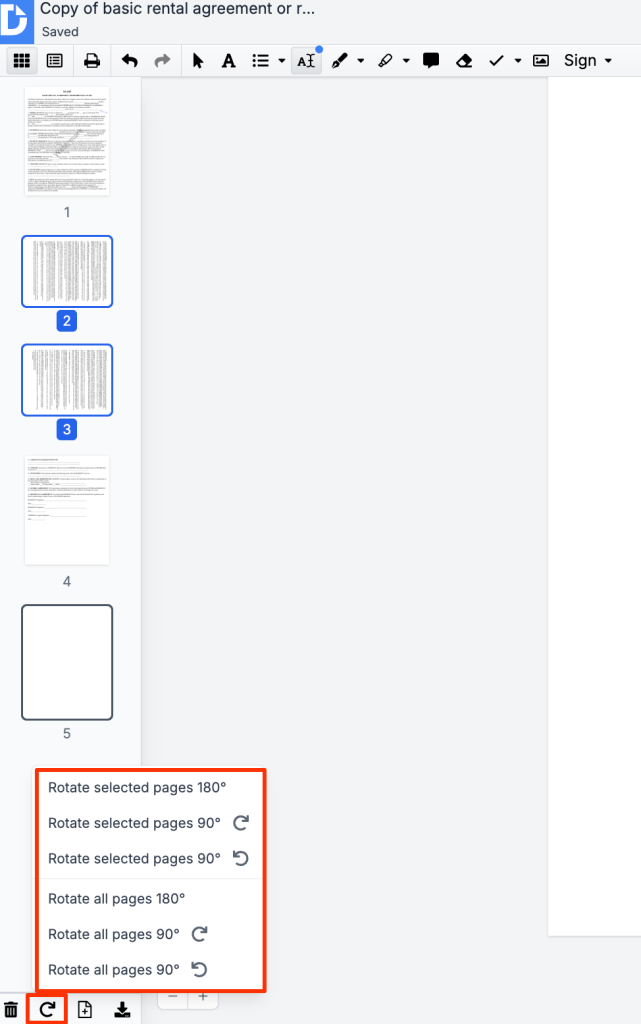
Choose one page or hold ‘Ctrl’ or ‘Command’ to select multiple PDF pages in the layout. Click the Rotate icon at the bottom and choose from the rotation options. You can rotate all or selected pages 180 °, or turn them 90° to the right or left. You can also right-click the selected pages and choose the corresponding option from the dropdown menu.
Step 4: Confirm page rotation
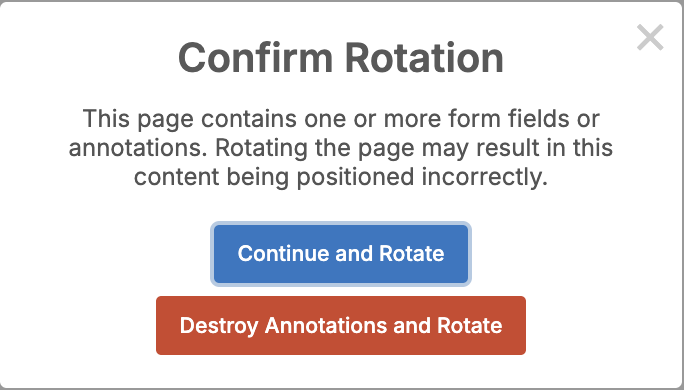
If your PDF contains any annotations or form fields, a prompt will appear after you select the rotation option. This message will ask whether you want to keep the annotations and form fields in their current state or discard them during the rotation process.
How to split a PDF in DocHub
If your only goal is to separate PDF files, DocHub makes this process incredibly straightforward. You can quickly split large documents to isolate the exact information you need.
Step 1: Access Page Controls
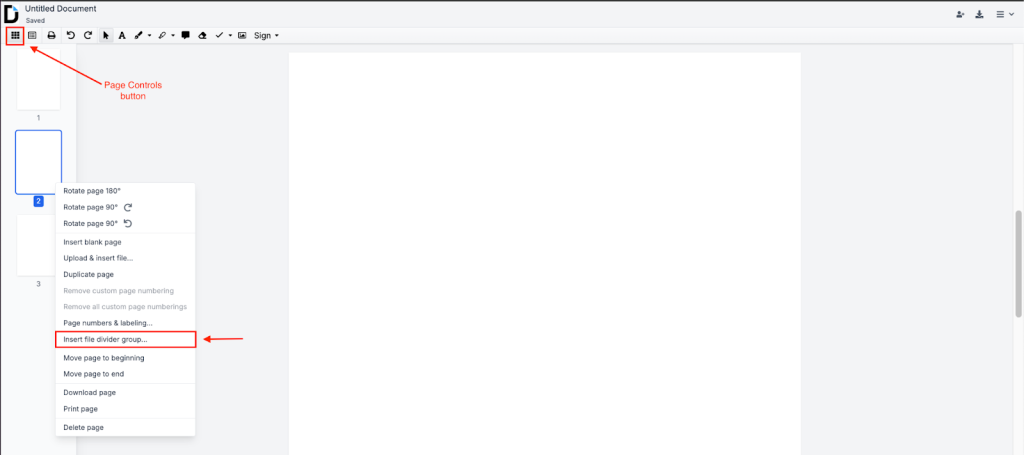
Open your document in the editor. Click on the page grid icon to open the Page Controls panel and view the layout of your entire document.
Step 2: Select pages
Select the page from where you would like to start the split and right-click on it. Click on the “Insert file divider group” in the newly appeared drop-down menu and enter the name for your divider.
Step 3: Get your separated files
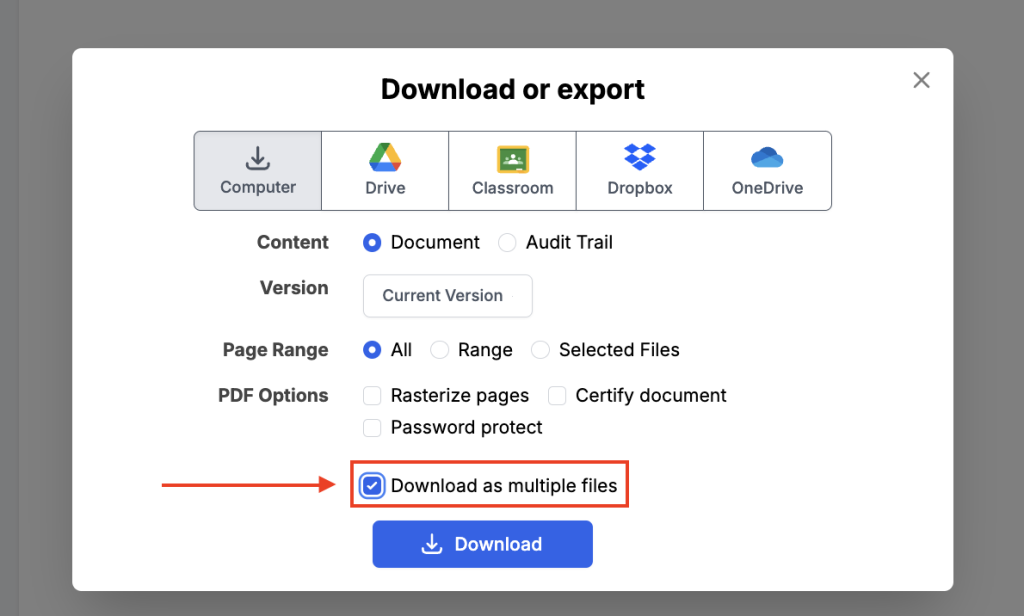
Click Download/Export in the top right corner of the screen. Select Download as multiple files and click Download. Now, you have several separate PDFs on your device.
Common mistakes to avoid
When learning to rotate and split PDF files, users often make a few common mistakes. Avoiding these pitfalls can save you time and preserve your document’s quality.
- Using unverified, free PDF tools. Many free tools have limitations: they often lack strict quality control and may store your sensitive documents on their servers. To protect your privacy, always use a trusted, secure platform like DocHub that has clear privacy policies.
- Forgetting to rotate before splitting. If you split a PDF before correcting the page orientation, you’ll have to manually open and rotate each new file. Save time by rotating all pages to their correct orientation before you split the document.
- Not double-checking page ranges. Mistyping page numbers can lead to missing information or extracting the wrong sections. Always double-check your selected page ranges before clicking “extract” to ensure you’re getting the right content.
How to combine rotation and splitting
Efficiency is key when dealing with complex digital paperwork. Knowing how to combine rotation and splitting allows you to clean up messy files in a fraction of the time.
The issue: Imagine you receive a 20-page scanned contract. Pages 5 through 10 are upside down, and you only need to send pages 1 through 15 to your legal team.
The solution: Open your document in DocHub and open the Page Controls menu. Highlight pages 5 through 10 while holding ‘Ctrl’ (Windows) or ‘Command’ (Mac), then click the Rotate icon to fix their orientation. Select pages 1 through 15, right-click on them, Insert file divider group, and download the page group on your device.
The result: You now have a perfectly formatted, correctly oriented PDF file ready to be shared with your team.
Troubleshooting upside-down scanned PDFs
Scanners are notorious for producing upside-down or landscape-oriented pages, especially when dealing with double-sided documents or mixed-size paper. Knowing how to fix upside-down scanned PDFs quickly is a crucial skill for office professionals.
If you upload a scanned document and realize half the pages are inverted, do not panic. Avoid the temptation to rescan the physical documents, as it wastes time and resources. Instead, drag the file into DocHub and open the page manager.
You can hold down the ‘Ctrl’ or ‘Command’ key on your keyboard to select multiple non-consecutive pages. Once all the upside-down pages are highlighted, click the rotate button once or twice until they match the rest of the document. This simple process takes seconds and permanently corrects the PDF’s visual layout.
Case studies and examples
Real-world examples show just how vital online PDF tools are for everyday workflows. Let’s look at two examples.
Case study 1: HR manager digitizing numerous employee records
The issue: While scanning employees’ documents, multiple pages were fed into the machine upside down. This resulted in large, disorganized PDF files with some pages correctly oriented and others inverted, making them hard to read and navigate.
The solution: Using a secure platform like DocHub, the HR team uploaded the files, selected the misaligned pages, and rotated them into place. They then split the large PDFs into individual employee files. The platform’s strict privacy controls kept all sensitive employee data secure and compliant.
Case study 2: Tax packet for a U.S. freelance
The issue: A freelancer downloads IRS forms and gathers W-9s, 1099s, receipts, and mileage records. The IRS page lists common tax forms as PDFs, including Form 1040, W-4, W-9, 4506-T, 941, W-2, and SS-4. Some receipts scanned from a phone are sideways, and the complete packet is too large to email.
The solution: Upload the packet to DocHub, rotate receipts to portrait orientation, and reorder supporting documents by category. Then, split the file into tax_forms.pdf, income_records.pdf, and receipts.pdf. DocHub is ideal for this as it combines tools like rotate, split, reorder, and delete pages with secure cloud storage in a single workflow.
Conclusion
Rotating and splitting PDFs online should be simple, secure, and efficient. With the right workflow, you can fix page orientation, separate important sections, and keep your documents organized without adding extra steps or risking sensitive information. Whether you manage business records, academic files, or personal documents, DocHub makes it easy to handle PDF tasks in one secure place.
Stop wrestling with messy documents and untrustworthy software. Start exploring DocHub today and see how easy it is to securely edit, sign, and manage your PDFs online.
Glossary
- Extract pages: The process of pulling specific pages out of a larger document to create a brand new PDF file.
- Page orientation: The visual direction of a page, typically either portrait (vertical) or landscape (horizontal).
- Page range: A continuous sequence of pages selected within a document (e.g., pages 5 through 12).
- PDF (Portable Document Format): A versatile file format designed to present documents consistently across different devices and software.
FAQ
1. How do I rotate just one page in a PDF?
To rotate a single page, open your document in DocHub and navigate to the page thumbnail view on the left side of the screen. Click the page you wish to adjust to highlight it. Use the rotate icon at the bottom to flip the page clockwise or counterclockwise until it is properly oriented.
2. Can I split a PDF into multiple files online?
Yes, splitting a large document into multiple files is incredibly easy with DocHub. Open your document in the editor and use the Page Controls menu to select the specific pages or page ranges you want to separate. Add file divider groups for the required pages and download them as separate files. You can repeat this process as many times as needed.
3. Can I rotate and split PDF files for free?
Yes, DocHub offers a Free plan with 3 PDF-editing documents per month. This includes the ability to rotate and split PDF files, as well as other basic editing functions. If you need to edit more frequently, DocHub also offers affordable paid plans with additional features and unlimited document editing.
4. Will rotating a PDF change its formatting?
Rotating a PDF only changes the visual orientation of the selected pages. It does not alter the document’s underlying text, fonts, images, or margins. As long as you use a high-quality PDF editor, your original layout and document quality will remain perfectly intact after rotation.
5. Can I use my phone to rotate and split a PDF?
Yes, modern online PDF tools are fully optimized for mobile browsers. You can access DocHub from a mobile browser, upload a file from your device or cloud, and easily rotate or split pages using touch controls. This lets you manage urgent document tasks on the go without a computer.
- Introduction: managing your PDF files the right way
- Before you start: a safe PDF checklist
- When you may need to rotate or split PDF files
- Rotate PDF vs. split PDF: what each action changes
- Why use DocHub to rotate and split PDFs online
- How to rotate PDF pages online in DocHub
- How to split a PDF in DocHub
- Common mistakes to avoid
- How to combine rotation and splitting
- Troubleshooting upside-down scanned PDFs
- Case studies and examples
- Conclusion
- Glossary
- FAQ