

Understanding how the fill and sign process works helps anyone who handles PDF forms day to day, including office administrators, HR and operations teams, and people switching from Adobe tools. It comes down to three separate actions: entering information, placing an electronic signature, and producing a shareable PDF. The result may look like paper forms, but beneath the surface, fields, annotations, and digital certification each serve a different role.
Knowing these differences matters. If you mix them up, you might send a form that can still be edited, sign a page that isn’t actually interactive, or share a file whose certification has been lost. This guide walks through each step using DocHub’s browser workflow, so you can choose the right output, avoid rework, and compare tools before you move documents between them. For the full operational walkthrough, see how to fill and sign PDFs together online.
Summary
Keep these distinctions in mind when handling PDF forms:
- Interactive fields store entries; flat pages need added text or fields.
- A visible signature and a digital signature serve different purposes.
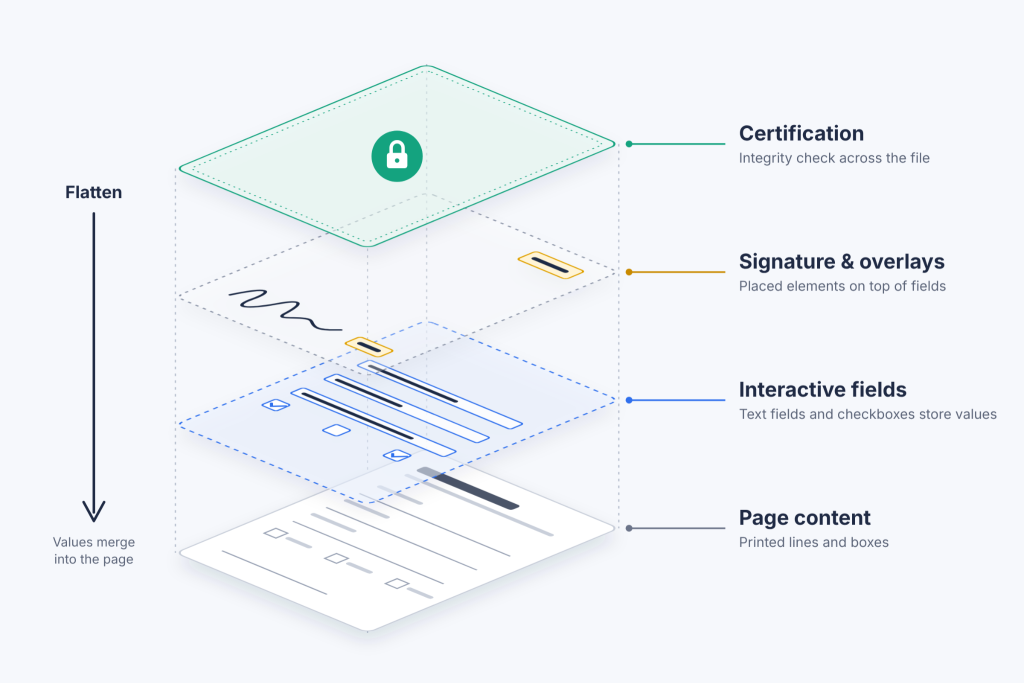
- Flattening fixes field appearances; certification makes subsequent changes detectable.
- Sending a Sign Request creates a different record from sharing an attachment.
These differences explain why two PDF documents that look identical can behave very differently.
How does entering information change a PDF?
A fillable form contains interactive objects, such as text fields and checkboxes. Each field has a location, a type, and a value. A printed box on a scanned PDF file is just part of the page image until a tool adds an interactive field on top of it.
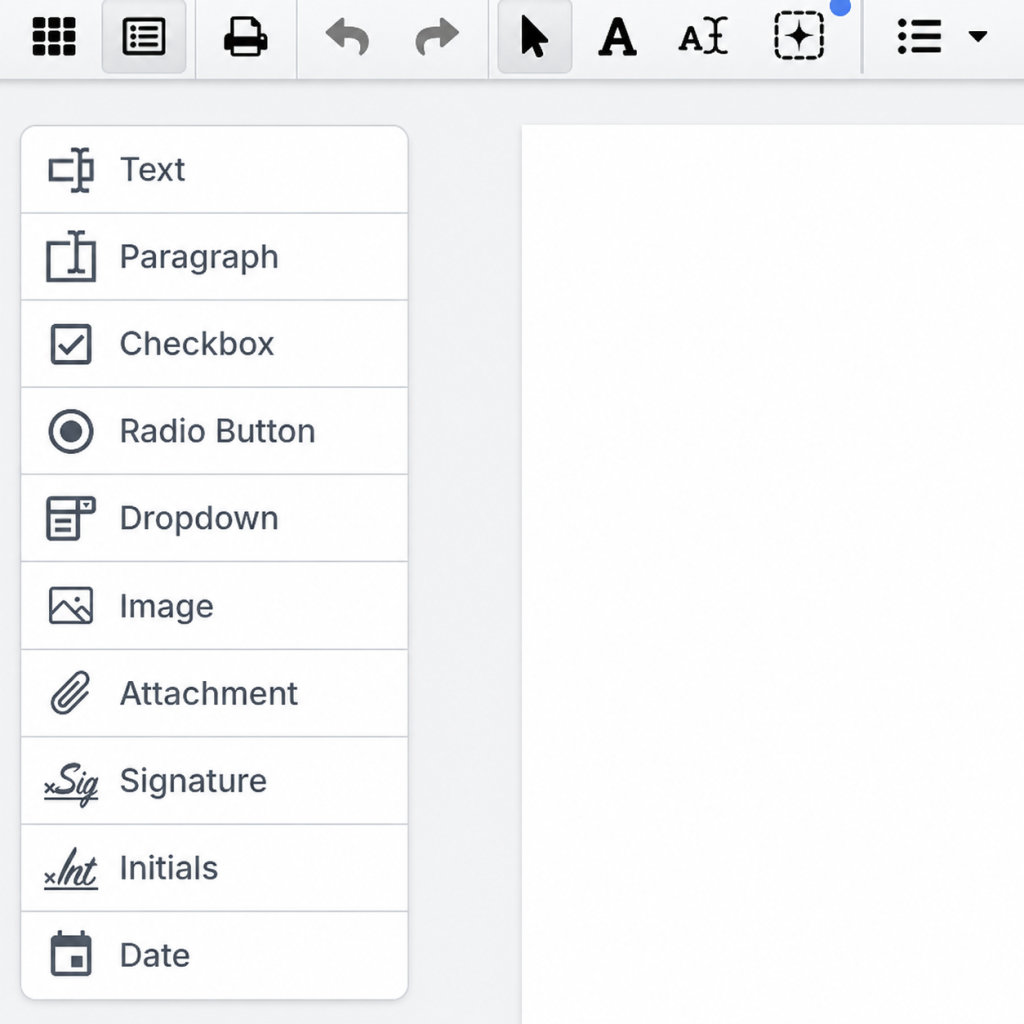
In DocHub, you can fill existing form fields or use the Text tool to place entries over a flat page. This adds content without having to recreate the scan. Use Manage Fields to create fillable fields when other parties need to complete designated areas.
For example, an administrator can place a one-time delivery reference over a scanned receipt. For recurring supplier onboarding, though, a reusable form with assigned fields is far more practical than positioning every answer by hand.
How does the fill and sign process work in DocHub?
DocHub runs in a web browser on a computer or mobile device, including a Mac, without a desktop installation. Before you begin, have an authorized source copy, the required information, recipient details, and an internet connection ready.
Use this short check to understand what each tool produces:
- Upload a sample via New Document or by dragging it into the upload area. Click an existing field to test whether the page is interactive.
- Add an entry with Text, then compare it with a value entered in a field. The overlay sits wherever you place it; the field provides a predefined entry area.
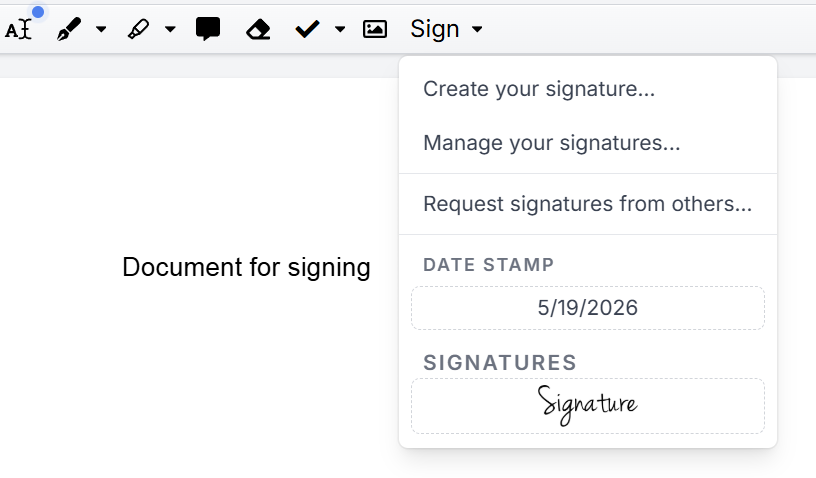
- Open Sign to add your own signature. Move it into the correct location, then check the Download / Export settings to see how the output will be saved.
Before you sign, review the information on every page. A signature line only marks a visible signing location; on its own, it doesn’t assign recipients or authenticate anyone.
What does the Sign tool actually create?
DocHub lets you draw a signature, type a name in a handwriting-style font, upload an image, or use your phone as a signature pad. With the phone option, a QR code or texted link connects your phone’s input to your desktop session. For more details on signature creation, see our blog: How to create an electronic signature and add it to PDF.
Once created, the signature becomes an element you can place on the page. You can resize it, add initials separately, and keep a saved signature in your account for future documents. Keep in mind that reusing its appearance doesn’t, by itself, establish the signer’s identity or consent to each new agreement.
If your trackpad produces uneven handwriting, try the phone option. Review the result at normal zoom before completing the signed document.
What happens when you request signatures?
When you request signatures through DocHub, fields are assigned to specific recipients. Before completing the document, signers agree to use electronic records and signatures. Learn more about handling multiple signature requests from our blog: How to add multiple signatures in eSign workflows.
DocHub’s audit trail records events, timestamps, email addresses, and technical details such as IP addresses. These records support attribution, though an IP address alone doesn’t conclusively identify a person.
After everyone finalizes, PDFs from a Sign Request are automatically digitally certified. Certification uses cryptographic information to help a compatible reader detect any later changes. It does not mean each signer received a personal digital certificate.
How do saving, flattening, and certification differ?
Saving a completed form isn’t the same as finishing a signing workflow. Choose output settings based on what recipients need to do next.
| Operation | What it does | Practical implication |
|---|---|---|
| Save an editable working copy | Retains a version for continued work | Useful before approval |
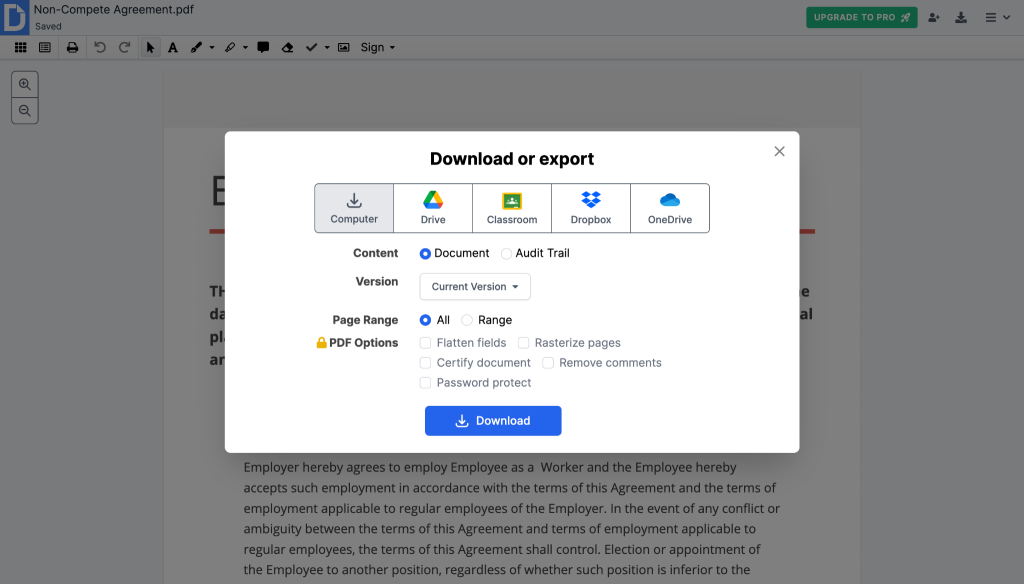
| Flatten fields | Embeds field values into page content | Removes those interactive inputs |
| Rasterize pages | Renders page content as images | Can affect searchability and accessibility |
| Certify the PDF | Adds a certificate-based integrity check | Helps readers detect later modifications |
DocHub’s export documentation describes separate PDF options. Don’t assume every download automatically flattens every field or certifies the file; availability can depend on the plan and workflow. Also note that flattening doesn’t stop someone from altering page content in another editor.
How do Adobe and non-Adobe workflows compare?
If you’re moving from Adobe Fill & Sign, Adobe Acrobat Reader, Acrobat DC, or Adobe Sign, compare the workflow’s output and evidence, not just the interface. Familiar toolbar labels don’t guarantee equivalent features.
Adobe Acrobat allows signing PDFs without installing additional software. Adobe’s Acrobat tutorial shows how to select Fill & Sign, click Add signature, create a mark, and place it. Other Adobe instructions say to click Apply before placement. The sign icon, top toolbar, or submenu can vary by interface, so follow the documentation for your version.
Adobe has retired its standalone Fill & Sign mobile app and directs users to Acrobat Reader. Before migrating, check the role of your Adobe account and cloud files. Compare the free version’s limits and paid features against your actual monthly usage, rather than assuming a browser service always costs less.
DocHub lets teams sign PDFs online and connect editing with recipient workflows. Before transferring other documents, test a representative form, a recipient request, and the exported result.
What issues arise when files move between tools?
Check these transitions before you share signed documents:
- Source conversion: If you’re starting with a Word document, convert it to PDF and inspect the layout before signing. Conversion alone does not automatically create usable form fields.
- Cloud storage: DocHub supports imports from Google Drive, OneDrive, Dropbox, and Box. Export destinations include Google Drive, Dropbox, and OneDrive, but connected services don’t necessarily support the same import and export actions.
- Distribution: Use the appropriate sharing permissions when you share documents. A downloaded signed file and an online link can expose different versions or access rights.
- Certification: Editing, converting, or using Print to generate another PDF after signing can remove certification information or affect validation. Keep the certified original. Reputable software and security practices ensure safe electronic signing of documents.
Before sending a sensitive PDF online, check authorized access and retention requirements. Electronic signatures are legally binding under the U.S. ESIGN Act. The ESIGN Act generally prevents covered records from being denied legal effect solely because they are electronic; it does not guarantee the enforceability of every agreement.
Disclaimer: The information in this blog post is provided for general informational purposes only and does not constitute formal legal advice.
Final thoughts
To sign PDF documents reliably, decide how information will be entered, how consent will be recorded, and which output recipients need.
Get started with DocHub and test that process on a sample before using it for business records.
Glossary
- Overlay: Added content positioned over existing page content.
- Flattening: Embedding interactive values or annotations into the page.
- Digital certification: A certificate-based mechanism for checking PDF integrity.
- Audit trail: A record of actions associated with a document workflow.
FAQ
Does typing my name in a name field count as signing?
An ordinary name field usually collects identification information. Whether an action serves as an electronic signature depends on intent and its connection to the record. Complete the designated signing action rather than assuming every typed name is a signature.
Can I extract completed answers as spreadsheet data?
A readable PDF doesn’t guarantee a structured data export. Confirm whether your chosen tool supports exporting field values in the format you need. If you’ll need to extract data later, keep an interactive working copy.
Why can an answer look cut off after export?
The visible field area may be smaller than the text you entered. Reopen the exported PDF in the recipient’s reader to check long answers, and correct the layout before collecting signatures.
Does clicking Save send the form to its owner?
No. Saving and submitting are separate actions unless the service explicitly combines them. After you click Save, check the form owner’s delivery instructions, use the required submission channel, and keep the confirmation.
Do I need to install software to fill and sign PDFs in DocHub?
No. DocHub runs in a web browser on a computer or mobile device, including a Mac. Upload a file through New Document or import it from Google Drive, OneDrive, Dropbox, or Box, and you can start filling and signing right away.
How can I see who signed a document and when?
Open the document’s audit trail. For documents sent as a Sign Request, it records each event with timestamps, email addresses, and technical details such as IP addresses. You can view it in DocHub or download it to keep alongside the signed PDF.
Will recipients be able to tell if my signed PDF was changed after signing?
If the document went through a Sign Request, DocHub automatically digitally certifies the final PDF, so a compatible reader such as Adobe Acrobat can detect later modifications. To keep that check intact, share the certified original rather than a re-edited, converted, or printed copy.
- Summary
- How does entering information change a PDF?
- How does the fill and sign process work in DocHub?
- What does the Sign tool actually create?
- What happens when you request signatures?
- How do saving, flattening, and certification differ?
- How do Adobe and non-Adobe workflows compare?
- What issues arise when files move between tools?
- Final thoughts
- Glossary
- FAQ