

- Visual Edit is an AI-powered DocHub feature that lets users change the visual appearance of selected document content directly in the editor.
- To use Visual Edit, select an area on a page, enter a plain-language prompt describing what you want to change, and generate the updated visual.
- Visual Edit can help modify logos, images, embedded visual text, charts, layouts, colors, and image quality.
- Users can continue refining an AI-generated result with follow-on prompts instead of restarting the editing process.
- Generated changes work with DocHub’s Undo and Redo controls, giving users more flexibility when reviewing different versions.
- The feature is designed to reduce the need to export documents into separate design or image-editing software.
Visual changes are often one of the last obstacles between a finished document and a document that is ready to send.
A proposal may contain an outdated logo. A report might include a chart with unnecessary data. An image may look blurry after being added to a PDF. Correcting these issues has traditionally required users to leave their document editor and open a separate graphics or design application.
DocHub’s new Visual Edit feature is designed to simplify that process. This tool brings AI-powered PDF visual editing directly into the DocHub editor, allowing small and midsize businesses, professionals, and individuals to make targeted visual changes through natural-language instructions.
Instead of exporting an asset, editing it somewhere else, and inserting it back into the document, users can select what they want to change and describe the desired result.
What is DocHub Visual Edit?
Visual Edit is an AI-powered DocHub feature that lets users select part of a document and describe a visual change in plain language.
The feature is powered by GPT and works directly inside the DocHub editing experience. Users choose an area of a document page, enter a prompt explaining the desired visual change, and let Visual Edit generate an updated version.
This makes prompt-based PDF editing useful for tasks that go beyond changing ordinary editable text.
For example, a user could ask Visual Edit to:
- Add color to a black-and-white logo
- Reposition a visual element
- Improve the appearance of a low-quality image
- Remove an unwanted part of a chart
- Modify text embedded within an image
- Create a graph using information in the document
The key difference is that users describe the result they want, rather than manually rebuilding every element.
For businesses that regularly work with proposals, reports, agreements, forms, presentations, and client-facing documents, this can make AI document editing a more natural part of an existing workflow.
How do you use Visual Edit in DocHub?
Visual Edit uses a simple select-and-prompt workflow.
How to edit a document with Visual Edit
1. Open your document in DocHub. Navigate to the page containing the visual content you want to update.
2. Choose the Visual Edit tool. Select the Visual Edit icon from the editor toolbar.
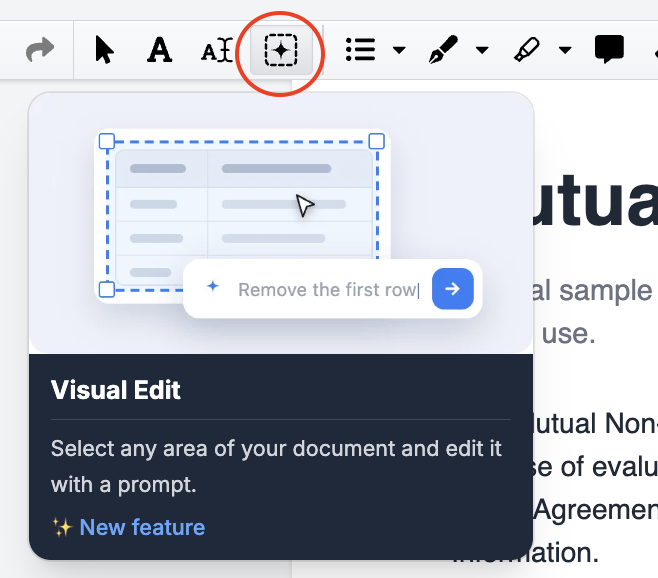
3. Select the area you want to change. Visual Edit works with a selected area on one page at a time.
4. Describe the requested edit. Enter a clear instruction in the floating prompt bar.
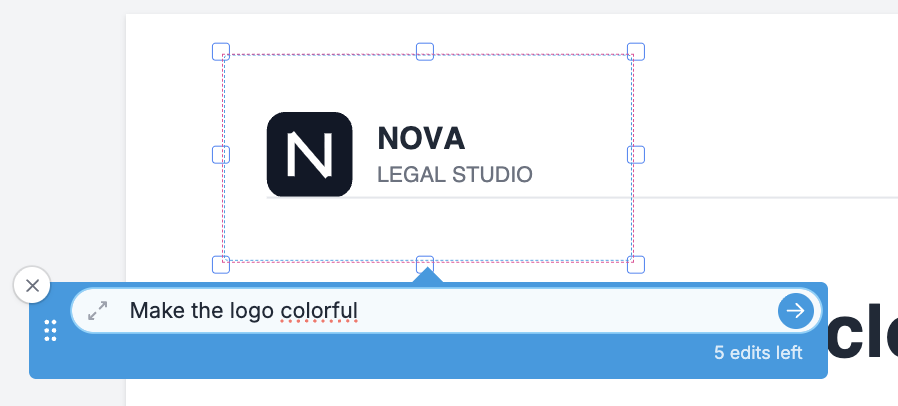
5. Start the generation. Visual Edit processes your instruction and generates the revised visual.
6. Review the result. Check that the new version matches your intended appearance and preserves important information.
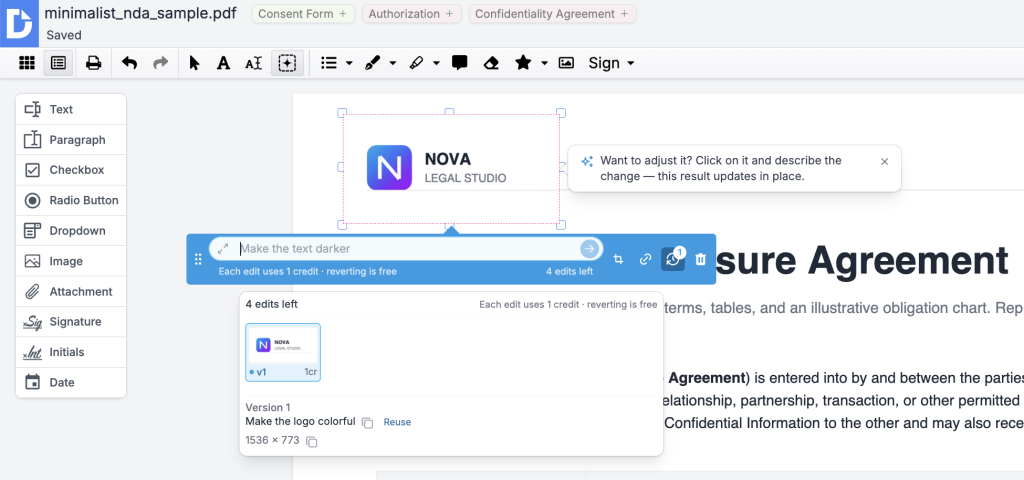
7. Refine the result if necessary. Enter another prompt to make an additional adjustment.
8. Use undo or redo when needed. Move backward or forward between generated versions as you review your options.
Prompts do not need to contain technical design instructions. Instead, you can use short, clear instructions written in plain language. Simply describe the desired outcome and any specific changes you want to apply. For example:
- “Make this logo colorful and move it to the top right.”
- “Remove the last column from this chart.”
- “Make this image sharper and clearer.”
- “Lighten the chart background.”
- “Move the logo slightly higher.”
- “Fix spelling and grammar mistakes.”
- “Translate text into Spanish.”
Clear prompts generally work best when they identify both what should change and what the finished result should look like.
Watch this brief walkthrough of the Visual Edit feature to see how to select document content, describe a change, generate a new visual, and refine the result with subsequent prompts.
What can you change with Visual Edit?
Visual Edit is designed for targeted visual and data-related changes inside a document.
Change text embedded in an image
Not all text in a PDF behaves like editable text. Some words may be embedded in an image, scan, screenshot, or other visual element.
Visual Edit gives users another way to address these situations by selecting the relevant visual area and describing the desired change.
Redesign or reposition logos
A logo may be correct, but no longer fits the document’s design.
Users can request visual changes, such as adding color, adjusting the appearance, or changing the logo’s position, without moving the entire document workflow into separate design software.
Edit charts and visual data
Visual Edit can help users modify the appearance of charts already present in a document.
For example, a sales team could remove an irrelevant chart column and then use a follow-on prompt to adjust the background or presentation.
Upscale images with AI
Visual Edit can also act as an AI image upscaler for selected document visuals.
A user working with a low-quality image can request a sharper or improved version directly within the editing workflow instead of processing the image in a separate application first.
Generate charts or graphs
When useful information already exists in the document, Visual Edit can help turn that information into a new chart or graph.
Users should always check AI-generated data visualizations against the original numbers before using them in reports, proposals, or other business-critical materials.
How does Visual Edit simplify PDF image and layout editing?
Traditional PDF image editing can involve several separate tools and repeated file transfers.
A traditional visual editing workflow may require users to:
- Export or download the document
- Open a separate image or design software
- Locate or extract the visual asset
- Make the visual changes manually
- Export the revised image
- Insert it back into the document
- Review the document layout
- Repeat the process if additional changes are needed
With Visual Edit, the workflow becomes:
- Open the document
- Select the area to change
- Describe the requested result
- Generate the visual
- Review it
- Refine it with another prompt if needed
- Continue working in the same document environment
For SMBs, this difference can be significant. Fewer tool switches can reduce repetitive work and make smaller design corrections easier to complete without specialized graphics skills.
The potential business benefits include:
- Less manual rework: Make targeted visual changes without rebuilding the file.
- Fewer application switches: Keep more of the document-editing process in one environment.
- Faster document cleanup: Address visual issues closer to the final stage of the workflow.
- Lower dependence on design resources: Handle straightforward visual updates without sending every change to a specialist.
- More consistent workflows: Edit, review, refine, and finalize documents in the same workspace.
What are some practical ways to use Visual Edit?
Visual Edit can support many everyday document workflows.
Update an outdated business logo
Consider a small business owner preparing a proposal that contains an older black-and-white logo. Instead of finding the original design file, opening another application, and manually rebuilding the document, the owner could select the logo and prompt:
“Make the logo colorful and move it to the top right.”
The updated version is generated inside the document workflow.
Clean up a sales chart
A sales report may contain a column that is no longer relevant to the presentation. The user can select the chart and ask Visual Edit to remove the column. If the result needs another adjustment, a follow-on prompt could request a lighter background.
Improve a low-quality image
Older documents often contain screenshots, scans, or images that have lost quality. A user can select the image and ask Visual Edit to sharpen or enhance it, providing an AI-powered option for improving document visuals without first exporting them.
Create a data visualization
A document containing data may need a chart to make the information easier to understand.
Visual Edit can generate a chart or graph based on data already available in the document, giving users another way to present information visually. As with any AI-generated visualization, the final chart should be checked against the source data before publication or distribution.
Update visual content without rebuilding a page
Even small visual corrections can become time-consuming when they require reconstructing a document layout. Visual Edit focuses the AI generation on the selected area, helping users change the part that needs attention rather than redesigning the complete page.
Note: If the generated output contains text, it is converted into an image element and cannot be edited as standard editable text afterward.
Can you keep editing an AI-generated result?
Yes. Visual Edit supports follow-on prompts that let users continue refining the latest generated result without selecting the area again.
Suppose the first prompt says:
“Make this logo colorful.”
After reviewing the result, the user could enter:
“Move the logo slightly higher.”
The next generation builds on the most recent version.
This approach is useful because visual editing is often iterative. Users may know the general result they want but decide that the color, position, size, background, or another detail needs adjustment after seeing the first output.
Each follow-on prompt counts as another Visual Edit generation.
For better results, keep prompts specific. Identify the element you want changed and clearly describe its desired appearance, position, or treatment.
Can you undo or cancel a Visual Edit?
Yes. Users maintain control over the generation and editing process.
A progress bar shows when Visual Edit is processing a request, and users can cancel the generation before it finishes. Generated images and follow-on edits are also included in the editor’s undo and redo history. That means users can move backward to an earlier version or forward again while comparing generated results.
This is particularly useful when experimenting with multiple visual approaches. Rather than treating every AI generation as a permanent change, users can review different versions before deciding which result best fits the document.
How long does Visual Edit take?
Visual Edit typically takes approximately one minute to process a generation, depending on the complexity of the request. A simple visual adjustment may require less processing than a more detailed redesign.
The editor displays progress while the generation is underway, and the user can cancel the process if needed. Because AI-generated results can vary, users should also allow time to review the output and verify important text, branding, images, and data before finalizing the document.
Who can use Visual Edit, and what are the usage limits?
Visual Edit is available to DocHub users on the web, with no separate design application or additional installation required.
According to the launch configuration:
- Free and Basic users receive one Visual Edit generation per month.
- Pro users receive six Visual Edit generations per month.
- The generation allowance is shared across documents.
- Every prompt counts as one generation.
- A follow-on prompt also uses one generation.
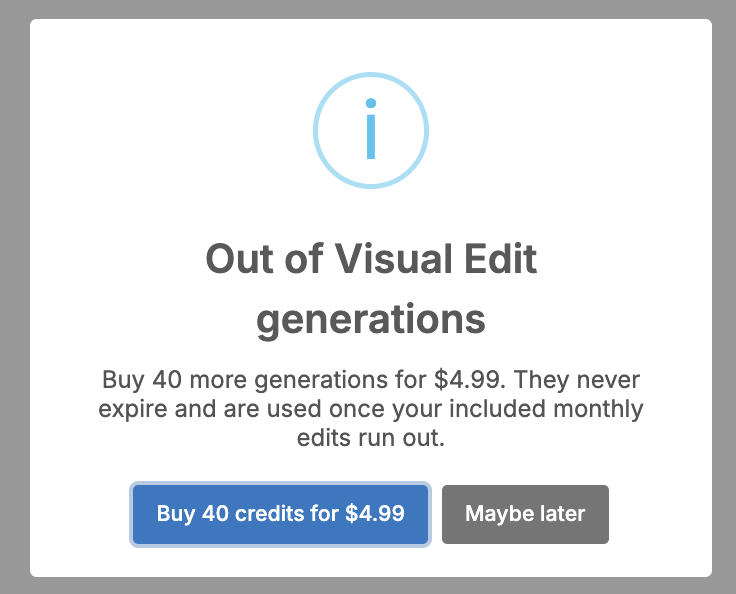
For example, creating an initial logo redesign and then requesting two additional refinements would count as three generations. Pro users can purchase 40 additional credits for $4.99 after exceeding their monthly limits.
This structure makes it important to write focused prompts and review each generated result before requesting another change.
How does Visual Edit fit into DocHub’s AI document workflow?
Visual Edit extends AI assistance beyond just AI text annotations to the visual presentation of documents.
The goal is not to remove the person from the editing process. Instead, it gives the user another way to direct changes while remaining responsible for reviewing and approving the final result.
As Albert Lardizabal, General Manager at DocHub, explained in the launch announcement, formatting and visual cleanup can slow down work that should otherwise be finished. Visual Edit addresses that friction by allowing users to describe a visual outcome rather than manually recreating it across multiple applications.
The feature also reflects a broader direction for DocHub: bringing AI-assisted capabilities directly into document workflows where users are already editing, reviewing, signing, and managing files.
What should businesses consider when using AI to edit documents?
AI can make visual document editing more efficient, but human review remains important.
Businesses should follow several practical best practices:
- Verify important text. Make sure an AI-generated visual has not changed names, amounts, dates, labels, or other critical information.
- Check source data. Compare generated charts and graphs with the original data before sharing them.
- Follow brand guidelines. Confirm that revised logos, colors, and layouts remain consistent with approved brand standards.
- Review document access. Apply appropriate permissions and internal policies when working with sensitive business documents.
- Inspect the final file. Review the complete page, not only the edited area, before sending or publishing the document.
Compliance-sensitive organizations should also continue following their established privacy, security, retention, review, and approval requirements when using AI-assisted document features.
The best use of Visual Edit is therefore a human-directed workflow: the user defines the change, AI helps generate it, and the user verifies the result.
Edit document visuals without leaving your workflow
Visual Edit gives DocHub users a new way to handle the visual side of document editing. Instead of exporting a PDF, switching to separate design software, modifying an asset, and rebuilding the document, users can select an area and describe the change they want.
That can make tasks such as updating logos, editing charts, improving images, changing visual layouts, and generating data visualizations easier to incorporate into everyday document workflows.
Follow-on prompts, visible generation progress, cancellation controls, and undo/redo support also give users room to experiment while maintaining control over the final document.
If your team is looking for ways to simplify more of their PDF editing and document management work, start a free trial with DocHub and explore its AI-assisted document workflows for yourself.
Glossary
- Visual Edit: DocHub’s AI-powered feature for making prompt-based changes to selected visual areas of a document.
- AI PDF editor: A PDF editing environment that uses artificial intelligence to assist users with document changes or related workflows.
- Prompt-based editing: A method of editing in which a user describes the desired change using natural language.
- AI image upscaling: The use of AI to improve the perceived sharpness, clarity, or quality of a lower-resolution image.
- Follow-on prompt: An additional instruction that refines or modifies the most recent AI-generated result.
FAQs
What is Visual Edit in DocHub?
Visual Edit is an AI-powered feature that lets DocHub users select an area of a document and describe a visual change with a natural-language prompt. The tool generates the requested visual update directly inside the editor.
Can Visual Edit change images in a PDF?
Yes. Visual Edit can be used for tasks such as changing a logo’s appearance, repositioning visual elements, improving image quality, modifying visual content, and refining selected parts of a PDF page.
Can Visual Edit upscale images?
Yes. Visual Edit can function as an AI image upscaler for selected visuals. A user can select a lower-quality image and prompt the feature to produce a sharper or higher-quality result without first exporting the image to a separate tool.
Can I edit a generated result more than once?
Yes. Follow-on prompts let users refine the latest generated version without selecting the area again. Each follow-on prompt counts as an additional Visual Edit generation.
Do I need separate design software to use Visual Edit?
Not for the visual editing tasks supported by Visual Edit. The feature is designed to perform targeted AI-powered changes directly inside DocHub, reducing the need to export a document solely to make a visual adjustment.
- What is DocHub Visual Edit?
- How do you use Visual Edit in DocHub?
- What can you change with Visual Edit?
- How does Visual Edit simplify PDF image and layout editing?
- What are some practical ways to use Visual Edit?
- Can you keep editing an AI-generated result?
- Can you undo or cancel a Visual Edit?
- How long does Visual Edit take?
- Who can use Visual Edit, and what are the usage limits?
- How does Visual Edit fit into DocHub’s AI document workflow?
- What should businesses consider when using AI to edit documents?
- Edit document visuals without leaving your workflow
- Glossary
- FAQs