

When someone asks you to add a wet signature to a PDF, it’s worth checking whether they want a paper original or will accept a scanned or drawn signature.
To add a wet-signature look to a PDF, upload a scanned image of your handwritten signature or draw it directly in DocHub. If the recipient requires an actual wet-ink signature, you’ll need to print and sign the document with a pen.
This guide is for professionals handling contracts, approvals, and business forms who want to know which method to use. You’ll learn how to prepare, add, and position your signature in DocHub, and when to provide a paper original, helping you avoid submitting a signed file the recipient cannot accept.
Adding a wet-signature look to a PDF: Key takeaways
Choose the method according to what the recipient needs:
- Upload a scan to preserve your handwriting.
- Use the Draw or Phone option to write on the screen.
- Review the completed PDF before sending.
- Physically sign the actual document when an ink original is required.
Start by confirming which version the other party accepts.
Can a PDF contain a real wet signature?
A wet signature is a physical mark on a paper document. Unlike electronic signatures, it originates on a physical surface. Its digital version is a reproduction.
These are the key differences between wet and electronic signatures:
| Method | What you produce | When it fits |
|---|---|---|
| Upload handwriting in DocHub | Signature image applied to electronic documents | Recipient accepts electronic signing |
| Draw in DocHub | Handwritten mark created on screen | No existing signature image |
| Print, sign, scan | Electronic version of a signed paper original | Recipient accepts a scanned copy |
| Print, sign, deliver paper | Physical signature on the actual document | Recipient requires an ink original |
Signing a blank sheet and copying the mark onto legal documents does not make those documents wet-signed originals.
What should you prepare before signing?
Before adding a wet signature to a PDF, make sure the document and signing requirements are clear. Prepare your PDF, signature, and recipient’s instructions. Finalize any Word document before PDF export. Check official documents for identity verification, witness, and submission requirements.
For a smooth transition, determine who retains the signed copy and whether physical storage remains necessary. Electronic signatures suit many forms, subject to acceptance.
How to add a wet signature to a PDF using a scan
To preserve your usual handwriting, use a scan. DocHub supports PNG and JPEG signature images.
- Write on plain white paper with a dark pen. Scan or photograph your signature, keeping the camera parallel to the paper.
- Crop the scanned image around the handwriting and remove shadows. Save the image file as PNG or JPEG. If you remove the background, save the image as a PNG to preserve transparency.
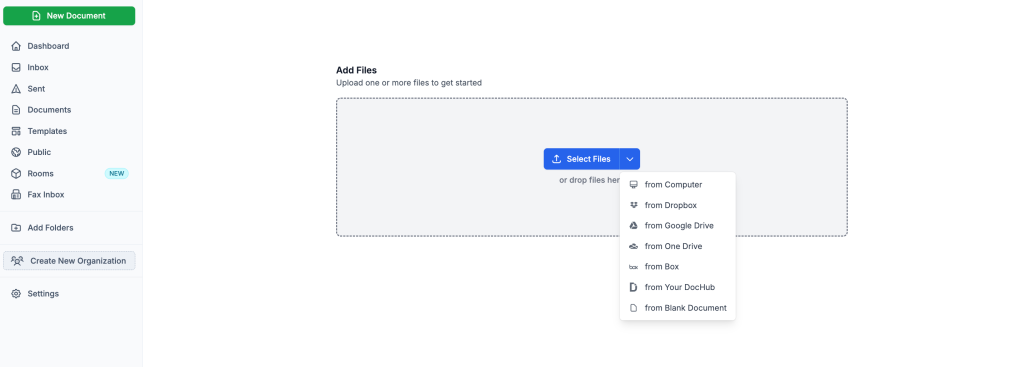
- In DocHub, select New Document, choose your PDF through the uploader, and open it in the editor.
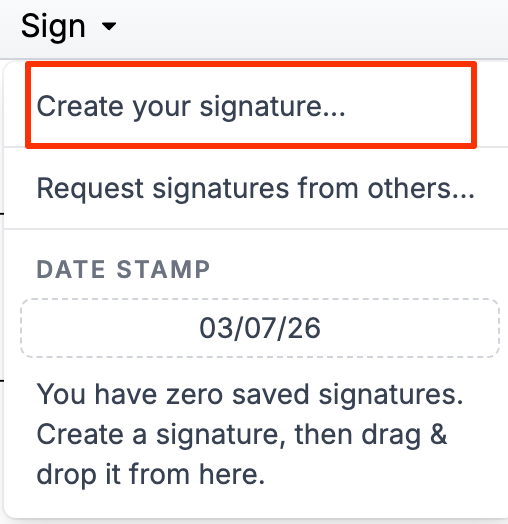
- Select Sign > Create your signature to set up a new signature.
- Choose Upload Image, click Upload Signature, and select your prepared image. Learn more about signature creation in DocHub from our article: How to create signatures for PDF files and add them online.

- Select the saved signature and place it in the signing area. Adjust its size without covering adjacent text, then download and inspect the signed document.
When signing your own scanned PDF, you can place the signature directly on the page without adding a fillable signature field.
How can you simulate wet ink without a scanner?
DocHub’s signature creation tools offer alternatives to uploading handwriting. Choose one method.
- Open your PDF and select Sign > Create your signature.
- Select Draw and write with a mouse or trackpad. Click Clear to retry, or choose Phone and follow the prompts to use a mobile device as your signing pad.
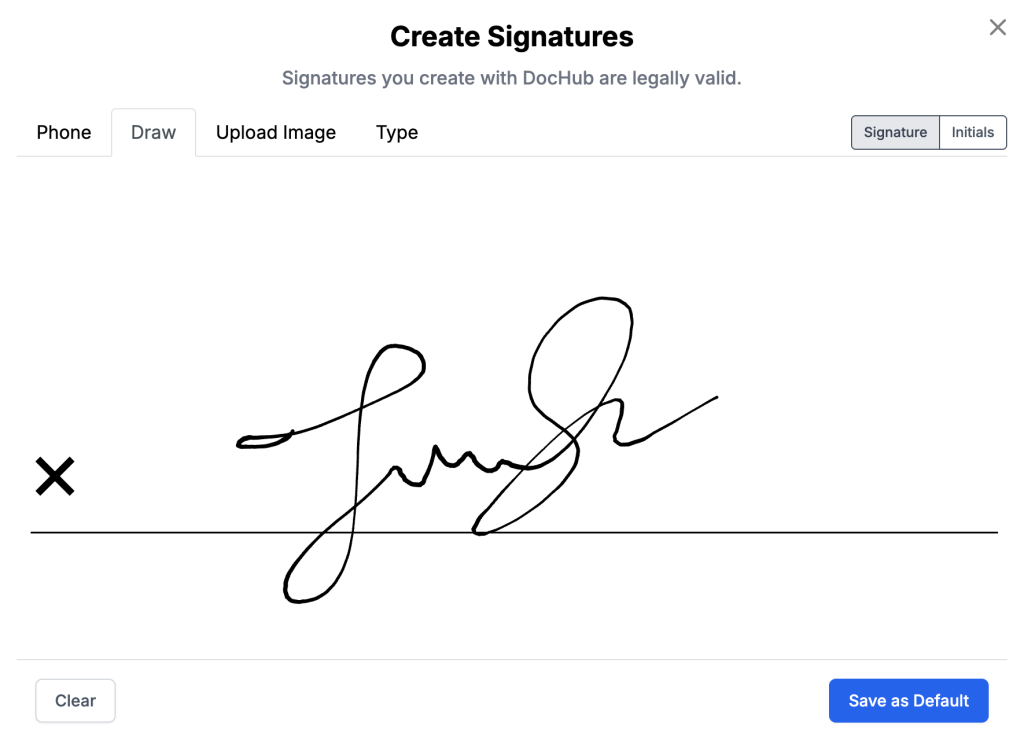
- Alternatively, select Type, enter your name, and choose font-based lettering instead of your handwriting.
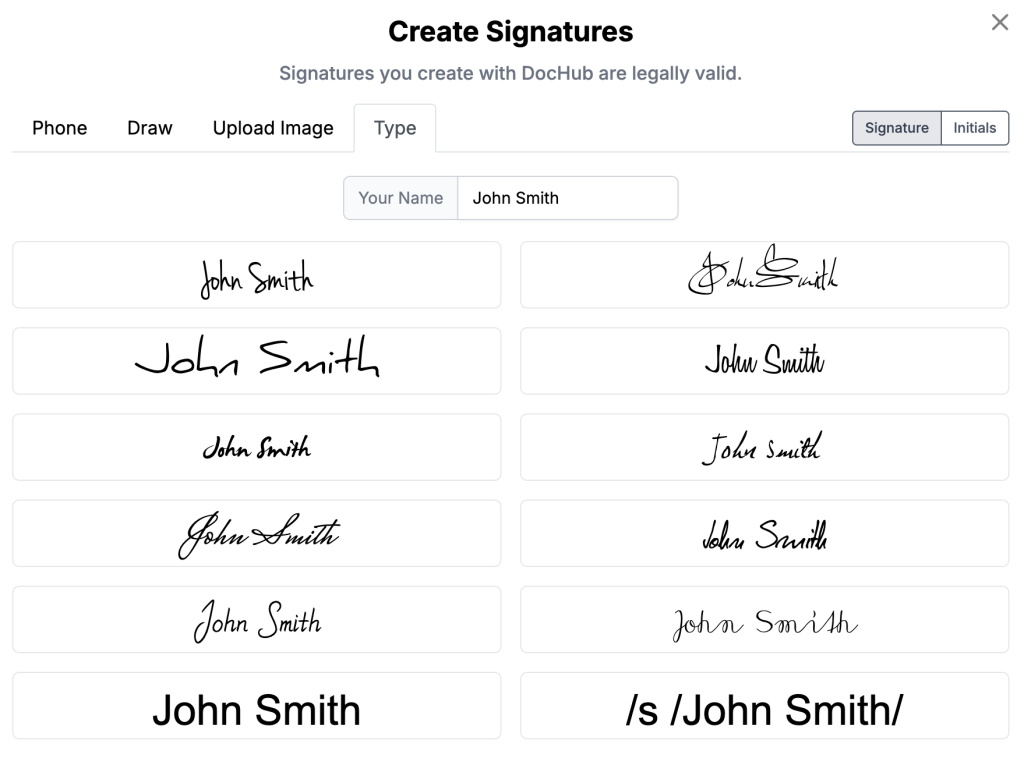
- Save using Save or Save as Default, as displayed. Select the signature from Sign, click or drag it onto the page, and resize it before downloading.
The Phone and Draw options for signature creation use vectors, preserving sharpness when resized. Saved signatures remain available for future use; Manage Signatures lets you select a default one whenever you need it.
For example, an office manager can add their own signature to an internal approval form. For another signer, send a Sign Request for them to complete.
When do you need to use a wet signature instead?
Confirm whether the recipient wants a handwritten-looking signature in a PDF, a scanned copy of signed paper, or a paper original with a wet ink signature. If an actual wet signature is required, print and physically sign the document, then deliver the original or a scanned copy according to the recipient’s instructions.
Legal requirements for family law, court filings, and notarized documents
In the United States, 15 U.S.C. § 7003 excludes certain matters governed by adoption, divorce, or other family law, as well as specified court documents, from ESIGN’s general validity rule. These exceptions do not automatically mean that all family law documents or court filings require ink. For divorce proceedings and other court matters, check the applicable laws and court rules for signing and submission requirements.
For notarized documents, ask the notary public which process applies, including whether electronic notarization is permitted. Uploading a signature image does not, by itself, satisfy notarization requirements. Whether wet ink is legally required depends on applicable law and the transaction.
Are handwritten-looking PDF signatures legally recognized?
In the United States, electronic signatures may be legally recognized under the E-SIGN Act and applicable state laws, including those based on the Uniform Electronic Transactions Act. For covered transactions, these laws generally prevent signatures from being denied legal effect solely because they are electronic; they do not make every signed PDF legally binding. Signing intent, attribution to the signer, applicable consent requirements, and record retention requirements remain relevant to legal compliance.
Electronic signature validity under ESIGN and UETA
ESIGN’s definition covers an electronic sound, symbol, or process attached to or logically associated with a contract or other record and executed or adopted with the intent to sign it. An uploaded signature image can serve as an electronic signature when used with that intent, but its appearance alone does not establish who signed or whether they authorized its use. Check the requirements for your document and jurisdiction; matching your usual handwriting alone is insufficient for ensuring compliance.
Disclaimer: The information in this blog post is provided for general informational purposes only and does not constitute formal legal advice.
What problems should you check before sending?
Before sending the signed PDF, check for image-quality, security, and document-integrity issues that could affect the final file.
- White background: Renaming a JPEG to PNG does not remove its background; edit it to transparency first.
- Poor readability: Retake a blurred photo instead of enlarging it.
- Sensitive information: Limit access to signature images and digital documents.
- Document integrity: An image does not prove a file is unchanged. DocHub offers certified PDF downloads; select certify document when downloading.
A final review helps ensure the signature is clear, appropriately protected, and applied to the intended version of the document.
Final thoughts
Adding a scanned or drawn signature in DocHub gives your PDF a wet-signature appearance without printing the entire document. Confirm that the recipient accepts electronic signing, then review the completed file before sending it. If an actual wet-ink original is required, follow the instructions for signing and delivering the paper document.
Get started with DocHub to upload your PDF, add your signature, and save the completed copy.
Glossary
- Wet signature: A wet signature is a handwritten mark made with ink on a physical document to indicate the signer’s intent to sign it.
- Wet ink: Wet ink refers to the actual ink used to sign paper, even after the ink has dried.
- E-signature: An e-signature is an electronic mark, sound, or process that a person adopts with the intent to sign an associated document or record.
- Electronic and digital signatures: Electronic signatures cover a broad range of signing methods, while digital signatures use cryptography to help verify authenticity and detect subsequent changes. Not every electronic signature is a digital signature.
- Digital certificate: A digital certificate is an electronic credential that links a public key to an identified person or organization.
- Private key: A private key is a confidential cryptographic key used to generate digital signatures. The corresponding public key allows others to verify those signatures.
FAQ
1. Should I keep the sender’s email confirming they accept a scanned signature?
Keeping that confirmation with the completed PDF can help document the submission instructions you followed. Retain it according to your organization’s recordkeeping policy and any applicable requirements. The email does not, by itself, establish that every legal signing requirement has been met.
2. Should I email my signature image separately?
Sending the completed PDF is generally preferable to sharing a reusable image of your signature. Anyone who receives the image could copy it into another document, although possession of the image does not establish your authorization. If someone requests the image separately, confirm why they need it and use your organization’s approved sharing method.
3. Can I edit PDF documents after signing?
Some PDFs remain editable after signing, but changes may affect the agreement or invalidate a digital signature or certification, depending on its permitted changes. Keep the signed version intact and make proposed revisions in a separate copy. If the revisions change what the parties agreed to, have them review and sign the revised document.
4. Does a signature need to look like my passport signature?
There is no single signature-matching rule that applies to every document or recipient. A bank, government agency, or other organization may compare your signature with identification or an existing specimen. Check the recipient’s requirements before submitting your document, especially if your usual signature has changed.
5. Can I use initials instead of my full signature?
Initials may be acceptable for some approvals, but they should not automatically replace a requested signature. Check whether the document asks for initials, a full signature, or both. If the instructions are unclear, ask the recipient before completing it.
6. What should I do if I place my signature on the wrong line?
If you are still editing a draft and the signature can be selected, reposition it before completing the document. If the file is already finalized, certified, or submitted, preserve that version and contact the recipient about providing a corrected copy. Clearly identify which corrected file replaces the earlier submission.
7. Should I use today’s date when adding my signature?
When a field asks for the signing date, enter the date you actually sign. An agreement’s effective date may be different and should be recorded separately where requested. If a prefilled date appears incorrect, clarify it with the sender before signing.
- Adding a wet-signature look to a PDF: Key takeaways
- Can a PDF contain a real wet signature?
- What should you prepare before signing?
- How to add a wet signature to a PDF using a scan
- How can you simulate wet ink without a scanner?
- When do you need to use a wet signature instead?
- Are handwritten-looking PDF signatures legally recognized?
- What problems should you check before sending?
- Final thoughts
- Glossary
- FAQ