
Set name in the paper
Aug 6th, 2022

0
forms filled out

0
forms signed

0
forms sent
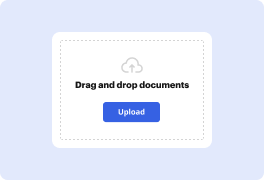
01. Upload a document from your computer or cloud storage.
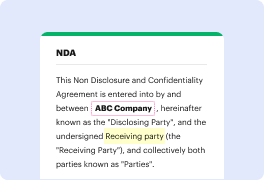
02. Add text, images, drawings, shapes, and more.
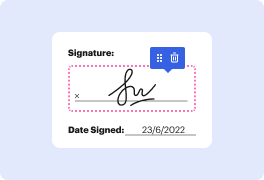
03. Sign your document online in a few clicks.
04. Send, export, fax, download, or print out your document.
Set name in paper – work smarter with DocHub
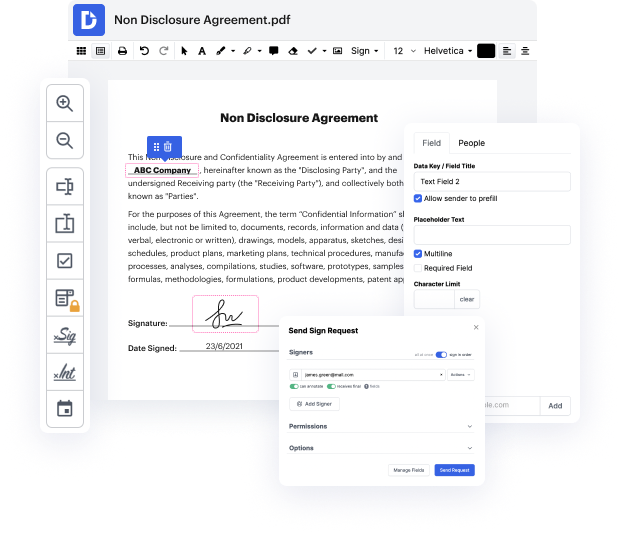
Whether you deal with documents day-to-day or only occasionally need them, DocHub is here to help you take full advantage of your document-based tasks. This platform can set name in paper, facilitate collaboration in teams and generate fillable forms and valid eSignatures. And even better, everything is kept safe with the top protection standards.
Follow these easy steps to set name in paper with DocHub:
- Start by creating your account or begin your free trial.
- Upload a paper that requires editing, or make it from scratch.
- Edit, protect, annotate, and make your form interactive with fillable fields.
- Pick the tool from the top toolbar to set name in paper and apply it.
- Proofread your content to make sure it is correct.
- Click Download/Export to save your record.
- Click Share and send and select how you want to deliver your form to the recipients.
With DocHub, you can get these features from any location and using any platform.
PDF editing simplified with DocHub

Seamless PDF editing
Editing a PDF is as simple as working in a Word document. You can add text, drawings, highlights, and redact or annotate your document without affecting its quality. No rasterized text or removed fields. Use an online PDF editor to get your perfect document in minutes.

Smooth teamwork
Collaborate on documents with your team using a desktop or mobile device. Let others view, edit, comment on, and sign your documents online. You can also make your form public and share its URL anywhere.

Automatic saving
Every change you make in a document is automatically saved to the cloud and synchronized across all devices in real-time. No need to send new versions of a document or worry about losing information.

Google integrations
DocHub integrates with Google Workspace so you can import, edit, and sign your documents directly from your Gmail, Google Drive, and Dropbox. When finished, export documents to Google Drive or import your Google Address Book and share the document with your contacts.

Powerful PDF tools on your mobile device
Keep your work flowing even when you're away from your computer. DocHub works on mobile just as easily as it does on desktop. Edit, annotate, and sign documents from the convenience of your smartphone or tablet. No need to install the app.

Secure document sharing and storage
Instantly share, email, and fax documents in a secure and compliant way. Set a password, place your documents in encrypted folders, and enable recipient authentication to control who accesses your documents. When completed, keep your documents secure in the cloud.






Drive efficiency with the DocHub add-on for Google Workspace
Access documents and edit, sign, and share them straight from your favorite Google Apps.
Install now
Got questions?
Here are some common questions from our customers that may provide you with the answer you're looking for. If you can't find an answer to your question, please don't hesitate to reach out to us.
Contact us
What side of the page do you put your name on?
In the upper left hand corner of the first page, write your name, professors title and last name, the course title and number, and then the date (Day Month Year) on separate lines. On a new line, create a title (in Title Case) centered on the page.
What side of the paper does your name go on?
MLA Guidelines for the first page of your paper: In the upper left-hand corner of the first page, list your name, your instructors name, the course, and the date. Again, be sure to use double-spaced text. Double-space again and center the title.
How do you put your name on a paper?
Your Name, Professors Name, Class Name, and Date should be double-spaced on the first page of your paper in the upper left-hand corner, with a 1-inch margin from the top and left sides.
Where do I put my name in a research paper?
The authors name (your name): beneath the title, type the authors name: first name, middle initial(s), and last name. Do not use titles (Dr.) or degrees (Ph. D).
How do you write your name in a journal?
Start with your first name and middle initial (if applicable), followed by your last name. For example, if your name is John A. Smith, write it as John A. Smith.
Where does your name go on a paper?
Every page of your paper should have a header on the top right-hand corner of the page. The header should appear half an inch from the top of the paper and include your last name and the page number. A heading with your name, instructor, course, and date should be on the first pages top left-hand corner.
Where do you put your name in an essay format?
The most common place to put your name on an essay is in the header or footer of the document. The header or footer is a section of the document that appears at the top or bottom of every page. It is a good place to put your name, the course name, the instructors name, and the date of submission.
See why our customers choose DocHub
Great solution for PDF docs with very little pre-knowledge required.

A Valuable Document Signer for Small Businesses.

I can create refillable copies for the templates that I select and then I can publish those.

Security and compliance
At DocHub, your data security is our priority. We follow HIPAA, SOC2, GDPR, and other standards, so you can work on your documents with confidence.
Learn more


