
Free online form builder with file upload to optimize your document workflows
Aug 6th, 2022

0
forms filled out

0
forms signed

0
forms sent
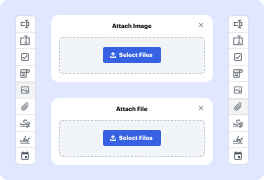
01. Drag and drop image or file attachment fields anywhere on the document.
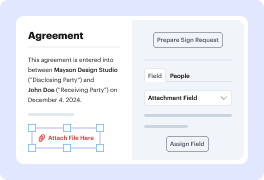
02. Change field properties, assign them to a specific recipient, or mark them as required.
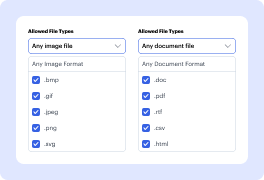
03. Attach files in the specified format, or ask the signer to upload them in the designated field.

04. Download attachments as a separate PDF or bundle them with the document. Or view attachment fields in the audit trail.
Experience the benefits of attachment fields

Simplify data and signature collection
Save time by collecting signatures and supporting information in one step. Ask your recipients to sign the document and upload the necessary attachments all at once.

Boost teamwork and process visibility
Keep everyone updated on the signing process. Once the document is finalized, everyone can download attachments, and you can view attachment fields in the audit trail.

Streamline workflows
Speed up the document turnaround by attaching all the necessary files right to the document. No more endless back-and-forth or long email threads.

Simplify document management
Choose a preferred download option. Get the attached files as a single PDF, as separate PDF pages, or download all attachments and the main document in a compressed ZIP file.

Note: Attachment fields are available with the Pro plan or during a free trial. Upgrade your plan or start a free trial to use this feature.
See how easy it is to share and collect attachments

How to create a form with file upload online with DocHub
- Access to your current DocHub user account or use your e-mail or social media details to create a new one.
- Press the button on this page to create your document, or move it to the input area. You can also use templates for document creation.
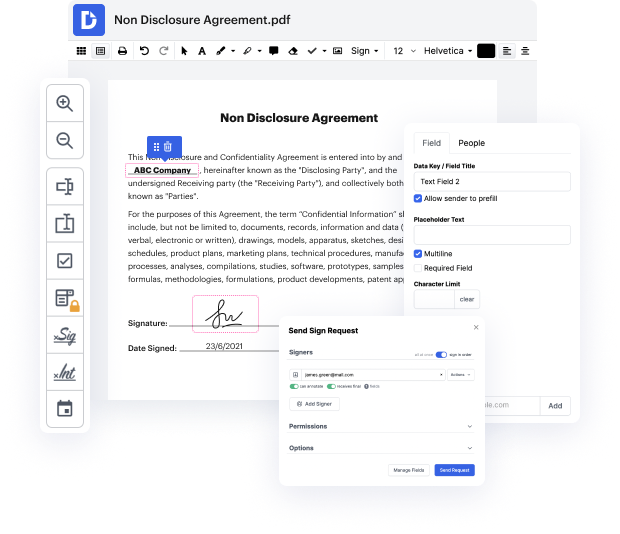
- Once the document opens in the editor, use our Attachment option of the Manage Fields tool to add attachments.
File formats supported:
- .doc
- .rtf
- .csv
- .html
- .txt
- .rtx
Get PDFs done faster – easier than ever
Explore the benefits of DocHub.

Edit PDFs from anywhere
DocHub's editing tools make it easy to keep your work flowing from anywhere. Add text and images, exchange comments, highlight important content, redact information, and underline or strike out text with ease. Rearrange, add, or delete pages or merge PDFs to create polished documents.

Get documents signed online
Close deals faster without chasing signatures for days and hassling with physical documents. Sign contracts and agreements electronically in seconds or send them for legally binding eSignature. With instant notifications and a detailed audit trail, you'll never lose sight of your deals.

Collect data with ease
Eliminate manual steps in your data collection process. Publish fillable forms online for quick completion on any device. Transform your documents into reusable templates, allowing recipients to easily fill out their copy in minutes.

Simplify document sharing
Share PDFs via public or private links and allow others to review, edit, or complete them online. Send documents with role-based permissions for quick and secure approvals. Additionally, you can share your documents by email or fax.

Work seamlessly in Google apps
DocHub integrates with your favorite Google Workspace apps, allowing you to import, edit, sign, and save documents right from Google Drive, Gmail, Google Classroom, or Chrome without any back-and-forth.

Use DocHub on any device
Stay productive even on the go. DocHub works on mobile devices just as smoothly as on desktop computers. With DocHub's mobile and web app, you can edit, annotate, and sign documents conveniently from your smartphone or tablet.






Drive efficiency with the DocHub add-on for Google Workspace
Access documents and edit, sign, and share them straight from your favorite Google Apps.
Install now
Got questions about free form file upload?
Below are some common questions from our customers that may provide you with the answer you're looking for. If you can't find an answer to your question, please don't hesitate to reach out to us.
Contact us
How do I create an online form with file upload?
Use the DocHub document creation interface and select the appropriate choices. This function allows you to easily add fields where users can attach documents required for the final document. By adding these engaging fields, you boost the cooperative nature of your workflows.
How should I name attachment fields when I build a PDF with a document attached?
It's recommended to use informative and understandable names for your attachment fields during document setup. This strategy helps participants understand which materials they need to attach, significantly reducing confusion and improving workflow efficiency.
Is the “free online form builder with file upload” feature usable to all user tiers?
Basic document generation is generally available to all users of DocHub, while premium features, including those for attachments, may require a premium subscription. This provides that anyone can produce documents while premium users enjoy enhanced capabilities.
How do I enable attach functionality for my team?
To enable attachment functionality for your team, make sure your account is upgraded to a plan that includes these features, and set proper permissions for team members. This method enables your team to use the comprehensive document management capabilities offered by DocHub competently.
Can I track who has included attachments in a created document?
Yes, DocHub offers tracking features that allow you to see which participants have uploaded attachments. This is crucial for maintaining accountability and ensuring that all needed files are acquired for your documentation needs.
How to create a Google Form with file upload?
Allow people to attach files In Forms, open a form or quiz. Click Add question and enter your request for information. Next to the question, click the Down arrow and select File upload. If prompted, review the uploading information and click Continue.
How do I add a file to upload?
Add a file upload question In Microsoft Forms, open the form you want to edit. Add a new question by selecting Add new question. Select More question types, and then select Upload file. Enter the text you want to display for the question.
How do I add the upload file option in Microsoft Forms?
Add a File Upload Field: Click on the + Insert New Question button in your form. From the list of available question types, select Upload File. Microsoft Forms will ask you for permission to automatically create a folder in your OneDrive to store uploaded files. Select Yes to continue with the form.
Does Microsoft Forms allow file upload?
Jotforms File Upload feature lets you collect files such as documents, images, or other media directly through your forms. Its perfect for job applications that need resumes, event registrations requiring signed waivers, or customer support forms for uploading screenshots or error logs.
How do I enable file upload in Google Forms?
Import a CAD File Click Insert tab Import panel (Import CAD). In the dialog, for Files of type, select the desired file type. Navigate to the folder that contains the file to import, and select the file. Specify options. Click Open.
See why our customers choose DocHub
Great solution for PDF docs with very little pre-knowledge required.

A Valuable Document Signer for Small Businesses.

I can create refillable copies for the templates that I select and then I can publish those.
