
Your go-to platform to add video to PDF in Google Chrome
Aug 6th, 2022

0
forms filled out

0
forms signed

0
forms sent
01. Upload a document from your computer or cloud storage.
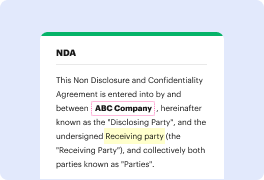
02. Add text, images, drawings, shapes, and more.
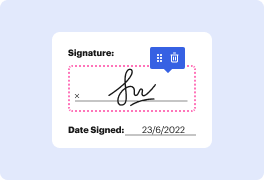
03. Sign your document online in a few clicks.
04. Send, export, fax, download, or print out your document.
How to add video to PDF in Google Chrome with DocHub
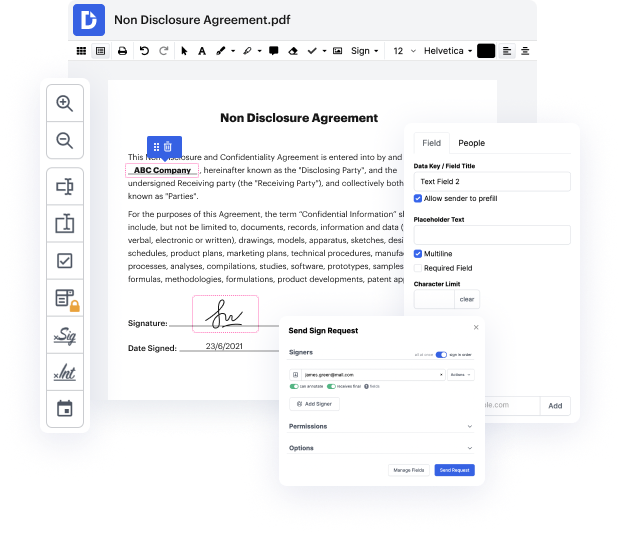
DocHub is a powerful online platform designed for efficient document editing, signing, and distribution. It seamlessly integrates with Google Workspace, allowing users to import, modify, and manage their documents directly from Google apps. Whether you need to enhance your PDFs or streamline your business processes, our editor provides the tools you need to get the job done quickly and for free.
Follow the steps to add video to your PDF
- Open the DocHub website and log in to your account.
- Upload the PDF document you want to enhance by selecting the appropriate option from your device or Google Drive.
- Once your PDF is open in the editor, navigate to the area where you want to insert the video.
- Use the multimedia or media insertion tool to embed your video link. You can paste a URL from a video-sharing platform.
- Adjust the size and position of the video element to fit your layout perfectly.
- Save your changes and preview the document to ensure that the video link works as intended.
- Finally, download the updated PDF, print it, or share it directly with others from the platform.
Start enhancing your PDFs today by using DocHub to add video to your documents easily!
PDF editing simplified with DocHub

Seamless PDF editing
Editing a PDF is as simple as working in a Word document. You can add text, drawings, highlights, and redact or annotate your document without affecting its quality. No rasterized text or removed fields. Use an online PDF editor to get your perfect document in minutes.

Smooth teamwork
Collaborate on documents with your team using a desktop or mobile device. Let others view, edit, comment on, and sign your documents online. You can also make your form public and share its URL anywhere.

Automatic saving
Every change you make in a document is automatically saved to the cloud and synchronized across all devices in real-time. No need to send new versions of a document or worry about losing information.

Google integrations
DocHub integrates with Google Workspace so you can import, edit, and sign your documents directly from your Gmail, Google Drive, and Dropbox. When finished, export documents to Google Drive or import your Google Address Book and share the document with your contacts.

Powerful PDF tools on your mobile device
Keep your work flowing even when you're away from your computer. DocHub works on mobile just as easily as it does on desktop. Edit, annotate, and sign documents from the convenience of your smartphone or tablet. No need to install the app.

Secure document sharing and storage
Instantly share, email, and fax documents in a secure and compliant way. Set a password, place your documents in encrypted folders, and enable recipient authentication to control who accesses your documents. When completed, keep your documents secure in the cloud.






Drive efficiency with the DocHub add-on for Google Workspace
Access documents and edit, sign, and share them straight from your favorite Google Apps.
Install now
Got questions about add video to pdf?
Here are some common questions from our customers that may provide you with the answer you need. If you can’t find the answer to your add video to pdf without acrobat-related question, please don’t hesitate to reach out to us.
Contact us
How do you show a video on a PDF?
0:17 3:25 Now were going to choose our video file. And docHub accepts mov or MP4 files. And then letsMoreNow were going to choose our video file. And docHub accepts mov or MP4 files. And then lets just click OK. And see what it looks like.
How to convert video into PDF?
1:27 4:17 How to Convert a YOUTUBE video to a PDF AUTOMATICALLY YouTube Start of suggested clip End of suggested clip Click on that file. And you can edit the words.MoreClick on that file. And you can edit the words.
How do I add a video to a PDF without Acrobat?
Part 3. FAQS About Adding Video to PDF Upload video to Google Drive or YouTube to get video link. Open PDF in reader mode on UPDF and go to Edit PDF Click Link and select the area for embedding the link. Select the Link to Web option and paste the link of the video.
Can you add a video to a PDF document?
From the left sidebar, select the View more option and navigate to the Add rich media option. Then choose either the 3D Media , Video , or Sound tool, depending on the type of multimedia file you want to add. To add a video or sound to a specific area on a page, you can either drag or double-click the desired location.
How do I get a video to work in a PDF?
docHub Pro is compatible with MOV and MP4 files. Heres how to add an MP4 to a PDF: Click Rich Media in the Tool menu bar Select an area and a pop-up will appear Upload the MP4 video from your device by clicking Browse Finish by clicking OK.
Do videos not play in PDF?
One of the main issues with using video in PDFs is that the format of the video file can be inconsistent across different browsers and operating systems. While certain video formats may play correctly on one system (e.g., an mov on a Mac), they may not be compatible with another system.
Can we add a video in PDF online free?
How to Add Videos to a PDF. Using , you can add videos to your PDF documents. To get started, open a PDF form, type the phrase you want to link to your video, highlight it and click the Hyperlink icon. In the dialog window that will open, insert the URL address of the video and press Save.
See why our customers choose DocHub
Great solution for PDF docs with very little pre-knowledge required.

A Valuable Document Signer for Small Businesses.

I can create refillable copies for the templates that I select and then I can publish those.

Security and compliance
At DocHub, your data security is our priority. We follow HIPAA, SOC2, GDPR, and other standards, so you can work on your documents with confidence.
Learn more


