
Your go-to platform to Add Pages into a PDF in Mozilla Firefox
Aug 6th, 2022

0
forms filled out

0
forms signed

0
forms sent
01. Upload a document from your computer or cloud storage.
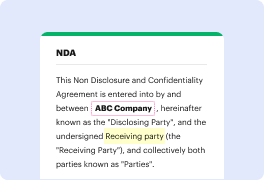
02. Add text, images, drawings, shapes, and more.
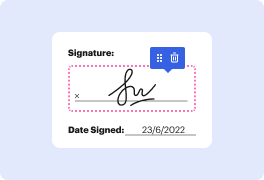
03. Sign your document online in a few clicks.
04. Send, export, fax, download, or print out your document.
How to Add Pages into a PDF in Mozilla Firefox with DocHub
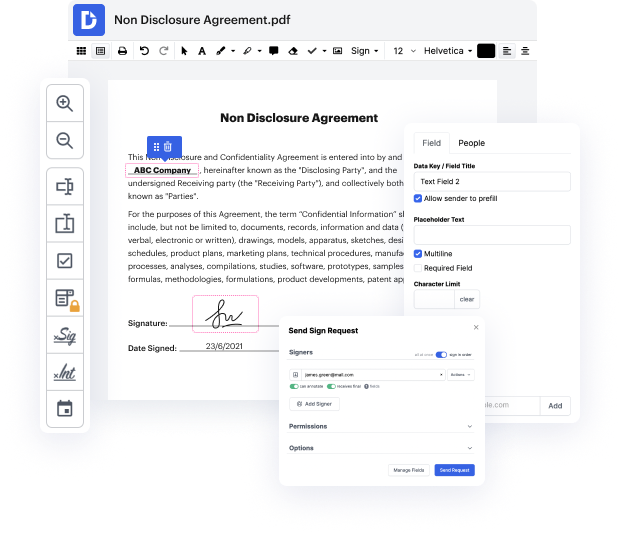
DocHub is an innovative online platform that simplifies document management by offering seamless editing, signing, and distribution capabilities. Tailored for efficiency, our editor allows users to import, modify, and sign PDFs directly from popular applications, ensuring a smooth workflow for both personal and professional needs. With the ability to add pages into a PDF in Mozilla Firefox for free, users can enhance their documents effortlessly.
Follow the steps to Add Pages into a PDF in Mozilla Firefox
- Open your Mozilla Firefox browser and navigate to the DocHub website, then log into your account.
- Once logged in, upload the PDF document you wish to edit by selecting the appropriate option within the editor.
- After your document is loaded, look for the option to add new pages. You can insert blank pages or import additional PDF files to include.
- Arrange the pages as needed by dragging them to your desired position within the document.
- Once you’re satisfied with the changes, you can save your document. Look for the option to download the updated PDF, print it, or share it directly through email.
Get started with DocHub today and streamline your document management process!
PDF editing simplified with DocHub

Seamless PDF editing
Editing a PDF is as simple as working in a Word document. You can add text, drawings, highlights, and redact or annotate your document without affecting its quality. No rasterized text or removed fields. Use an online PDF editor to get your perfect document in minutes.

Smooth teamwork
Collaborate on documents with your team using a desktop or mobile device. Let others view, edit, comment on, and sign your documents online. You can also make your form public and share its URL anywhere.

Automatic saving
Every change you make in a document is automatically saved to the cloud and synchronized across all devices in real-time. No need to send new versions of a document or worry about losing information.

Google integrations
DocHub integrates with Google Workspace so you can import, edit, and sign your documents directly from your Gmail, Google Drive, and Dropbox. When finished, export documents to Google Drive or import your Google Address Book and share the document with your contacts.

Powerful PDF tools on your mobile device
Keep your work flowing even when you're away from your computer. DocHub works on mobile just as easily as it does on desktop. Edit, annotate, and sign documents from the convenience of your smartphone or tablet. No need to install the app.

Secure document sharing and storage
Instantly share, email, and fax documents in a secure and compliant way. Set a password, place your documents in encrypted folders, and enable recipient authentication to control who accesses your documents. When completed, keep your documents secure in the cloud.






Drive efficiency with the DocHub add-on for Google Workspace
Access documents and edit, sign, and share them straight from your favorite Google Apps.
Install now
Got questions about firefox add page to pdf?
Here are some common questions from our customers that may provide you with the answer you need. If you can’t find the answer to your add page to pdf firefox-related question, please don’t hesitate to reach out to us.
Contact us
Does Firefox have PDF editor?
If you need to add stuff to a PDF document, now you can do that online with Firefox. Open the PDF in Firefox and click the Text or Draw buttons in the upper right corner to make changes to your document. Download the file to save it with your changes.
Does Firefox support fillable PDF?
Unfortunately, the Firefox PDF viewer doesnt support filling a form in the PDF file. Firefox would normally detect that the PDF file contains a form and warn you about this and offer to open the file in another application.
What is the best PDF editor for Firefox?
Kami: Kami is a highly rated PDF editor and viewer available as a Firefox extension. It offers a wide range of editing tools including annotate, OCR, and the ability to convert PDF to other formats like JPG and HTML. For educators, Kami also offers a range of classroom tools making it a favorite among teachers.
How do I combine PDF pages in Firefox?
Select the PDF files you want to combine by clicking on them. You can select multiple files by holding down the Ctrl key (or Command key on Mac) while clicking on the files. Once you have selected all the files, click on the Combine PDF Pages button at the top of the page.
How do I enable docHub in Firefox?
Steps to enable Acrobat Create PDF extension in Firefox Launch Mozilla Firefox. On Windows, click the Alt key to bring up the Firefox menu bar. On Mac OS, its already there. Go to Tools - Add-ons. The Add-ons manager is displayed. Click the Enable button for docHub Create PDF extension. Restart Firefox.
How do I merge the all pages of PDF into a single page?
For all you people who want to cut to the chase here it is: go to the pages merger at PDFdu.com, upload a PDF file with multiple pages in it, and choose among the options available for stitching the pages together. Click Merge pages, then click Download File, and youre set.
How can I add pages to an existing PDF?
Insert PDF Pages in Existing PDF File Click on Document on the docHub menu. Click on Insert Pages from the drop down menu. The Select File to Insert window appears. Select the PDF file you want to insert. Click on the Select button. The Insert Pages window appears.
See why our customers choose DocHub
Great solution for PDF docs with very little pre-knowledge required.

A Valuable Document Signer for Small Businesses.

I can create refillable copies for the templates that I select and then I can publish those.

Security and compliance
At DocHub, your data security is our priority. We follow HIPAA, SOC2, GDPR, and other standards, so you can work on your documents with confidence.
Learn more


