Insights on the DocHub vs. Adobe Export PDF Users comparison
Choose the best editing solution for your business once and for all. Check out the detailed comparison of DocHub and Adobe Export PDF Users
Create free account
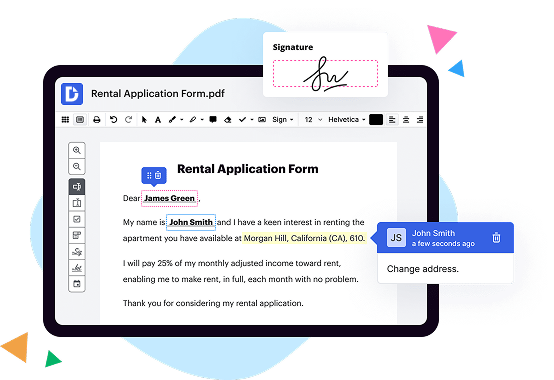
Adobe Export PDF vs. DocHub Users comparison in a nutshell

|
Adobe Export PDF | |
|---|---|---|
| No Downloads | ||
| Edit PDF | ||
| Fill Online | ||
| Sign Online | ||
| Unlimited Cloud Storage | ||
| Annotate PDF | ||
| Fax Online | ||
| Track Sending Documents | ||
| Get DocHub for free |
Here are the main differences between DocHub and Adobe Export PDF Users
Copy, paste, and send the PDF link In Drive, select your file. Click Share . Click Copy link and click Done. Send the modified PDF link. When you click the link, you (or anyone else) can download a PDF copy of your file.
Move from Adobe Export PDF PDF to DocHub in a few steps
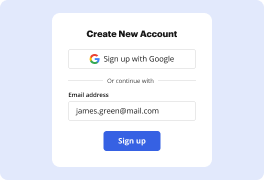
01. Register with DocHub using your email address or Google account. It's fast and easy. No credit card required.
02. Upload the document you need or create it from scratch. Then, customize it by adding images, drawings, and different types of fillable fields.
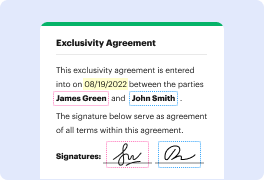
03. Customize your PDF in minutes. Type, highlight, underline, whiteout text, add comments, and sign your document.
04. Share your PDF with others to collaborate in real-time. Export your document, download or print it out.
Switch to DocHub to enjoy premium PDF customization

Online PDF creator and editor
Explore DocHub vs. Adobe Export PDF comparison data and choose the best platform for getting your perfect document without hassle. Start with a blank document or modify an existing one. Type text, add shapes, drawings, images, and highlight or whiteout information. Whatever you do with a PDF, the result is always high quality, without rasterized text or removed fields.

Diverse PDF management tools
Manage your PDF to perfection. Add, delete, and rearrange document pages or merge them to create a new document. DocHub supports a variety of file types including PDF, DOC, PPT, XLS, TXT, DOCX, and PPTX, which you can easily convert to a PDF.

Powerful PDF tools on your mobile device
Keep your work flowing from any location. Get DocHub, the most powerful Adobe Export PDF competitor. With DocHub's capabilities on your mobile device, you can edit, annotate, manage, sign, and share PDFs just as easily as you would on a desktop. No need to install the app.

Google integrations
Boost your productivity and deliver an amazing customer experience by managing your PDFs from your favorite Google apps. Import, edit, and sign your documents directly from your Gmail, Google Drive, and Dropbox.

Interactive PDF forms and templates
Get an intuitive and interactive experience when creating PDF forms and reusable document templates. Modify existing fields or create new ones for checkboxes, signatures, initials, and more. Publish forms on your website, social media, or share them via URL to collect data.

Real-time collaboration
Migrate from Adobe Export PDF to DocHub to collaborate effectively and securely on documents in real-time. Set document permissions to let others view, comment on, edit, and sign your documents. Stay in the loop with instant email notifications or track the status of your documents with court-admissible audit trails.
Industry-leading security and compliance
DocHub implements reasonable measures to comply with industry-leading standards, regulations, and certifications so you can securely edit, fill out, sign, and send documents and forms.

GDPR compliance
Regulates the collection, use, and holding of personal data for EU residents.

PCI DSS certification
Ensures the security of credit and debit card transactions made by a customer.

CPRA compliance
Enhances the privacy rights of California residents while protecting their personal data.

SOC 2 certification
Ensures the security of your data and the privacy of your clients.

HIPAA compliance
Protects privacy, security, and integrity of sensitive healthcare information.
Check out what our customers are saying about their DocHub experience
Great solution for PDF docs with very little pre-knowledge required.

A Valuable Document Signer for Small Businesses.

I can create refillable copies for the templates that I select and then I can publish those.

DocHub and Adobe Export PDF Users comparison FAQ
Is docHub export PDF free?
When you sign in to Acrobat online with your docHub ID, your Export PDF subscription also lets you use the Add Comments, Fill Sign, and Share tools for free. In addition, your subscription lets you try convert, compress, and organize pages premium tools.
Can everyone access a PDF?
A PDF document is considered accessible if it can be used/accessed by everyone, including people with disabilities; this includes access by people who are blind, visually or cognitively impaired or color-blind.
What is included with docHub export PDF?
docHub Export PDF lets you reuse valuable content stored in PDF files. Instead of retyping the information, use docHub Export PDF to convert PDF files into editable Word, Excel, or RTF (rich text format) documents.
Can you make a PDF shareable?
Open your PDF in Acrobat. Find the sharing options in the toolbar (top-right corner). Choose how you want to share (link, email, or invitation). Depending on your step 3 selection, either copy and paste the link or enter the names and emails of anyone you want to share the PDF with.
How do I make a PDF editable and shareable?
Navigate to the Edit PDFs tool. Click the Select a file button to upload your PDF. After the file uploads, sign in with your docHub account. Use the toolbar to add text, comments, sticky notes, highlights, and more. Download the edited PDF or get a shareable link.
How do I make docHub my default PDF reader for all users?
Right-click the PDF, choose Open With Choose default program or another app in. 2. Choose docHub Reader DC or docHub in the list of programs, and then do one of the following: (Windows 10) Select Always use this app to open .
How do I share a PDF with multiple people?
Start collaborating on PDFs. Open your PDF in Acrobat on a PC or a Mac. Select the Share With Others button in the top toolbar. Add the email addresses of your recipients. Select Allow Comments and add a deadline, if necessary. Select Send.