
How PDF rotation and splitting work: Algorithms, metadata, and page division explained

PDF rotation typically changes a page’s orientation setting or transforms the coordinates of its content. PDF splitting creates new documents from selected pages and the resources needed to display them, so visible content usually remains intact, while metadata, bookmarks, forms, links, signatures, and file size may require additional handling. Tools like DocHub make these operations easier by providing visual page controls to review, rotate PDF pages, and split documents before export.
Key takeaways
- Standard rotation algorithms usually turn PDF pages by 90, 180, or 270 degrees.
- Page rotation and content transformation are related but technically different operations.
- Splitting mechanisms create new PDF structures rather than cutting the original file into byte-sized pieces.
- Splitting a PDF does not necessarily reduce the combined size of all output files.
- With DocHub, you can preview page thumbnails, rotate PDF pages, add file dividers, and download the results as separate files.
PDF rotation and splitting may look like simple visual operations. A page turns sideways, or one document becomes several smaller files. Inside the PDF, however, each operation involves page geometry, coordinate systems, object references, metadata, and document-level structures.
Understanding these processes helps businesses avoid missing pages, broken bookmarks, misplaced fields, unexpectedly large files, and invalid digital signatures. It is especially useful when preparing contracts, client records, reports, applications, employee documents, or other PDFs that must remain accurate after editing.
This guide explains the mathematical basis of page rotation, the most common splitting mechanisms, how metadata may be preserved, and why previewing matters. It also shows how to apply these principles through DocHub’s browser-based page management tools. For a task-focused walkthrough, see DocHub’s guide on how to rotate and split PDFs online.
What happens when you rotate PDF pages or split a PDF?
Rotating and splitting both change the way a PDF is organized, but they affect different parts of the file. The table below summarizes some key differences between these two actions.
| Operation | Main change | Usually remains unchanged | What to verify |
|---|---|---|---|
| Rotate | PDF pages get new orientation or content coordinates | Text, images, and general page content | Page boundaries, annotations, fields, and printing |
| Split | New documents are created from selected pages | Appearance of included pages | Metadata, bookmarks, links, forms, tags, and signatures |
| Extract | Selected pages are copied into a new PDF | Content on the selected pages | References to pages left behind |
| Reorder | Page sequence changes | Content within each page | Page numbering, bookmarks, and internal links |
A PDF is not simply a collection of flat page images. Its document catalog can point to a page tree, bookmarks, form structures, attachments, metadata, security settings, and other objects. Individual pages can also reference fonts, images, annotations, and shared resources.
As a result, a reliable editing tool must manage more than the visible page. It must also update or copy the relationships that allow a PDF viewer to interpret the file correctly. The PDF specification
 Open
OpenWhat is the mathematical basis of PDF page rotation?
PDF rotation algorithms are based on coordinate geometry. Text, images, lines, annotations, and form fields are positioned using coordinates within a page.
How do PDF coordinate systems work?
A PDF page provides a coordinate space in which objects are drawn. In simplified terms, each object has a horizontal position, represented by X, and a vertical position, represented by Y.
The PDF also defines page boundaries. Two of the most important are:
- MediaBox: The full physical page area.
- CropBox: The area normally displayed or printed.
Rotating visible content without accounting for these boundaries can cause part of the content to fall outside the displayed area. Adobe’s documentation
OpenPage rotation vs. content rotation
There are two main ways to rotate your PDF files:
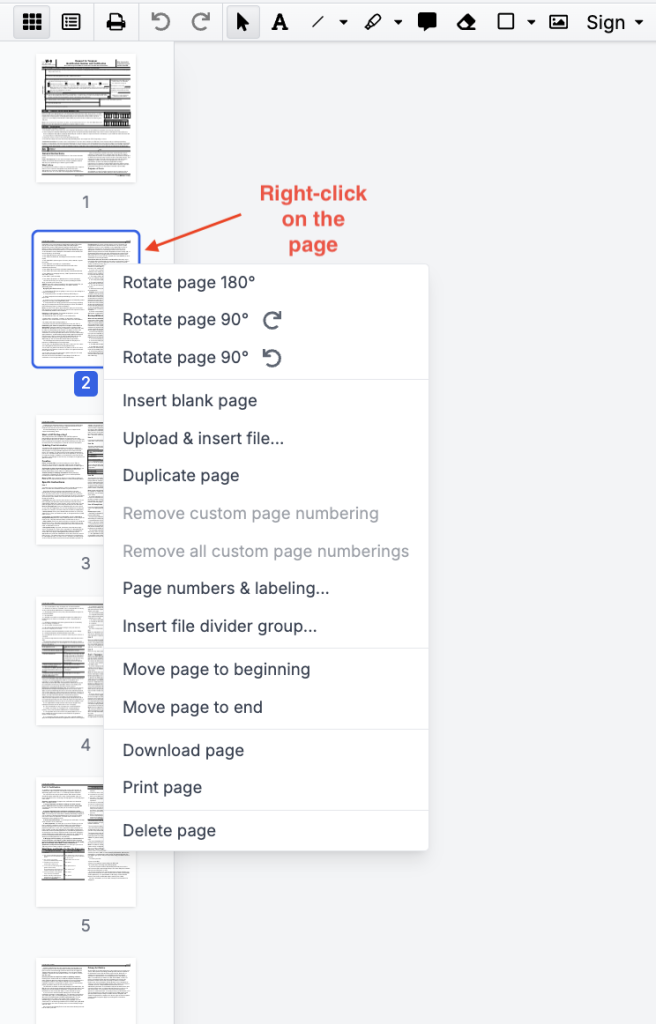
- Update the page rotation property. This tells PDF viewers to display the page at a different orientation — typically 0, 90, 180, or 270 degrees. In the editor, users can choose the direction of rotation.
- Transform the page content. The software recalculates the coordinates of all text, graphics, and images, and may adjust page boundaries to keep the content visible.
This difference is important. The pypdf documentation notes that its normal page-rotation method keeps the rotated page within its MediaBox and CropBox. A transformation applied only to the content changes the content coordinates without automatically changing those page boxes.
For most everyday tasks, like rotating a sideways scan so it’s right-side up, a simple 90-degree page rotation is usually the easiest way to go. Rotating at a custom angle is a different story. It’s more like straightening a crooked scan and often needs extra work, like cropping or resizing, to get things looking right.
How do PDF splitting mechanisms work?
PDF splitting is sometimes described as cutting a document into pieces. Technically, a tool usually creates one or multiple documents and copies the selected pages and necessary resources into them.
A simplified splitting process looks like this:
Source PDF → selected pages → required page resources → new page tree → new document
The new file requires its own document structure, including a catalog, page tree, cross-reference information, and trailer. Depending on the software and settings, it may also receive document metadata, bookmarks, form information, and security properties.
PDF splitting methods
There are several PDF splitting methods, and the table below briefly outlines their key features and benefits.
| Splitting method | How it works | Best for | Watch out for |
|---|---|---|---|
| By page range | You pick the page ranges (e.g., 1–5, 6–12) and each becomes its own PDF | Documents with clear sections you already know | Make sure your ranges are set correctly before you split |
| Every page | Each page becomes its own file | Invoices, certificates, and individual forms | File overload — naming and organizing lots of files gets messy fast |
| By fixed page count | Splits every X pages (e.g., 10 pages per file) | Large reports that need even chunks | Content getting cut mid-section (e.g., a chart split from its caption) |
| By bookmarks | Creates a new file at each bookmark | Chapters, departments, client files | Incomplete or misplaced bookmarks can throw off the whole split |
| By file size | Keeps each output under a set file size | Sending docs with strict size limits | Results can be unpredictable — page sizes vary a lot depending on the content |
How does splitting affect PDF metadata?
“Splitting preserves metadata” isn’t always accurate — it depends on what type of metadata you’re talking about
Page-level vs. document-level elements
Some data travels with individual pages (fonts, images, annotations, content streams). A good PDF splitter automatically copies all of this, so each output file displays correctly.
Other data belongs to the document as a whole:
- Title, author, and keywords
- Bookmarks and table of contents
- Form structures and page labels
- Accessibility tags and digital signatures
A splitting tool has to decide what to copy, adjust, or drop for each output file. For example, copying the original title into every output might make sense, but carrying over a bookmark that points to a page that no longer exists doesn’t.
Can bookmarks and links break?
Yes. Any bookmark, link, or cross-reference that points to an excluded page will break after the split. A well-designed splitter will either remove invalid links or rebuild the bookmark tree for each output.
Always test your bookmarks, hyperlinks, and page numbering after splitting. DocHub’s guide to PDF structure, numbering, and bookmarks is a great place to start if you want to understand how these elements work.
What happens to annotations and form fields?
Annotations are tied to specific spots on a page using coordinates. When you rotate or split pages, those positions may need to be updated to stay in the right place.
Form fields are a bit more involved. Each field belongs to a page, but it’s also part of a larger form structure across the whole document. If you split out certain pages, the software may need to rebuild that structure and drop any fields that didn’t make the cut. When rotating pages in DocHub, you can review how annotations and fillable fields will be affected. For a deeper look at highlights, comments, and markup, check out DocHub’s guide to PDF annotation techniques.
Can splitting invalidate a digital signature?
A digital signature is linked to a specific state or revision of a file. Rotating, deleting, reordering, or splitting pages changes the document structure and may render an existing signature invalid or produce unsigned output. Learn what makes an electronic signature legally valid and what can cause it to be invalidated in our blog post on legal frameworks for eSigning.
A visible signature image pasted into a new PDF isn’t the same as a valid cryptographic signature. Keep the original signed document intact, avoid editing its structure after signing, and validate the signature separately. Remember: signing with a digital ID can restrict later edits and provide tools to verify document integrity and signer authenticity.
Why should you preview a PDF before splitting it?
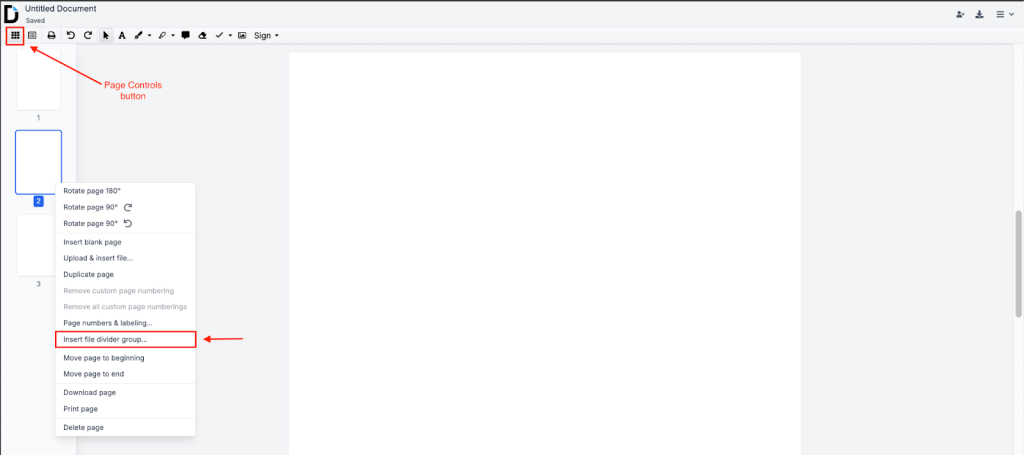
Previewing your PDF before splitting helps you divide it by meaning rather than page numbers. A good preview shows thumbnails, page orientation, divider positions, and any blank or duplicate pages, so you’re not accidentally cutting a clause off from the rest of its content.
DocHub’s Page Controls panel lets you view pages as thumbnails, rotate them, and set dividers where new PDFs should start. When you’re ready, just export and download as multiple files. Need to pull out specific pages instead? DocHub also has a dedicated workflow to help you extract selected PDF pages.
How do rotation and splitting affect PDF file size?
Rotation and splitting can change file size, but the outcome depends on how the PDF is structured and saved.
A source PDF may allow several pages to share one embedded font, image, or resource dictionary. After splitting, multiple output documents may each need their own copy. Therefore, each output may be smaller than the original while the combined total is equal to or larger than the source.
Splitting and compression are also different operations:
- Splitting changes which pages belong to each document.
- Compression changes how images, streams, fonts, and other resources are stored.
Do not assume that dividing a 20 MB document into four files will automatically produce four 5 MB files.
What are the best practices for document division?
Follow these best practices to avoid content or structural issues when splitting a PDF:
- Save the original first. Keep an untouched copy of your source PDF before making any changes — especially for signed or regulated documents.
- Rotate PDF pages before splitting. Fix any orientation issues before adding dividers so you don’t end up with sideways pages in your output files.
- Split at logical boundaries. Divide by chapters, clients, invoices, or reporting periods. Avoid cutting through tables, forms, or clauses mid-explanation.
- Check more than the text. Review bookmarks, links, form fields, comments, accessibility tags, and signatures in each output file.
- Use clear filenames. Swap generic names, like document-1.pdf, for something descriptive, like contract-exhibit-a.pdf, to make files easier to find and share.
- Open every output file. Confirm each file opens correctly, starts and ends on the right page, and preserves all expected content and formatting.
- Reapply security settings as needed. Newly created PDFs may not carry over passwords or permissions from the source. DocHub’s security and compliance center outlines how encryption, authentication, and access controls are handled.
Common PDF rotation and splitting problems
When you change the PDF structure by rotating or splitting its pages, you may face certain issues:
- Page prints sideways. The viewer may be rotating the display without saving the change. Apply a persistent rotation and re-export before printing.
- Content is clipped after rotation. The rotation may not have adjusted the page boundaries. Use a tool that accounts for MediaBox and CropBox when rotating.
- An annotation or field was moved. The page rotated, but the interactive elements didn’t follow. Check all fields and annotations after any page operation.
- Split PDF is still large. Splitting doesn’t compress content. Large scans, embedded fonts, or shared resources carry over as-is.
- Combined outputs are larger than the original. Resources shared in the source file may be duplicated across multiple output files.
- A bookmark points to the wrong place. Its destination may reference an excluded page or wasn’t updated after splitting.
- A signature shows a modification warning. The document was changed after signing. Go back to the original signed version to validate it first.
Final thoughts
PDF rotation algorithms and splitting mechanisms affect more than page appearance. Rotation relies on coordinate systems, page boundaries, and transformation rules, while splitting rebuilds document structures around selected pages and referenced resources.
To stay on the safe side, preserve the original file, preview the full document, split at logical boundaries, and validate every output. With DocHub, you can review page thumbnails, correct orientation, insert file dividers, and continue using other PDF editing tools, annotate your content, sign, and share your document without switching between multiple applications.
Try DocHub today and see how simple managing and editing PDFs can be.
FAQ
1. Does rotating a PDF reduce its quality?
A page-level rotation generally does not resample its text or images, so visible quality should remain the same. Quality can change when a workflow rasterizes the page, recompresses images, or converts the content into a different format.
2. What is the difference between page rotation and content rotation?
When you rotate PDF files, it changes how a viewer presents the page. Content rotation recalculates the coordinates of the objects drawn on it. Content transformation may also require changes to the page boundaries.
3. How does a PDF splitter know where to divide a document?
The user or software defines a rule, such as selected page ranges, a fixed number of pages, bookmarks, file dividers, or a target output size. The splitter then creates new PDF files containing the pages assigned to each group.
4. Why are split PDFs larger than expected?
A splitter may need to copy fonts, images, color profiles, and other resources into several output files. Shared resources that appeared only once in the original can therefore be duplicated.
5. Does splitting a PDF file compress it?
No. Splitting and compression serve different purposes. Splitting creates separate documents, while compression reduces the amount of data used to store their content.
6. How can I preview sections before splitting?
Use a page manager with numbered thumbnails and visible dividers. DocHub’s Page Controls let you review the sequence and orientation of pages before creating and downloading separate files.
7. Should I rotate pages before or after splitting?
Rotating first is usually more efficient because you can correct the source once and verify the orientation as you choose section boundaries. However, separate outputs should still be checked after export.
8. How can I confirm that no PDF content was lost?
To ensure no content is lost during PDF transformation, follow these recommendations:
- Compare the output page count with the intended ranges,
- Inspect the first and last page of every file,
- Search for key phrases,
- Test links and bookmarks,
- Check form fields and annotations,
- Compare the outputs with the untouched original.
Primary sources
- Adobe: PDF 32000-1:2008 specification
- pypdf: Cropping and transforming PDFs
- qpdf documentation: Cropping and Transforming PDFs
- Datalogics: PDF Rendering and Coordinate Systems
- DocHub Help Center: Reorder, rotate, remove & add pages using the Page Controls panel
- DocHub Help Center: Splitting documents within DocHub
- DocHub: Security and compliance
- Key takeaways
- What happens when you rotate PDF pages or split a PDF?
- What is the mathematical basis of PDF page rotation?
- How do PDF splitting mechanisms work?
- How does splitting affect PDF metadata?
- Why should you preview a PDF before splitting it?
- How do rotation and splitting affect PDF file size?
- What are the best practices for document division?
- Common PDF rotation and splitting problems
- Final thoughts
- FAQ
- Primary sources