
How to sign documents without printing: Fast & paperless guide for 2026

AI Digest
You no longer need to print, sign, scan, and email documents. Browser-based tools like DocHub let you upload a PDF, place your signature, and send the signed document in under two minutes—no downloads, no printing, no scanner required.
- Avoid the hassle of printing, signing, and scanning documents by using browser-based tools.
- Upload your PDF, add a signature, and send it in less than two minutes.
- No downloads, printers, or scanners needed—completely paperless.
- eSignatures on tools like DocHub are legally binding under regulations like the ESIGN Act, UETA, and eIDAS.
This guide walks you through exactly how to eSign documents without printing—including which document types qualify, when online signing makes more sense than printing, how browser-based signing works step by step, and what to look for in an online signature tool. Along the way, you’ll see how DocHub handles each part of the process, from secure upload to instant sharing.
Whether you’re a small business owner processing vendor contracts, an HR manager collecting employee onboarding forms, or a freelancer signing client agreements, this guide gives you a clear, practical path to going paperless in 2026.
Why print-sign-scan is no longer the fastest workflow
The traditional print-sign-scan method was designed for a world without reliable internet, cloud storage, or browser-based document tools. That world no longer exists for most businesses.
Printing introduces friction at every step. You need a working printer, the right paper, functioning ink, a scanner (or a decent smartphone camera app), and enough time to email everything back before the recipient follows up. If you’re working remotely, traveling, or simply away from your desk, the whole workflow falls apart.
Paperless signing removes all those dependencies. The comparison below makes the difference clear.
Traditional vs. paperless workflow comparison
| Step | Traditional (Print-Sign-Scan) | Paperless (eSign with DocHub) |
|---|---|---|
| Receive document | Email or physical delivery | Email, URL, or Google Drive |
| Open document | Open in browser—no download needed | |
| Sign | Handwrite on paper | Type, draw, or upload a signature |
| Return document | Scan and email, or mail physically | Send via email attachment, sign request, or fax |
| Storage | Physical filing or manual scan to cloud | Automatic cloud storage with audit trail |
| Time to complete | 10–30 minutes (if printer is available) | Under two minutes |
| Works remotely | No | Yes—any device, any location |
| Audit trail | None | Full activity log with timestamps |
The paperless workflow is not just faster—it’s more reliable, more auditable, and easier to scale as document volume grows.
How to sign PDFs online without downloading software
One of the most common misconceptions about eSigning is that it requires installing a desktop application. DocHub runs entirely in your browser, which means you can sign documents instantly without downloading anything.
Here’s the recommended step-by-step workflow using DocHub:
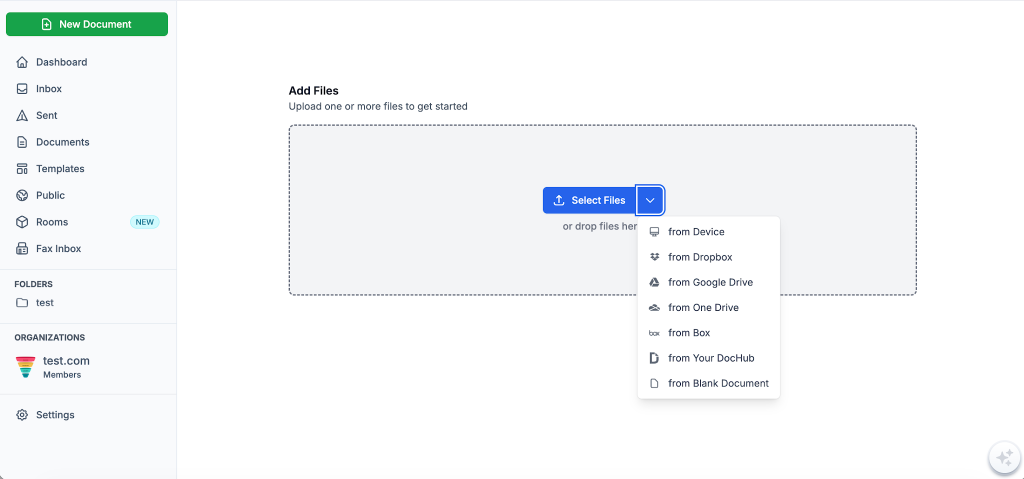
Step 1: Upload your document
Go to DocHub.com and upload your PDF directly from your computer, Google Drive, Dropbox, or OneDrive.
Step 2: Open the document in the browser editor
DocHub opens your file in a full-featured browser-based editor. No plugins, no installs—just your document, ready to edit.
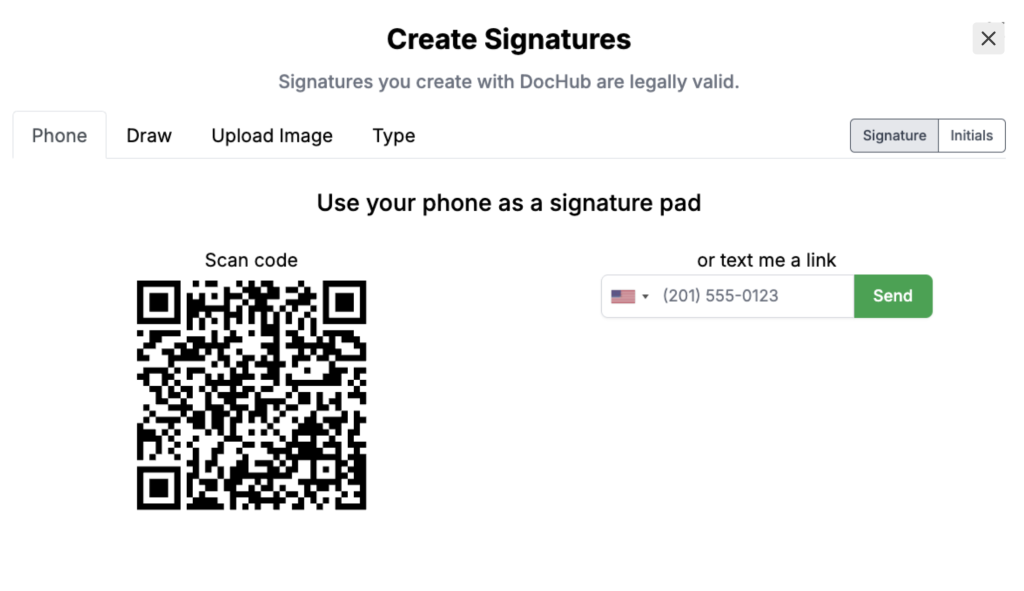
Step 3: Create your signature
In the editor toolbar, select the Sign option. You can use your phone as a signature pad, type your name, draw your signature with a mouse or finger, or upload an image of your existing handwritten signature. Set it as your default to save time on future documents.
Step 4: Place and finalize
Drag your signature to the correct location. Add fillable fields: initials, dates, or any other required fields using DocHub’s drag-and-drop form tools.
Step 5: Share or download
Send the signed document directly via email, signature request, or export it to Google Drive, OneDrive, or Dropbox. Download a local copy if needed.
The entire process—from upload to sending—typically takes under two minutes. For more information, learn how DocHub signatures work.
What types of documents can you sign without printing?
Most everyday business and personal documents can be signed electronically. The ESIGN Act and UETA (Uniform Electronic Transactions Act) establish broad legal recognition for eSignatures across the United States, while eIDAS covers electronic transactions across the European Union.
Common use cases for paperless signing
- Business contracts: Service agreements, vendor contracts, NDAs, partnership agreements
- HR documents: Offer letters, employment contracts, onboarding forms, policy acknowledgments
- Real estate: Lease agreements, property management forms, tenant applications
- Financial documents: Loan agreements, account opening forms, authorization letters
- Legal forms: Powers of attorney, consent forms, settlement agreements (where permitted)
- Healthcare: Patient intake forms, consent documents, authorization releases
- Education: Enrollment forms, permission slips, scholarship agreements
- Freelance and creative work: Client contracts, project proposals, scope-of-work agreements
- Government forms: Many federal and state forms accept electronic signatures
Some document categories—such as wills, adoption papers, and certain court filings—may require wet (handwritten) signatures depending on jurisdiction. For those cases, consult a qualified legal professional. This article is for informational purposes only and does not constitute legal advice.
When should you use an online signature instead of printing?
Not every situation calls for the same approach. Use this decision table to determine the right signing method for your context.
| Situation | Recommended method |
|---|---|
| Standard business contract | eSign online |
| Remote signer in another city or country | eSign online |
| Urgent turnaround required (same day) | eSign online |
| Document needs multiple signers | eSign online with multi-signer workflow |
| Notarization required | Check jurisdiction—may need a wet signature |
| Will or testamentary document | Wet signature (varies by jurisdiction) |
| Court-filed legal documents | Confirm with the court—rules vary |
| Regulated financial documents (e.g., mortgage closing) | Confirm with the institution |
| Internal approvals and policy sign-offs | eSign online |
| Client-facing agreements | eSign online |
When in doubt about the legal requirements for a specific document type, seek legal guidance. For the vast majority of business and personal documents, an electronic signature is fully valid.
How browser-based eSigning works
Browser-based eSigning tools like DocHub handle the entire document lifecycle inside a web browser—no software installation, no local file management, no version confusion.
Here’s how the process works under the hood:
- Secure upload: When you upload a document, it is transferred over an encrypted connection (SSL/TLS). DocHub stores documents in a secure cloud infrastructure, protecting them from unauthorized access.
- Browser-based editor: DocHub’s editing environment runs directly in the browser. You can edit your PDF online: annotate, fill in fields, add text, and place signatures without any local application.
- Signature placement: Signatures are placed as embedded elements within the PDF. DocHub captures the signature and links it logically to the document, satisfying the ESIGN Act and UETA requirements for electronic signature attachment.
- Cloud access: Signed documents are stored in DocHub’s cloud and can be accessed from any device with a browser and internet connection.
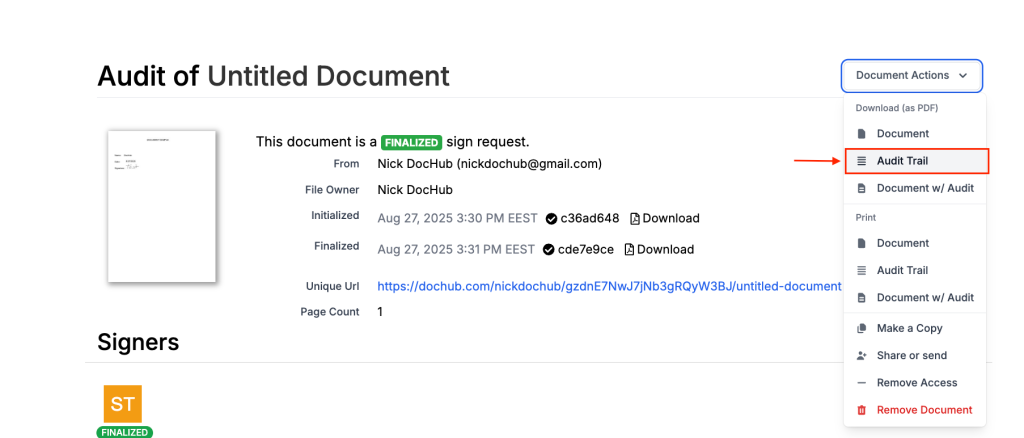
- Audit history: DocHub affixes an audit trail to every document. This includes timestamps, signer authentication records, and a SHA-256 unique identifier stored in Bitcoin’s blockchain for perpetual verification. The audit trail captures every major change made by each party.
- Sharing options: Once signed, you can share the document via email or export it directly to Google Drive, Dropbox, OneDrive, or Google Classroom.
Benefits of eliminating paper signatures
Switching to paperless signing affects more than just signing speed. Here’s what changes across four key outcomes:
Save time
Eliminating printing removes the most time-consuming steps in document handling. Signing a document with DocHub takes under two minutes. Requesting signatures from multiple parties—with automated reminders—means you spend less time chasing people and more time on actual work.
Work remotely
Paper-based signing requires physical proximity to a printer and scanner. Online signing requires only an internet connection. DocHub works on desktop browsers, smartphones, and tablets, so your team can sign documents from anywhere—home, client site, or a hotel lobby.
Reduce paper usage
Each unnecessary print job consumes paper, ink, and energy. For businesses processing hundreds of documents per month, eliminating printing adds up to meaningful cost savings and reduced environmental impact.
Improve collaboration
Multiple signers can complete their fields in a defined sequence, with automated notifications sent at each stage. The result is a faster, more transparent approval process for everyone involved.
Security considerations when signing online
Security is one of the most common concerns people raise about paperless signing—and it’s a fair one. Here’s how DocHub addresses each element:
- Encrypted transmission: All documents transferred to and from DocHub are encrypted over SSL, preventing interception during upload or download.
- Secure cloud storage: Documents are stored in a secure cloud infrastructure with multiple layers of protection. DocHub uses two-factor authentication to ensure that only authorized users access their accounts.
- Authenticated access: Signers must authenticate via email invitation or DocHub login credentials before accessing or signing a document.
- Audit logs: Every document in DocHub has a complete activity log—who viewed it, who signed it, when, and from where. This log includes SHA-256 identifiers and blockchain verification for tamper-evident record-keeping.
- Version history: DocHub preserves both the original and signed versions of your document. If any changes are made after signing, the audit trail captures them.
DocHub’s eSignature qualifies as both an electronic signature and a digital signature under US law. Specifically, it is unique to the signer, capable of verifying the signer’s identity, under the sole control of the signer, and linked to the document in a way that detects any subsequent changes. This meets the requirements of the ESIGN Act, UETA, and is also aligned with eIDAS standards for electronic transactions in the European Union. Learn more about DocHub’s security and compliance practices.
Common reasons people still print documents—and when they don’t have to
Several misconceptions keep people tied to the print-sign-scan workflow. Here’s a look at the most common ones.
“I need a wet signature for it to be legal.”
For the vast majority of everyday business documents, this is not true. The ESIGN Act (2000) and UETA give electronic signatures the same legal standing as handwritten signatures across the United States. eIDAS provides similar protections across EU member states. Wet signatures are only required for specific document categories like wills and notarized documents—not standard contracts or HR forms.
“The other party won’t accept an electronic signature.”
Most businesses and institutions now accept eSignatures. If you’re unsure, ask the counterparty before defaulting to printing. Many have moved to paperless processes themselves.
“I need a physical copy for my records.”
Digital records are legally admissible as evidence under Section 13 of UETA. A signed PDF stored in the cloud—with a full audit trail—is often a more reliable record than a physical copy.
“I can’t sign on my phone.”
DocHub works on any device with a browser. You can draw a signature with your finger on a touchscreen, making mobile signing straightforward.
“It takes too long to set up.”
DocHub requires no installation and no lengthy onboarding. You can upload a document and sign it in under two minutes from a cold start.
Choosing an online signature tool
Not all eSignature tools are built the same. When evaluating options, consider the following criteria:
| Evaluation criterion | What to look for |
|---|---|
| Legal compliance | ESIGN Act, UETA, and eIDAS compliance |
| Security features | SSL encryption, two-factor authentication, audit trail |
| Ease of use | No download required, intuitive interface |
| Device compatibility | Works on desktop, tablet, and mobile browsers |
| Integration | Connects to Google Workspace, Drive, Dropbox, OneDrive |
| Multi-signer support | Sequential or parallel signing workflows |
| Storage and access | Automatic cloud saving, document history |
| Sharing options | Email, secure link, cloud export |
| Cost | Free tier available, scalable pricing |
| Support | Help documentation, responsive customer support |
DocHub meets all of these criteria. It runs entirely in the browser, integrates natively with Google Workspace, supports multi-signer workflows with automated reminders, and stores all documents securely with full audit trail records. Over 80 million people use DocHub to handle documents—from one-off agreements to high-volume business workflows.
Disclaimer: The information contained in this blog post is provided for general informational purposes only and does not constitute formal legal advice.
Stop printing. Start signing smarter.
The print-sign-scan workflow had a long run, but for most documents, it’s no longer the practical choice. Browser-based eSigning is faster, more secure, more auditable, and works from any device—without a printer in sight.
DocHub gives you everything you need to eSign documents instantly: a browser-based editor, legally binding electronic signatures, multi-signer workflows, secure cloud storage, and full audit trails. It integrates with the tools you already use—Google Drive, Gmail, Dropbox, and more—so you’re not learning a new system from scratch.
If you’re still printing documents to sign them, the easiest next step is to try the alternative. No commitment, no install, no learning curve.
Start your free DocHub trial today and sign your next document without touching a printer.
Glossary
- Electronic signature (eSignature): Any electronic mark, symbol, or process attached to a document with the intent to sign. Electronic signatures are legally recognized under the ESIGN Act and UETA in the United States.
- Audit trail: A time-stamped record of all actions taken on a document—including who viewed, edited, and signed it. DocHub’s audit trail includes SHA-256 identifiers and blockchain-based verification for tamper-evident record-keeping.
- ESIGN Act: The U.S. Electronic Signatures in Global and National Commerce Act (2000), which grants electronic signatures the same legal standing as handwritten signatures for most document types in interstate and international commerce.
- eIDAS: The EU Regulation on Electronic Identification, Authentication, and Trust Services. eIDAS establishes a legal framework for electronic signatures and digital transactions across European Union member states.
- Browser-based signing: A method of signing documents directly within a web browser, without installing software. Tools like DocHub enable browser-based signing on any device with an internet connection.
FAQ
1. Is it legal to sign documents electronically without printing?
Yes, for most document types. In the United States, the ESIGN Act (2000) and UETA establish that electronic signatures are legally equivalent to handwritten signatures. eIDAS provides similar recognition across EU member states. Certain documents—like wills or notarized filings—may still require wet signatures depending on jurisdiction. This article is for informational purposes only and is not legal advice.
2. What is the quickest way to eSign a PDF?
The quickest way to eSign a PDF is to use a browser-based tool like DocHub. Upload your PDF, place your signature, and send the signed document—all without downloading software. The entire process takes under two minutes.
3. How do I know my electronic signature is secure?
DocHub uses SSL encryption for all document transfers, two-factor authentication for account access, and a full audit trail (including SHA-256 identifiers and blockchain verification) attached to every signed document. These features protect your documents from unauthorized access and tampering.
4. What is the difference between an electronic signature and a digital signature?
An electronic signature is any electronic indication of intent to agree—such as a typed name or drawn signature. A digital signature is a more technical form that uses cryptographic methods to authenticate the signer’s identity and detect document changes. DocHub’s signature qualifies as both: it is unique to the signer, verifiable, under the signer’s sole control, and linked to the document so any post-signing changes can be detected.
5. Can multiple people sign the same document using DocHub?
Yes. DocHub supports multi-signer workflows. You specify who needs to sign, where, and in what order. Automated notifications and reminders are sent to each signer, and you receive a confirmation email once all signatures are collected.
6. Does DocHub integrate with Google Drive and other cloud storage?
Yes. DocHub integrates directly with Google Drive, Dropbox, OneDrive, Box, and Google Classroom. You can import documents from these platforms, sign them in DocHub, and export the signed versions back with one click.
7. Can I sign documents online without downloading software?
Yes. DocHub operates entirely in your web browser. You can upload, sign, and share documents from any device without installing an application or plugin.
- Why print-sign-scan is no longer the fastest workflow
- How to sign PDFs online without downloading software
- What types of documents can you sign without printing?
- When should you use an online signature instead of printing?
- How browser-based eSigning works
- Benefits of eliminating paper signatures
- Security considerations when signing online
- Common reasons people still print documents—and when they don’t have to
- Choosing an online signature tool
- Stop printing. Start signing smarter.