

You can sign a PDF without Adobe by using a browser-based tool like DocHub, which lets you type, draw, or upload a signature image in seconds. No installation is needed, and your signed file is legally binding under the ESIGN Act and UETA. DocHub works right from your browser or phone, so you can eSign PDF online without downloading Adobe Acrobat.
TL;DR
- You don’t need Adobe Acrobat to sign a PDF document. Tools like DocHub let you sign PDFs online from any browser or mobile device.
- Electronic signatures made without Adobe are legally binding in the US under the ESIGN Act and UETA, as long as your tool meets the requirements.
- DocHub adds an audit trail with a SHA256 identifier stored on Bitcoin’s blockchain, so any tampering can be detected.
- Security features like SSL, two-factor authentication, and password protection help keep your sensitive files safe.
Paperwork rarely waits for a good time. Between tax forms, vendor agreements, and employee onboarding, small business owners often need to sign a PDF fast—and Adobe isn’t the only answer.
The good news is you have plenty of options. You can sign PDFs online without Adobe Acrobat, and the result is just as valid. This guide walks you through why people look elsewhere, whether a signed file holds up legally, and shows how to use DocHub as an Adobe alternative for signing.
Disclaimer: The information contained in this blog post is provided for general informational purposes only and does not constitute formal legal advice.
Why look for an alternative to Adobe in the first place?
Adobe Acrobat is well known, but it isn’t always the right fit. Even though it works in a browser, some users find it more complex than they need—especially for everyday tasks like signing a form or filling out a quick document. When you’re juggling a lot, a simpler online tool can save time and keep things moving.
Flexibility and feature sets matter. Small businesses looking to optimize their document workflows often require software that can handle core PDF tasks and integrate with other essential tools. Adobe Acrobat checks those boxes, but its price tag can be a dealbreaker for smaller teams. That’s why many users are turning to paid and free alternatives to Adobe Acrobat, like DocHub.
Cost is a big factor. Adobe Acrobat plans start at $14.99/month for individuals and $16.99 per license per month for businesses, both offering comprehensive editing and signing functionality. For teams or frequent users, those costs can add up quickly. Budget-conscious small teams are always on the lookout for affordable PDF software that doesn’t sacrifice security or performance. Fortunately, the market is full of alternatives that deliver comparable features at a significantly lower price point. DocHub, for example, has a free plan for occasional users and paid plans starting at just $8 per month, so you only pay for what you actually need.
Is a PDF signed without Adobe legally valid?
Yes, and here’s why. Whether you use Adobe has nothing to do with whether an electronic signature is legally valid. What actually matters is the applicable law, the type of document, the parties’ intent, the authentication process, record retention, and other surrounding circumstances.
In the United States, the federal ESIGN Act states that a signature, contract, or record cannot be denied legal effect or validity simply because it is electronic. The law also includes additional requirements and exceptions, such as rules governing which records must be retained and accurately reproduced.
In the European Union, eIDAS provides that an electronic signature cannot be denied legal effect or admissibility as evidence solely because it is electronic or not qualified. A qualified electronic signature (QES) has the same legal effect as a handwritten signature across EU member states. If you want to dive deeper into the topic, we’ve described these laws in our blog post, Electronic signature legal validity: ESIGN, UETA, and other legal frameworks for eSigning explained.
Are DocHub eSignatures legally binding?
Yes. DocHub complies with both the ESIGN Act and UETA, so every eSignature you create is legally binding. It places the signature field in the right spot in your PDF and captures a real handwritten signature to reflect the signer’s intent.
DocHub also provides a digital signature that meets US standards. That signature is unique to the signer, can verify the signer’s identity, is under the signer’s sole control, and is linked to the signed file, so any later changes can be detected. DocHub’s digital signature is also “LTV enabled,” which means its validity won’t expire when viewed in Acrobat.
Certificate-based digital signatures like this give you extra confidence that a document hasn’t been altered after signing. Check also our dedicated article to learn more about the difference between electronic and digital signatures.
How to use DocHub as an Adobe alternative for signing
DocHub was built to make signing feel effortless, right from your browser. There’s no software to install—all you need is an account with DocHub and an internet connection.
Here’s how to sign a PDF in a few simple steps.
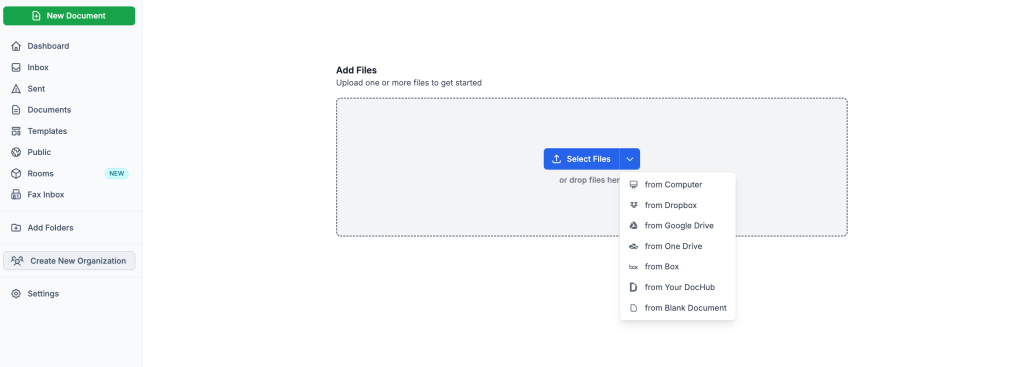
1. Upload your PDF. Once logged in, click New Document in the top-left corner of the Dashboard. Drop a file to the uploader or select it from your computer or cloud storage like Google Drive, OneDrive, or Dropbox.
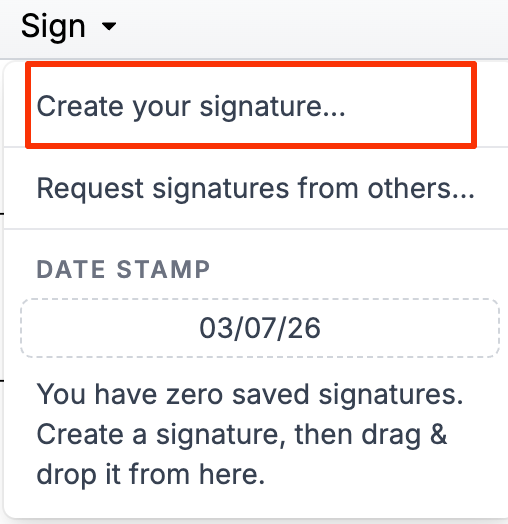
2. Open the signature tool. If there are blank fields you need to fill out in the document, use the Add Text tool. When ready, click Sign > Create your signature.
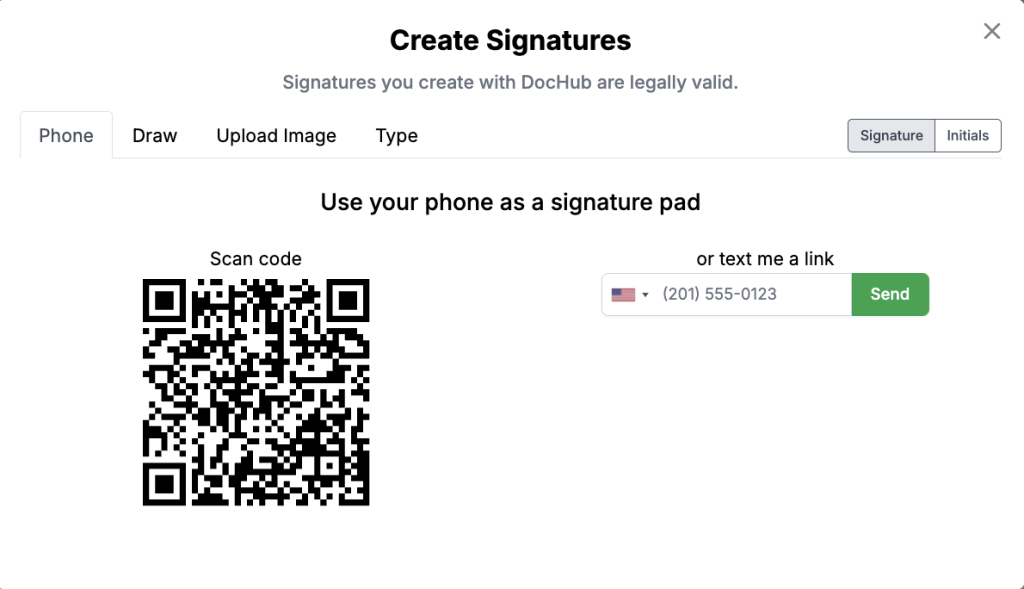
3. Choose your signing method. Type your name, upload a signature image, or draw your signature using a mouse, a stylus, or your finger. You can set a saved signature and reuse it whenever you need it.
4. Place your signature on a PDF. Move your handwritten signature into the right spot on the page. Pick your signature from the Sign dropdown and drag it to the signature field. Use the handles to resize it as needed.
5. Date your document. In the Sign dropdown, click Date stamp and place the current date next to your signature.
6. Finish up. Download or export your signed file, print it, or send it to others as an email attachment, a shareable link, or even via fax.
The whole process takes seconds. Because DocHub runs in your browser, you can sign documents from any internet-connected device. Read our article on how to sign PDFs in a browser to learn more.
How do you get a digital signature certificate in DocHub?
DocHub not only allows you to sign your documents digitally but also lets you add a digital signature certificate to verify your signature. This adds an extra layer of security and validation to your signed document.
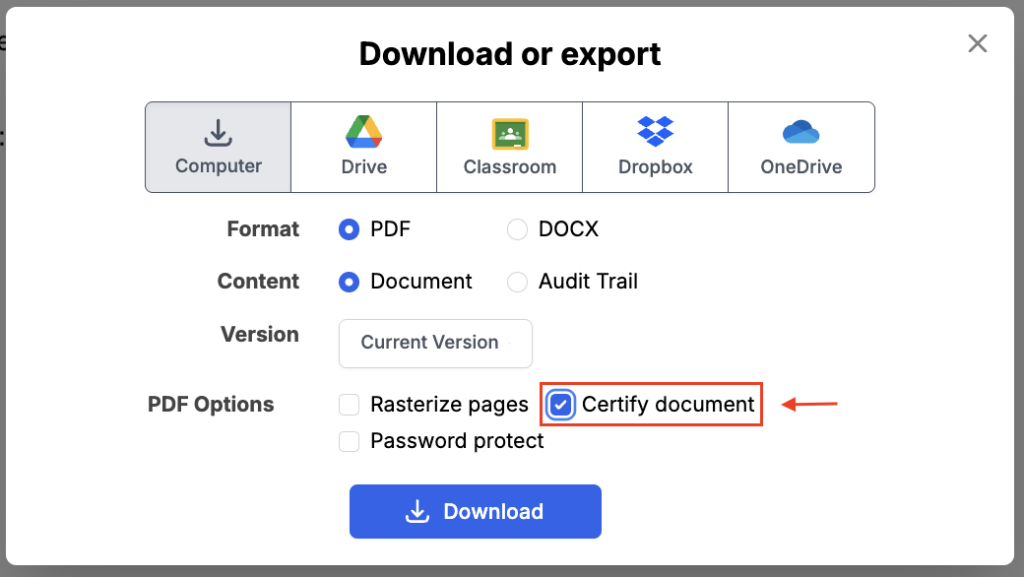
Getting a digital signature certificate in DocHub is fast and straightforward. Once you finish signing your document, click Download / Export. In the Download modal, check the Certify document box. This process guarantees compliance with industry standards for secure and valid eSignatures.
How to eSign documents online without a subscription
You don’t always need a paid plan to eSign a PDF online. DocHub packs powerful features into its free version, so you can get real work done without opening your wallet. Check how you can sign PDFs online for free with DocHub.
Here’s what you can do with DocHub’s free account:
- Sign PDFs for free. Type, draw, or upload a signature image and place it on any PDF.
- Request signatures. Send signature requests to other parties and collect legally valid documents signed electronically in just minutes.
- Fill out forms. Complete fillable PDF forms by clicking into text fields and typing your answers.
- Build your own forms. Turn a static PDF into a dynamic form. Drag and drop form fields for text, signatures, initials, dates, and checkboxes.
- Create templates. Speed up document creation by turning PDF files into reusable templates for future repetitive tasks.
This matters most when you work with documents occasionally and not on a daily basis. DocHub lets you use its core features free of charge on a limited monthly basis. However, if you often deal with documents, it’s worth investing in a paid plan.
DocHub vs. Adobe Acrobat: How do they compare?
Both DocHub and Adobe Acrobat offer effective PDF signing capabilities, but they are designed for different levels of document workflow. DocHub combines browser-based PDF editing and signing in one tool, while Adobe Acrobat offers signing alongside broader PDF creation, editing, conversion, and document management features.
Let’s compare these solutions side by side to help you understand which one is better for your needs.
| Feature | DocHub | Adobe Acrobat |
|---|---|---|
| Free option | Yes, core features with limited monthly use | Acrobat Reader is free for basic viewing, filling, and signing |
| Cost | Free plan available; paid plans start at $8/month | Pricing starts from $14.99 per license per month |
| Best suited for | Individuals and teams | Individuals, teams, and businesses |
| Create a signature | Yes — type, draw, upload a signature image, and use the phone option to scan a QR code or get a secure signing link | Yes — type, draw, or insert an image of a handwritten signature |
| Fill and sign PDFs | Yes | Yes |
| Request signatures from others | Yes, with multiple signers and field assignments | Yes — collect eSignatures and track responses |
| Edit PDF text and images | Yes | Yes |
| Advanced PDF tools, fillable forms | Strong | Strong |
| Security and compliance | Includes encryption (256-bit), password protection, tamper-evidence, SOC 2, GDPR, HIPAA (enterprise only), and other certifications | The desktop tool includes AES-256 encryption, custom password protection, and digital certificate-based tamper evidence for local files. Compliance with HIPAA, GDPR, and SOC 2/3 depends entirely on the user's secure local IT environment. Adobe Acrobat cloud services include SOC 2 Type II and SOC 3 compliance, GDPR, automated cryptographic tamper-evident sealing, and HIPAA |
| Cloud integrations | Yes — Google Drive, OneDrive, Dropbox, and Box | Yes — Google Drive, OneDrive, Dropbox, Box, and Microsoft apps |
| Mobile signing | Yes, with iOS and Android apps | Yes, via Acrobat and Acrobat Reader mobile |
| Software installation | None needed — fully browser-based | Desktop app available; some features also work in a browser as part of a multi-platform ecosystem |
Please note: Pricing, limits, features, and compliance availability were verified against official DocHub and Adobe resources on August 12, 2026. Vendor pricing and plan entitlements can change, so check current plan details before making your decision.
How to migrate from Adobe to DocHub
Moving from Adobe Acrobat to DocHub can be straightforward if you transfer your documents first and rebuild only the workflows you actually use. For teams, a phased migration is usually the safest approach: move files and settings, test several real workflows, and only then retire your previous Adobe Acrobat setup.
- Review your current Adobe workflows. Identify the PDFs, forms, signature processes, integrations, and team workflows you regularly use so you know what needs to be recreated in DocHub.
- Download or export important documents. Save PDFs and completed records from Adobe Acrobat to your device or cloud storage before changing your subscription or access.
- Set up your DocHub account or organization. Create your workspace, invite team members, and choose a plan that fits your document volume and signing needs.
- Import your PDFs into DocHub. Upload files from your device or supported cloud services (Google Drive, Box, Dropbox, and OneDrive).
- Recreate signatures, forms, and templates. Add your reusable signature and initials, then build templates for documents you send repeatedly.
- Test common workflows before switching. Run through real tasks—editing a PDF, self-signing, requesting signatures, downloading the final document, and checking the audit trail—to make sure everything works as expected.
- Move active work and phase out Adobe. Once your workflows are validated in DocHub, make the switch and review whether you still need your Adobe Acrobat licenses before canceling or reducing them.
Final thoughts
You don’t necessarily need Adobe to sign a PDF. The modern eSignature market offers many alternatives to Adobe Acrobat. With a secure, browser-based tool like DocHub, you can eSign PDFs in seconds, fill out forms, and collect signatures from an entire team—all for free or at an affordable price. Your signed file stays legally binding under the ESIGN Act and UETA, and strong security keeps your sensitive files protected.
Ready to simplify your document workflow? Try DocHub for free and start signing your PDFs online today.
Glossary
- Electronic signature: A digital signature—like a typed name or drawn mark—that shows intent to sign and is legally binding under the ESIGN Act and UETA.
- Digital signature: An electronic signature backed by a digital certificate that verifies the signer’s identity and detects any tampering.
- Certificate-based digital signature: A signature that uses a digital certificate to confirm the signer’s identity and protect document integrity.
- Audit trail: A record of every major change to a document—who acted and when. DocHub’s audit trail uses a SHA256 identifier stored on Bitcoin’s blockchain.
- ESIGN Act: The US Electronic Signatures in Global and National Commerce Act of 2000, which makes electronic signatures legally valid nationwide.
FAQ
It depends on the tool. Some no-frills signers let you sign without an account but limit you to one-off, self-signed documents. Tools like DocHub that let you save signatures, reuse templates, and send documents for others to sign require an account.
Yes. DocHub’s mobile apps for iOS and Android add the ability to send documents out and track signatures, which built-in tools don’t do. You can also use DocHub from any mobile browser, even without installing an app.
Yes—in the US and EU, a free electronic signature is legally binding, as long as it meets the right requirements. In the US, that means following the ESIGN Act and UETA. In the EU, it’s eIDAS. These laws focus on two things: a clear intent to sign and a verifiable record of the signature. The cost of the tool you use—whether it’s free or paid—has no bearing on whether the signature holds up legally.
An electronic signature is any electronic mark showing intent to sign (typed, drawn, or image-based). A digital signature is a specific, cryptographically verified type of electronic signature that uses a certificate to verify identity and detect tampering — typically required for higher-stakes documents such as government or financial filings.
- TL;DR
- Why look for an alternative to Adobe in the first place?
- Is a PDF signed without Adobe legally valid?
- How to use DocHub as an Adobe alternative for signing
- How to eSign documents online without a subscription
- DocHub vs. Adobe Acrobat: How do they compare?
- How to migrate from Adobe to DocHub
- Final thoughts
- Glossary
- FAQ