

To use the PDF page extraction in DocHub, you can select thumbnails in Page Controls, enter a precise Page Range while downloading separate pages or dividing a document into sections and downloading them as separate PDFs. PDF page extraction lets you copy specific pages from a PDF into a new file without changing the original document.
This guide explains how each extraction method works, what happens to formatting, links, form fields, signatures, and page order, and when to use each option. It is intended for business users, legal and administrative teams, educators, and anyone who needs to share, print, archive, or process only part of a PDF.
Understanding the right extraction method helps you avoid sending unnecessary or confidential pages, reduces manual document handling, and makes large PDF files easier to manage while preserving the complete original in DocHub.
Summary
- Open Page Controls and select page thumbnails to extract specific pages visually.
- Enter a range such as 1-5, 8, 11-13 when you already know the required page numbers.
- Use file divider groups to split one PDF into named sections and download them in a ZIP archive.
- Extracted pages retain their visible formatting, annotations, filled fields, signatures, and page orientation.
- Downloading selected pages creates a new PDF file without removing pages from the original document.
What does extracting pages from a PDF mean?
Page extraction creates a new document containing only selected pages from a PDF. For example, extracting pages 3, 4, and 9 from a 30-page report produces a smaller PDF with those three pages in their original order.
Extraction differs from deleting pages. When you extract pages in DocHub, the original PDF remains available in your account as a complete document. You receive an additional file containing only the pages selected for download.
This distinction matters when the source document must be preserved for compliance, recordkeeping, or future editing.
How can you extract pages from PDF documents in DocHub?
DocHub provides three practical methods to extract pages from PDFs up to 30 MB in size and less than 1000 pages. The best choice depends on whether you prefer visual page selection, know the exact page numbers, or need to repeat the same document split.
Method 1: Select pages through Page Controls
Thumbnail selection works well when you need to identify pages by their visible content.
- Open the PDF file in the DocHub editor.
- Open Page Controls or use the relevant pages-panel keyboard shortcut.
- Review the page thumbnails.
- Click a thumbnail to select one page.
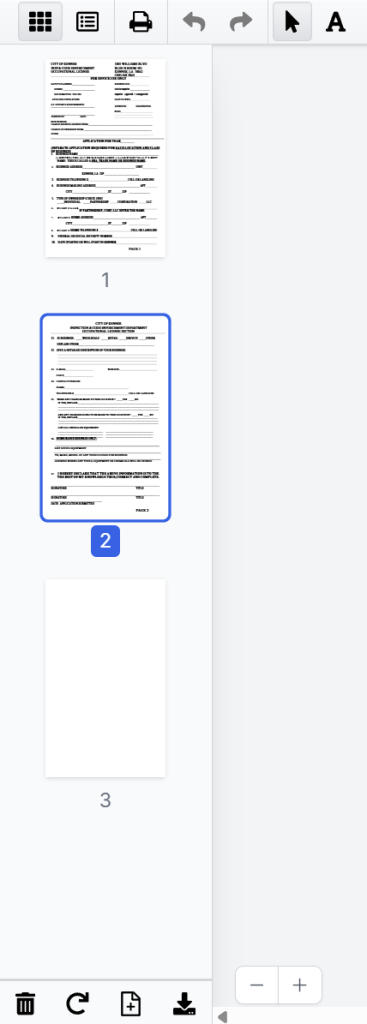
- Hold Ctrl on Windows or Cmd on Mac while clicking to select nonconsecutive pages.
- Hold Shift to select a continuous range of multiple pages.
- Choose Download selected pages. You can also right-click the selection and use the available download command.
- Save the new PDF to your device.
The selected pages are exported in document order, regardless of the sequence in which you clicked their thumbnails.
Method 2: Enter a page range during download
A page range is faster when you already know the numbers of the pages you need.
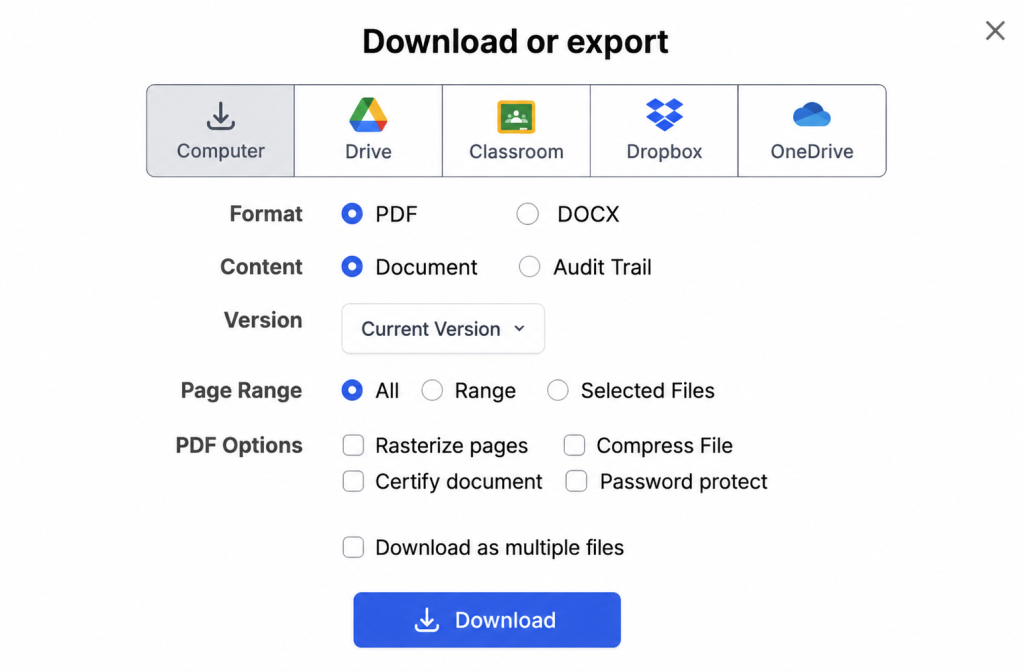
- Open the document and select the download or export option.
- Locate Page Range in the download settings.
- Set the option to Range.
- Enter the required page numbers and intervals.
- Start the download.
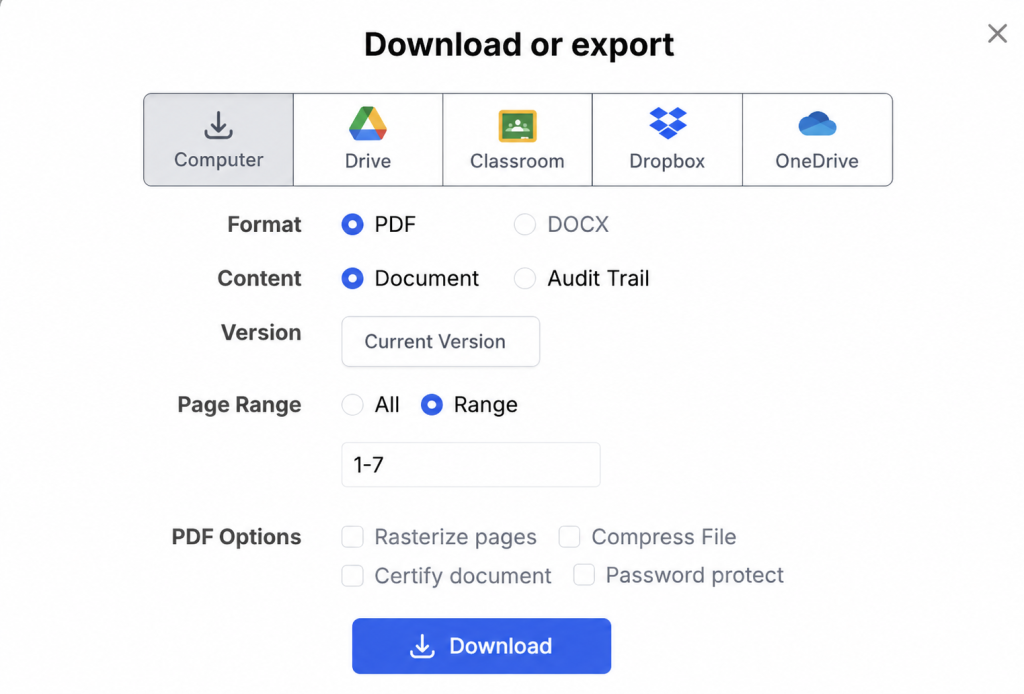
For example, entering 1-5, 8, 11-13 extracts pages 1 through 5, page 8, and pages 11 through 13. The resulting file contains only those pages.
This method reduces the need to scroll through a long thumbnail panel. It is particularly useful for structured documents with reliable page references, such as reports, manuals, contracts, and application packages.
Method 3: Use file divider groups
File dividers are designed for documents that contain several logical sections. They let you mark where each section begins and give it a meaningful name.
- Open Page Controls.
- Select the page where a new section should begin.
- Right-click the thumbnail.
- Select Insert file divider group.
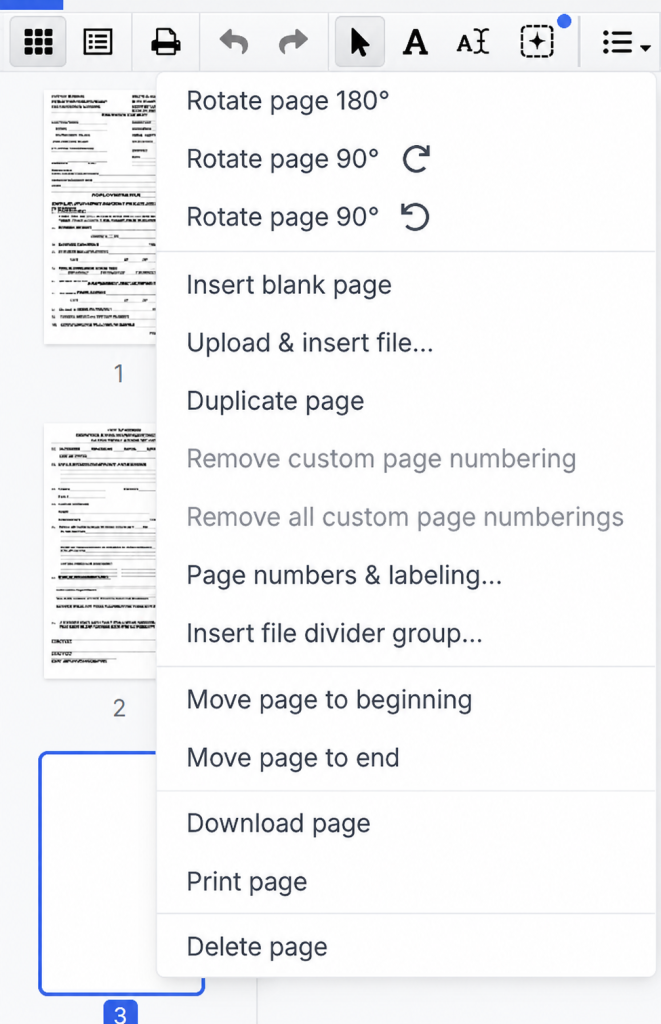
- Enter a section name, such as Exhibit A or Invoice 1042.
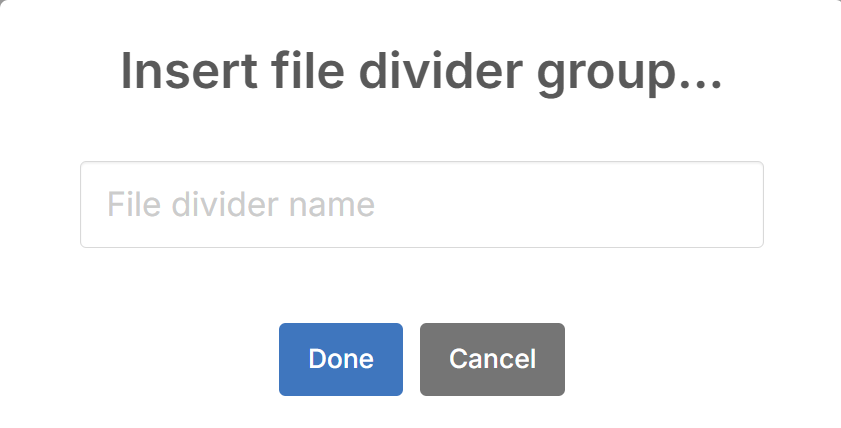
- Repeat the process for the other sections.
- Open the download or export options.
- Select Download as multiple files to download multiple documents
- Download the ZIP archive containing one PDF per divider group.
The file divider groups appear in the Page Controls menu and can be exported through Download as multiple files.
You can also use Selected Files to export only particular groups instead of downloading every section. As a related how-to guide, see our blog: How to extract PDF pages: Your simple guide.
Does PDF page extraction preserve formatting?
Yes. DocHub extracts the existing PDF pages rather than rebuilding their content in another format. The extracted pages retain the layout shown in the editor, including:
- Fonts and text placement
- Images and graphics
- Page dimensions
- Portrait or landscape orientation
- Page rotation
- Filled form fields
- Signatures
- Added text
- Drawings and highlights
Document quality in PDF editing workflows and forms
DocHub’s editing workflow can preserve document quality without rasterizing text or removing fields. To find out more about editing PDFs, particularly on Mac and Windows devices, see our blog: How to edit a PDF on WIndows and Mac.
Interactive form fields can remain fillable in the downloaded PDF. When a finalized version should no longer be easily edited, use the appropriate flattening option before downloading.
Extraction does not normally reduce the visual quality of the selected pages. However, the new file size will depend on the number of extracted pages and the amount of image, font, and form data they contain.
What happens to links, bookmarks, and signatures?
Clickable hyperlinks located on extracted pages generally remain associated with those pages. A reader can continue using a valid link from the new PDF.
Document-level bookmarks work differently. A bookmark panel usually represents the structure of the complete original PDF, so a newly created document containing only a few pages may not inherit that navigation structure.
The practical use of file dividers
For repeatable section-based exports, named file divider groups provide a clearer alternative. Each resulting PDF can use the group name, making separate files easier to identify.
Visible elements for various file formats
A visible electronic signature, annotation, or completed field remains on an extracted page because it is part of that page’s content. However, extracting pages from a digitally signed PDF may affect certificate-based signature validation because the downloaded file is not identical to the originally signed document. Preserve the complete signed PDF when signature verification or legal evidence is important. This is general document-management information, not legal advice.
Which extraction method should you use?
Here’s a quick comparison of page extraction methods depending on the purpose.
| Requirement | Recommended method |
|---|---|
| Identify pages by their appearance | Page Controls thumbnail selection |
| Export one page quickly | Select its thumbnail and use Download selected pages |
| Extract known page numbers | Page Range |
| Select nonconsecutive pages | Ctrl/Cmd plus thumbnail selection |
| Select one continuous section | Shift plus thumbnail selection |
| Split a document into named sections | File divider groups |
| Produce several PDFs in one operation | Download as multiple files |
| Export only some predefined sections | Selected Files |
Unlike a basic single-purpose extract PDF pages tool, DocHub keeps extraction within the same browser-based workspace used to fill, annotate, sign, and manage documents.
When is page extraction useful?
The following use cases are common for extracting particular pages and changing the document structure to an acceptable variant.
Sharing only relevant information
A company may need to send two pages from an internal report without exposing budgets, employee data, or unrelated project details. Extracting only the pages approved for distribution creates a focused file for the recipient.
Review the extracted PDF before sharing it. Information may appear in headers, footers, annotations, attachments, or form fields, even when the primary page content looks appropriate.
Separating scanned document batches
Scanners often combine several forms, receipts, or applications into one long PDF. File divider groups can separate the batch into individual files without repeatedly uploading and processing the original document.
Dividing contracts and exhibits
A signed agreement may include exhibits, schedules, or supporting attachments. Extraction can create convenient working copies of individual sections while the complete original remains stored separately.
For records that depend on an intact digital signature or audit trail, retain the full signed document as the authoritative version.
Reducing printing and review work
Instead of printing a 40-page PDF to use one page, extract that specific page and print the smaller file. The same approach helps reviewers focus on selected pages without navigating the entire document.
Preparing documents for different recipients
One person may need to complete a form, while another needs only the reference instructions. Extracting pages lets you prepare separate PDFs for each recipient rather than sending the complete package to everyone.
How do browser-based PDF extraction tools compare?
Online PDF tools generally let users upload a PDF, select individual pages or page ranges, and download a new document without installing desktop software. Some tools combine all extracted pages into one PDF, while others save every selected page as an individual file.
Difference in features and restrictions:
- Some services require account registration.
- Some impose file-size, page-count, or daily-use limits.
- Some process files on remote servers.
- Others perform certain operations locally in the browser.
- Some support only extraction, while document platforms also provide editing, signing, forms, and workflow tools.
PDFgear, for example, currently advertises an online page extractor with no registration or stated file limits. It supports exporting selected pages into one document or separate files. These are vendor-stated conditions and may change, so users should review the current tool page before processing a file.
Security measures and the verdict
Data security also matters: for example, Adobe deletes files from servers after processing, and Smallpdf is GDPR compliant with advanced TLS encryption. To learn more about DocHub’s approach to securuty, visit the DocHub security page.
DocHub is more suitable when page extraction is one step in a broader document workflow. Users can work with the document in a browser, make permitted edits, organize its pages, and then export the required version.
What should you check before downloading extracted pages?
Use this checklist before distributing a new PDF:
- Confirm that all required pages are included.
- Check that pages appear in the correct order.
- Open links that recipients will need.
- Review filled fields, annotations, and signatures.
- Look for confidential content in headers and footers.
- Verify whether interactive fields should remain fillable.
- Flatten the appropriate content when the distributed copy should be finalized.
- Give the new document a clear filename.
- Preserve the complete original PDF when required.
These checks are especially important when working with contracts, financial documents, personnel records, or regulated information.
Final thoughts
PDF page extraction helps users create smaller, focused documents without manually rebuilding their content. In DocHub, you can select pages visually, enter precise page ranges, or configure reusable divider groups for batch exports.
Choose the method that matches your workflow, review the downloaded file, and retain the original whenever document integrity matters.
Get started with DocHub for free to organize its pages, extract the content you need, and continue working with the resulting document in the same online workspace.
Glossary
Page extraction: Copying selected PDF pages into a new document.
Page Controls: The DocHub panel that displays pages as thumbnails and provides page-management options.
Page range: A list of specific page numbers or intervals, such as 1-5, 8, 11-13.
File divider group: A named section within a document that can be downloaded as a separate PDF.
Flattening: Converting editable fields or annotations into fixed page content.
Original PDF: The complete source document from which pages are extracted.
FAQ
Can I extract pages that aren’t next to each other?
Yes, you can. Simply hold Ctrl on Windows or Cmd on Mac while clicking the page thumbnails you need. Once selected, you can download all chosen pages as a single, ordered PDF.
Can I save extracted pages as separate PDF files?
Yes, it’s possible. To do this, use section-based splitting by creating file divider groups, then select Download as multiple files. This will generate a ZIP archive containing individually named PDFs for each group.
Will extracting pages alter my original PDF?
No, there won’t be any changes in the original file. Downloading selected pages creates a brand new file, leaving your original document untouched in DocHub. The full version will only be affected if you choose to edit or delete it separately.
Do I need an internet connection to use DocHub?
Yes, that’s a basic condition of working with an online tool. As a browser-based document platform, DocHub requires an active internet connection to access the editor and download any extracted files.
- Summary
- What does extracting pages from a PDF mean?
- How can you extract pages from PDF documents in DocHub?
- Does PDF page extraction preserve formatting?
- What happens to links, bookmarks, and signatures?
- Which extraction method should you use?
- When is page extraction useful?
- How do browser-based PDF extraction tools compare?
- What should you check before downloading extracted pages?
- Final thoughts
- Glossary
- FAQ