
How free browser-based PDF signing works: Free signing mechanisms, browser processes, and no-print signing explained

Free browser-based PDF signing lets you open a document, create or add a signature, and complete basic signing without printing the PDF or installing desktop software. The browser handles the visible interaction, while the online signing service manages the document, signing records, storage, and other processes that a browser alone cannot reliably provide.
With DocHub, users can edit, complete, and sign documents through a cloud-based workflow. The platform enables document editing, signing, distribution, form completion, and Google Workspace integration, with signing features also available in its free version. This guide explains the browser processes behind signing, where the browser’s role ends, and what to consider when evaluating free signing mechanisms.
Key takeaways
Browser signing combines capabilities built into modern web browsers with server-side document processing.
- A browser can display a PDF and capture a handwritten, typed, or uploaded signature.
- The signing service handles document records, signing history, workflow coordination, and final file processing.
- Paperless signing can reduce printing, scanning, and manual file transfer for routine agreements.
- Electronic signatures can be legally valid in many situations, but validity depends on applicable law, context, consent, and the signing process.
- Free tools commonly have usage or feature limits, especially for signature requests, team workflows, or advanced document management.
Understanding that the browser-and-service split makes it easier to choose an appropriate signing workflow.
Disclaimer: The information in this blog post is provided for general informational purposes only and does not constitute formal legal advice.
What technologies make signing documents in a browser possible?
Modern browsers provide much of the interface needed for signing documents online. They can render a PDF inside a website, detect user input, and communicate securely with the service running behind the website.
Several technologies work together during basic signing.
Browser-based PDF rendering
The PDF is displayed page by page inside the browser. You can scroll, zoom, inspect form fields, and place a signature, initials, or other content without first converting the file to paper.
This is one of the core browser processes behind no-print signing: the document stays digital while you review and interact with it.
Pointer and touchscreen input
Browsers recognize input from a mouse, trackpad, finger, or stylus. A signing app can use that input to capture a handwritten signature on a computer, phone, or other compatible device.
For users who prefer not to draw, an electronic signature tool may also let them type a name in a handwriting-style format or upload an image of an existing signature.
Cross-device communication
A browser workflow can also involve another device. For example, a desktop user may open a phone-based signing interface and draw a signature on the phone’s touchscreen before returning to the document on the computer.
Because the main interface is web-based, the same general process can work across Windows, macOS, Chromebooks, iPhone, Android, and other systems with a supported browser.
Where do browser processes stop?
The browser is primarily the place where users interact with the document. It should not be treated as the entire electronic signature system.
A browser alone cannot reliably provide every record and workflow function that organizations may need around document signing.
For example, the service behind the browser may be responsible for:
- saving the document and completed signatures;
- maintaining document history;
- recording relevant signing events;
- coordinating recipients and signature requests;
- handling notifications or signing order;
- producing and storing the completed PDF;
- retaining an audit trail when the workflow supports one.
This distinction is important. Drawing a signature on a screen and operating a managed document signing process are related, but they are not the same technical function.
How do free signing mechanisms work in DocHub?
When using DocHub, you can sign PDF documents for free with the limits of the free plan. For more information about the possibility of free online signing, see our blog: How to sign PDFs for free in a browser.
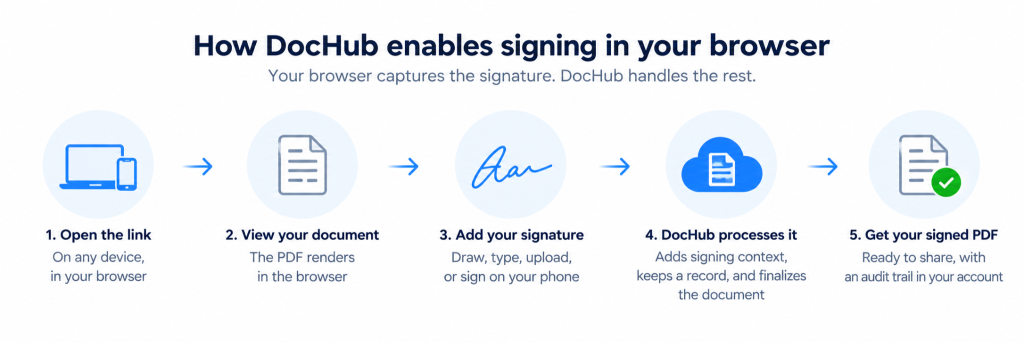
How to sign a PDF in DocHub from your browser
- Add your document to DocHub. Upload a PDF from your device or open a document through a supported DocHub integration.
- Open the PDF in the DocHub editor. Review the document in your browser and navigate to the page where you need to sign.
- Create or choose your signature. Add a signature using the available signing options, such as drawing it, typing it, or uploading a signature image. For more details, see our blog: How to create signatures for PDF files and add them online.
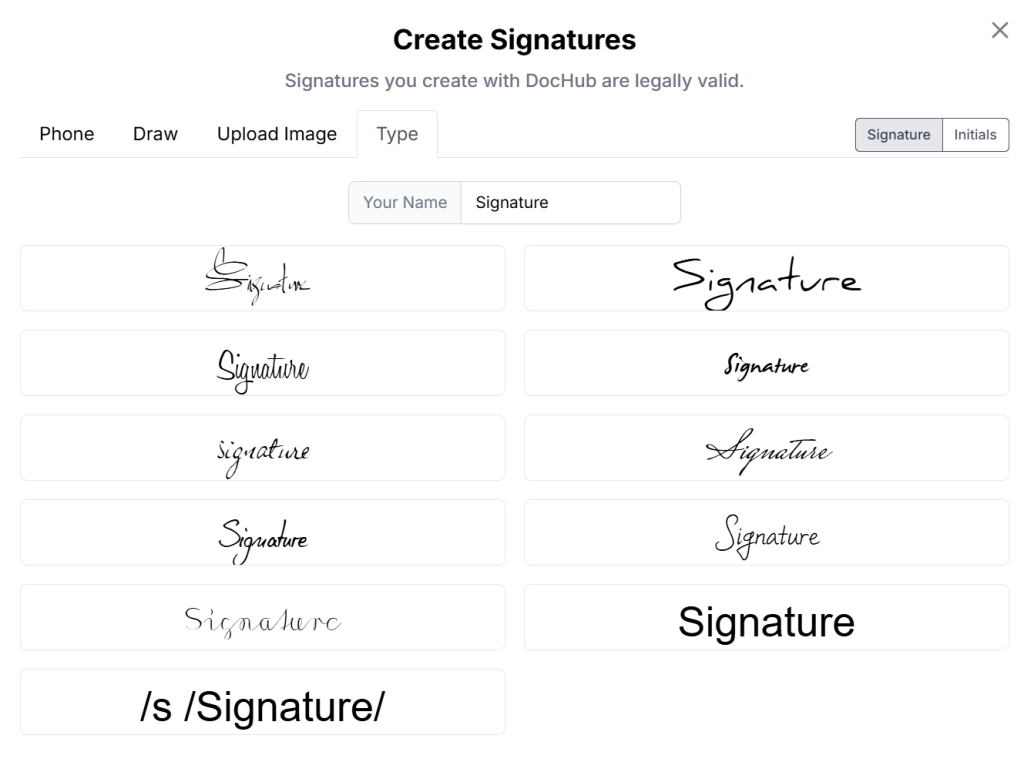
- Place the signature on the document. Position it in the appropriate signature field or location. Add initials, text, dates, or other information if the document requires them.
- Review the completed PDF. Check that the signature and other fields appear in the correct places before completing your work.
- Finish and distribute the document. Save the completed file in DocHub or use the available sharing and document workflow options to send it where it needs to go.
If another person needs to sign the document, use a DocHub Sign Request instead of placing their signature yourself. A Sign Request lets you add recipients, assign required fields, send the document for completion, and track its progress through the signing workflow.
How does the DocHub Chrome Extension change the browser workflow?
The DocHub Chrome Extension is optional. It adds DocHub actions directly to Chrome and Gmail, reducing the number of steps required to move a PDF into the DocHub editor.
When you open a PDF in Chrome with the extension installed, you can select Open with > DocHub to import the file into your DocHub account and continue working with it there.
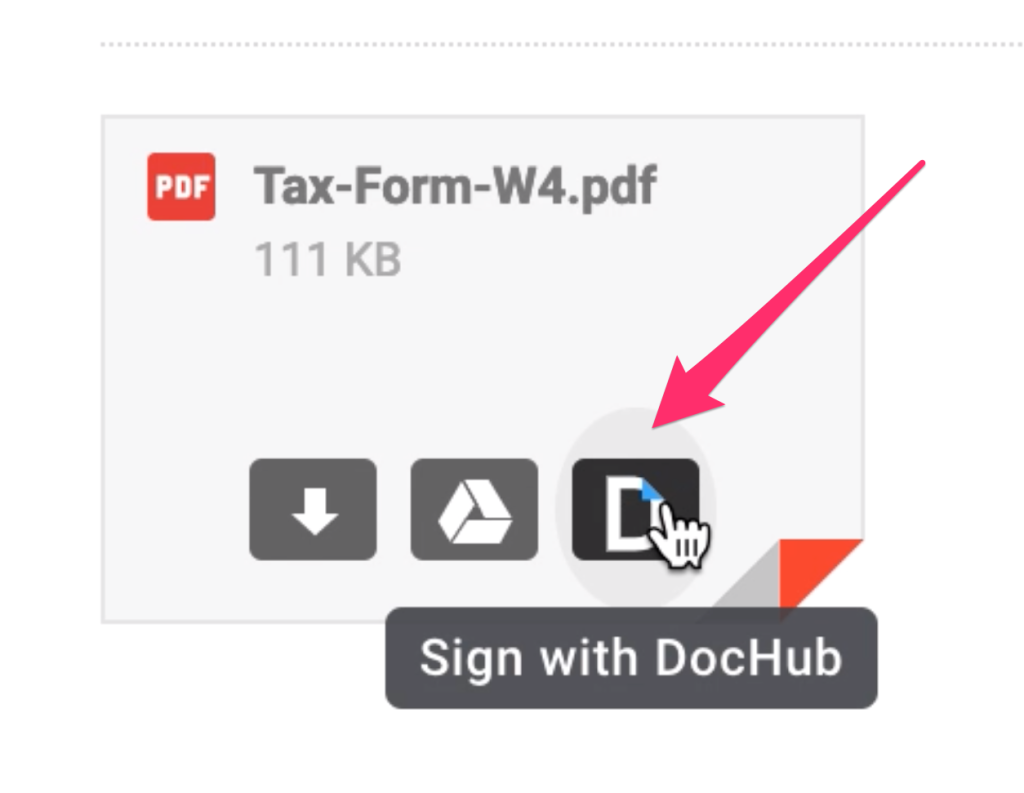
The extension also adds a Sign with DocHub button to supported PDF attachments in Gmail. Clicking it imports the attachment into DocHub through an iFrame popup, so you can work on the document without first downloading it or leaving your Gmail inbox.
From that DocHub interface, you can:
- annotate the PDF;
- add text;
- add your signature;
- make other supported document edits.
When you are finished, click Finish in the DocHub toolbar. DocHub creates a PDF version of the completed document and attaches it to a Gmail draft, where you can review the message and send it.
This extension workflow is especially useful when PDFs regularly arrive as Gmail attachments because it removes the separate download, upload, edit, and reattach sequence.
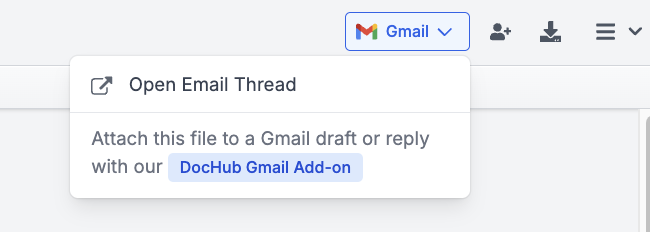
DocHub also offers a Gmail Add-On through Google Workspace Marketplace. It provides the same Gmail attachment workflow for opening an attachment in DocHub and working with it from Gmail.
Browser signing workflow at a glance
| Starting point | DocHub workflow |
|---|---|
| PDF saved on your device | Upload it to DocHub, open it in the editor, sign, and save or send it |
| PDF already open in Chrome | Use Open in DocHub with the Chrome Extension |
| PDF attached to a Gmail message | Select Sign with DocHub, edit or sign it in the DocHub popup, then click Finish |
| Document needs another person’s signature | Create a Sign Request, add recipients and assigned fields, and send it for signing |
Here’s the seamless workflow using DocHub Chrome extension for digitally signing a document in your browser:
The extension and Gmail Add-On are conveniences rather than requirements for browser-based signing. The core DocHub editor remains web-based, while these integrations make it faster to move documents from Chrome or Gmail into the signing workflow.
How does browser signing compare with printing and scanning?
For many routine contracts, forms, and approvals, browser signing removes several manual steps.
| Browser-based signing | Printing and scanning |
|---|---|
| Open and sign the PDF online | Print the PDF first |
| Add signatures and initials digitally | Sign on paper |
| Save the completed file directly | Scan or photograph the signed pages |
| Send documents electronically | Reattach or upload the scanned copy |
| Can support document history and workflow records | Tracking often depends on email and manual filing |
| Works without installing a desktop editor | Requires access to printing or scanning equipment |
Printing may still be appropriate when an organization, recipient, regulator, or specific transaction requires paper. Browser signing is more useful when the workflow accepts electronic documents and the parties can complete the process digitally.
The legal validity of electronic signatures
Electronic signatures can be legally recognized in many countries, but browser-based signing does not automatically make every signed document legally binding.
Electronic signatures are generally more secure than pen-and-paper signatures. Legal validity can depend on factors such as the type of agreement, the parties’ intent, consent to electronic transactions, identification requirements, record retention, and applicable national or regional law. Some transactions may have additional signature or authentication requirements. Electronic signature software records audit trails to prevent tampering. DocHub’s Audit trail identifies every change, who made it and when.
Several major legal frameworks establish how electronic signatures are recognized and treated in different jurisdictions:
- ESIGN Act: In the United States, the ESIGN Act provides that a signature or contract generally cannot be denied legal effect solely because it is electronic.
- UETA: UETA, adopted in most U.S. states, establishes legal equivalence between electronic records and signatures and their paper counterparts, subject to applicable state law.
- eIDAS: In the EU, eIDAS states that an electronic signature cannot be denied legal effect solely because it is electronic, while qualified electronic signatures have the equivalent legal effect of handwritten signatures.
How does security work when there is no software to install?
“No software” usually means no desktop application needs to be installed. It does not mean the signing process operates without software, servers, data storage, or security controls.
The browser exchanges information with the online service, normally over an encrypted connection. The service then handles the parts of the transaction that should persist beyond the current browser session, such as stored documents, signatures associated with an account, signing records, or workflow data.
For business users, security evaluation should therefore go beyond whether a website uses encryption. Organizations may also need to consider access controls, account security, data retention, audit trails, organizational policies, and regulatory obligations.
What are the limitations of free browser-based signing?
DocHub’s free version covers basic browser-based editing, form filling, and signing, but usage limits apply. Users with frequent signature requests, higher document volumes, or more advanced workflow needs may need a paid plan. See our blog How to sign a PDF online for free for more information.
The browser itself also has limits: it captures the signature and displays the PDF, while DocHub’s service handles document storage, signing records, workflow coordination, and final processing.
For regular business use, check the current free-plan limits and make sure the available signing and workflow features match your needs. See DocHub’s pricing to make the choice.
When is no-print browser signing useful?
Browser signing is particularly practical when the goal is to move a straightforward document electronically between people without introducing unnecessary paper.
For example:
- An HR team can send an internal form or agreement to an employee and keep the process online.
- A sales representative can complete and sign a PDF before sending it to a client.
- A small business can prepare forms and contracts without requiring every user to install the same PDF software.
For highly regulated transactions or processes requiring specific identity verification, certificate-based digital signatures, or specialized controls, organizations should confirm that the chosen signing mechanism meets their requirements.
Final thoughts
Free browser-based PDF signing works because the browser and the signing service perform different jobs. The browser displays the PDF and captures user actions, while the service manages the document, saves relevant records, and supports the wider signing process.
DocHub combines browser-based PDF editing, form completion, signing, and cloud document workflows in one environment, including strong integration with Google Workspace.
Create a DocHub account for free and test the workflow directly in your browser.
Glossary
- Electronic signature: An electronic method of indicating agreement or intent to sign a document. It can take forms such as a drawn or typed signature.
- Digital signature: A cryptographic signing mechanism commonly associated with digital certificates and technical verification of document integrity or signer credentials.
- Audit trail: A record of events associated with a document or signing process, such as actions and timestamps.
- Signature request: A workflow in which a document is sent to one or more recipients so they can complete assigned signing fields.
- Browser-based signing: Signing a document through a website or web application rather than a locally installed desktop PDF editor.
- Paperless signing: Completing and exchanging documents electronically without printing and rescanning them.
FAQ
Do I need a credit card to sign a PDF for free?
That depends on the service and its current account or trial conditions. Check the provider’s current free-plan terms before uploading your document, especially if you expect to send multiple signature requests or use advanced features.
Can I sign Word files in a browser?
If you are using DocHub’s extension, you can open only PDF files for signing. But when using the platform from your account in a browser, you can upload files of supported formats, including Word, and sign them without separate actions for conversion.
Can multiple people sign the same document online?
Electronic signature software may support multiple recipients in a single document workflow. The available signing order, recipient controls, and tracking options depend on the product and plan.
Is signing on a phone different from signing on a computer?
The underlying workflow can be similar, but the input is different. A phone or tablet lets you draw directly with a finger or stylus, while a computer typically uses a mouse, trackpad, typed signature, or uploaded image.
Is a handwritten signature more legally valid than a typed electronic signature?
Not necessarily. Legal validity generally depends on the transaction, applicable law, evidence of intent and consent, and the surrounding signing process rather than simply whether the signature looks handwritten.
- Key takeaways
- What technologies make signing documents in a browser possible?
- Where do browser processes stop?
- How do free signing mechanisms work in DocHub?
- How does browser signing compare with printing and scanning?
- The legal validity of electronic signatures
- How does security work when there is no software to install?
- What are the limitations of free browser-based signing?
- When is no-print browser signing useful?
- Final thoughts
- Glossary
- FAQ