

Solutions enabling you to sign PDFs for free with no software installations are evolving. Now, to sign a PDF for free with no software, it’s enough to upload the file to a browser-based PDF signing tool like DocHub, create or select an electronic signature, place it on the correct page, and download the signed PDF. You can complete the whole process without printing, scanning, or installing a desktop app.
This guide explains how to sign a PDF in your browser with DocHub, choose an appropriate signature type, complete form fields, and understand the Free plan’s usage limits. For more information on related topics, visit our blog articles on managing multi-signer workflows and requesting signatures from recipients.
Key takeaways
Here is the process of free browser-based PDF signing with DocHub at a glance:
- Create a free DocHub account and upload your PDF document.
- Review every page and fill in any required text fields.
- Draw, type, upload, or create a signature using your phone.
- Place the signature, check the completed document, and download or send it.
- Confirm that a standard electronic signature is appropriate for your document.
The following steps cover each part in detail and give all the needed explanations.
What does it mean to sign a PDF in a browser?
Browser-based PDF signing lets you add an electronic signature to a document through an online tool, without the need to download or install any software. Simply open your browser, upload your PDF, and sign away. Your signature can take several forms — a handwritten mark drawn with a mouse or touchscreen, a typed name rendered in a handwriting-style font, or an uploaded image of your physical signature. Once signed, your document can be saved and shared in just a few clicks.
Free browser-based signing with DocHub: Features and limitations
DocHub offers two ways to sign documents at no cost: a free plan and a free trial. In the following passages, we’ll walk you through the features and limitations of both options.
DocHub’s Free plan
The Free plan is available to individuals at no cost. It includes basic PDF tools, the AI Assistant, iOS and Android apps, and three monthly uses shared across Core Features such as Self Sign, Sign Requests, templates, envelopes, link sharing, and editing existing PDF text.
DocHub’s Free trial
If you reach the Free plan’s limit or want to test advanced features, DocHub Pro includes a 30-day free trial. You can cancel before the trial ends to avoid being charged; otherwise, you can continue with a paid plan that supports higher-volume document workflows.
You can see more information about DocHub’s plans and features on our Pricing page.
How do you sign a PDF in a browser for free with DocHub?
DocHub lets you sign a PDF online by drawing, typing, uploading an image, or using a phone as a signature pad. Before signing, read the entire PDF, including attachments and less visible terms. For contracts, financial documents, or other sensitive files, verify the sender and make sure electronic signing is accepted for that transaction.
Step-by-step instructions for DocHub’s PDF signing process
- Create or access your account. Go to DocHub and select Sign up, or sign in to an existing account. Registration is required to save and download the signed file.
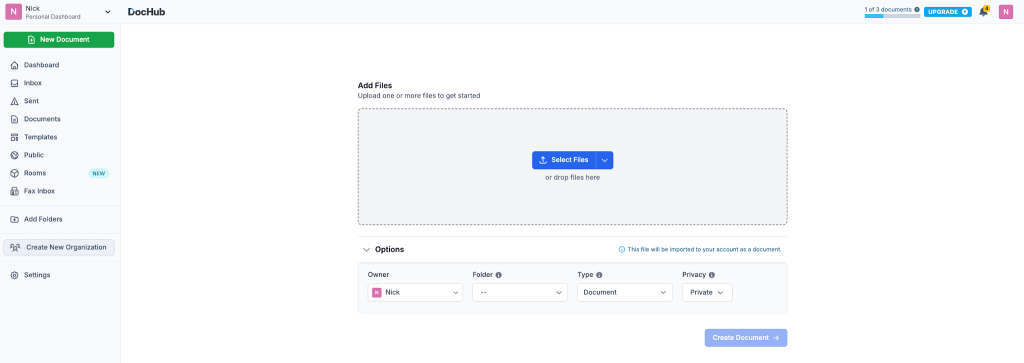
- Upload the PDF. Select New document, choose the file from your device, or drag and drop it onto the upload area. You can also import documents from supported cloud storage services such as Google Drive.
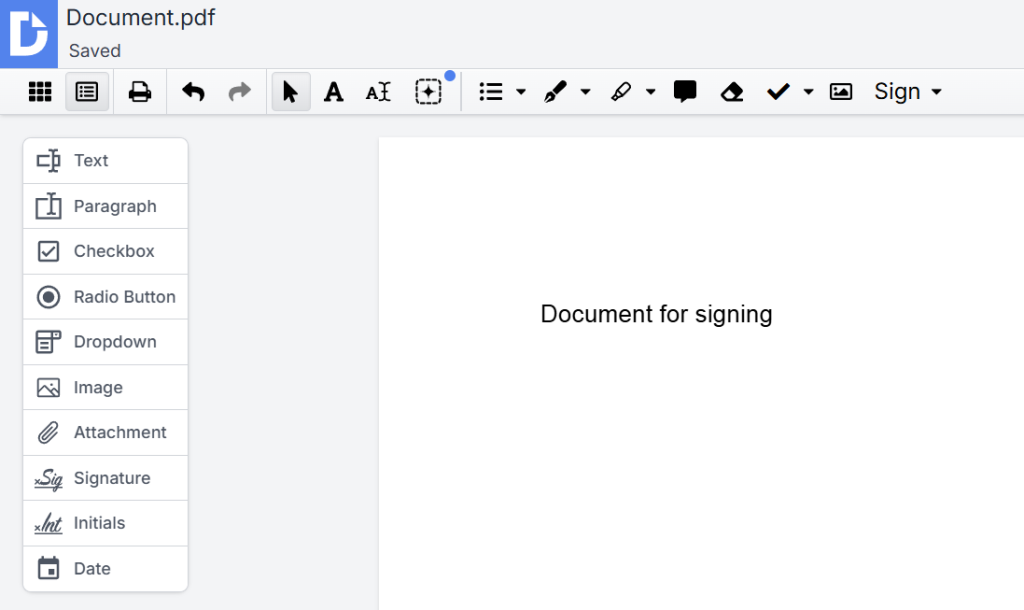
- Review and complete the document. Check every page before signing. Use the available editing tools to add text, complete PDF forms, or fill required text fields.
- Open the Sign tool. Select Sign in the editor toolbar and choose the option to create a new signature or reuse a saved signature.
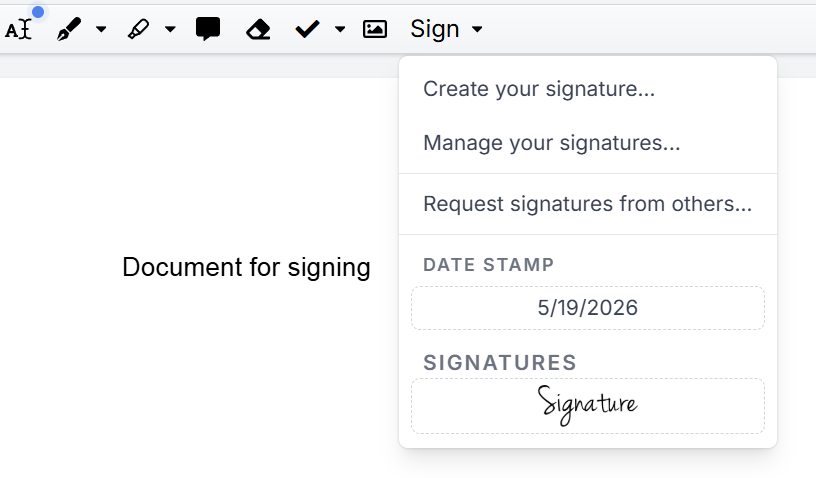
- Choose a method for applying your signature. Draw with a mouse or touchscreen, type your name and select a handwriting-style font, upload an image, or use your phone as a signature pad. The phone option allows you to draw on the phone screen without relying on a camera-sign workflow.
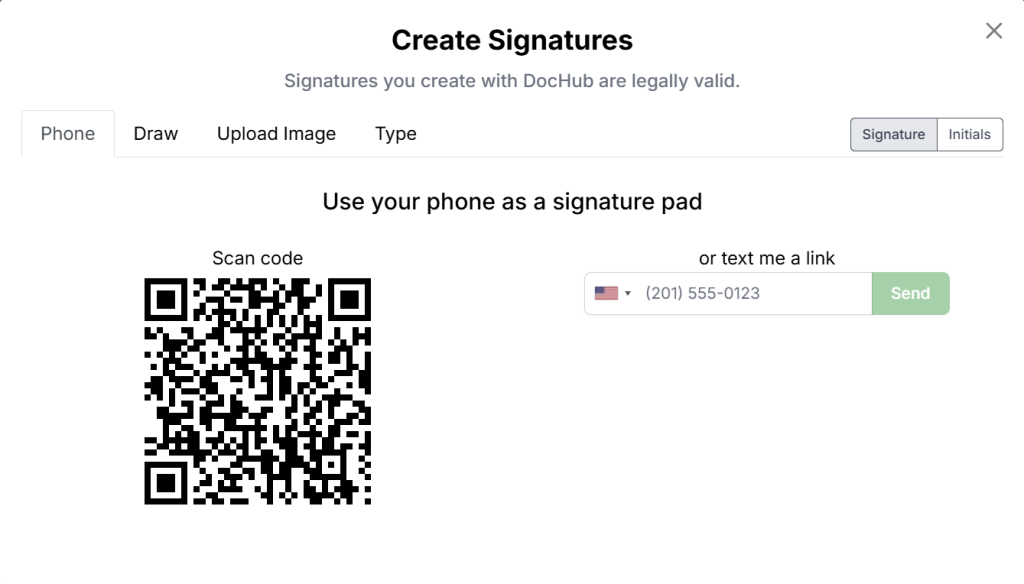
We have a separate guide on signature creation, see it for more details.
- Check the signed PDF. Confirm that the signature, dates, initials, and other form fields appear correctly. Make sure no required section remains blank.
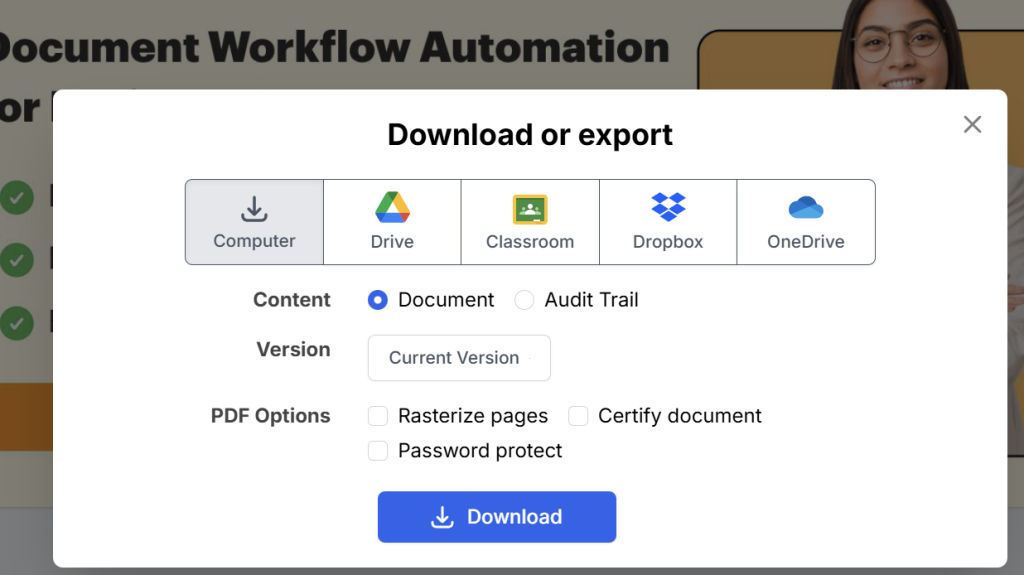
- Save or send the document. Download the signed PDF, export it to Google Drive, or use an available sharing option. Keep a copy of the final signed file for your records.
How does browser signing compare with other methods?
Here’s a quick breakdown of the different methods of signing a document.
| Method | Installation needed | Printing required | Signature options | Main consideration |
|---|---|---|---|---|
| DocHub in a browser | No | No | Draw, type, upload, or use a phone | Free Core Features share a three-use monthly limit |
| Print, sign, and scan | No signing software | Yes | Handwritten signature | Requires paper, ink, and scanning access |
| Desktop PDF software | Usually | No | Varies by application | May require a paid plan, download, or Adobe account |
| Certificate-based signing | Usually requires specialist tools or credentials | No | Certificate-backed digital signature | Appropriate when formal identity verification or a specific signature standard is required |
Browser signing is practical for routine forms, approvals, and agreements. A regulated or high-value transaction may require a different signature type or identity-verification process.
Are browser-based electronic signatures legally binding?
Electronic signatures can be legally enforceable when applicable requirements are satisfied, including intent to sign, consent to conduct the transaction electronically, attribution to the signer, and appropriate record retention. In the United States, the ESIGN Act and state laws such as UETA provide a legal framework for electronic records and signatures.
Global eSignature laws are not identical. Some transactions may require an advanced, qualified, notarized, witnessed, or certificate-based signature instead. DocHub’s eSignature guidance provides additional jurisdiction-specific context.
Disclaimer: The information in this blog post is provided for general informational purposes only and does not constitute formal legal advice.
How to secure browser-based signing
Secure browser-based signing starts with choosing a reliable eSignature tool that protects documents in transit and at rest, limits access, and offers clear privacy controls. It’s also good practice to verify recipient details before sending, avoid sharing signing links publicly, and apply extra access restrictions for sensitive documents.
DocHub uses encrypted connections and stores files in encrypted Amazon S3 storage on AWS. Documents are private by default and only accessible to the account owner unless intentionally shared. DocHub also undergoes periodic third-party security assessments and publishes dedicated information about its security, privacy, compliance, and data-processing practices.
For more details, see DocHub’s Security, Privacy, Compliance, and Data Processing Addendum pages.
What mistakes should you avoid while signing a PDF for free in a browser?
Do not sign an incomplete PDF, place a signature over important wording, or assume every electronic signature has the same legal or technical properties. Avoid uploading sensitive files through unfamiliar free tools without reviewing their privacy and security information.
After signing, open the downloaded file to confirm that the signature is visible and the document is complete. Save the final copy in a location with suitable access controls.
Final thoughts
Browser-based signing removes the need to print, scan, or install PDF software. DocHub is a practical option for occasional self-signing, form completion, and cloud-based document workflows, provided its Free-plan usage limits match your needs.
Get started with DocHub for free to upload, fill, sign, and save your next PDF online.
Glossary
- Electronic signature: An electronic mark or action that shows a person’s intent to sign.
- Digital signature: A signature method that uses cryptography to support authentication and document-integrity checks.
- Certificate-based digital signature: A digital signature created with a digital certificate issued to the signer.
- Signature field: A designated area in a PDF form where a recipient adds a signature.
- Signed PDF: A PDF containing an electronic or digital signature.
FAQ
Can I sign a PDF without Adobe Acrobat?
Yes, there are other options. For example, DocHub works in a supported browser, so you do not need Adobe Acrobat, an Adobe account, or another desktop app. You need an account to save and download the signed document.
Can I use a photo of my handwritten signature?
Yes, you can. When using DocHub, you can upload a clear image of your handwritten signature and place it on the PDF. Crop unnecessary background space before uploading so the image fits the signature line cleanly.
Can I sign a Word document online?
DocHub supports uploading Word documents and converts supported non-PDF files for online editing and signing. Review the converted document before signing to ensure that its layout and page content remain correct.
Can I edit a PDF after adding my signature?
You may be able to adjust document content before finalizing and sending it. Avoid changing completed agreements without the other parties’ knowledge, because later edits may affect the document’s reliability or acceptance.
Is a typed signature acceptable?
A typed name can function as an electronic signature when it shows intent to sign and the applicable transaction permits electronic signing. Acceptance depends on the document, the signing process, and relevant law rather than the signature’s visual style alone.
- Key takeaways
- What does it mean to sign a PDF in a browser?
- Free browser-based signing with DocHub: Features and limitations
- How do you sign a PDF in a browser for free with DocHub?
- How does browser signing compare with other methods?
- Are browser-based electronic signatures legally binding?
- How to secure browser-based signing
- What mistakes should you avoid while signing a PDF for free in a browser?
- Final thoughts
- Glossary
- FAQ