

Reverse actions may be needed in some cases when working with PDF files. Whether you accidentally delete the wrong content or make a mistake while editing, having an Undo option can save you time and frustration. Similarly, the Redo function allows you to retrace your steps if you change your mind about an action:
- Use Undo to reverse your latest edit in a PDF file, such as deleting text, moving images, or adding text in the wrong place.
- Use Redo to restore an edit after you undo it, which helps when reviewing changes before you save.
- Use erase tools to hide (in DocHub, this function is called Whileout), remove text, erase words, or replace unwanted text in PDF documents.
- In DocHub, you can upload your PDF, edit PDFs online, create forms and templates, sign, and send updated PDFs.
For sensitive text, check the final document carefully before sharing. We’ve elaborated on the safety of online PDF editors in one of the previous blog posts: Are online PDF editors safe? Your data security explained
Disclaimer: The information contained in this blog post is provided for general informational purposes only and does not constitute formal legal advice.
How do Undo, Redo, and Erase differ?
These three tools solve different PDF editing problems. Use the right one based on what happened in the document.
| Tool | What it does | When to use it |
|---|---|---|
| Undo | Reverses the last action | You added, moved, erased, or deleted something by mistake |
| Redo | Restores an action you just undid | You changed your mind after using Undo |
| Whiteout | Hides, removes, or covers visible content | You need to erase words, remove text, or cover unwanted text |
Undo and Redo functions help you recover from recent actions. The Whiteout tool helps clean up content that should not remain visible in the updated file. Together, the undo redo PDF workflow gives you more control while editing text in PDF documents.
How do you undo changes in a PDF?
Use Undo when your most recent edit is wrong. This may include adding text to the wrong area, clicking delete on the wrong object, moving images, erasing individual words by mistake, or changing a form field incorrectly.
To undo changes in DocHub:
- Open your PDF, text document, or form in the editor.
- Make an edit, such as adding text, filling a form, or covering PDF text.
- If the edit is incorrect, select Undo in the top toolbar.
- Review the page to confirm the previous version is restored.
- Continue editing one action at a time.
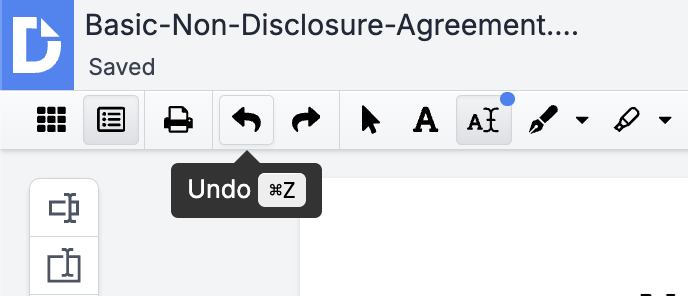
Undo works best when used immediately. If you keep editing several pages after a mistake, it may be harder to return to the exact state you were in earlier. For important PDF documents, pause after each major edit and check the page before moving forward.
How do you redo edits easily?
Use Redo when you undo an action and then decide the edit was correct. Redo is helpful when comparing two versions of the same PDF page.
To redo an edit:
- Select Undo after a recent change.
- Review the document.
- Select Redo to restore that action.
- Check the text, images, and form fields.
- Save the updated file when all edits are complete.
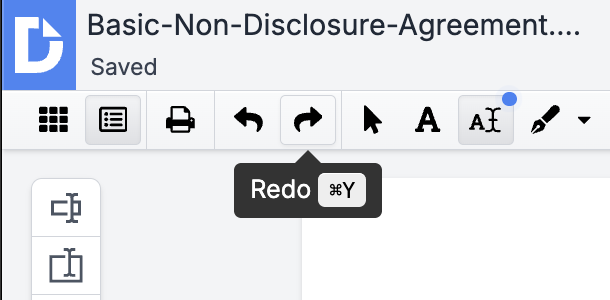
Redo is useful when editing text in a PDF, because layout changes can be hard to judge at first. For example, you may delete a sentence, undo it to compare spacing, and redo the deletion if the page looks better without it. This simple process helps reduce rework in an online PDF workflow.
How do you erase unwanted text in a PDF?
In DocHub, use the Whiteout tool to erase text, words, or hide unwanted text in a PDF. The best method depends on whether the text is editable, scanned, or part of an image.
To erase text in DocHub:
- Upload your PDF and open it in the online PDF editor.
- Go to the page with the unwanted text.
- Select the Whiteout tool.
- Drag over the specific words or entire text blocks you want to hide.
- Add new text if you need a replacement.
- Review the page so the PDF white area blends with the surrounding layout.
- Save and download the updated PDF.
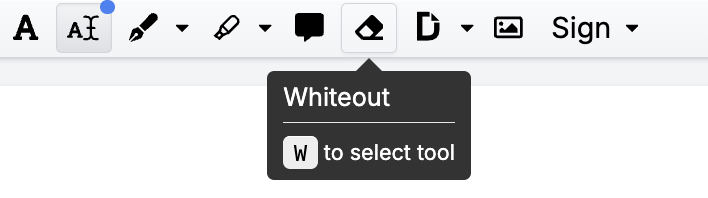
If the document contains editable text, you may select a text block and delete or edit text directly. If it is a scanned PDF, the text may appear as an image, so you may need to cover the old content and place new text over it.
Final thoughts
DocHub combines common PDF editing tools with signing, form fill features, comments, page organization, and easy sharing. It is also a practical option for users searching for a free online PDF editor for just a few operations (though not the best free PDF editor for everyday document tasks), or searching for an “edit PDF tool”.
Our Undo, Redo, and Erase features make PDF editing safer and easier. Use Undo to recover from mistakes, Redo to restore edits, and erase tools to remove text, hide unwanted text, or replace old content with new text.
Get started with DocHub for free and manage your next PDF online in just a few clicks.
Glossary
Undo: A command that reverses your most recent edit.
Redo: A command that restores an edit after Undo.
Erase text: A PDF editing action used to hide, cover, or remove visible text.
Text block: A section of text that can be selected, covered, moved, or edited.
PDF editor: A tool used to edit, sign, fill, organize, and share PDF files.
Scanned PDF: A PDF created from an image scan, where text may not be directly editable.
Whiteout: A tool that covers text or images with a white layer.
Updated PDF: The saved version of a PDF after editing is complete.
FAQ
Can I undo changes after saving a PDF?
The Undo function is only available during an active editing session and will not work after you close the file. If you have already saved or downloaded the updated PDF, check to see if you still have the original document. It’s always a good practice to back up important PDF documents before making any edits.
Can I redo an edit after using Undo?
Yes, you can. Redo restores an action that you just reversed with Undo. It is useful when you want to compare an edit before deciding which version to keep. Use it before making several new changes, since later edits may change what can be restored.
Is erasing the same as deleting text?
Erasing and deleting text are not always the same. Deleting removes an editable object or text box, while erasing typically just covers visible text. In a scanned PDF, for example, an erase tool will hide the text rather than alter the underlying image.
Can I erase specific words only?
Yes, you can erase individual words if you work carefully. While working in DocHub, zoom in before applying the Whiteout tool so you do not cover nearby text. Afterward, review the page to confirm that the spacing and background look clean.
Can I replace erased text with new text?
Yes. After using the Whiteout tool in DocHub to erase text, you can add new text in its place. To maintain a consistent and professional look, try to match the size, placement, and spacing of the surrounding text in the PDF.
Does DocHub work for scanned PDFs?
While DocHub allows you to edit scanned PDFs, you cannot edit the text within them. In most cases, you’ll need to conceal the original content using the Whiteout tool and overlay it with a new text box. Because scanned documents can have uneven backgrounds or image-based text, be sure to review the final version carefully.