

To extract PDF pages, select the ones you want to keep, remove the rest, and save the remaining content as a new PDF file. This creates a separate, streamlined version with only the pages you need for sharing, editing, archiving, or repurposing.
This guide explains how page extraction works, when to use it, and how to easily extract pages from a PDF using DocHub. DocHub supports document editing, signing and distribution, form creation, and Google Workspace integration for managing documents across your cloud workflows.
Summary
- “Extracting PDF pages” means keeping only the selected pages from a PDF file and saving them.
- In DocHub, you can upload a PDF, open it in the editor, use page controls to delete unwanted pages, and download or export the updated file.
- Page extraction is useful for HR, sales, legal, finance, real estate, and administrative workflows where teams need to share specific pages instead of an entire document.
- Before extracting pages, you should confirm page numbers, keep a copy of the original PDF, check password or permission restrictions, and review the final file before sharing it.
Use the sections below to choose the right extraction method and avoid common mistakes.
What does it mean to extract pages from a PDF?
Extracting pages from a PDF means creating a new file from specific pages within an existing document.
For example, you might extract a single signature page from a contract, several pages from a report, or a specific page range from a large file. The result is a smaller, focused document that is easier to send, store, edit, or review.
What should you prepare before extracting pages?
Before extracting pages from a PDF, check three things: page numbers, permissions, and the original file.
PDF page numbers may not match printed page numbers exactly, especially if the document includes a cover page, a table of contents, or appendices.
If a file requires a password or has restrictions, you might need permission before editing, deleting pages, or creating separate PDFs.
Page extraction in DocHub works by deleting unwanted pages from your document, so preserving the original file helps prevent accidental data loss. The Page Controls panel lets you perform more actions with pages, including rotation, reordering, and more.
How do you extract pages from a PDF in DocHub?
In DocHub, you can easily extract pages by opening your PDF, selecting the pages you no longer want, deleting them, and exporting the updated document.
Follow these steps:
1. Sign in to your DocHub account.
2. Click + New Document to upload your PDF file
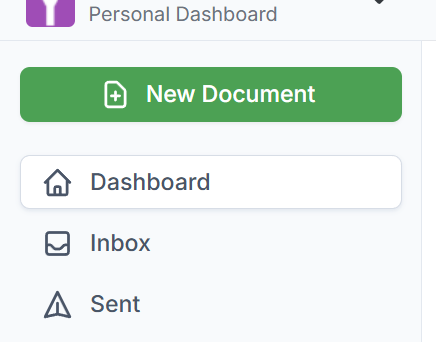
3. Select Create Document to open the PDF in the editor.
4. Go to the Page Controls section and review your document.
5. Identify and select the pages you want to remove.
6. Click the Delete icon to remove those pages from the document.
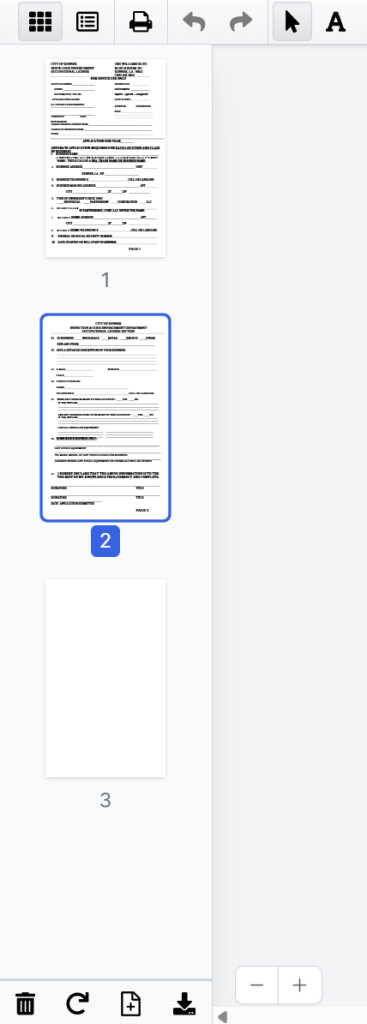
7. Review the remaining pages to confirm your new PDF contains only what you need.
8. Download or export the updated document as a new PDF file.

This cloud-based workflow is ideal when you need a clean PDF without installing desktop software. It works seamlessly for users who already manage PDF files, forms, signatures, and document sharing directly within DocHub.
Can you extract individual pages without special software?
Yes. You can extract specific pages from a PDF without specialized software if you have a web browser, an online tool, or built-in print functions.
A common manual method is to open the PDF, choose Print, enter your desired page range, and save the result as a new PDF. This works well for quick, one-off extractions, but it becomes less convenient when you also need to edit PDFs, fill forms, or manage documents online.
Dedicated online platforms are usually more practical for uploading a PDF, visually selecting pages, and downloading a new file. Some tools automatically name the output something like “pages from [original file],” though naming behavior varies by platform.
For technical users processing hundreds of files, coding libraries can extract pages programmatically. Python libraries such as pdfplumber are often used for page-by-page text and structured data extraction, while other PDF libraries help split or create new PDFs.
How does DocHub compare with other extraction methods?
PDF extraction methods vary by setup time, control, and the type of document workflow they support, so it helps to compare them before choosing a tool.
| Method | Good for | Limitations |
|---|---|---|
| DocHub | Editing, deleting pages, form completion, signing, and exporting PDFs in one online workflow | Requires an account and internet connection |
| Browser print to PDF | Quick one-time extraction of a page range | Less visual control and fewer editing features |
| Desktop PDF editor | Offline work and advanced PDF controls | May require installation or paid software |
| Free online tools | Fast page extraction without setup | Features, file size limits, and security practices vary |
| Programmatic extraction | Batch processing multiple files | Requires coding knowledge and testing |
DocHub is highly effective when page extraction is part of a broader document workflow, on desktop or mobile. Browser printing might be enough for a simple page range, while desktop or programmatic tools are better suited for specialized offline or large-scale processing needs.
What mistakes should you avoid when extracting pages?
The most common mistake is editing the only copy of your original PDF. Always keep the source file unchanged if the document is important.
Other issues to watch for include:
- Deleting the wrong pages because document numbering and PDF numbering differ.
- Forgetting to check the final new PDF before sending it.
- Extracting confidential pages into a file with the wrong access settings.
- Uploading protected files without confirming permissions.
- Assuming every online tool handles large files or multiple documents exactly the same way.
If you work with contracts, records, or regulated information, always confirm your organization’s document handling rules before sharing extracted pages.
Is page extraction secure?
Page extraction remains secure when you use appropriate access controls, review sharing settings, and follow your organization’s data protection policies. Security ultimately depends on the tool, the file, and how you store or share the new document.
For sensitive documents, check whether the file contains personal data, financial details, health information, signatures, or confidential business terms. Only extract and share the pages absolutely necessary for the task at hand.
DocHub is built for cloud-based document workflows and keeps your documents safe, secure, and updated.
Disclaimer: The information contained in this blog post is provided for general informational purposes only and does not constitute formal legal advice.
Final thoughts
Extracting pages from a PDF helps you create focused, smaller, and easier-to-share documents. In DocHub, the process is straightforward: upload your PDF, remove unnecessary pages, review the remaining content, and export the updated file.
Use DocHub when page extraction is part of a larger workflow that includes editing, completing forms, signing, sharing, or managing PDFs online.
Get started with DocHub to easily extract the pages you need and keep your document work moving smoothly in one place.
Glossary
- Extract PDF pages: Creating a new PDF from selected pages in an existing document. It helps users share only the relevant content.
- New PDF file: The output file created after extraction. It should contain only the pages needed for the task.
- Original PDF: The source document before changes. Keep a copy to prevent accidental loss of pages.
- Page controls: Editor tools used to manage PDF pages. In DocHub, these controls help users select and delete pages.
- Delete pages: Removing pages from a PDF document. In an extraction workflow, deleting unwanted pages leaves only the content you want to save.
- Protected PDF: A PDF with password or permission restrictions. You may need authorization before editing or extracting pages.
- Print to PDF: A browser or operating system function that saves selected pages as a new PDF. It is useful for simple page range extraction.
FAQ
Can I extract one page from a PDF?
Yes, you can. To isolate a specific page, open your PDF and delete all other pages. Then, save the single-page document as a new PDF, which will preserve your original file.
Can I extract multiple pages from a PDF?
Of course, you can. Keep multiple pages by deleting the pages you do not need. Review the final page order before downloading the new document.
Can I extract pages from a protected PDF?
Yes, but it depends. If the file is password-protected or has restricted access, you’ll need to provide the password or gain permission before you can edit or extract pages.
Do I need to install software to extract PDF pages?
No, there are other ways to do it. You can use an online tool, such as DocHub, or a browser print-to-PDF function. Desktop software may be useful for offline work or advanced PDF editing.
- Summary
- What does it mean to extract pages from a PDF?
- What should you prepare before extracting pages?
- How do you extract pages from a PDF in DocHub?
- Can you extract individual pages without special software?
- How does DocHub compare with other extraction methods?
- What mistakes should you avoid when extracting pages?
- Is page extraction secure?
- Final thoughts
- Glossary
- FAQ