

AI Digest
You can sign PDFs on your phone without printing, scanning, or downloading specialized software. DocHub lets you sign PDF on iPhone and Android through any mobile browser—draw your signature with your finger, type it, or upload an image. Signatures are legally binding under the U.S. ESIGN Act and the EU eIDAS Regulation.
- Sign PDFs on iPhone using Safari—no app required
- Sign PDFs on Android using Chrome or any mobile browser
- Upload a photo of your handwritten signature using your phone camera
- Track signed documents and monitor completion status in real time
- DocHub encrypts all documents and maintains full audit trails for compliance
Printing a document just to sign it and scan it back feels like a lot of steps for something that should take 30 seconds. Most people receiving PDFs on their phones—contracts, onboarding forms, lease agreements, client approvals—don’t have a printer nearby. And they shouldn’t need one.
Mobile PDF signing has become a standard part of how people handle documents. HR teams send offer letters. Real estate agents send contracts. Freelancers receive client agreements. In each case, the recipient needs a fast, reliable way to sign from their phone and send it back.
DocHub is a browser-based PDF editor and document signing platform trusted by more than 100 million users. It runs on any device without requiring downloads or software installations, making it a practical option for signing PDFs on the go. This guide walks through how to sign PDF on iPhone, sign PDF on Android, upload a camera-based signature, track signed documents, and keep your signing workflow secure.
Why sign PDFs on your phone?
Signing PDFs from a mobile device removes a lot of friction from everyday document workflows. No printer. No scanner. No waiting until you get back to a desk.
For remote workers, freelancers, and small business owners, that matters. Contracts can be signed and returned the same day a client sends them. Offer letters get signed before candidates change their minds. Vendor agreements close faster. Speed is often the difference between a smooth process and a stalled one.
Mobile signing also connects directly to cloud storage platforms like Google Drive, Dropbox, and iCloud. That means you can open a document from your cloud storage, sign it, and save or send it—all from your phone.
Can I legally sign PDFs on my phone?
Yes. Electronic signatures applied through compliant platforms are legally binding in most jurisdictions. In the United States, the Electronic Signatures in Global and National Commerce (ESIGN) Act and the Uniform Electronic Transactions Act (UETA) give electronic signatures the same legal standing as handwritten ones. In the European Union, the eIDAS Regulation governs electronic signatures across member states.
DocHub eSignatures comply with both ESIGN and eIDAS, according to DocHub’s compliance documentation. For a signature to be legally valid, it generally must be unique to the signer, verifiable, under the signer’s sole control, and linked to the document in a way that detects any post-signing changes. DocHub’s signing workflow is designed to meet these requirements. That said, specific legal requirements vary by document type, jurisdiction, and use case—so consult a legal professional when it matters.
Key takeaway: Mobile PDF signing is legally valid under ESIGN and eIDAS when done through a compliant platform like DocHub. No printer required.
How to sign PDFs on iPhone without an app
You can sign PDF on your iPhone directly through Safari. DocHub runs in your mobile browser, so there is nothing to install.
Step 1: Open DocHub in Safari
Go to www.dochub.com in your Safari browser. You’ll land on DocHub’s signing page.
Step 2: Upload your PDF
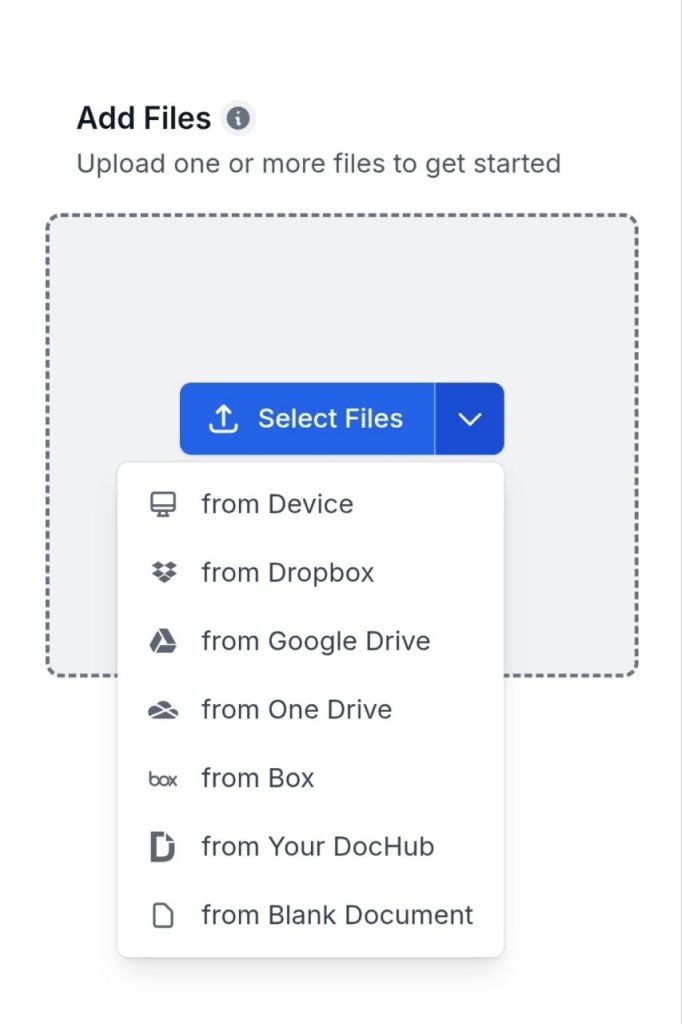
Tap the green plus button in the lower-right corner and choose your file. You can upload from your device, Google Drive, or Dropbox. The document opens in the browser editor.
Step 3: Create your signature
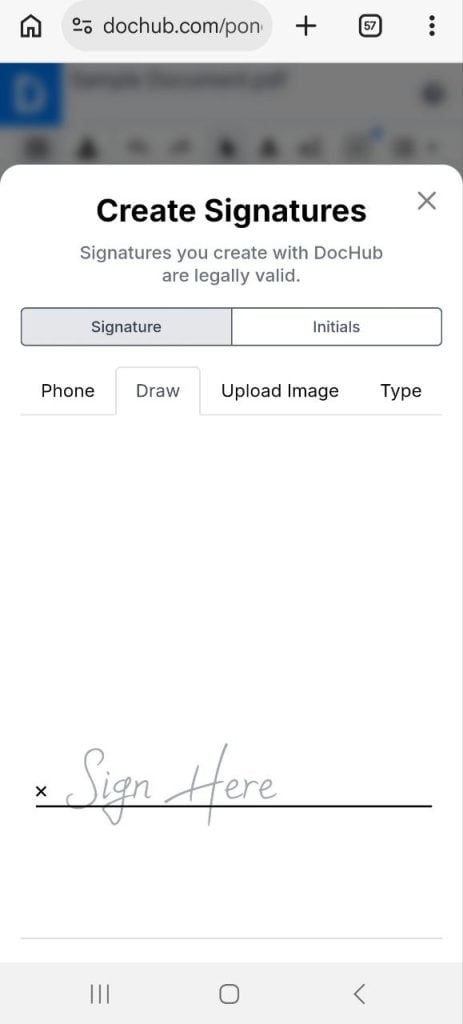
Tap the Sign tool in the toolbar. DocHub gives you different ways to create your mobile PDF signature:
- Type—enter your name and choose a handwriting-style font
- Draw—use your finger or a stylus directly on the touch screen
- Upload an image—use a photo of your existing handwritten signature
Step 4: Place your signature
Tap anywhere on the document to position your signature. Resize and reposition it as needed.
Step 5: Save and share
Download the signed PDF to your device. You can also send it as a sign request if other parties need to sign.
Key takeaway: You can sign PDF on iPhone through Safari in under a minute. No app download needed—just open DocHub, upload your document, draw or type your signature, and send.
How to sign PDFs on Android
Signing a PDF on Android may work the same way. DocHub runs in Chrome and other Android browsers without requiring any downloads.
Step 1: Go to DocHub’s website in Chrome on your Android phone.
Step 2: Tap the green plus button in the lower-right corner and upload your PDF from your device, Google Drive, or Dropbox.
Step 3: Open the Sign tool. Draw your signature with your finger, type it, or upload an image of your signature.
Step 4: Tap to place the signature on the document. Drag it to position and resize as needed.
Step 5: Save the signed document to your phone or cloud storage, or send it directly from DocHub.
DocHub’s touch interface works well on Android screens. Drawing a finger signature feels natural, and the platform smooths and cleans up the stroke path so the result looks crisp when placed on the PDF.
iPhone vs. Android: Mobile PDF signing comparison
| Feature | iPhone (Safari) | Android (Chrome) |
| Browser-based signing | ✓ | ✓ |
| App required | No | No |
| Draw signature with finger | ✓ | ✓ |
| Type signature | ✓ | ✓ |
| Upload signature image | ✓ | ✓ |
| Cloud storage integration | Google Drive, Dropbox | Google Drive, Dropbox |
| Send sign requests | ✓ | ✓ |
| Audit trail | ✓ | ✓ |
Key takeaway: The signing process is nearly identical on iPhone and Android. Both platforms support drawing, typing, and uploading signatures through DocHub’s mobile browser interface.
How to add signatures using your phone camera
Not everyone has a stylus or a steady finger. If you’d prefer a signature that looks exactly like your handwritten one, you can write it on paper, photograph it, and upload the image as your signature.
Step 1: Sign your name on white paper with a dark pen.
Step 2: Take a clear photo with your phone camera. Good lighting and a plain background help.
Step 3: In DocHub, open the Sign tool and choose Upload Image.
Step 4: Select your photo.
Step 5: Position the signature on your PDF and save.
Once uploaded, DocHub saves your signature for reuse. You won’t need to photograph it again for future documents.
This method works well when you want your digital signature to match your physical one exactly—useful for legal agreements, formal contracts, or situations where a typed or drawn signature might feel too informal. It is also a good option if you are signing frequently and want a consistent appearance across documents.
Learn more about how this process works in DocHub’s article on how signature creation works.
Key takeaway: A camera-based signature gives you a precise digital version of your handwritten signature. Upload it once, save it in DocHub, and reuse it across future documents.
How to track mobile signed documents
Signing a document is only part of the workflow. Knowing whether other parties have signed—and having a record of the full process—matters just as much.
DocHub’s Sign Request feature lets you send a PDF to one or more signers and track their progress in real time. Here is what you can monitor:
- Sent documents—view all sign requests you have sent from your account
- Pending signatures—see which signers have not yet completed the document
- Completed status—get notified when all parties have signed
- Audit trail—access a detailed log that records signer information, timestamps, IP addresses, and document activity
- Download signed copy—save or share the finalized PDF once signing is complete
The audit trail is important for compliance and legal purposes. For Sign Requests, DocHub automatically creates a detailed audit trail to every signed document. The audit trail records signer information, timestamps, and document events, while before-and-after document snapshots are hashed using SHA-256. This creates a permanent, tamper-evident record that can be independently verified.
To send a document for signature from your phone, visit DocHub’s Sign Request guide or access the request signatures feature directly.
Key takeaway: DocHub lets you track who has signed, who hasn’t, and what happened during the signing process—all from your phone. The audit trail provides a verifiable record for compliance.
How to secure mobile PDF signing
Signing documents from a phone introduces some security considerations worth understanding. Here is how DocHub protects your documents—and what you can do on your end.
Platform-level security
DocHub applies multiple layers of protection to every document:
- Encryption—documents are encrypted in transit using SSL and stored securely in the cloud
- Authentication—signers must authenticate before they can access and sign a document
- Audit logs—every action taken on a document is recorded, including who signed, when, and from where
- Password protection—documents can be password-protected before sharing
- Compliance—DocHub holds SOC 2 Type II certification and complies with HIPAA, GDPR, ESIGN, and eIDAS standards (see DocHub’s security and compliance page)
Best practices for users
The platform does its part—but your habits matter too.
- Use a secure Wi-Fi network—avoid signing sensitive documents on public or shared networks
- Lock your device—enable a PIN, password, or biometric lock on your phone
- Avoid public or shared devices—don’t sign documents on phones or tablets you don’t control
- Verify recipients—before sending a sign request, confirm you have the correct email addresses for signers
- Enable two-factor authentication—add an extra layer of security to your DocHub account
Key takeaway: DocHub uses encryption, authentication, and audit logs to protect signed documents. On your side, stick to secure networks, lock your device, and verify recipients before sending.
Tips for faster mobile PDF signing
Once you know the basics, a few habits can make mobile signing even smoother.
- Save your signature once. DocHub stores your signature after the first use. You don’t need to redraw or re-upload it for every new document.
- Use cloud storage. Connecting DocHub to Google Drive or Dropbox means you can open and save documents without manually downloading and uploading files. This also makes it easier to fill out and complete PDF forms on the go.
- Use templates for recurring documents. If you send the same contract or form repeatedly, turn it into a reusable template. DocHub saves a master copy, and each sign request creates a fresh copy—so the original stays intact.
- Keep documents organized. Use DocHub’s folder structure and naming conventions to keep signed documents easy to find. This is especially useful when managing multiple clients or ongoing projects.
- Sign from anywhere. DocHub works on any device with a browser. If you switch between an iPhone, an Android tablet, and a laptop, your documents and saved signature follow you. For more on signing PDFs online, see DocHub’s guide to signing PDFs online for free.
Key takeaway: Save your signature, use cloud storage, and set up templates for recurring documents. These three habits alone can cut your mobile signing time significantly.
Disclaimer: The information contained in this blog post is provided for general informational purposes only and does not constitute formal legal advice.
Final thoughts
Mobile PDF signing has eliminated most of the friction from everyday document workflows. You can sign PDF on iPhone through Safari, sign PDF on Android through Chrome, upload a camera-based signature image, track who has signed and who hasn’t, and keep every document protected with encryption and audit trails—all without printing, scanning, or installing anything.
DocHub handles the full workflow: signing, sending, tracking, and storing. It runs on any device, integrates with Google Drive, Dropbox, and iCloud, and complies with ESIGN and eIDAS standards. Whether you are signing a lease, approving a vendor agreement, or sending an offer letter for signature, the process takes minutes.
Try DocHub free and sign your first PDF from your phone today!
Glossary
- Electronic signature: A digital action or mark—such as a drawn signature, typed name, or uploaded image—that shows a person’s intent to sign a document. Under the U.S. ESIGN Act and eIDAS, electronic signatures carry the same legal weight as handwritten ones when properly applied.
- Audit trail: A timestamped record of all actions taken on a document during the signing process, including who signed, when, from what IP address, and what changes were made. DocHub attaches an audit trail to every signed document for compliance and verification purposes.
- Mobile PDF signing: The process of adding an electronic signature to a PDF document using a smartphone or tablet, typically through a browser-based tool or mobile app, without printing or scanning.
- Encryption: A security method that encodes data so it can only be read by authorized parties. DocHub uses SSL encryption for documents in transit and encrypted cloud storage for saved files.
- ESIGN Act: The U.S. Electronic Signatures in Global and National Commerce Act, enacted in 2000, which gives electronic signatures and records the same legal standing as paper-based equivalents in most commercial transactions.
FAQ
1. Can I sign PDFs without downloading an app?
Yes. DocHub runs entirely in your mobile browser—Safari on iPhone, Chrome on Android. There is nothing to install. Open the website, upload your PDF, and sign in a few taps.
2. Can I draw my signature with my finger?
Yes. DocHub’s Draw option lets you write your signature directly on the screen using your finger or a stylus. The platform captures the stroke path and cleans it up so it looks crisp on the document.
3. Are mobile signatures legally binding?
Mobile eSignatures are legally binding in the United States under the ESIGN Act and UETA, and in the EU under eIDAS, when applied through a compliant platform. DocHub complies with both. Legal validity also depends on the document type, jurisdiction, signer consent, and how the signature is recorded. This article provides general information, not legal advice.
4. Can I use the same signature on multiple devices?
Yes. DocHub stores your saved signature in your account, not on your device. Once created, it is available any time you log in—from your phone, tablet, or desktop browser.
5. Is signing PDFs on mobile secure?
DocHub uses SSL encryption for data in transit and encrypted cloud storage for saved documents. Every signed document includes an audit trail. For your part, use a secure Wi-Fi network, enable a device lock screen, and avoid signing in from shared devices.